Getting Started with .NET PDF Library in Docker
13 Aug 20268 minutes to read
The .NET PDF library is a powerful and versatile solution for creating, reading, and editing PDF documents in .NET applications. It also provides advanced features such as merging and splitting PDFs, adding stamps, working with form fields, and securing PDF documents with encryption and permissions.
To integrate the .NET PDF library into your Docker application, refer to the official documentation sections on NuGet Package Required or Assemblies Required for step-by-step guidance.
Prerequisites
- Docker Desktop installed and running (Download Docker Desktop)
- Visual Studio 2022 with the ASP.NET and web development workload installed
- .NET 8.0 SDK or later
- A valid Syncfusion license key (required for production use; a free Community License is available)
- Ensure Docker Desktop is switched to Linux containers before creating the project
Steps to create PDF documents in a Docker Container
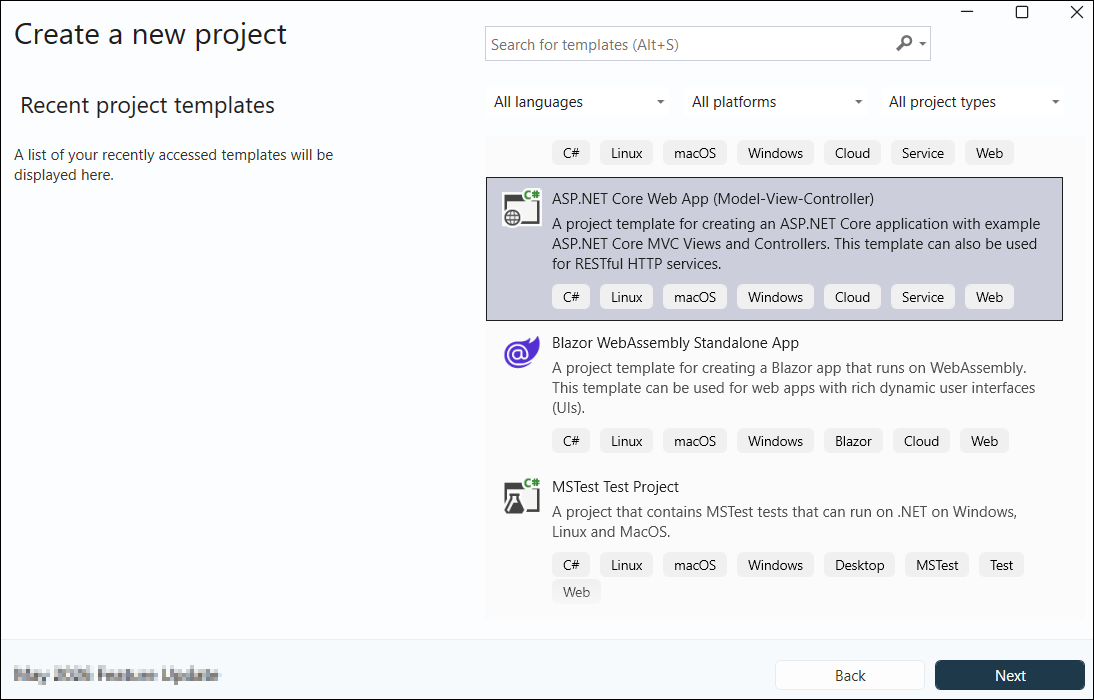
Step 1: Create a new ASP.NET Core MVC Web Application project in Visual Studio.
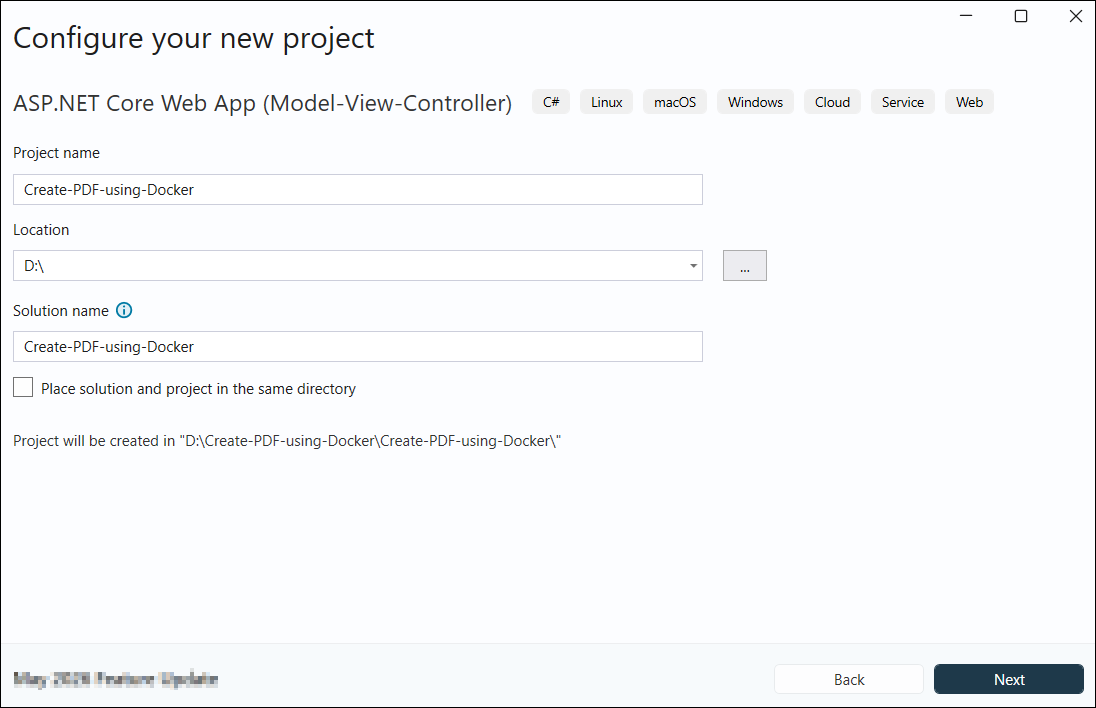
Step 2: In the project configuration window, name your project and select Next.
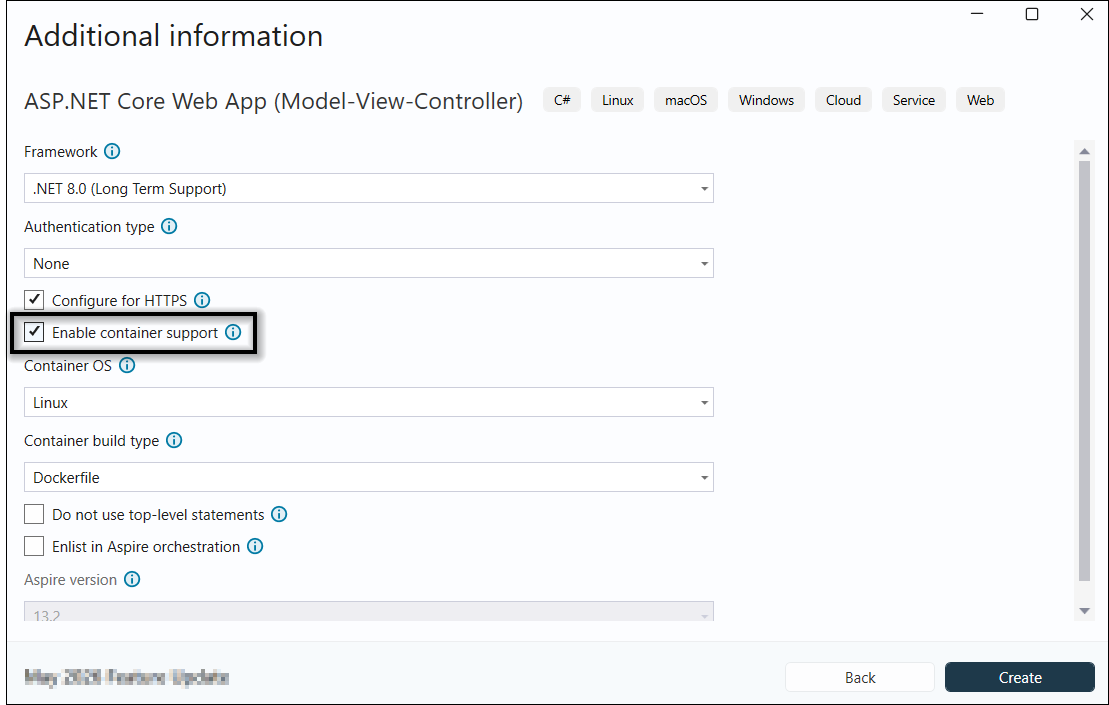
Step 3: Enable Docker support with Linux as the target OS.
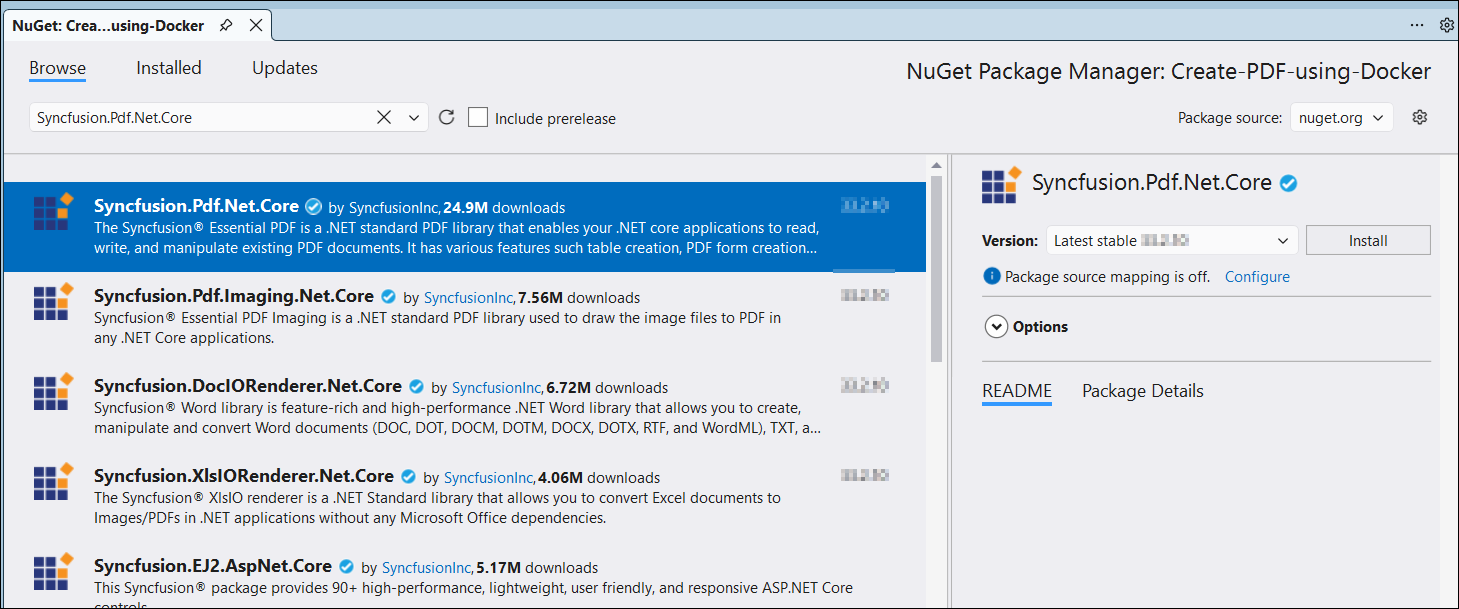
Step 4: Install the Syncfusion.Pdf.Net.Core NuGet package as a reference to your .NET application from NuGet.org.
Step 5: Register the Syncfusion® license key. A trial watermark is added to every page of the generated PDF until a valid key is registered. Include the license key in Program.cs before initializing any Syncfusion® component:
using Syncfusion.Licensing;

var builder = WebApplication.CreateBuilder(args);
// Register the Syncfusion license
Syncfusion.Licensing.SyncfusionLicenseProvider.RegisterLicense("YOUR LICENSE KEY");

// Add services to the container.
builder.Services.AddControllersWithViews();

var app = builder.Build();
Replace "YOUR LICENSE KEY" with the license key associated with your Syncfusion® account. If you do not have a license key, you can request a free 30-day trial or apply for a Community License from the Syncfusion® website. For more information about registering a license key in your application, refer to the Syncfusion® Licensing Documentation.
Step 6: A default action method named Index is present in HomeController.cs. Right-click on this Index method and select Go To View to open its associated view page Index.cshtml. Add a new button in Index.cshtml as follows.
@{
    Html.BeginForm("CreatePDFDocument", "Home", FormMethod.Get);
    {
        <div>
            <input type="submit" value="Generate PDF Document" style="width:150px;height:27px" />
        </div>
    }
    Html.EndForm();
}
Step 7: The PdfDocument object represents an entire PDF document that is being created. The PdfTextElement is used to add text in a PDF document and which provides the layout result of the added text by using the location of the next element that decides to prevent content overlapping. The PdfGrid allows you to create table by entering data manually or from an external data sources.
Add the following code sample in ExportService class which illustrates how to create a simple PDF document using PdfTextElement and PdfGrid.
public ActionResult CreatePDF()
{
    // Create a new PDF document.
    using (PdfDocument pdfDocument = new PdfDocument())
    {
        int paragraphAfterSpacing = 8;
        int cellMargin = 8;

        // Add page to the PDF document.
        PdfPage page = pdfDocument.Pages.Add();
        // Create title and description.
        PdfStandardFont font = new PdfStandardFont(PdfFontFamily.TimesRoman, 16);
        PdfTextElement title = new PdfTextElement("Weather Forecast", font, PdfBrushes.Black);
        PdfLayoutResult result = title.Draw(page, new PointF(0, 0));

        PdfStandardFont contentFont = new PdfStandardFont(PdfFontFamily.TimesRoman, 12);
        PdfTextElement content = new PdfTextElement(
            "This component demonstrates fetching data from a service and exporting the data to a PDF document using Syncfusion .NET PDF library.",
            contentFont,
            PdfBrushes.Black);
        PdfLayoutFormat format = new PdfLayoutFormat
        {
            Layout = PdfLayoutType.Paginate
        };
        result = content.Draw(
            page,
            new RectangleF(0, result.Bounds.Bottom + paragraphAfterSpacing, page.GetClientSize().Width, page.GetClientSize().Height),
            format);
        // Create and style the PDF grid.
        PdfGrid pdfGrid = new PdfGrid();
        pdfGrid.Style.CellPadding.Left = cellMargin;
        pdfGrid.Style.CellPadding.Right = cellMargin;
        pdfGrid.ApplyBuiltinStyle(PdfGridBuiltinStyle.GridTable4Accent1);
        // Assign data source.
        pdfGrid.DataSource = forecasts;
        pdfGrid.Style.Font = contentFont;
        // Draw PDF grid into the PDF page.
        pdfGrid.Draw(page, new PointF(0, result.Bounds.Bottom + paragraphAfterSpacing));
        using (MemoryStream stream = new MemoryStream())
        {
            // Save the PDF document into the stream.
            pdfDocument.Save(stream);

            return File(stream.ToArray(), "application/pdf", "Output.pdf");
        }
    }
}
Step 8: Build and run the sample in Docker. The project uses the mcr.microsoft.com/dotnet/aspnet Linux base image pulled from Docker Hub. Once the container starts, the web page opens in the browser. Click the Generate PDF Document button to download the generated PDF document.
You can download a complete working sample from GitHub.
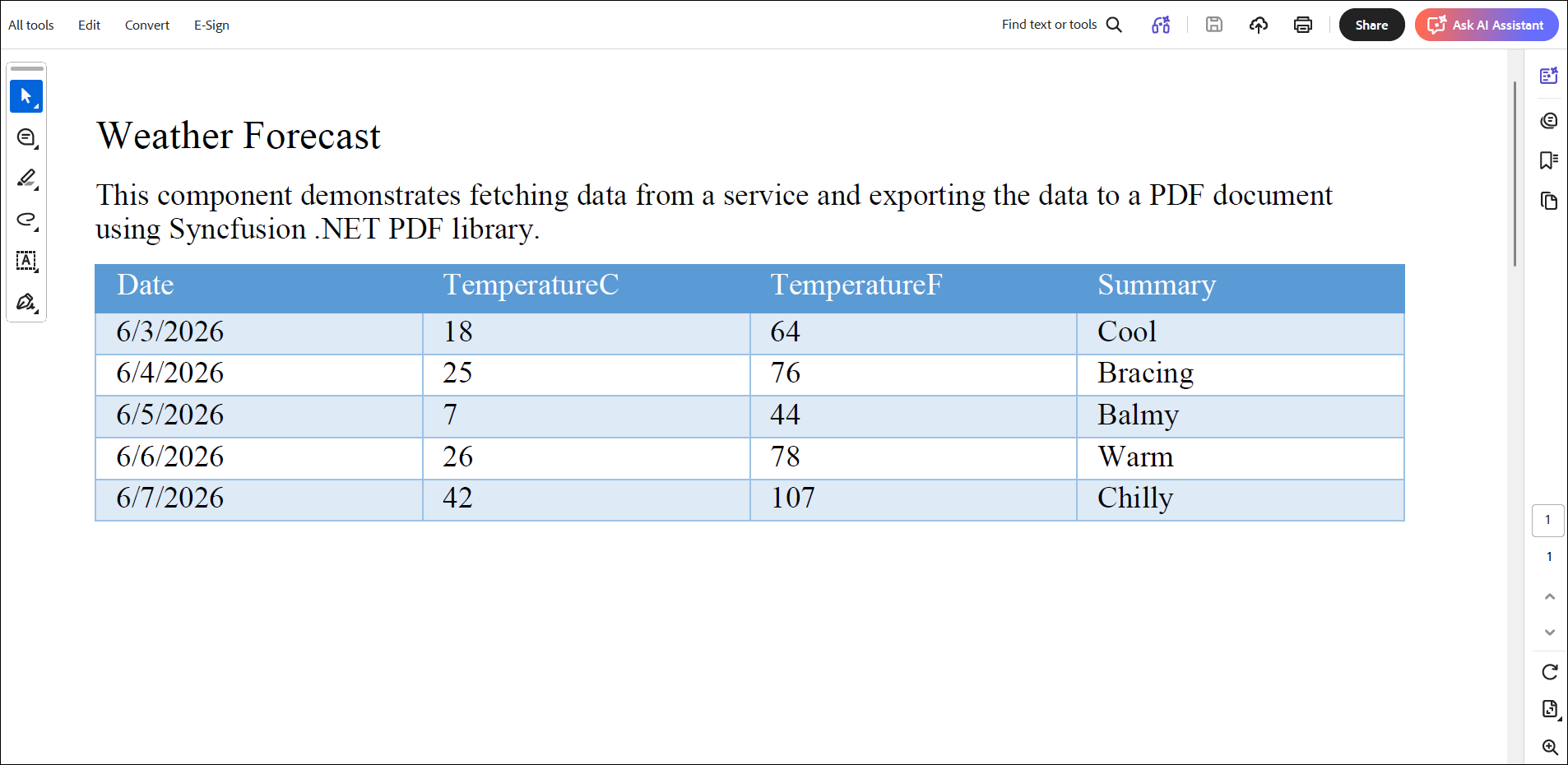
By executing the program, you will get a PDF document as follows.
Troubleshooting
| Issue | Possible Cause | Solution |
|---|---|---|
Docker build fails with libgdiplus errors |
Linux container missing native dependencies for System.Drawing | Add RUN apt-get update && apt-get install -y libgdiplus to the Dockerfile |
| “Cannot connect to Docker daemon” | Docker Desktop not running | Start Docker Desktop and ensure the Linux container mode is selected |
| License key not registered exception |
SyncfusionLicenseProvider.RegisterLicense not called |
Add license registration in Program.cs before app build |
WeatherForecast not found |
Model class not added | Add the WeatherForecast model class shown in Step 7 |
forecasts variable not resolved |
Data not initialized in controller | Use the data initialization shown in Step 9 |
| Form posts but no file downloads | Action method name mismatch | Ensure the method is named CreatePDFDocument to match the form action |
Click here to explore the rich set of Syncfusion® PDF library features.
An online sample link to create a PDF document.