Getting Started with .NET PDF Library in AKS
13 Aug 202611 minutes to read
The .NET PDF library is used to create, read, edit PDF documents programmatically without the dependency of Adobe Acrobat. Using this library, you can create PDF document in AKS Environment.
Prerequisites
- An active Microsoft Azure subscription is required.
- Install the Azure CLI and the kubectl tool.
- An existing Azure Container Registry (ACR) and AKS cluster to deploy to. If you do not have these, create them in the Azure portal before continuing.
- Make sure Docker support is enabled in Visual Studio to publish as a container.
Steps to create PDF document in AKS Environment
Step 1: Create a new ASP.NET Core Web App (Model-View-Controller).

Step 2: Create a project name and select the location.
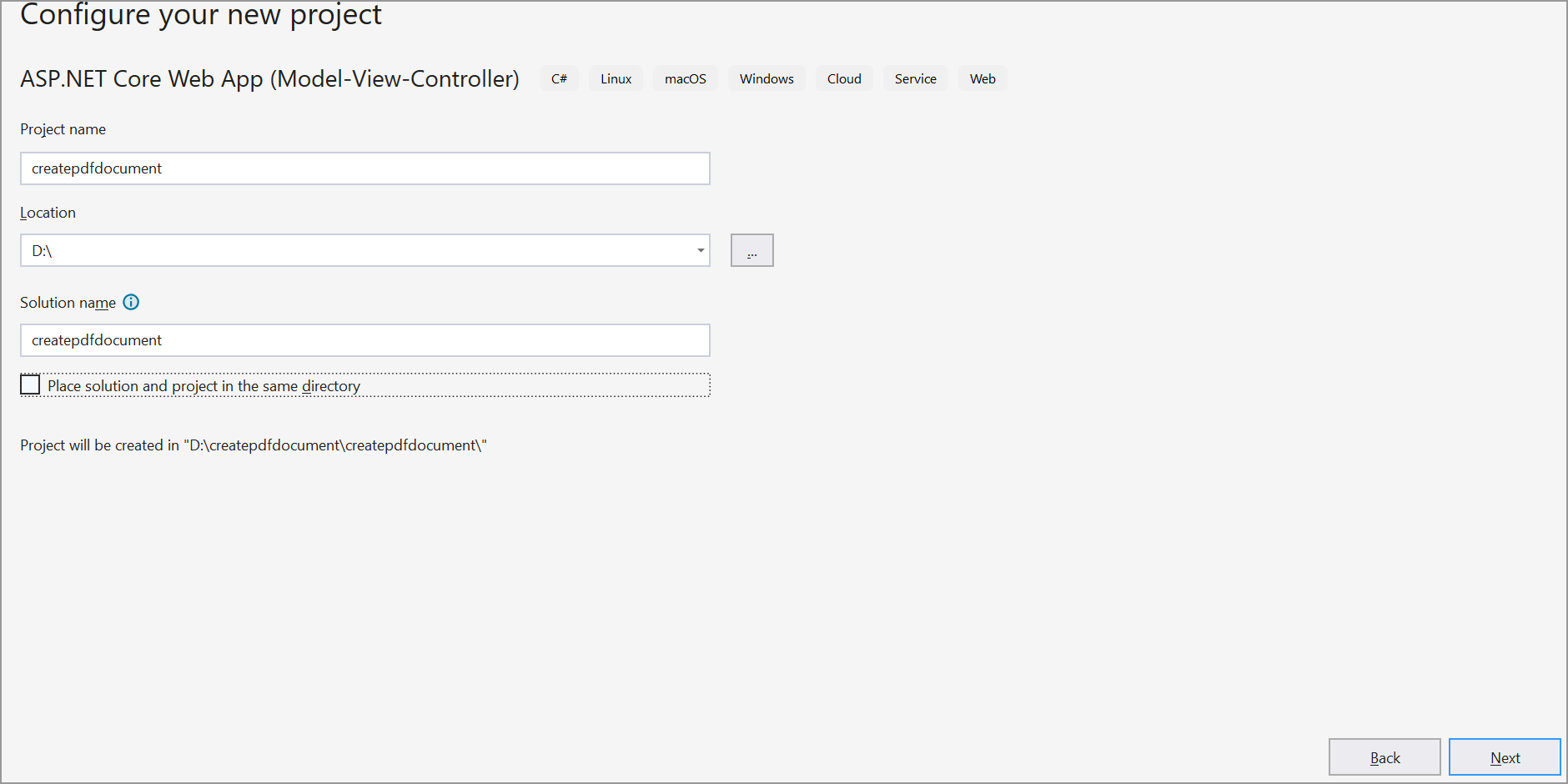
Step 3: Click Create button.

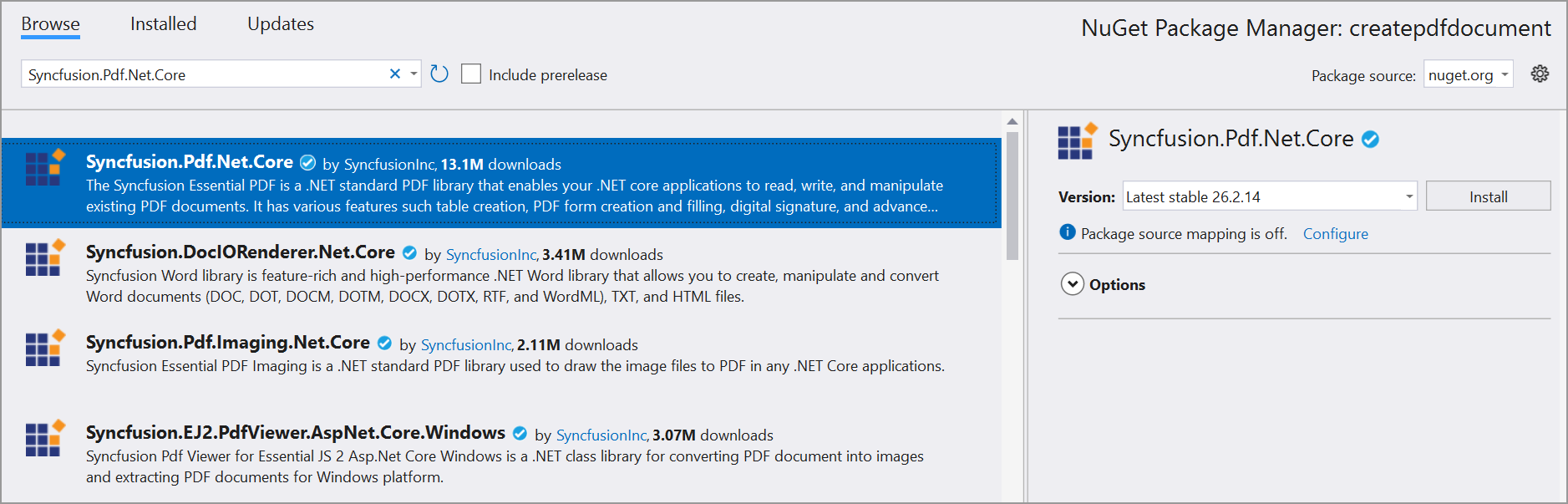
Step 4: Install the Syncfusion.Pdf.Net.Core NuGet package as a reference to your project from NuGet.org.
Step 5: Register the Syncfusion® license key. A trial watermark is added to every page of the generated PDF until a valid key is registered. Include the license key in Program.cs before initializing any Syncfusion® component:
using Syncfusion.Licensing;

var builder = WebApplication.CreateBuilder(args);
// Register the Syncfusion license
Syncfusion.Licensing.SyncfusionLicenseProvider.RegisterLicense("YOUR LICENSE KEY");

// Add services to the container.
builder.Services.AddControllersWithViews();

var app = builder.Build();
Replace "YOUR LICENSE KEY" with the license key associated with your Syncfusion® account. If you do not have a license key, you can request a free 30-day trial or apply for a Community License from the Syncfusion® website. For more information about registering a license key in your application, refer to the Syncfusion® Licensing Documentation.
Step 6: A default action method named Index will be present in HomeController.cs. Right-click on Index method and select Go To View where you will be directed to its associated view page Index.cshtml. Add a new button in the Index.cshtml as shown below.
@{
    Html.BeginForm("CreatePDFDocument", "Home", FormMethod.Get);
    {
        <div>
            <input type="submit" value="Create PDF Document" style="width:200px;height:27px" />
        </div>
    }
    Html.EndForm();
}
Step 7: Include the following namespaces in HomeController.cs.
using Syncfusion.Pdf.Graphics;
using Syncfusion.Pdf;
using Syncfusion.Pdf.Grid;
using Syncfusion.Drawing;
Step 8: Inject IWebHostEnvironment in the HomeController constructor and add a new action method named CreatePDFDocument in HomeController.cs. Include the below code example to generate a PDF document in HomeController.cs.
private readonly IWebHostEnvironment _hostingEnvironment;
public HomeController(IWebHostEnvironment hostingEnvironment)
{
    _hostingEnvironment = hostingEnvironment;
}

public IActionResult CreatePDFDocument()
{
    //Create a new PDF document.
    PdfDocument document = new PdfDocument();
    //Set the page size.
    document.PageSettings.Size = PdfPageSize.A4;
    //Add a page to the document.
    PdfPage page = document.Pages.Add();

    //Create PDF graphics for the page.
    PdfGraphics graphics = page.Graphics;
    //Load the image from the disk.
    string imagePath = Path.Combine(_hostingEnvironment.WebRootPath, "Data/AdventureCycle.jpg");
    FileStream imageStream = new FileStream(imagePath, FileMode.Open, FileAccess.Read);
    PdfBitmap image = new PdfBitmap(imageStream);
    //Draw an image.
    graphics.DrawImage(image, new RectangleF(130, 0, 250, 100));

    //Draw header text.
    graphics.DrawString("Adventure Works Cycles", new PdfStandardFont(PdfFontFamily.TimesRoman, 20, PdfFontStyle.Bold), PdfBrushes.Gray, new PointF(150, 150));

    //Add paragraph.
    string text = "Adventure Works Cycles, the fictitious company on which the AdventureWorks sample databases are based, is a large, multinational manufacturing company. The company manufactures and sells metal and composite bicycles to North American, European and Asian commercial markets. While its base operation is located in Washington with 290 employees, several regional sales teams are located throughout their market base.";
    //Create a text element with the text and font.
    PdfTextElement textElement = new PdfTextElement(text, new PdfStandardFont(PdfFontFamily.TimesRoman, 12));
    //Draw the text in the first column.
    textElement.Draw(page, new RectangleF(0, 200, page.GetClientSize().Width, page.GetClientSize().Height));

    //Create a PdfGrid.
    PdfGrid pdfGrid = new PdfGrid();
    //Add values to the list.
    List<object> data = new List<object>();
    Object row1 = new { Product_ID = "1001", Product_Name = "Bicycle", Price = "10,000" };
    Object row2 = new { Product_ID = "1002", Product_Name = "Head Light", Price = "3,000" };
    Object row3 = new { Product_ID = "1003", Product_Name = "Break wire", Price = "1,500" };
    data.Add(row1);
    data.Add(row2);
    data.Add(row3);
    //Add list to IEnumerable.
    IEnumerable<object> dataTable = data;
    //Assign data source.
    pdfGrid.DataSource = dataTable;
    //Apply built-in table style.
    pdfGrid.ApplyBuiltinStyle(PdfGridBuiltinStyle.GridTable4Accent3);
    //Draw the grid to the page of PDF document.
    pdfGrid.Draw(graphics, new RectangleF(0, 300, page.Size.Width - 80, 0));

    //Saving the PDF to the MemoryStream.
    MemoryStream stream = new MemoryStream();
    document.Save(stream);
    //Set the position as '0'.
    stream.Position = 0;
    //Download the PDF document in the browser.
    FileStreamResult fileStreamResult = new FileStreamResult(stream, "application/pdf");
    fileStreamResult.FileDownloadName = "Sample.pdf";
    return fileStreamResult;
}
Publish Container to ACR
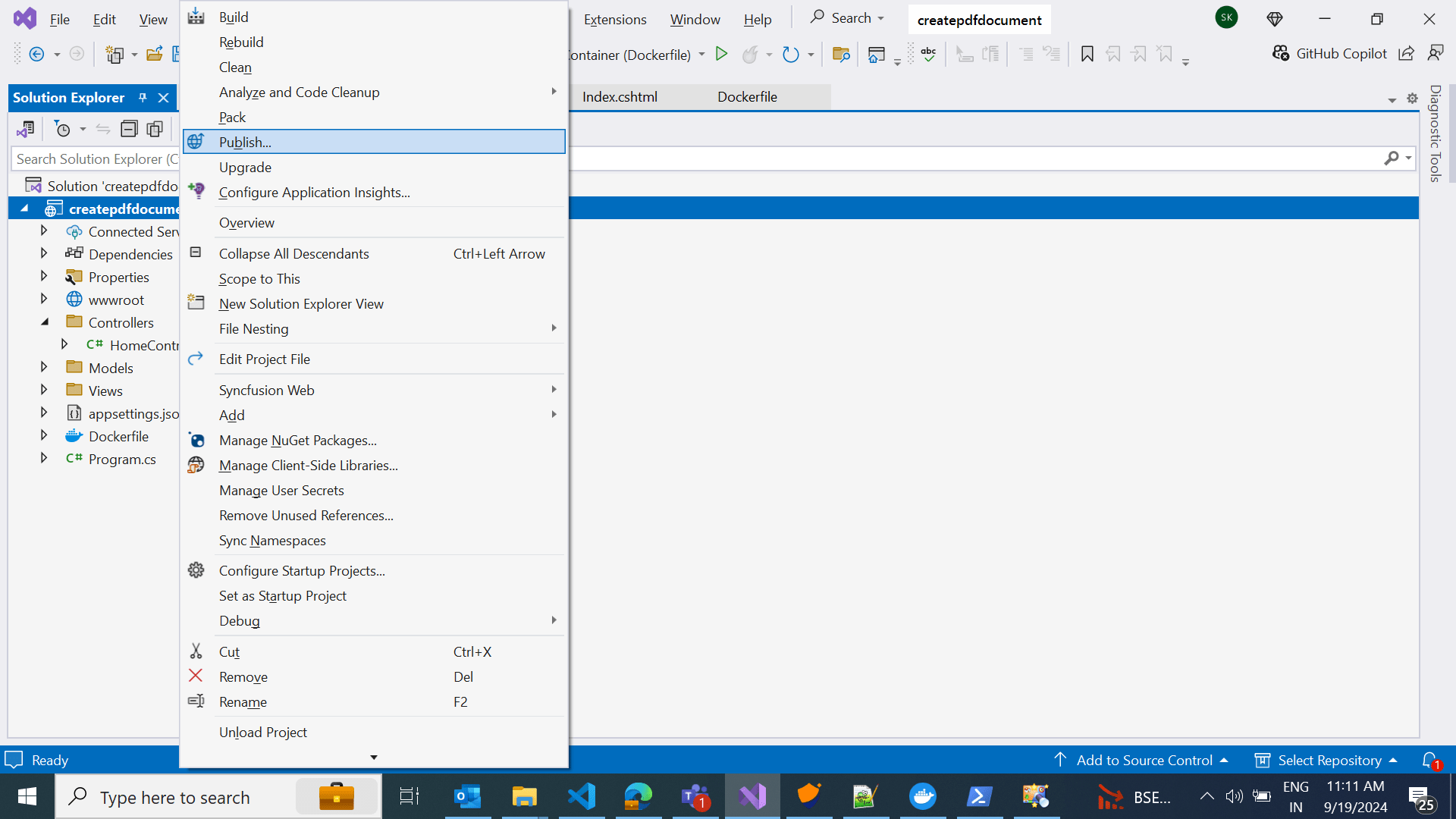
Step 1: Right-click the project and select Publish option.
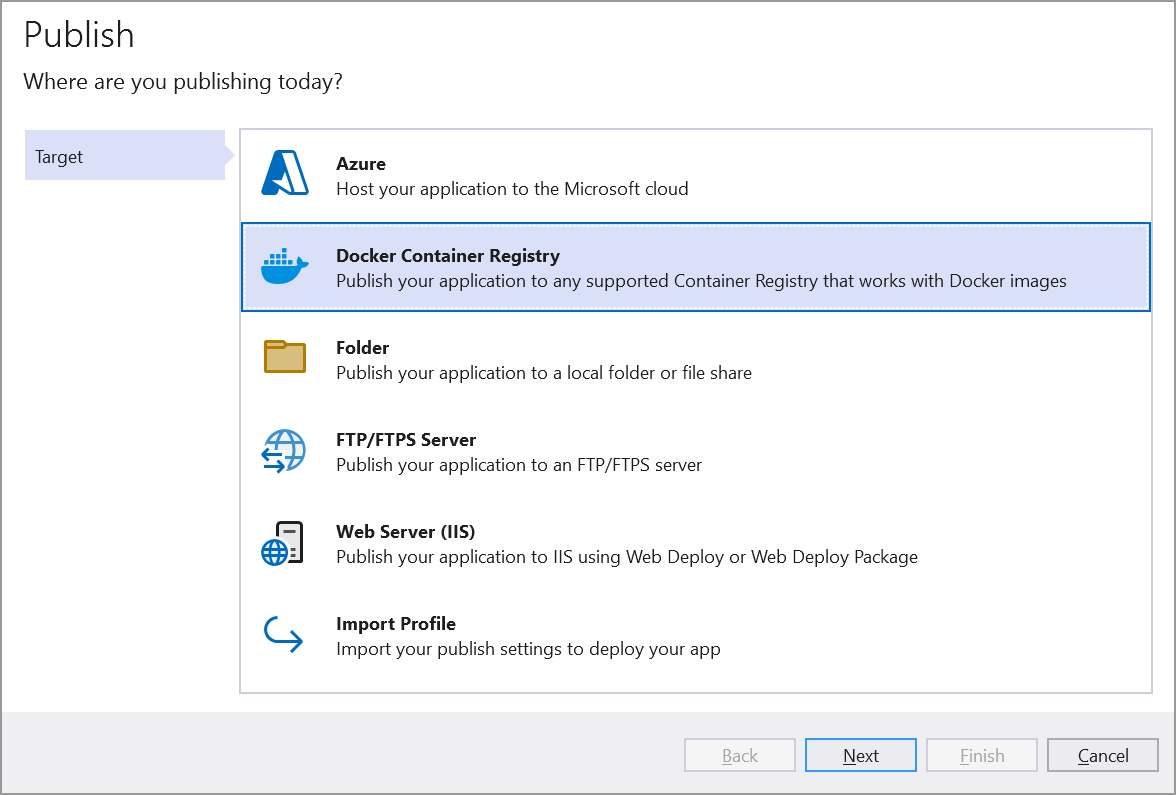
Step 2: Select the publish target as Docker Container Registry.
Step 3: Select the Specific target as Azure Container Registry.

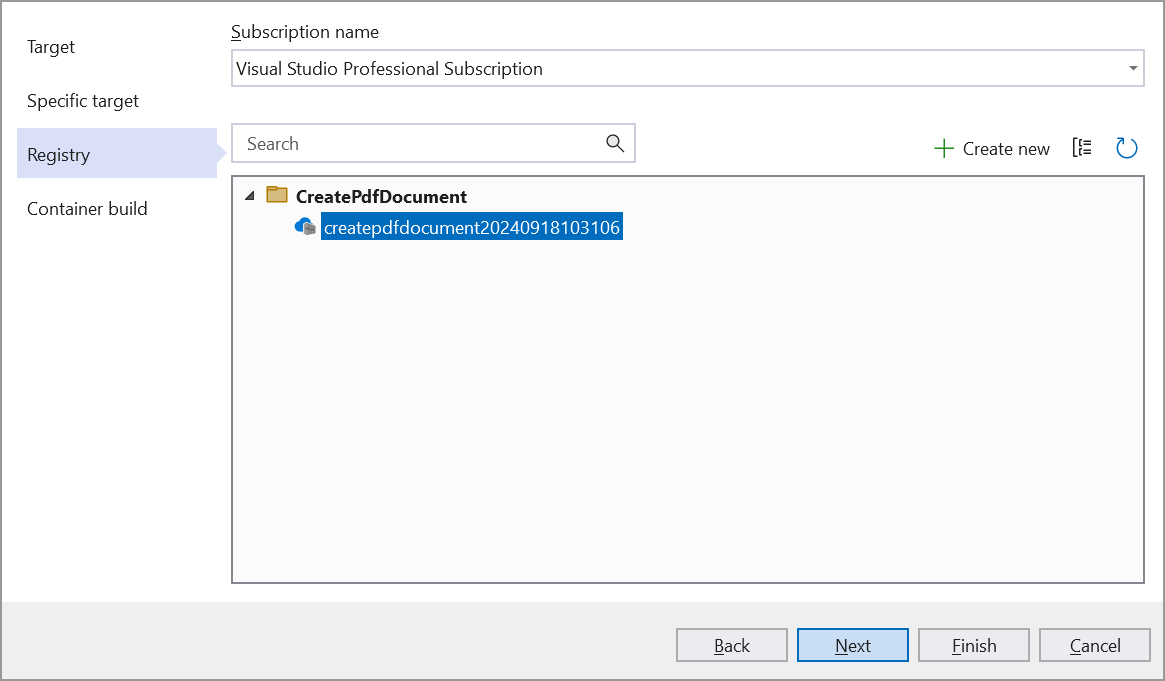
Step 4: Once you select your Subscription, The registry we created earlier and the resource group it is in should be detected. Select it and click Finish.
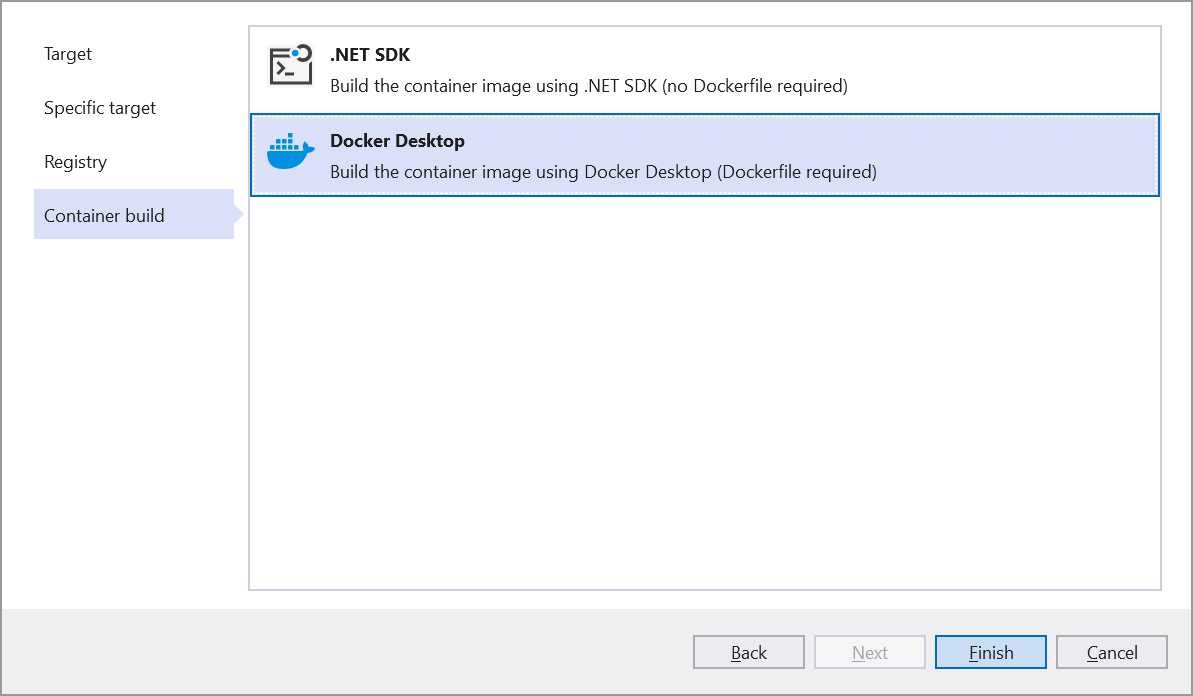
Step 5: Select the container build option and click Finish.
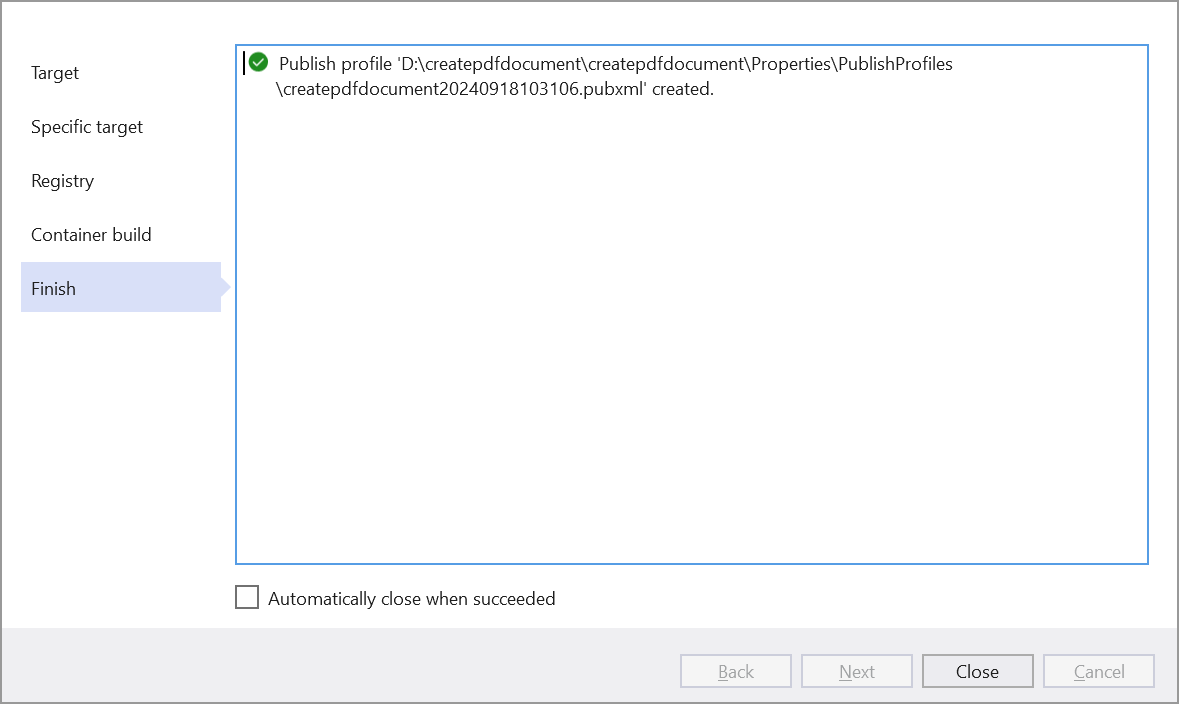
Step 6: Click Close button.
Step 7: Click the Publish button.
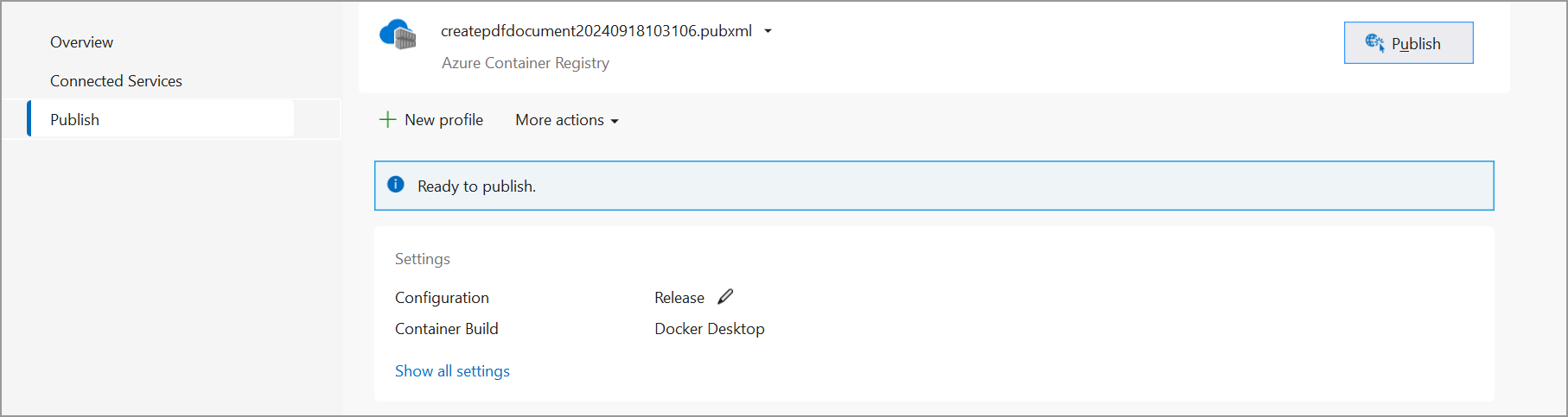
Step 8: It will push the docker image to the Azure container registry.

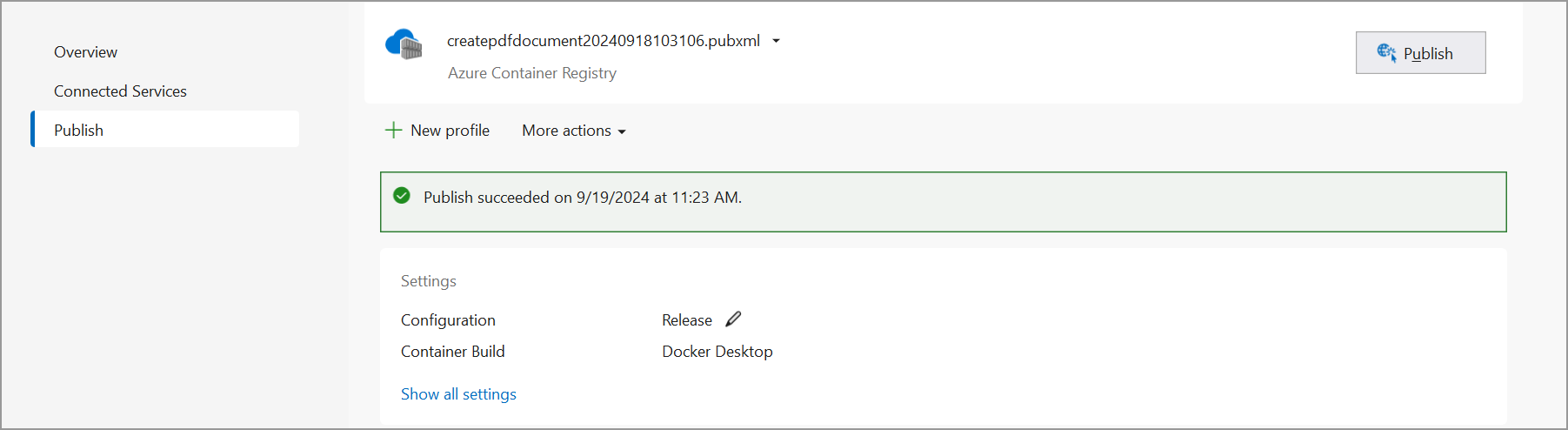
Step 9: Publish succeeded.
Deploy Container Image to AKS
Step 1: Now we can deploy container to the AKS cluster. Start by opening the Azure portal, browsing to the Subscription and opening the Cloud Shell (BASH). We will use the kubectl tool to manage the cluster.
Step 2: You need to gather the credentials in order to interact with the cluster using kubectl in Azure Cloud Shell. Use the following command:
az aks get-credentials --resource-group CreatePdfDocument --name aks-uk-demo-msdnStep 3: You can review the credentials with the following command:
cat .kube/configIf you forgot to attach the ACR when creating the AKS resource (Like I did the first time), you can attach it after. I had to use the following command:
az aks update -n aks-uk-demo-msdn -g CreatePdfDocument --attach-acr createpdfdocument20240918103106
Step 4: Now in the Cloud Shell, create a new file called deploy.yaml as follows:
code deploy.yamlStep 5: Then we pasted in the following Kubernetes Deployment and Service configurations. Note, change yours to match your app name, container name, registry, etc.
apiVersion: apps/v1
kind: Deployment
metadata:
  name: createpdfdocument
spec:
  replicas: 2
  selector:
    matchLabels:
      app: createpdfdocument
  template:
    metadata:
      labels:
        app: createpdfdocument
    spec:
      containers:
      - name: createpdfdocument
        image: createpdfdocument20240918103106.azurecr.io/createpdfdocument:latest
---
apiVersion: v1
kind: Service
metadata:
  name: createpdfdocument
spec:
  type: LoadBalancer
  ports:
    - port: 80
      targetPort: 80
      protocol: TCP
  selector:
    app: createpdfdocument
Step 6: Once you save and close the code editor, it’s finally time to apply the configuration:
kubectl apply -f deploy.yamlStep 7: Notice the deployment and service show as created.

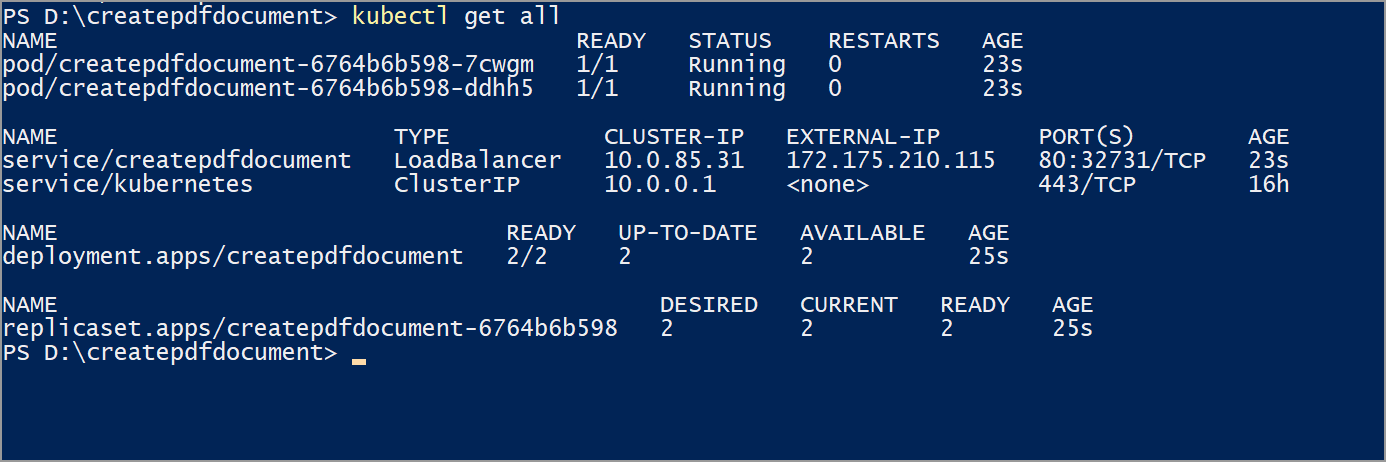
Step 8: You can run the following commands:
kubectl get pods
kubectl get nodes
kubectl get service
kubectl describe deployment
or
kubectl get allStep 9: This will show the pods, services, apps and replica sets.
 .
.
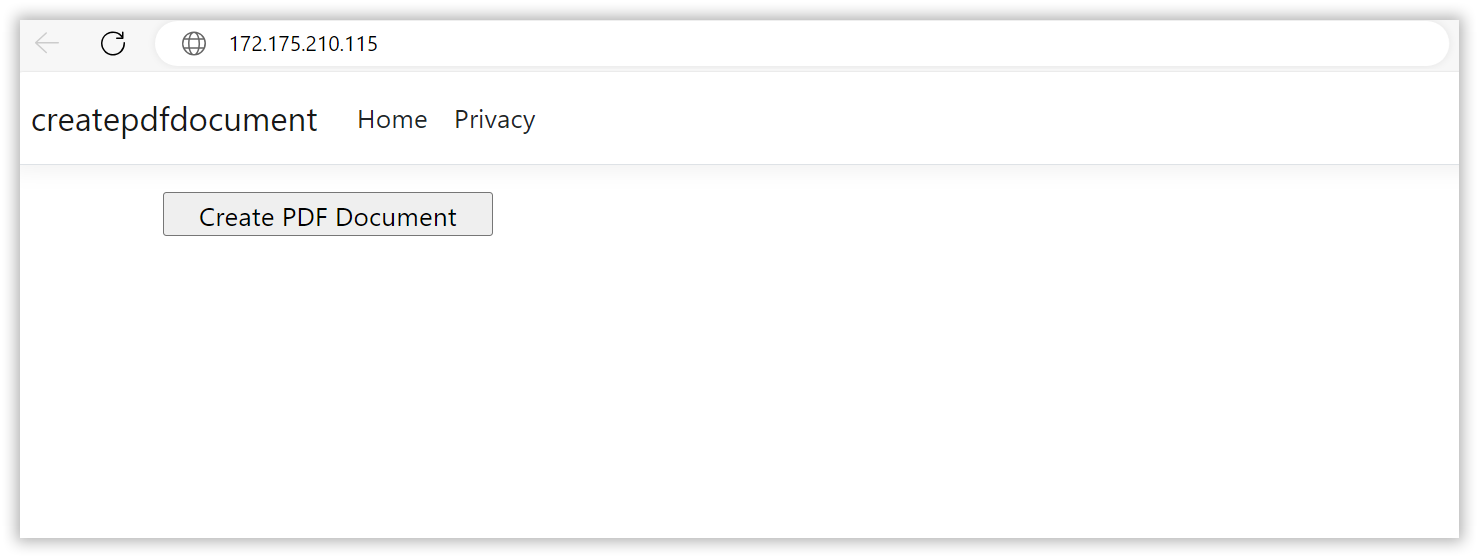
Step 10: We can see the EXTERNAL-IP of the LoadBalancer above as being 20.117.254.138 and the port as 80. You can now use this to browse the web app running on AKS.
 .
.
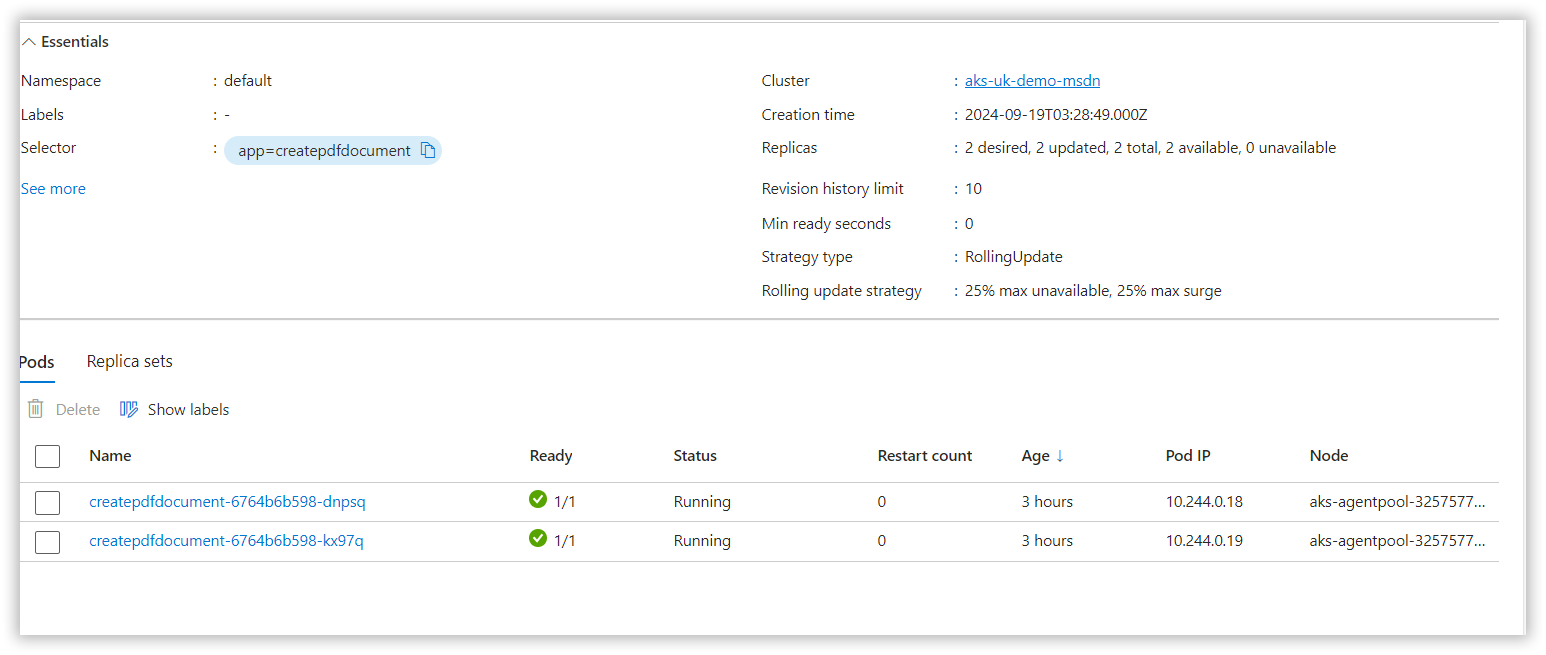
If we head over to the Azure portal, select the AKS resource > Workloads > createpdfdocument, we can see the pods.
 .
.
And that’s it, the containerised ASP.NET Core Web App is running on the AKS cluster.
Select the PDF document and Click Create PDF document to generate the PDF document. You will get the output PDF document as follows.

Delete deployment
If you want to clean up the cluster, you can run the following commands:
kubectl delete -f deploy.yaml
kubectl delete svc createpdfdocument --namespace=default
You can download a complete working sample from GitHub.
Click here to explore the rich set of Syncfusion® PDF library features.
An online sample link to create PDF document.