Getting Started with JavaScript PDF in React app
13 Aug 20268 minutes to read
The JavaScript PDF Library is used to create, read, and edit PDF documents. The JavaScript PDF Library also offers functionality to merge, split, stamp, fill PDF forms, and secure PDF files.
This guide explains how to integrate the JavaScript PDF Library into a React application that runs in the browser. The generated PDF is downloaded directly from the browser; no server-side PDF rendering is required.
Prerequisites
Before you begin, make sure you have the following installed:
- Node.js 18 or later.
- npm 9 or later, or Yarn 1.22 or later.
- React 18 or later.
- Visual Studio Code, Code Studio, or another code editor.
- A supported browser such as the latest versions of Microsoft Edge, Google Chrome, or Mozilla Firefox.
To verify your Node.js and npm versions, run:
node --version
npm --version
Create a React Project
This guide uses Vite to scaffold the React project. Run the following command in a terminal:
npm create vite@latest my-pdf-app -- --template react
cd my-pdf-app
After the project is created, install its dependencies:
npm installInstall the JavaScript PDF Library
All Syncfusion® JS 2 packages are published in the npmjs.com registry. The npm install command below resolves @syncfusion/ej2-pdf to the latest stable version compatible with React 18 or later.
- To install the JavaScript PDF Library, use the following command.
npm install @syncfusion/ej2-pdf --saveFor image and data extraction features, install the
@syncfusion/ej2-pdf-data-extractpackage as an add-on. Note the following:
- Copy the
ej2-pdf-libfolder from the@syncfusion/ej2-pdf-data-extractpackage into your project’spublic/,dist/, orassets/directory (wherever your static files are served).- Make sure the
ej2-pdf-libfolder exists in your final build output if you need to extract images or data from PDF files.- Ensure your server serves
.wasmfiles with the Content-Type: application/wasm MIME type. Vite’s development server already handles this; configure production servers manually.- This setup is not required for basic PDF creation.
Transitive Dependencies
The following packages are included automatically by @syncfusion/ej2-pdf and do not need to be installed separately:
-
@syncfusion/ej2-base— common utilities used by the library. -
@syncfusion/ej2-compression— compression support used by PDF features.
License Registration
If your project requires a Syncfusion license, register the license key before using the PDF API. Add the following code at the top of App.jsx:
import { registerLicense } from '@syncfusion/ej2-base';

registerLicense('YOUR_LICENSE_KEY');
Replace YOUR_LICENSE_KEY with the key from your Syncfusion account. For more information, see the Syncfusion licensing documentation.
Create a PDF Document
Replace the contents of App.jsx with the following code. The file imports the PDF classes as named exports from @syncfusion/ej2-pdf and creates a one-page PDF with a click handler.
import React from 'react';
import { registerLicense } from '@syncfusion/ej2-base';
import {
  PdfDocument,
  PdfFontFamily,
  PdfFontStyle,
  PdfBrush
} from '@syncfusion/ej2-pdf';

// Optional: register the Syncfusion license key (required for commercial usage)
registerLicense('YOUR_LICENSE_KEY');
export default function App() {
  const createPdf = () => {
    // Create a new PDF document
    const pdf = new PdfDocument();
    // Add a new page
    const page = pdf.addPage();
    // Get graphics from the page
    const graphics = page.graphics;
    // Embed a standard font (family, size, style)
    const font = pdf.embedFont(
      PdfFontFamily.helvetica,
      36,
      PdfFontStyle.regular
    );
    // Create a solid black brush using an RGB object
    const brush = new PdfBrush({ r: 0, g: 0, b: 0 });
    // Draw the text inside a layout rectangle
    graphics.drawString(
      'Hello World!!!',
      font,
      { x: 20, y: 20, width: graphics.clientSize.width - 20, height: 60 },
      brush
    );
    // Save and download the PDF
    pdf.save('Output.pdf');
    // Release document resources
    pdf.destroy();
  };
  return (
    <div style={{ padding: '1.5rem' }}>
      <button onClick={createPdf}>Create PDF document</button>
    </div>
  );
}
This sample uses named imports from the npm package (
import { PdfDocument, ... } from '@syncfusion/ej2-pdf'). The npm package does not expose a globalejnamespace; usingej.pdf.PdfDocumentwithout an import will throwReferenceError: ej is not definedin a Vite or Create-React-App build. If you prefer the UMD-style global, loadej2.min.jsfrom the Syncfusion CDN inindex.htmlinstead of importing the npm package.
Code Explanation
-
registerLicense(key)— registers the Syncfusion license key at application startup. Required for commercial usage. -
PdfDocument— creates a new PDF document instance. -
addPage()— appends a blank page to the document and returns thePdfPageobject. -
page.graphics— returns thePdfGraphicsdrawing surface for the page. -
embedFont(family, size, style)— embeds one of the standard PDF font families (here, Helvetica 36pt regular) and returns aPdfFontobject. -
new PdfBrush({ r, g, b })— creates a solid color brush from an RGB object (each channel0-255); here, black. -
drawString(text, font, layoutRect, brush)— draws the text inside the rectangle defined byx,y,width, andheight. -
graphics.clientSize.width— the writable width of the page in points. -
save('Output.pdf')— saves the PDF and triggers a browser download with the specified file name. The file is sent to the browser’s default downloads folder. -
destroy()— releases native resources held by the document.
Run the Application
Open a terminal in the project root and start the Vite development server:
npm run devVite serves the application at http://localhost:5173. Open this URL in a browser and click Create PDF document to download the generated file as Output.pdf.
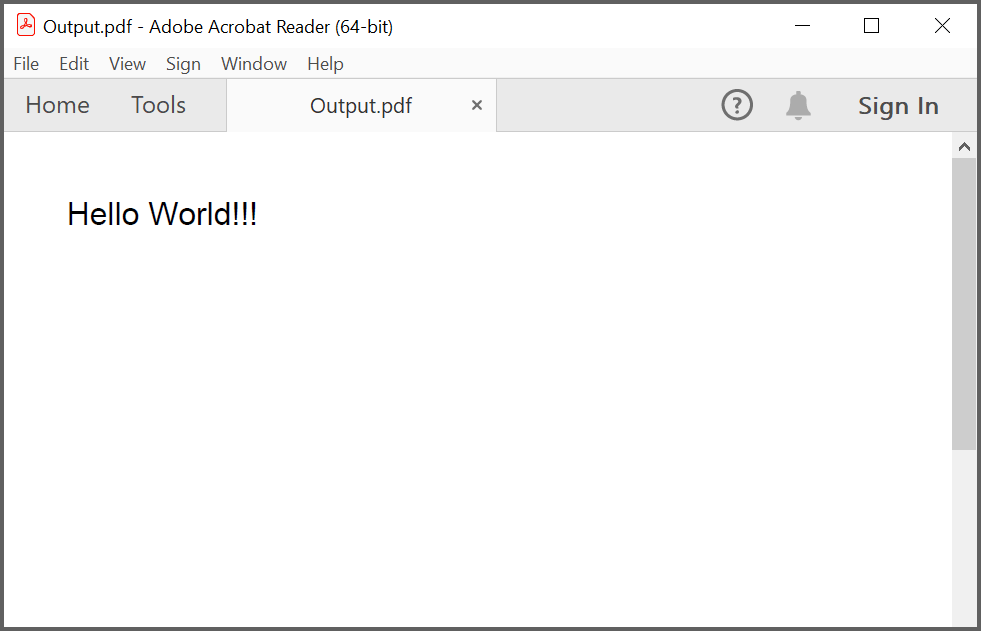
The generated PDF contains a single page with the text “Hello World!!!” drawn at the top-left.
If you used Create-React-App instead of Vite, the run command is
npm startand the default URL ishttp://localhost:3000.
Troubleshooting
| Problem | Cause | Resolution |
|---|---|---|
ReferenceError: ej is not defined |
The code uses the global ej.pdf namespace but the npm package does not expose it |
Switch to named imports: import { PdfDocument, ... } from '@syncfusion/ej2-pdf'
|
SyntaxError: Unexpected token ':' in App.jsx
|
TypeScript type annotations were left in a .jsx file |
Remove the : ej.pdf.PdfType annotations, or rename App.jsx to App.tsx and add TypeScript |
Error: Cannot find module '@syncfusion/ej2-pdf' |
The package is not installed | Run npm install @syncfusion/ej2-pdf --save
|
| Button click does nothing | The click handler is not wired | Confirm the button uses onClick={createPdf} and that createPdf is defined in the same component |
WASM 404 or MIME type error |
The ej2-pdf-lib folder is missing or not served with the right MIME type |
Copy the ej2-pdf-lib folder from the @syncfusion/ej2-pdf-data-extract package into public/ and confirm the server serves .wasm as application/wasm
|
Output.pdf does not download |
The browser blocks the download | Check the browser’s download settings and the downloads folder |
registerLicense warning at runtime |
The license key is missing or invalid | Confirm the key is set in App.jsx and is the correct key for your Syncfusion account |
| Vite dev server fails to start | Port 5173 is in use |
Stop the conflicting process or change the port in vite.config.js
|