Getting Started with JavaScript PDF in ASP.NET Core app
13 Aug 20268 minutes to read
The JavaScript PDF Library is used to create, read, and edit PDF documents. The JavaScript PDF Library also offers functionality to merge, split, stamp, fill forms, and secure PDF files.
This guide explains how to integrate the JavaScript PDF Library into an ASP.NET Core application. The PDF is generated client-side in the browser using the Syncfusion JavaScript PDF Library loaded from a CDN; ASP.NET Core is used to host the page that triggers the download.
Prerequisites
Before you begin, make sure you have the following installed:
- Visual Studio 2022 (any edition) with the ASP.NET and web development workload.
- .NET SDK 8.0 (LTS) or later.
- An active internet connection (the sample loads the JavaScript PDF Library from the Syncfusion CDN).
- A supported browser such as the latest versions of Microsoft Edge, Google Chrome, or Mozilla Firefox.
To verify your .NET SDK version, run:
dotnet --versionIntegrate the PDF Library into an ASP.NET Core application
Step 1: Start Visual Studio and select Create a new project.
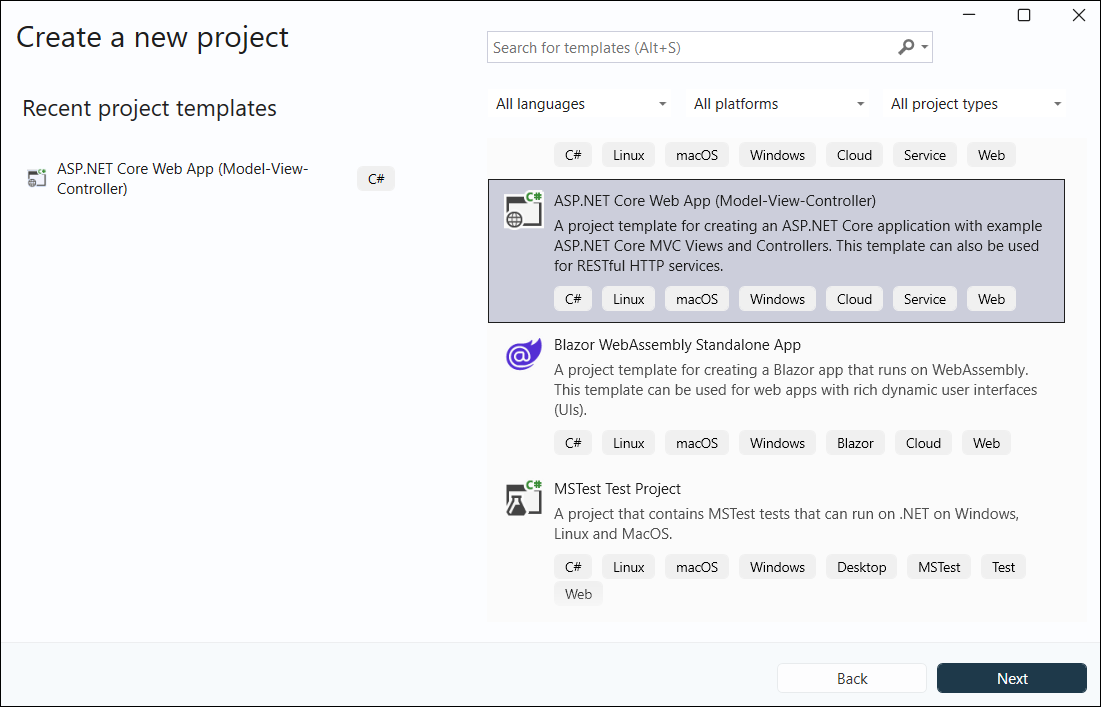
Step 2: In the Create a new project dialog, select ASP.NET Core Web App.
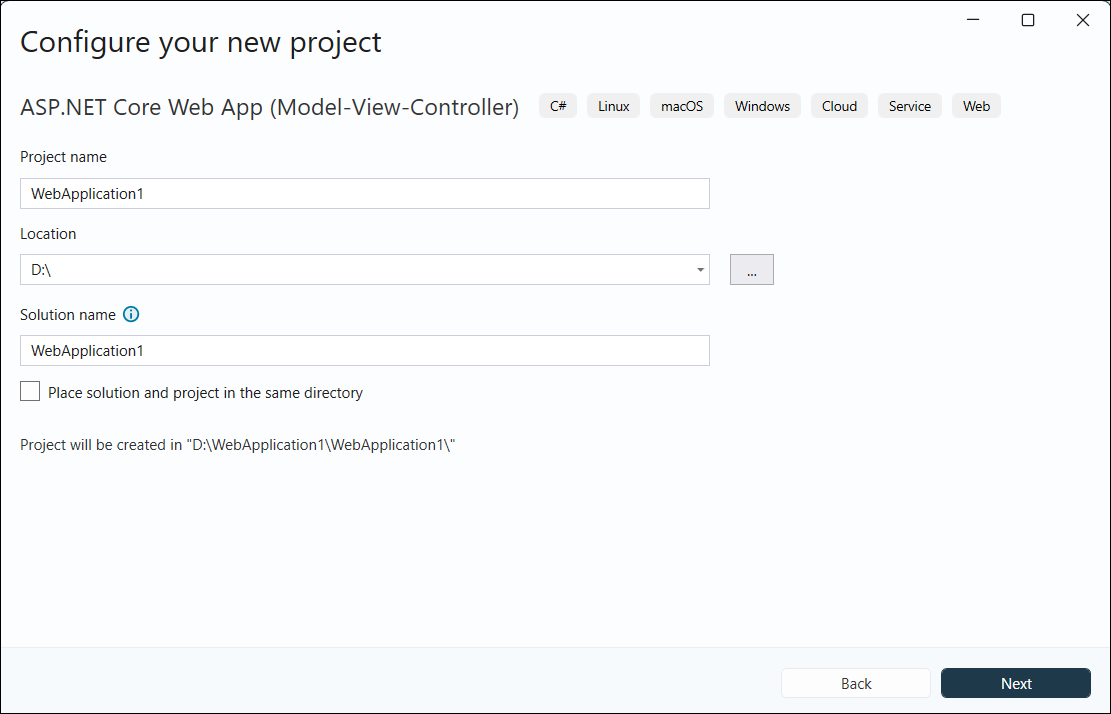
Step 3: In the Configure your new project dialog, enter the project name and select Next.
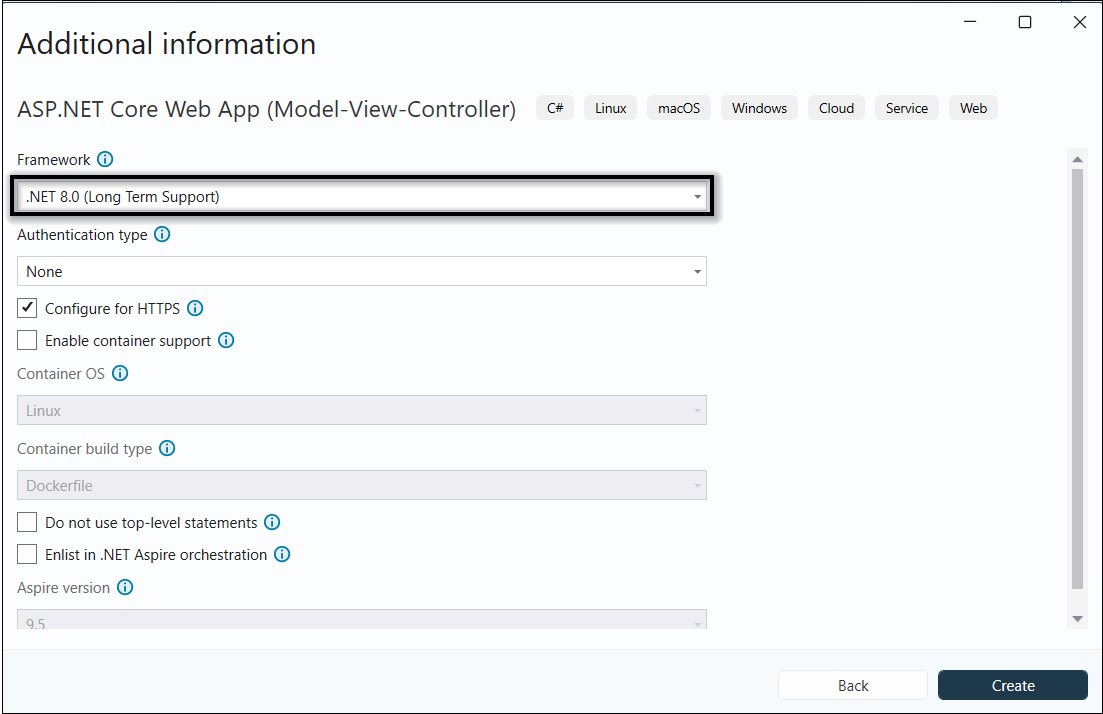
Step 4: In the Additional information dialog, select a .NET LTS version (for example, .NET 8.0 (Long-term support)) and then select Create.
Step 5: Add the script reference: open ~/Views/Shared/_Layout.cshtml and add the Syncfusion CDN reference inside the <head> element. Also confirm that the layout contains @await RenderSectionAsync("Scripts", required: false) so the @section Scripts block in Step 6 can render.
<head>
    <!-- JavaScript PDF Library (CDN) -->
    <script src="https://cdn.syncfusion.com/ej2/31.2.15/dist/ej2.min.js"></script>
</head>
<body>
    @RenderBody()
    @await RenderSectionAsync("Scripts", required: false)
</body>
Check out the following topics for including script references in an ASP.NET Core application to enable PDF creation using the JavaScript PDF Library:
Step 6: Create a PDF document: open ~/Views/Home/Index.cshtml and add a button plus a click handler that uses the JavaScript PDF Library to generate a PDF in the browser.
<div class="container py-4">
    <h1 class="h4 mb-3">Create PDF document</h1>
    <p class="text-muted">Click the button to generate and download a PDF.</p>
    <button id="btnCreatePdf" class="btn btn-primary">Generate PDF document</button>
</div>
@section Scripts {
    <script>
        document.getElementById('btnCreatePdf').addEventListener('click', function () {
            // Create a new PDF document
            let pdf = new ej.pdf.PdfDocument();
            // Add a new page
            let page = pdf.addPage();
            // Get graphics from the page
            let graphics = page.graphics;
            // Set font
            let font = pdf.embedFont(ej.pdf.PdfFontFamily.helvetica, 36, ej.pdf.PdfFontStyle.regular);
            // Create a new black brush
            let brush = new ej.pdf.PdfBrush({ r: 0, g: 0, b: 0 });
            // Draw text
            graphics.drawString('Hello World!!!', font, { x: 20, y: 20, width: graphics.clientSize.width - 20, height: 60 }, brush);
            // Save and download PDF (client-side)
            pdf.save('output.pdf');
            // Destroy the PDF document instance
            pdf.destroy();
        });
    </script>
}
Code Explanation
-
ej.pdf.PdfDocument— creates a new PDF document instance. -
addPage()— appends a blank page to the document and returns thePdfPageobject. -
page.graphics— returns thePdfGraphicsdrawing surface for the page. -
embedFont(family, size, style)— embeds one of the standard PDF font families (here, Helvetica 36pt regular) and returns aPdfStandardFontobject. -
new ej.pdf.PdfBrush({ r, g, b })— creates a solid color brush from an RGB object (each channel0-255); here, black. -
drawString(text, font, layoutRect, brush)— draws the text inside the rectangle defined byx,y,width, andheight. -
graphics.clientSize.width— the writable width of the page in points. -
save('output.pdf')— saves the PDF and triggers a client-side browser download with the specified file name. The file is sent to the browser’s default downloads folder; nothing is written to the server. -
destroy()— releases native resources held by the document.
Build and Run the Application
Step 7: Build the project: click Build > Build Solution or press Ctrl + Shift + B to build the project.
Step 8: Run the project: click the Start button (green arrow) or press F5 to run the app. Visual Studio launches the app in your default browser.
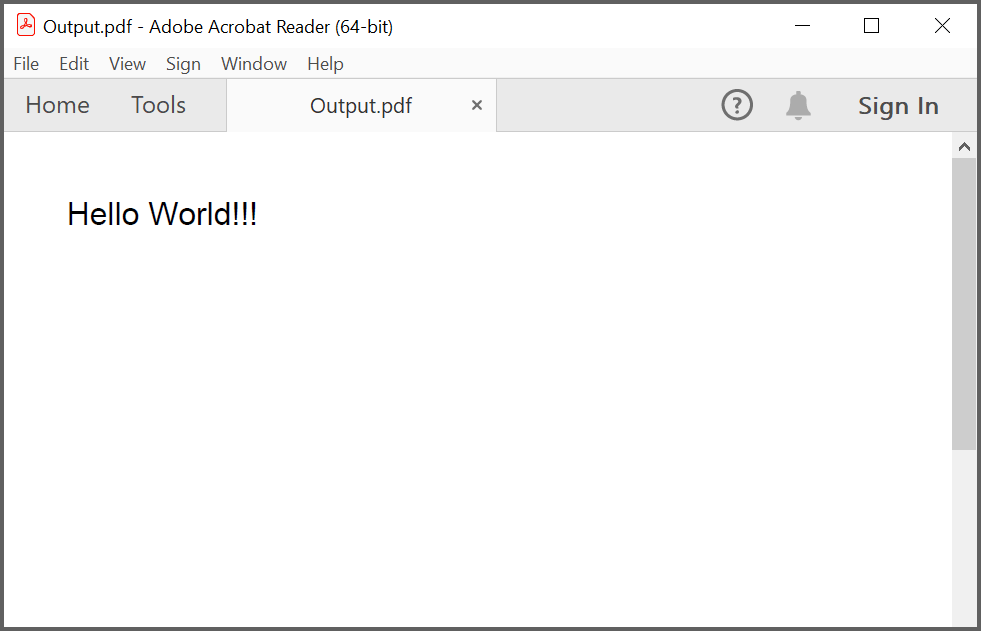
After running the application, click Generate PDF document. The browser downloads output.pdf, which contains a single page with the text “Hello World!!!” drawn at the top-left.
Additional Configuration
For image and data extraction features, install the
@syncfusion/ej2-pdf-data-extractpackage as an add-on (NPM approach), then copy theej2-pdf-libfolder fromnode_modules/@syncfusion/ej2-pdf-data-extract/dist/ej2-pdf-libinto a publicly accessible location underwwwroot/(for example,wwwroot/lib/ej2-pdf-lib/). The folder must contain the required.jsand.wasmfiles. This setup is not required for basic PDF creation as shown in this guide.
Troubleshooting
| Problem | Cause | Resolution |
|---|---|---|
ej is not defined in the browser console |
The CDN script tag is missing or blocked | Confirm the <script> reference in _Layout.cshtml is reachable and not blocked by an ad blocker or network policy |
| Button click does nothing | The click handler is rendered before the button exists, or @section Scripts is missing in the layout |
Confirm _Layout.cshtml contains @await RenderSectionAsync("Scripts", required: false)
|
SyntaxError: Unexpected token ':' |
TypeScript annotations were left inside a plain <script> block |
Remove the : ej.pdf.PdfType annotations; the script must be plain JavaScript |
Failed to load resource: 404 on ej2.min.js
|
The CDN version path is incorrect or the network is restricted | Verify the CDN URL and internet access; switch to the NPM or CRG approach if the CDN is not reachable |
output.pdf does not download |
The browser blocks the download | Check the browser’s download settings and the downloads folder |
WASM or .js 404s for data extraction |
The ej2-pdf-lib folder is not under wwwroot/
|
Copy the ej2-pdf-lib folder from the @syncfusion/ej2-pdf-data-extract package into wwwroot/lib/
|
| CDN version mismatch with NuGet/npm packages | The CDN version is out of sync with the installed Syncfusion packages | Use the same Syncfusion version across CDN and NuGet/npm packages |