HTML to PDF Conversion in Windows-Forms .NET PDF Library
13 Aug 20265 minutes to read
The HTML to PDF converter is a .NET library used to convert HTML or web pages to PDF documents in Windows Forms applications.
Prerequisites
Version Compatibility
The Syncfusion.HtmlToPdfConverter.WinForms NuGet package uses the Blink rendering engine for HTML to PDF conversion. This library is compatible with .NET Framework 4.6.2 and later versions.
Supported Inputs
The HTML to PDF converter supports the following input types:
- HTML String: Direct HTML content.
- URL: Web pages and online HTML content.
- HTML Files: Local HTML files.
- MHTML Files: Web archive (.mhtml/.mht) content.
- Authenticated Web Pages: Pages that require cookies, form authentication, or HTTP authentication.
- HTTP GET/POST Requests: HTML content accessed through GET or POST methods
Register the license key
Starting with v16.2.0.x, if you reference Syncfusion® assemblies from trial setup or from the NuGet feed, you must add the “Syncfusion.Licensing” assembly reference and register a license key in your application. Please refer to this link for details on registering a Syncfusion® license key.
Include your license key in your application before initializing any Syncfusion components:
using Syncfusion.Licensing;

// Register your Syncfusion license key early in application startup
SyncfusionLicenseProvider.RegisterLicense("YOUR LICENSE KEY");
Steps to Convert HTML to PDF in Windows Forms
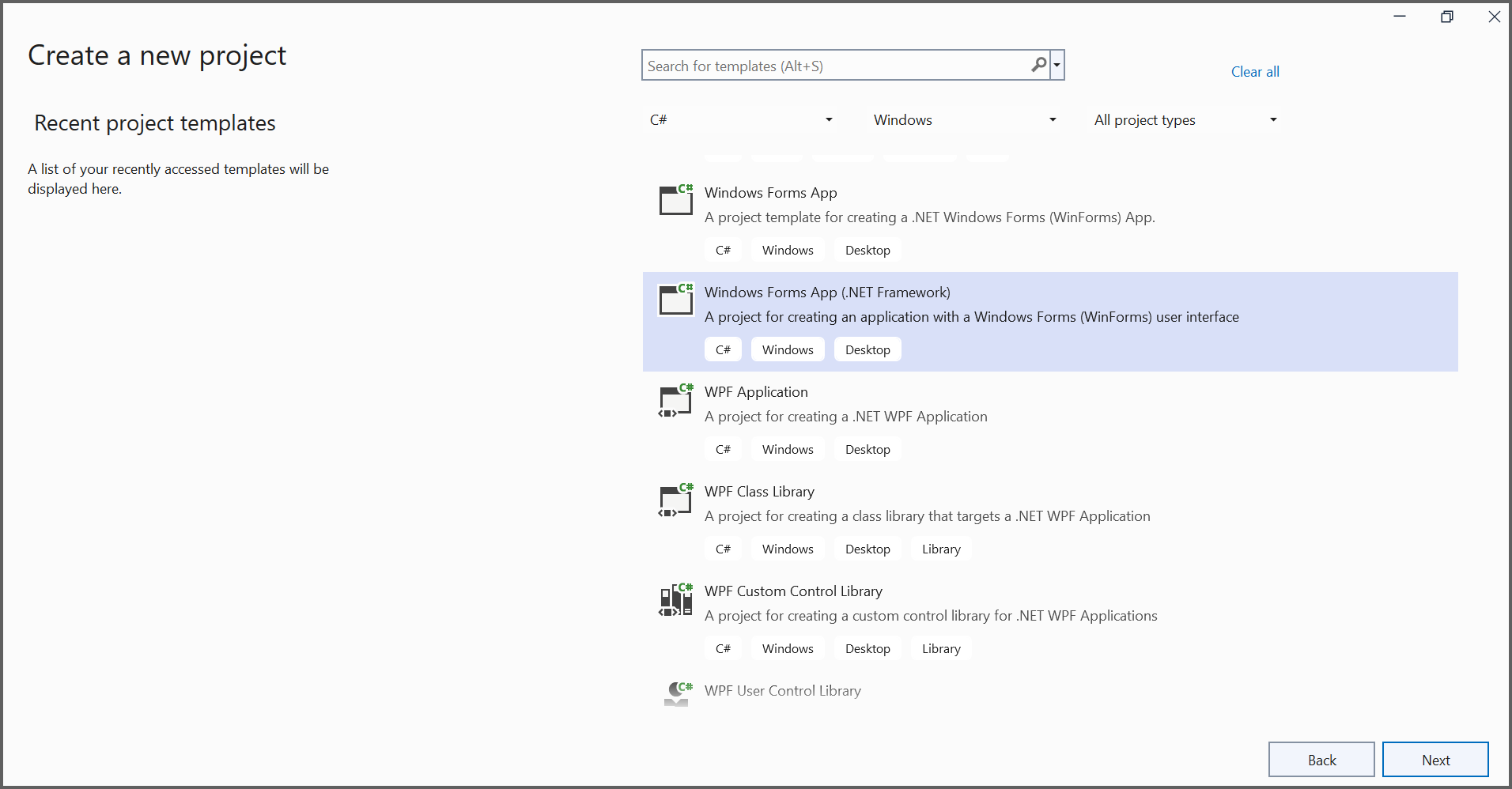
Step 1: Create a new Windows Forms application project:
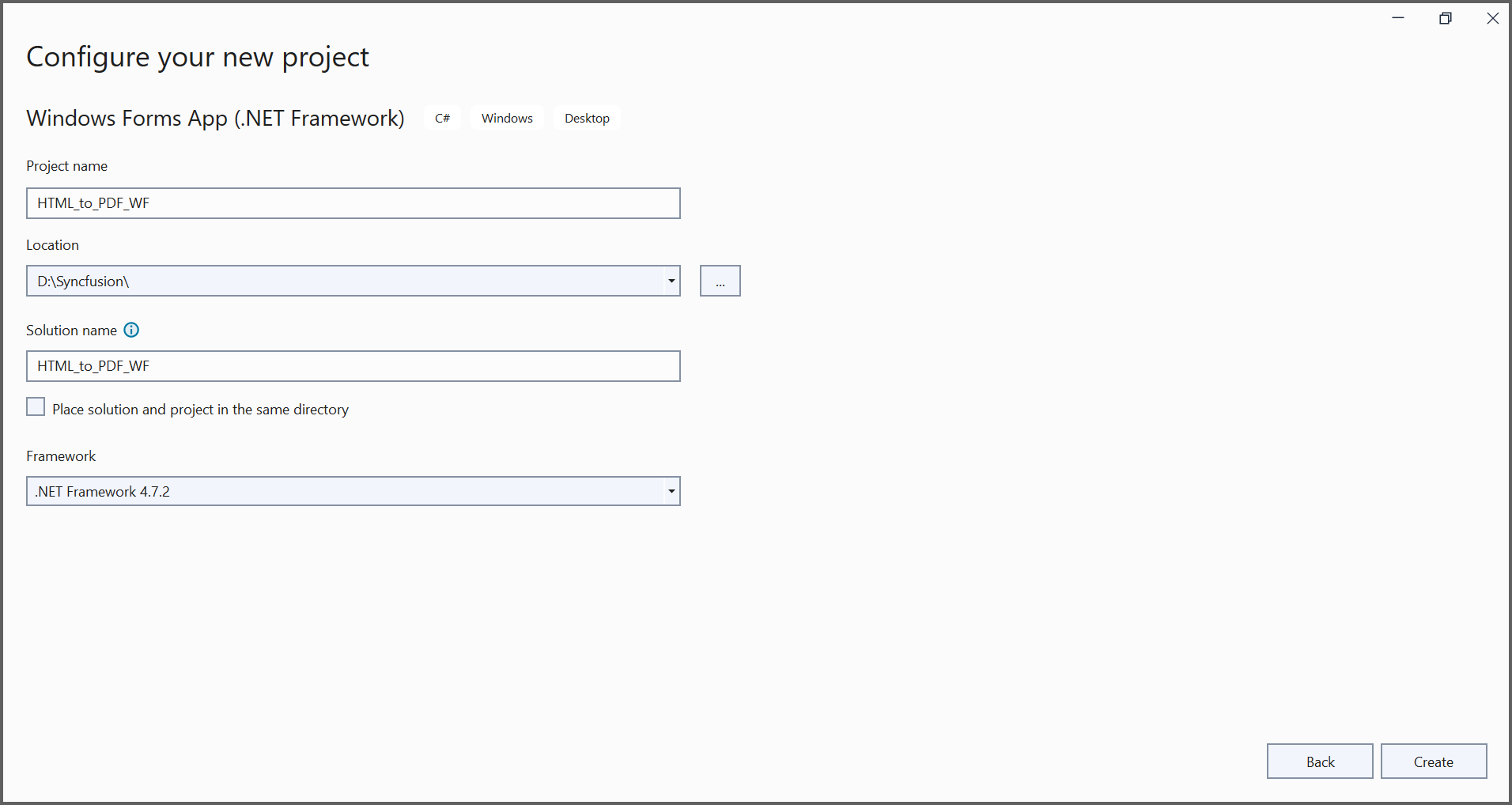
In the project configuration window, name your project and select Create:
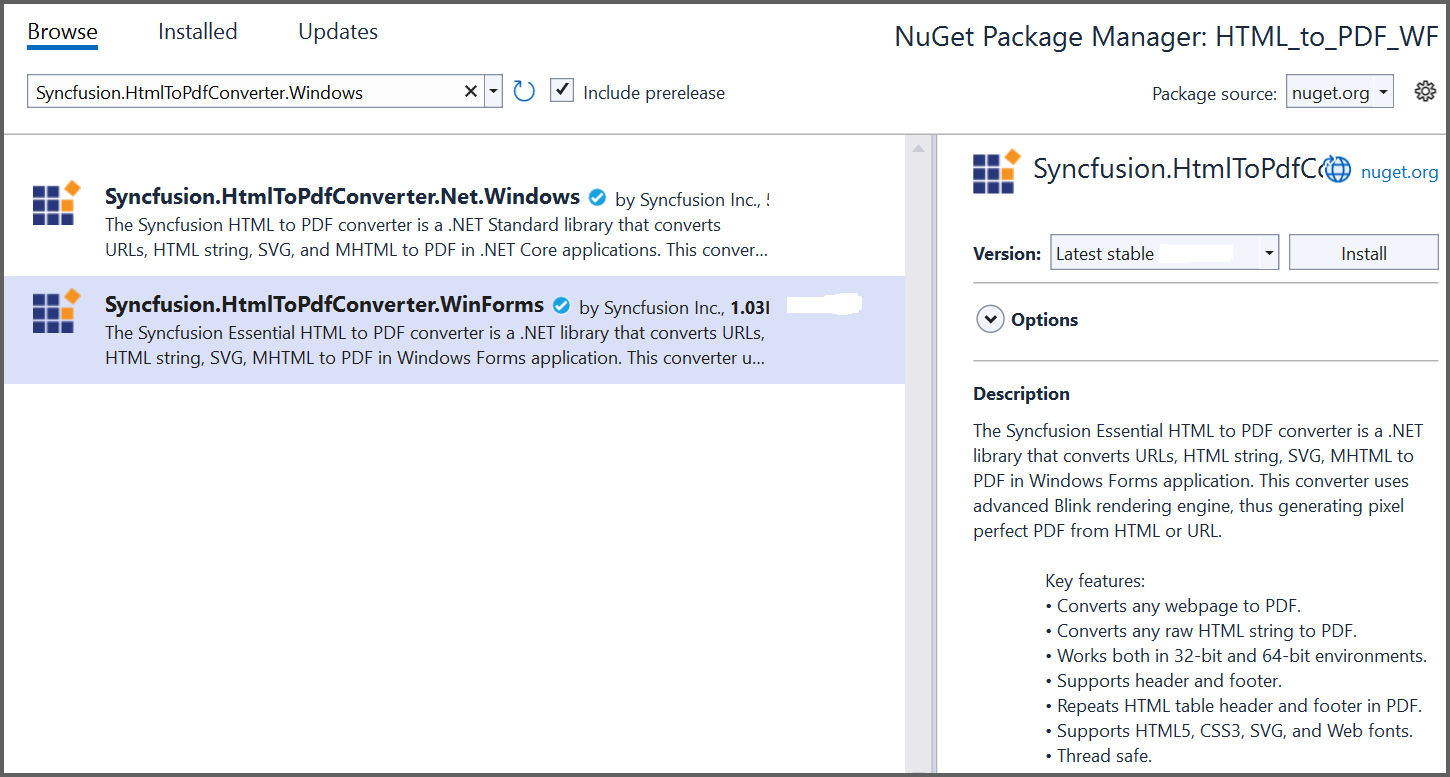
Step 2: Install the Syncfusion.HtmlToPdfConverter.WinForms NuGet package as a reference to your Windows Forms application from NuGet.org:
Step 3: Add the following namespaces to the Form1.Designer.cs file:
using System;
using System.Windows.Forms;
Step 4: Add a new button in the Form1.Designer.cs file to convert HTML to PDF documents:
private Button btnCreate;
private Label label;

private void InitializeComponent()
{
   // Initialize button control instance
   btnCreate = new Button();
   // Initialize label control instance
   label = new Label();

   // Configure label properties for user instruction display
   label.Location = new System.Drawing.Point(0, 40);
   label.Size = new System.Drawing.Size(426, 35);
   label.Text = "Click the button to convert HTML to PDF file";
   label.TextAlign = System.Drawing.ContentAlignment.MiddleCenter;

   // Configure button properties for HTML to PDF conversion trigger
   btnCreate.Location = new System.Drawing.Point(180, 110);
   btnCreate.Size = new System.Drawing.Size(85, 26);
   btnCreate.Text = "Convert HTML to PDF";
   // Attach click event handler to button (btnCreate_Click method in Form1.cs)
   btnCreate.Click += new EventHandler(btnCreate_Click);

   // Configure form window properties and add controls
   ClientSize = new System.Drawing.Size(450, 150);
   Controls.Add(label);
   Controls.Add(btnCreate);
   Text = "Convert HTML to PDF";
}
Step 5: Include the following namespaces in the Form1.cs file to enable HTML-to-PDF conversion functionality:
using Syncfusion.HtmlConverter;
using Syncfusion.Pdf;
Step 6: Create the btnCreate_Click event handler and add the following code to convert HTML to PDF documents using the Convert method from the HtmlToPdfConverter class. The HTML content will be scaled based on the ViewPortSize property of the BlinkConverterSettings class:
private void btnCreate_Click(object sender, EventArgs e)
{
   // Initialize HTML to PDF converter
   HtmlToPdfConverter htmlConverter = new HtmlToPdfConverter();
   // Create Blink converter settings
   BlinkConverterSettings blinkConverterSettings = new BlinkConverterSettings();
   // Set Blink viewport size
   blinkConverterSettings.ViewPortSize = new System.Drawing.Size(1280, 0);
   // Assign Blink converter settings
   htmlConverter.ConverterSettings = blinkConverterSettings;
   // Convert the specified URL to a PDF document
   PdfDocument document = htmlConverter.Convert("https://www.syncfusion.com");
   // Create a FileStream
   FileStream stream = new FileStream("HTML-to-PDF.pdf", FileMode.CreateNew);
   // Save the PDF document
   document.Save(stream);
   // Reset the stream position
   stream.Position = 0;
   // Close the PDF document
   document.Close();
   // Close the stream
   stream.Dispose();
}
By executing the program, the application will convert the URL and generate a PDF document:
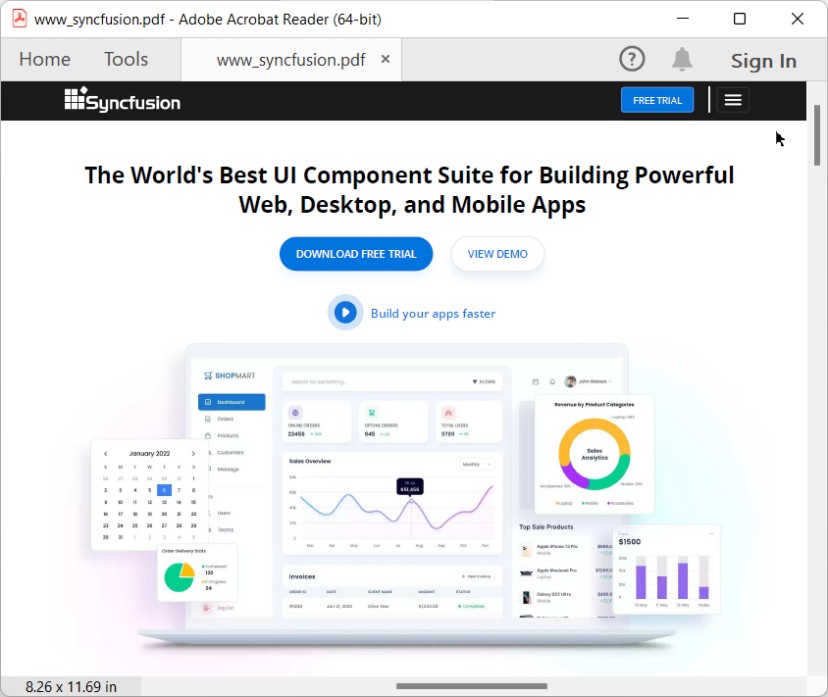
The generated PDF file will be saved as HTML-to-PDF.pdf in the application’s working directory.
A complete working sample demonstrating HTML to PDF conversion in Windows Forms can be downloaded from GitHub.
Click here to explore the rich set of Syncfusion® HTML to PDF converter library features.
You can also view the online sample to convert HTML to PDF documents in ASP.NET Core.