HTML to PDF conversion in Amazon ECS with Fargate .NET PDF Library
13 Aug 20267 minutes to read
The HTML to PDF converter is a .NET library for converting webpages, SVG, MHTML, and HTML to PDF documents using C#. Using this library, you can convert HTML to PDF documents using Blink in Amazon ECS with Fargate.
Prerequisites
Version Compatibility
The Syncfusion.HtmlToPdfConverter.Net.Linux NuGet package uses the Blink rendering engine for HTML to PDF conversion. This library is compatible with .NET 8.0 and later versions. Fargate requires a Linux base image, and Blink dependencies must be installed in the Docker container.
Supported Inputs
The HTML to PDF converter supports the following input types:
- HTML String: Direct HTML content.
- URL: Web pages and online HTML content.
- HTML Files: Local HTML files.
- MHTML Files: Web archive (.mhtml/.mht) content.
- Authenticated Web Pages: Pages that require cookies, form authentication, or HTTP authentication.
- HTTP GET/POST Requests: HTML content accessed through GET or POST methods
Required Software
- .NET 8 SDK or later
- AWS Account: Active AWS account with ECS and Fargate access
- AWS Toolkit: AWS Toolkit for Visual Studio extension installed
Register the license key
Starting with v16.2.0.x, if you reference Syncfusion® assemblies from trial setup or from the NuGet feed, you must add the “Syncfusion.Licensing” assembly reference and register a license key in your application. Please refer to this link for details on registering a Syncfusion® license key.
Include a license key in your HomeController.cs file before creating an HtmlToPdfConverter instance. Refer to the Syncfusion License documentation to learn about registering the Syncfusion license key in your application.
using Syncfusion.Licensing;

namespace BlinkHtmlConversion.Controllers
{
    public class HomeController : Controller
    {
        public HomeController()
        {
            // Register the Syncfusion license
            SyncfusionLicenseProvider.RegisterLicense("YOUR LICENSE KEY");
        }
    }
}
Starting from version 29.2.4, it is no longer necessary to manually add the following command-line arguments when using the Blink rendering engine:
settings.CommandLineArguments.Add("--no-sandbox");
settings.CommandLineArguments.Add("--disable-setuid-sandbox");
These arguments are only required when using older versions of the library that depend on Blink in sandbox-restricted environments.
Steps to convert HTML to PDF using Blink in Amazon ECS with Fargate
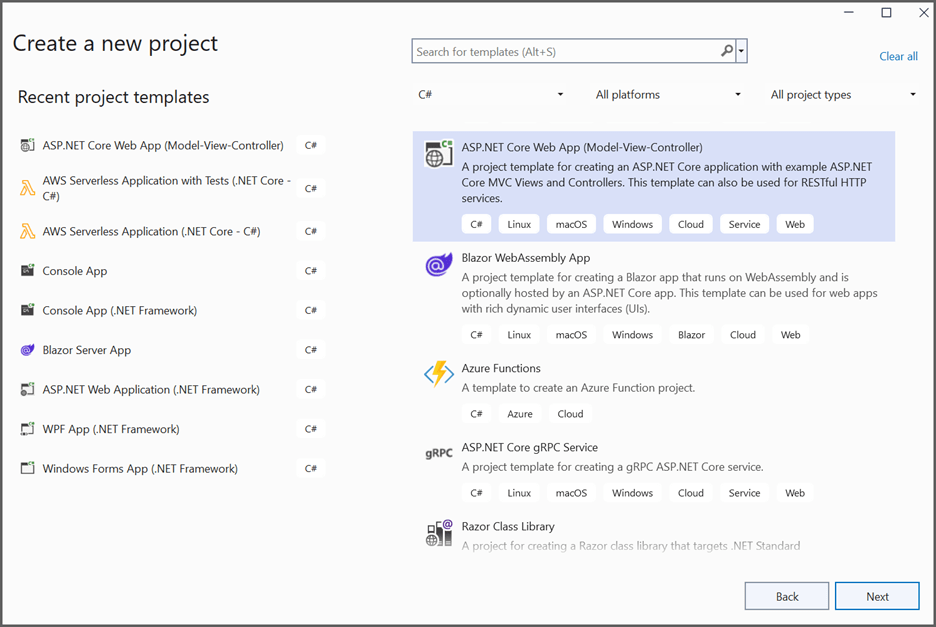
Step 1: Create a new C# ASP.NET Core Web Application project:
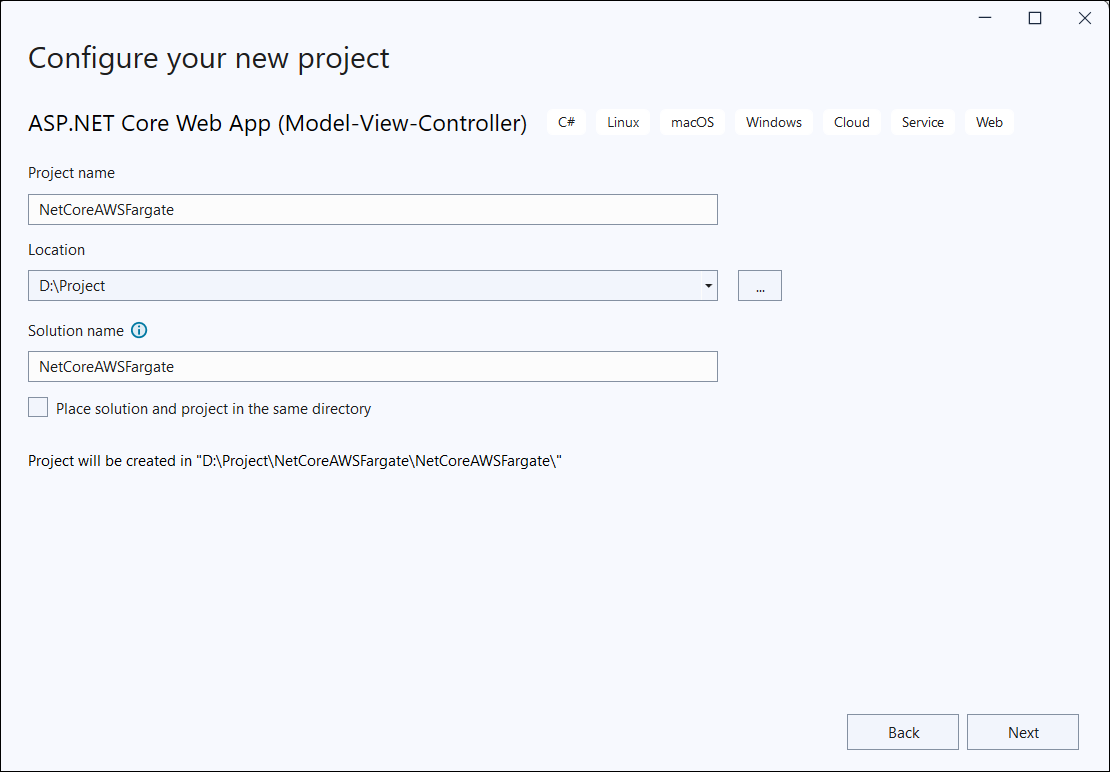
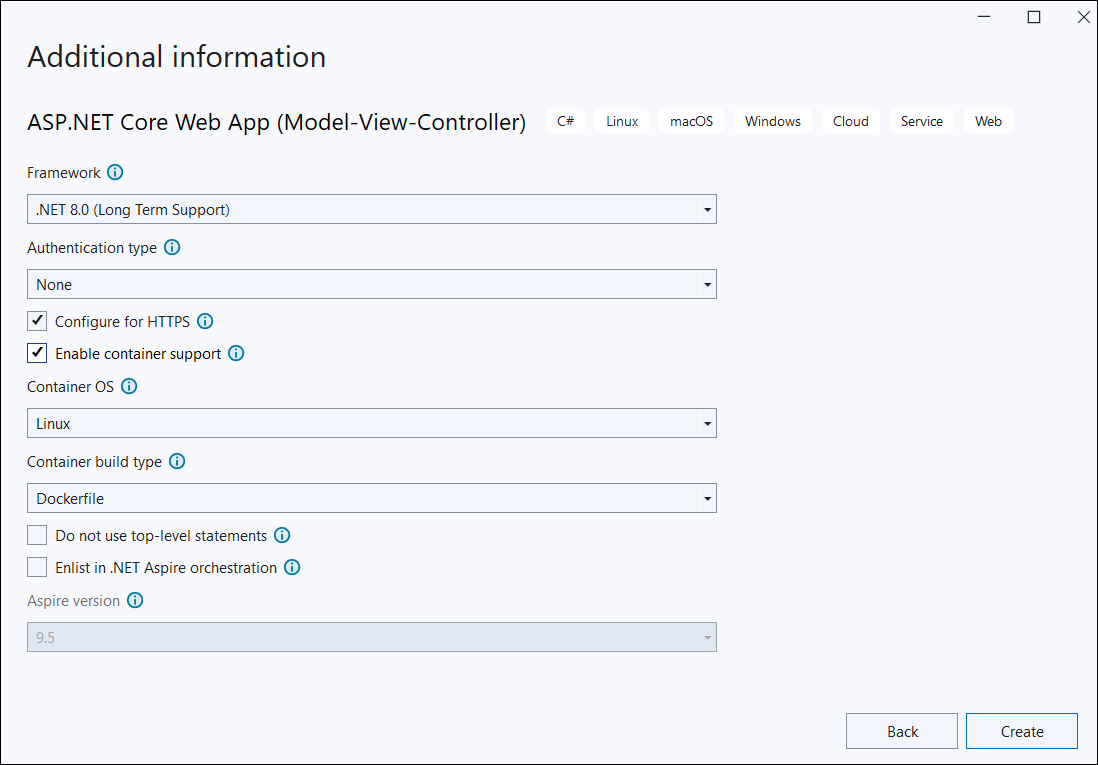
Step 2: In the configuration window, name your project and select Next:
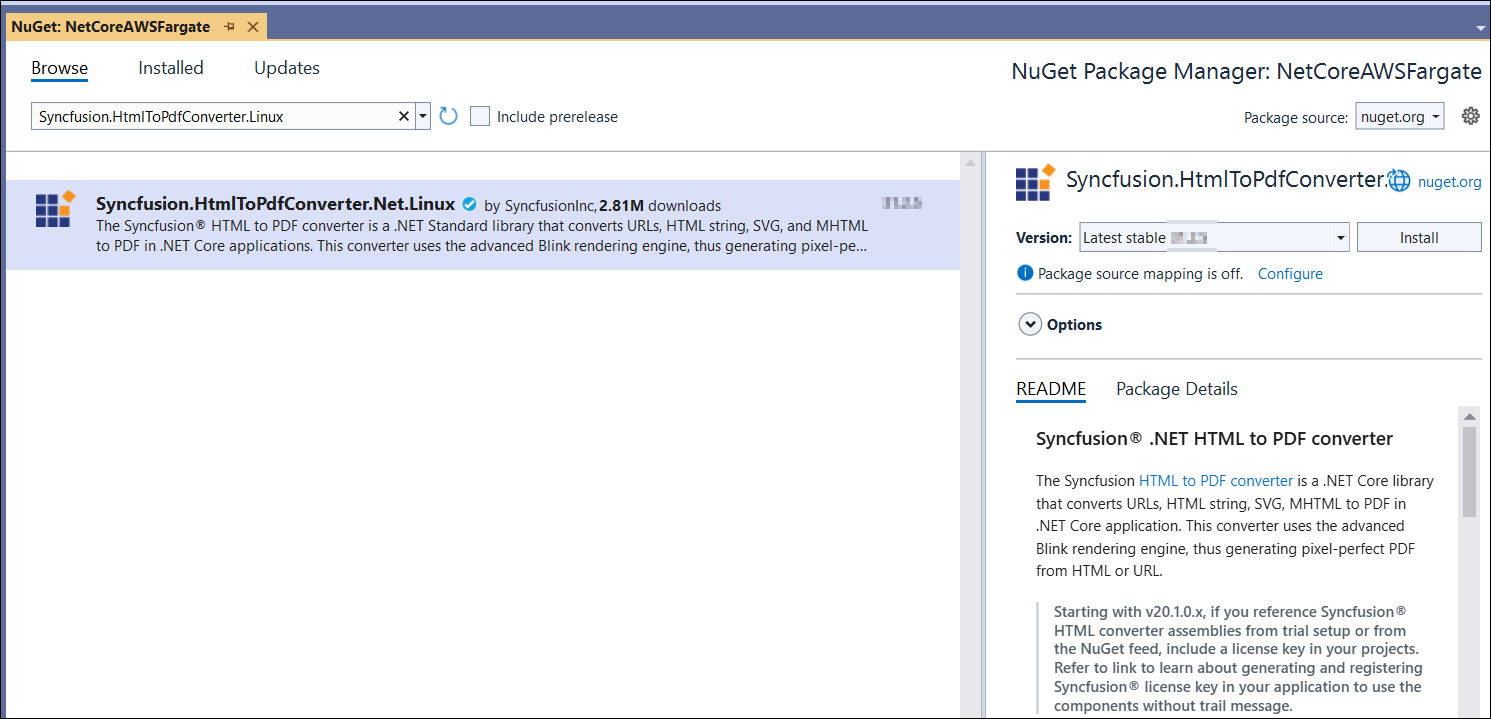
Step 3: Install the Syncfusion.HtmlToPdfConverter.Net.Linux NuGet package into your ASP.NET Core project from NuGet.org:
Step 4: Include the following commands in the Dockerfile to install the required Blink dependencies in the Docker container:
RUN apt-get update && \
apt-get install -yq --no-install-recommends \
libasound2 libatk1.0-0 libc6 libcairo2 libcups2 libdbus-1-3 \
libexpat1 libfontconfig1 libgcc1 libgconf-2-4 libgdk-pixbuf2.0-0 libglib2.0-0 libgtk-3-0 libnspr4 \
libpango-1.0-0 libpangocairo-1.0-0 libstdc++6 libx11-6 libx11-xcb1 libxcb1 \
libxcursor1 libxdamage1 libxext6 libxfixes3 libxi6 libxrandr2 libxrender1 libxss1 libxtst6 \
libnss3 libgbm1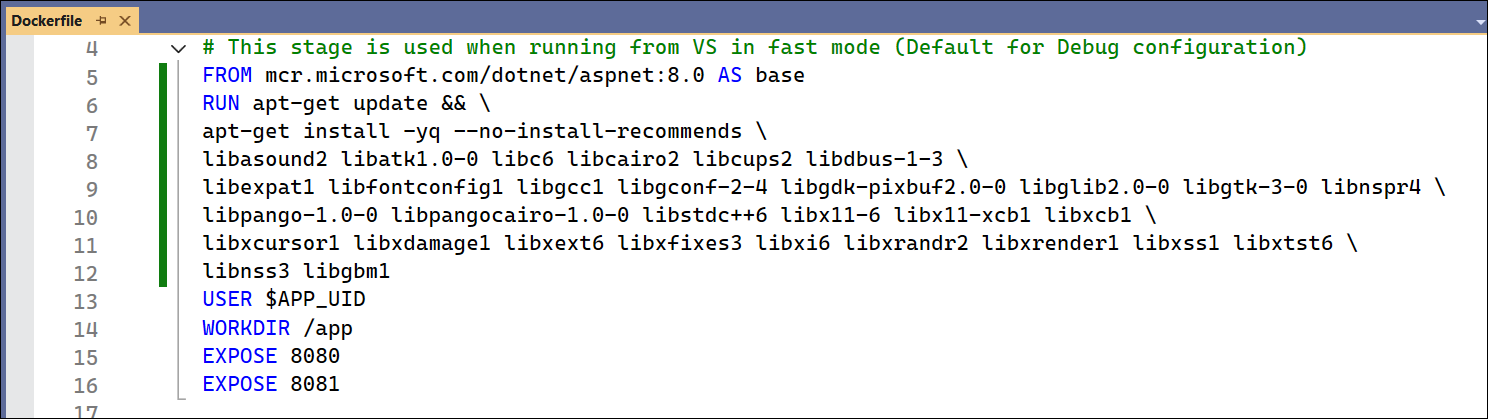
Step 5: A default controller named HomeController.cs is added to the ASP.NET Core MVC project. Include the following namespaces in the HomeController.cs file:
using Syncfusion.Pdf;
using Syncfusion.HtmlConverter;
Step 6: Add a new button in the Index.cshtml file as follows:
@{
    Html.BeginForm("BlinkToPDF", "Home", FormMethod.Get);
    {
        <div>
            <input type="submit" value="HTML To PDF" style="width:150px;height:27px" />
            <br />
            <div class="text-danger">
                @ViewBag.Message
            </div>
        </div>
    }
    Html.EndForm();
}
Step 7: Add a new action method named BlinkToPDF in HomeController.cs and include the following code example to convert HTML to PDF document using the Convert method of the HtmlToPdfConverter class. The HTML content will be scaled based on the ViewPortSize property of the BlinkConverterSettings class:
public IActionResult BlinkToPDF()
{
    // Initialize the HTML to PDF converter with Blink rendering engine
    HtmlToPdfConverter htmlConverter = new HtmlToPdfConverter(HtmlRenderingEngine.Blink);
    // Create Blink converter settings
    BlinkConverterSettings settings = new BlinkConverterSettings();
    // Set Blink viewport size for rendering
    settings.ViewPortSize = new Syncfusion.Drawing.Size(1280, 0);
    // Assign Blink settings to the HTML converter
    htmlConverter.ConverterSettings = settings;
    // Convert URL to PDF document
    PdfDocument document = htmlConverter.Convert("https://www.syncfusion.com");
    // Create memory stream for output
    MemoryStream stream = new MemoryStream();
    // Save the document to memory stream
    document.Save(stream);
    // Close the document and dispose resources
    document.Close(true);
    // Return PDF file to browser
    return File(stream.ToArray(), System.Net.Mime.MediaTypeNames.Application.Pdf, "Output.pdf");
}
Publish the ASP.NET Core application to Amazon ECS with Fargate using AWS Toolkit
Step 8: Click the Publish Container to AWS (Legacy) option by right-clicking the project to publish the application:
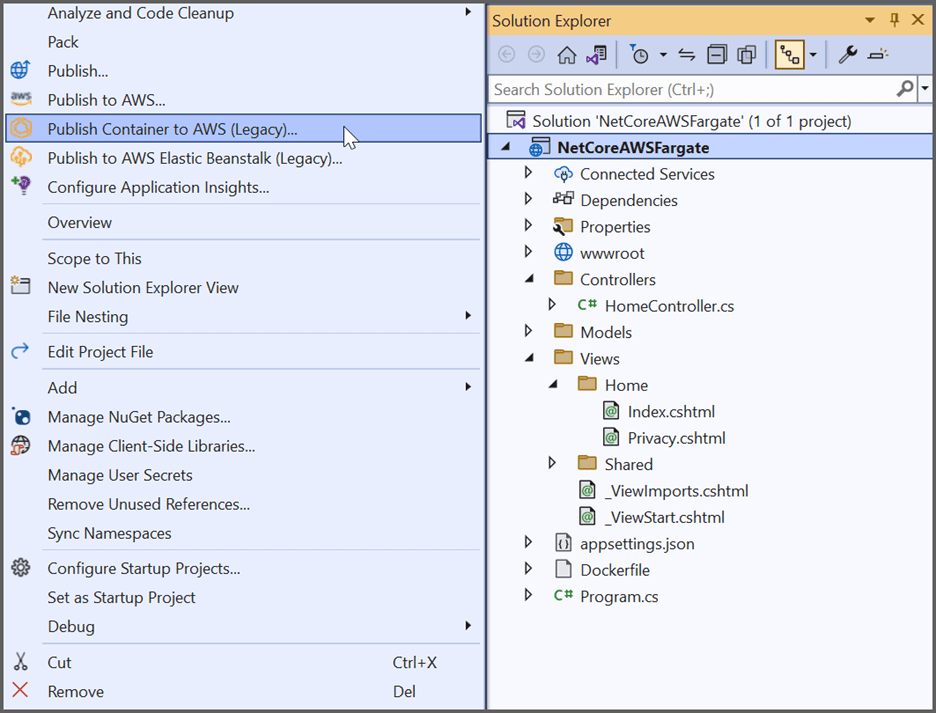
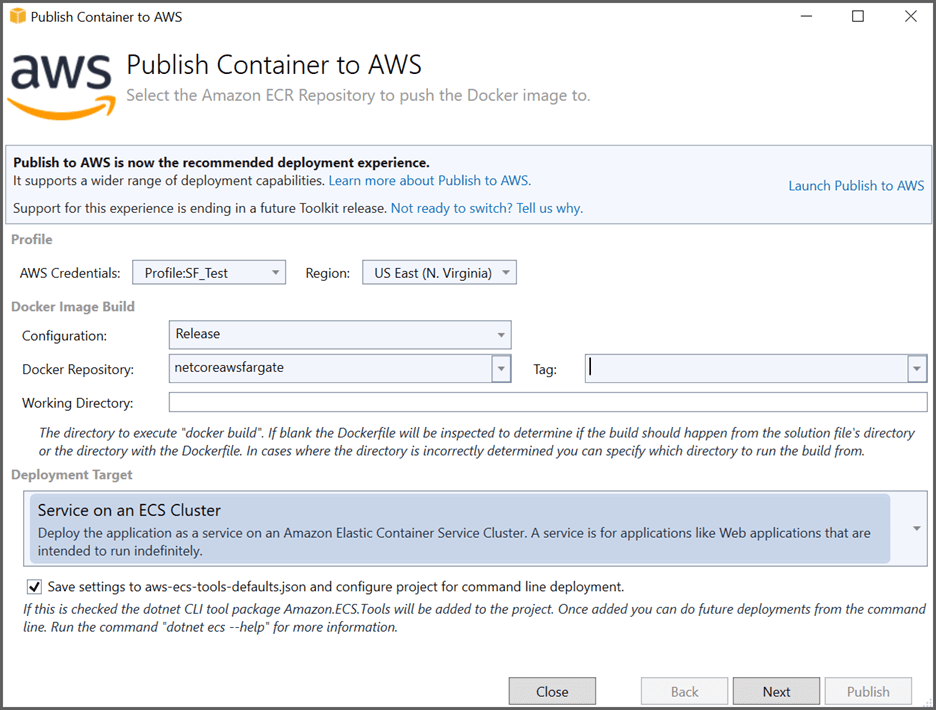
Step 9: Select the AWS account profile and region to use for deployment. Ensure Service on an ECS Cluster is selected as the Deployment Target, then click the Next button:
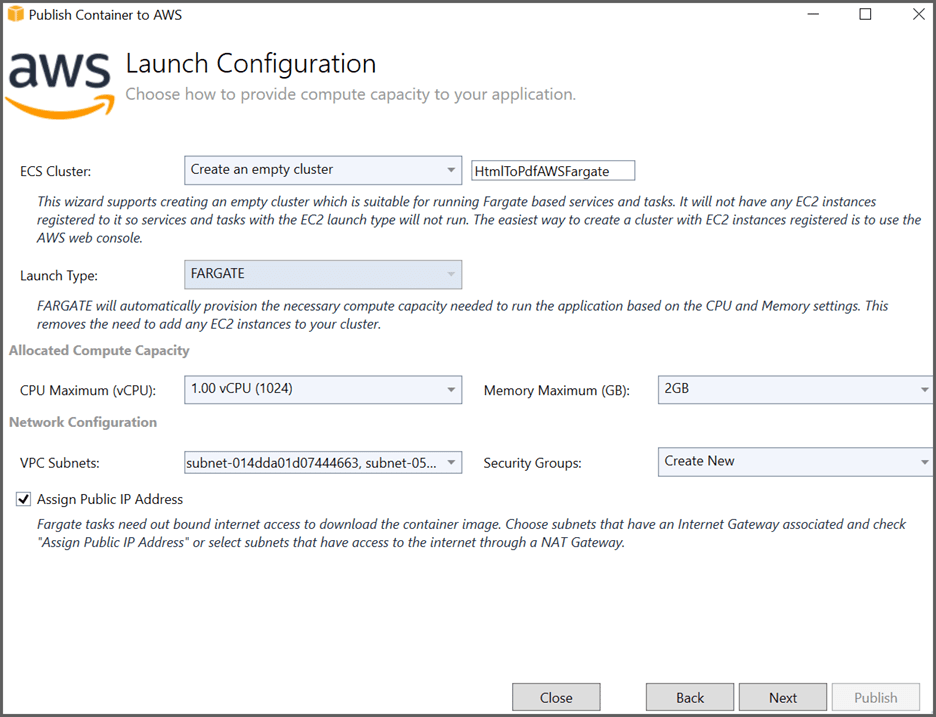
Step 10: Choose Create an empty cluster for the ECS Cluster and provide a name for the cluster. Set the Launch Type to FARGATE in the Launch Configuration window:
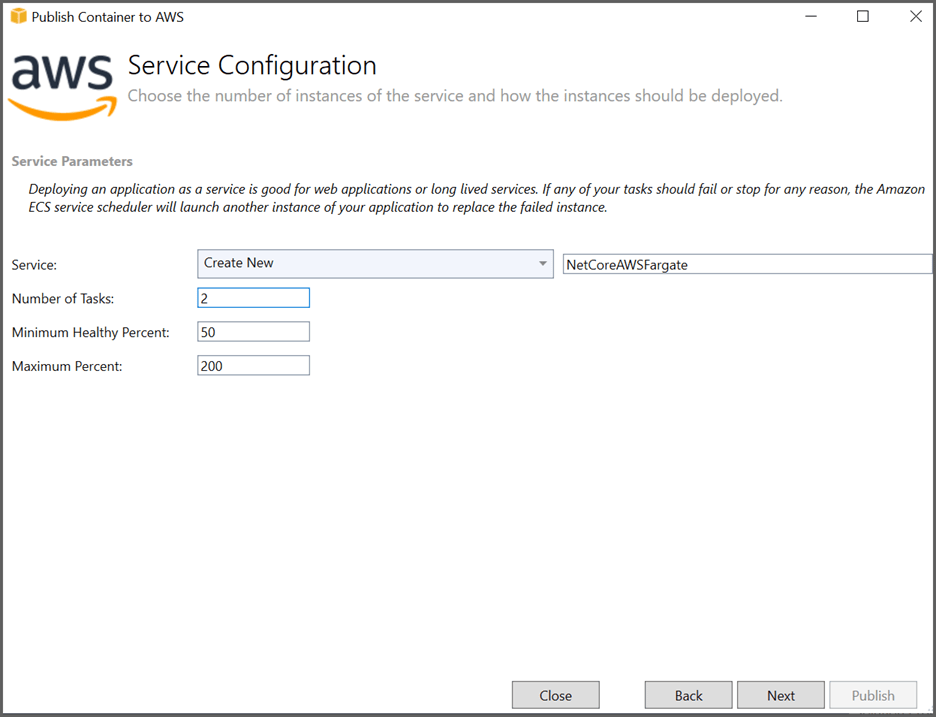
Step 11: Choose Create New for the service and provide a name for your service in the Service Configuration window:
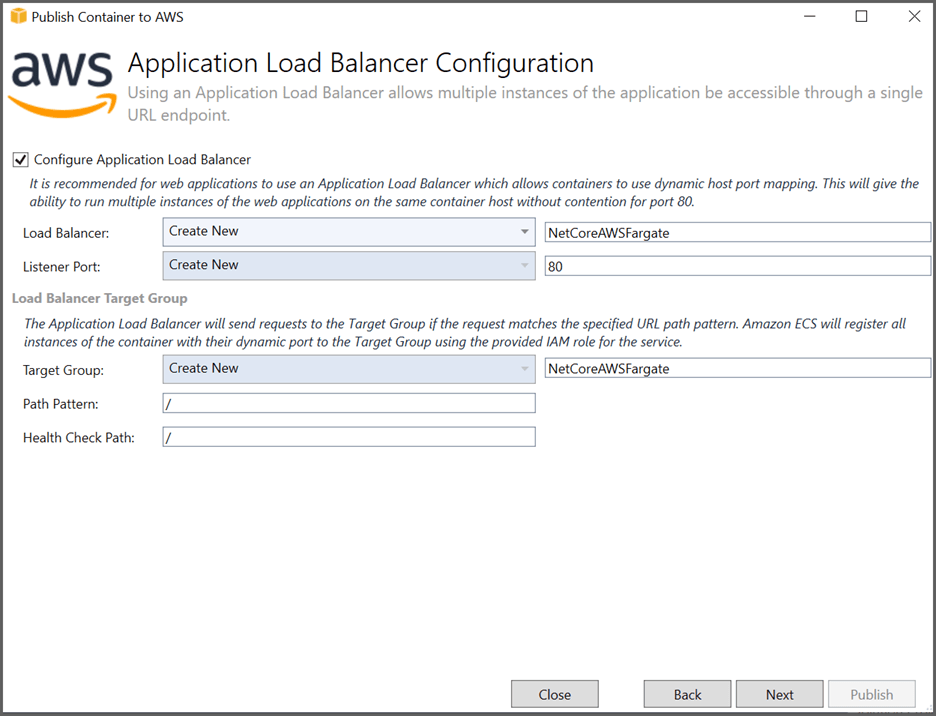
Step 12: Select Configure Application Load Balancer and choose Create New in the load balancer drop-down. Provide a name for your load balancer in the Application Load Balancer Configuration window:
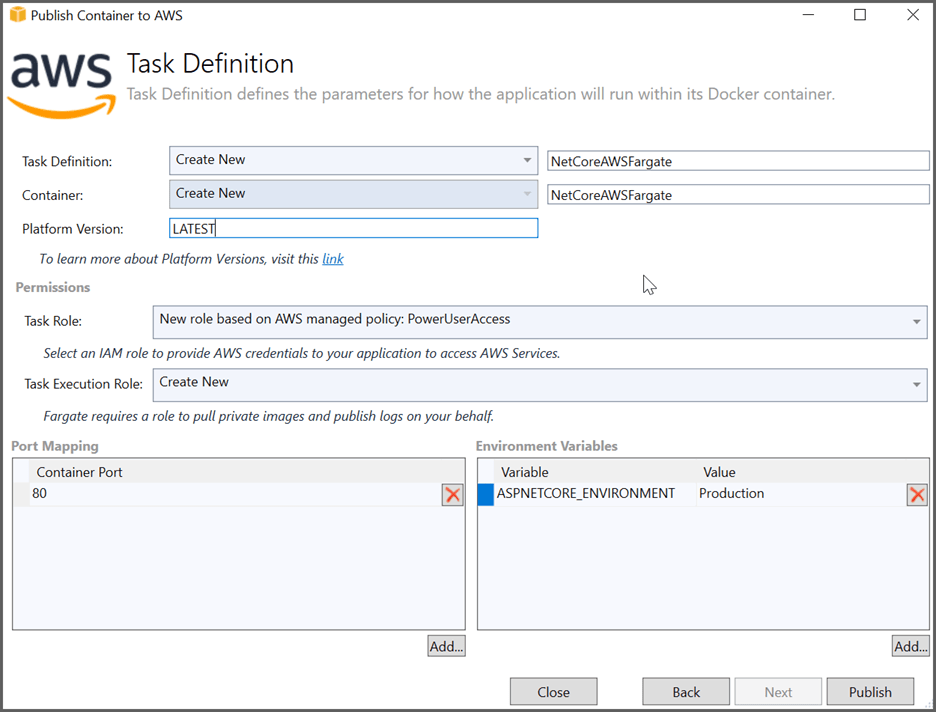
Step 13: Choose Create New for the task definition and enter a name for the task. Select a Task Role to provide AWS credentials to your application to access AWS services in the Task Definition window, then select Publish:
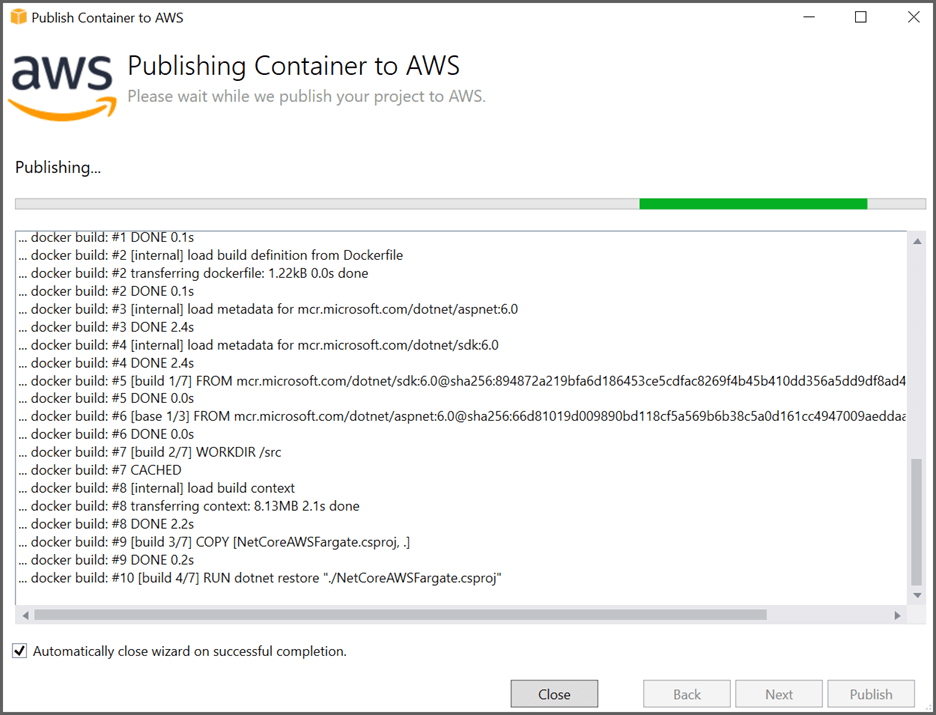
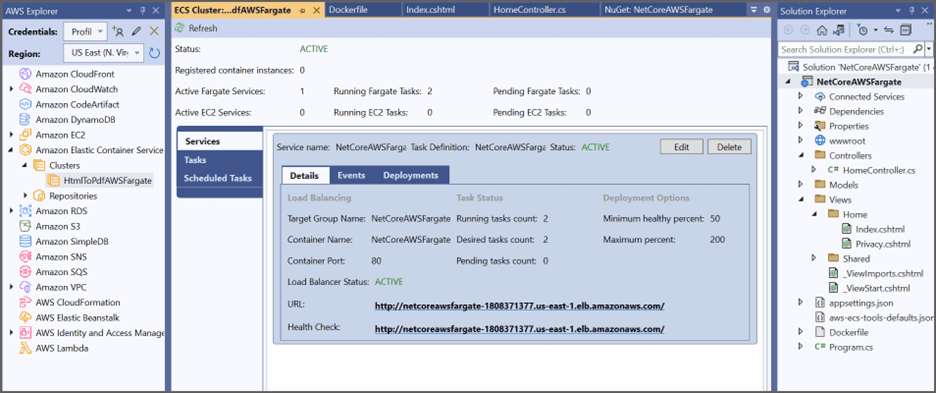
Step 14: Once the deployment process is completed, the toolkit will open a view of the cluster. Click the Load Balancer URL link to launch the application once the Load Balancer status changes to Active:
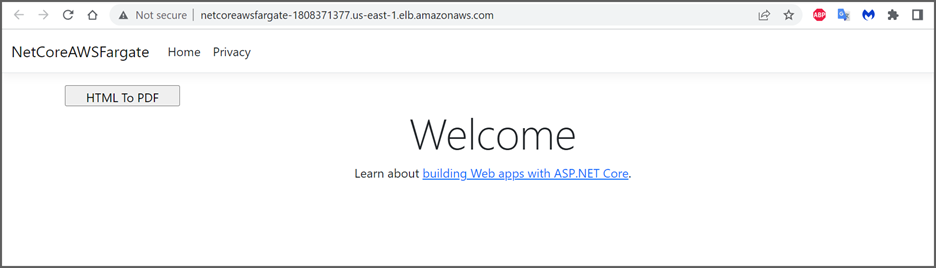
The webpage will now open in the browser. Click the button to convert the webpage to a PDF document:
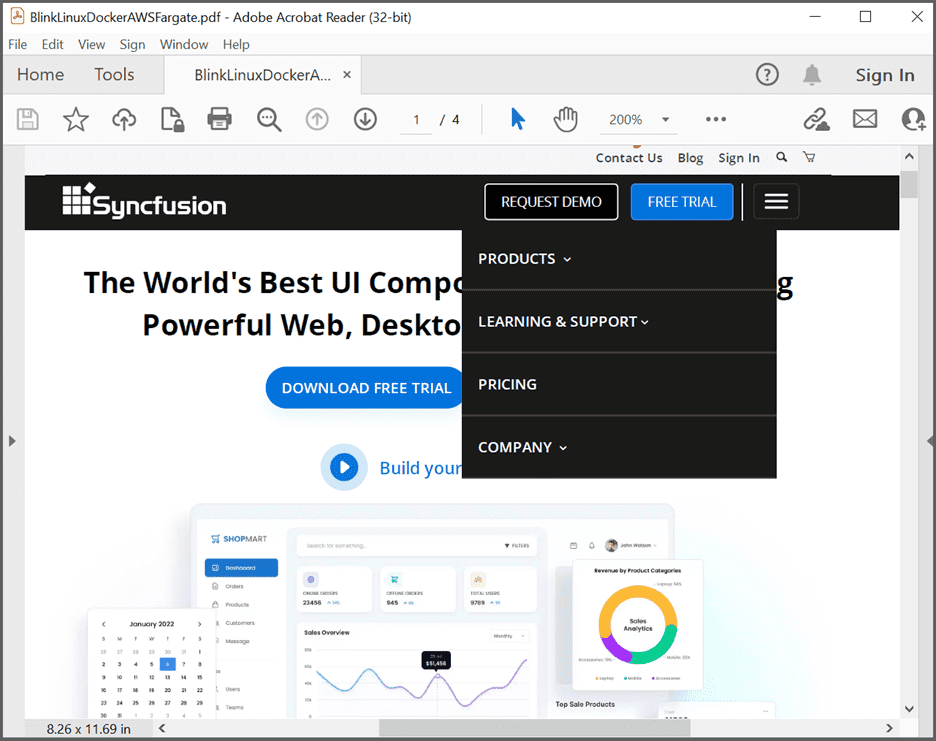
By executing the program, you will obtain the following PDF document output:
A complete working sample for converting HTML to PDF using Blink in Amazon ECS with AWS Fargate can be downloaded from GitHub.
Click here to explore the rich set of Syncfusion® HTML to PDF converter library features.
You can also view the online sample to convert HTML to PDF documents in ASP.NET Core.