How can I help you?
Getting Started with WPF Spreadsheet (SfSpreadsheet)
27 May 20267 minutes to read
This section briefly explains how to include the Syncfusion® WPF Spreadsheet component in WPF App using Visual Studio.
Prerequisites
Create a new WPF App in Visual Studio
You can create a WPF Application using Visual Studio via Microsoft Templates or the Syncfusion® WPF.
Assemblies Deployment
To add a WPF spreadsheet component to your application by installing it via NuGet packages(Recommended) or by manually adding the required assemblies to the project.
Install Syncfusion® WPF Spreadsheet NuGet packages
To add WPF Spreadsheet component in the application, open the NuGet package manager in Visual Studio (Tools → NuGet Package Manager → Manage NuGet Packages for Solution), search and install:
• Syncfusion.SfSpreadsheet.WPF
To ensure the control is styled correctly, install the theme package:
Add Syncfusion® WPF Spreadsheet Assemblies
Below table describes, list of assemblies required to be added in project when the WPF Spreadsheet control is used in your application.
| Assembly | Description |
|---|---|
| Syncfusion.SfCellGrid.WPF.dll | Contains the base and fundamental classes which holds the underlying architecture for displaying cells with virtualized behavior and selection/interaction of cells. |
| Syncfusion.SfGridCommon.WPF.dll | Contains the classes which holds the properties and functions of scroll viewer and disposable elements |
| Syncfusion.SfSpreadsheet.WPF.dll | Contains the classes that handles all the UI Operations of SfSpreadsheet such as importing of sheets, applying formulas/styles etc. |
| Syncfusion.Shared.WPF.dll | Contains the classes which holds the controls like Color pickers,Chromeless window, ComboBoxAdv, DateTimeEdit etc. |
| Syncfusion.Tools.WPF.dll | Contains the classes which holds the controls like TabControlExt, TabItemExt, Gallery, GroupBar, TabSplitter etc which are used in SfSpreadsheet |
| Syncfusion.XlsIO.Base.dll | Contains the base classes which is responsible for read and write in Excel files, Worksheet Manipulations, Formula calculations etc. |
Below are the additional DLLs required for applying themes and skinning to the SfSpreadsheet control:
| Assembly | Description |
|---|---|
| Syncfusion.Themes.Windows11Light.WPF.dll | Contains the Windows 11 Light theme style for Syncfusion WPF controls. |
| Syncfusion.SfSkinManager.WPF.dll | Contains the SfSkinManager which helps to apply different themes to Syncfusion WPF controls. |
NOTE
You need to add these references to your project to use the skinning and theming capabilities of the SfSpreadsheet.
Below are the assemblies list that can be added when you want to enable certain features in SfSpreadsheet control.
| Optional Assemblies | Description |
|---|---|
| Syncfusion.SfSpreadsheetHelper.WPF.dll | Contains the classes which is responsible for importing charts and sparklines into SfSpreadsheet. |
| Syncfusion.ExcelChartToImageConverter.WPF.dll | Contains the classes which is responsible for converting charts as image. |
| Syncfusion.SfChart.WPF.dll | Contains the classes which is responsible for importing charts like Line charts, Pie charts, Sparklines etc. |
| Syncfusion.ExcelToPDFConverter.Base.dll | Contains the base and fundamental classes which is responsible for converting excel to PDF. |
| Syncfusion.Pdf.Base.dll | Contains the base and fundamental classes for creating PDF. |
Add WPF Spreadsheet component
WPF Spreadsheet control can be added to an application either through the designer (XAML) or programmatically using code.
- Add the theme and the SfSkinManager namespace to style the control correctly. Then, include the SfSkinManager namespace in the XAML code and apply the desired theme.
<Window x:Class="Namespace.MainWindow"
        xmlns="http://schemas.microsoft.com/winfx/2006/xaml/presentation"
        xmlns:x="http://schemas.microsoft.com/winfx/2006/xaml"
        xmlns:syncfusionskin="clr-namespace:Syncfusion.SfSkinManager;assembly=Syncfusion.SfSkinManager.WPF"
        syncfusionskin:SfSkinManager.Theme="{syncfusionskin:SkinManagerExtension ThemeName=Windows11Light}">

</Window>- Open the Visual Studio Tool box. Navigate to Syncfusion® Controls tab, and find the SfSpreadsheet/SfSpreadsheetRibbon toolbox items.
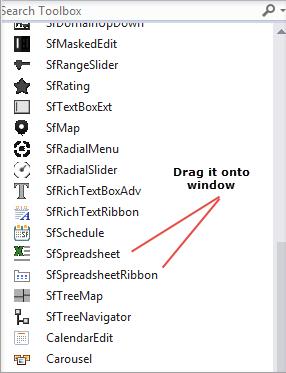
- Drag
SfSpreadsheetRibbonand drop in the Designer area from the Toolbox.

<Window x:Class="YourNamespace.MainWindow"
        xmlns="http://schemas.microsoft.com/winfx/2006/xaml/presentation"
        xmlns:x="http://schemas.microsoft.com/winfx/2006/xaml"
	xmlns:syncfusion="clr-namespace:Syncfusion.UI.Xaml.Spreadsheet;assembly=Syncfusion.SfSpreadsheet.WPF"
        xmlns:syncfusionskin="clr-namespace:Syncfusion.SfSkinManager;assembly=Syncfusion.SfSkinManager.WPF"
        syncfusionskin:SfSkinManager.Theme="{syncfusionskin:SkinManagerExtension ThemeName=Windows11Light}">
    <Grid>
	<syncfusion:SfSpreadsheetRibbon />
    </Grid>
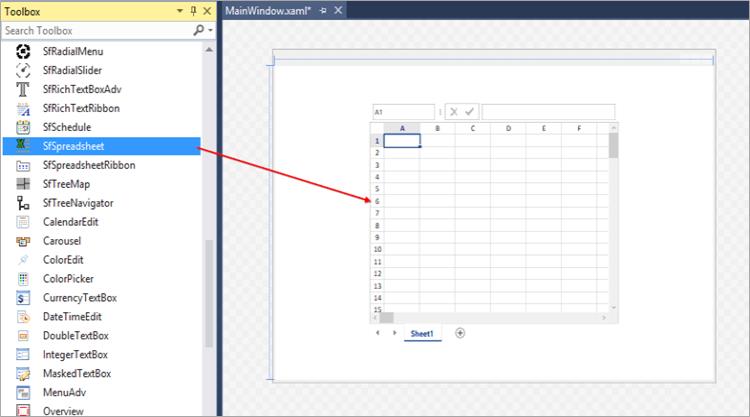
</Window>- Spreadsheet can be added to the application by dragging
SfSpreadsheetto the Designer area.
<Window x:Class="YourNamespace.MainWindow"
        xmlns="http://schemas.microsoft.com/winfx/2006/xaml/presentation"
        xmlns:x="http://schemas.microsoft.com/winfx/2006/xaml"
	xmlns:syncfusion="clr-namespace:Syncfusion.UI.Xaml.Spreadsheet;assembly=Syncfusion.SfSpreadsheet.WPF"
        xmlns:syncfusionskin="clr-namespace:Syncfusion.SfSkinManager;assembly=Syncfusion.SfSkinManager.WPF"
        syncfusionskin:SfSkinManager.Theme="{syncfusionskin:SkinManagerExtension ThemeName=Windows11Light}">

    <Grid>
	<syncfusion:SfSpreadsheet x:Name = spreadsheet />
    </Grid>
</Window>
NOTE
Declare a name for the Spreadsheet component as shown above for reference.
- To make an interaction between Ribbon items and
SfSpreadsheet, bind theSfSpreadsheetas DataContext to theSfSpreadsheetRibbon.
<Window x:Class="YourNamespace.MainWindow"
        xmlns="http://schemas.microsoft.com/winfx/2006/xaml/presentation"
        xmlns:x="http://schemas.microsoft.com/winfx/2006/xaml"
	xmlns:syncfusion="clr-namespace:Syncfusion.UI.Xaml.Spreadsheet;assembly=Syncfusion.SfSpreadsheet.WPF"
        xmlns:syncfusionskin="clr-namespace:Syncfusion.SfSkinManager;assembly=Syncfusion.SfSkinManager.WPF"
        syncfusionskin:SfSkinManager.Theme="{syncfusionskin:SkinManagerExtension ThemeName=Windows11Light}">

    <Grid>
	<syncfusion:SfSpreadsheetRibbon DataContext= "{Binding ElementName=spreadsheet}"  />
	<syncfusion:SfSpreadsheet x:Name = spreadsheet />
    </Grid>
</Window>
Spreadsheet is available in the following namespace “Syncfusion.UI.Xaml.Spreadsheet” and it can be created programmatically by using XAML
<Window x:Class="WpfApp1.MainWindow"
        xmlns="http://schemas.microsoft.com/winfx/2006/xaml/presentation"
        xmlns:x="http://schemas.microsoft.com/winfx/2006/xaml"
        xmlns:d="http://schemas.microsoft.com/expression/blend/2008"
        xmlns:mc="http://schemas.openxmlformats.org/markup-compatibility/2006"
        xmlns:syncfusion="http://schemas.syncfusion.com/wpf"
        xmlns:syncfusionskin ="clr-namespace:Syncfusion.SfSkinManager;assembly=Syncfusion.SfSkinManager.WPF"
        syncfusionskin:SfSkinManager.Theme="{syncfusionskin:SkinManagerExtension ThemeName=Windows11Light}"
        mc:Ignorable="d">
    <Grid>
        <Grid.RowDefinitions>
            <RowDefinition Height="Auto"/>
            <RowDefinition Height="*"/>
        </Grid.RowDefinitions>
        <syncfusion:SfSpreadsheetRibbon Grid.Row="0" DataContext="{Binding ElementName=spreadsheet}"  />
        <syncfusion:SfSpreadsheet Name="spreadsheet" Grid.Row="1" />
    </Grid>
</Window>
public MainWindow()
{
InitializeComponent();
SfSkinManager.ApplyThemeAsDefaultStyle = true;
SfSkinManager.SetTheme(this, new Theme("Windows11Light"));
Grid grid = new Grid();
grid.RowDefinitions.Add(new RowDefinition { Height = GridLength.Auto });
grid.RowDefinitions.Add(new RowDefinition { Height = new GridLength(1, GridUnitType.Star) });
SfSpreadsheet spreadsheet = new SfSpreadsheet();
SfSpreadsheetRibbon ribbon = new SfSpreadsheetRibbon() { SfSpreadsheet = spreadsheet };
Grid.SetRow(ribbon, 0);
Grid.SetRow(spreadsheet, 1);
grid.Children.Add(ribbon);
grid.Children.Add(spreadsheet);
this.Content = grid;
}Run the application
Press Ctrl+F5 (Windows) or ⌘+F5 (macOS) to launch the application.The output will appear as follows:
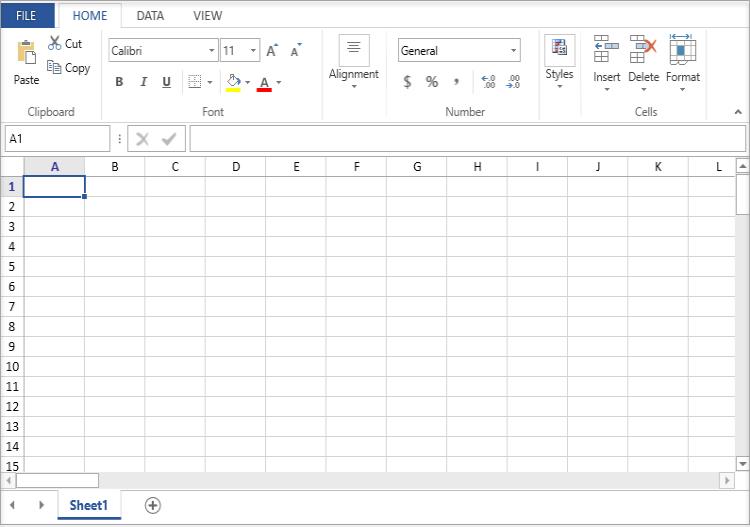
To learn how to create, open, and save files in the WPF Spreadsheet Component, see Workbook Operations.
NOTE