Conditional Formatting in Windows Forms Spreadsheet
14 Aug 20266 minutes to read
This section explains how to apply conditional formatting rules programmatically at runtime in Spreadsheet.
In Spreadsheet, to apply a conditional format to a cell or range of cells, add a new IConditionalFormat to that range by using the AddCondition method.
var worksheet = spreadsheet.Workbook.Worksheets[0];
IConditionalFormats condition = worksheet.Range["A1"].ConditionalFormats;
IConditionalFormat condition1 = condition.AddCondition();
Highlight Cell Rules
Based on Cell Value
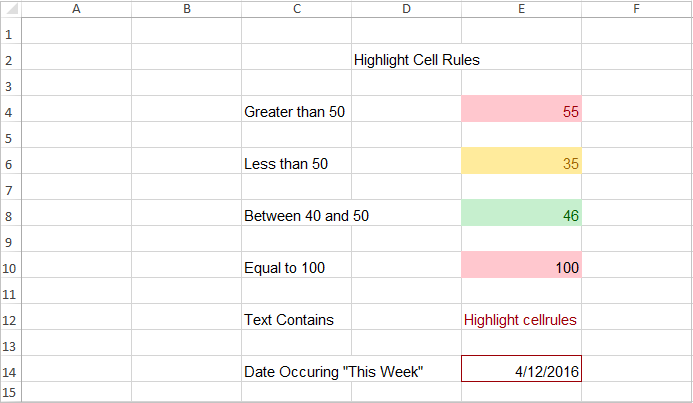
To format the cells based on a cell value, define the conditional format type as CellValue and other formatting options such as formula, operator, background color etc., to the specified cell or range. Finally, invalidate the cells to refresh the view.
var worksheet = spreadsheet.Workbook.Worksheets[0];
IConditionalFormats condition = worksheet.Range["A1:A100"].ConditionalFormats;
IConditionalFormat condition1 = condition.AddCondition();

condition1.FormatType = ExcelCFType.CellValue;
condition1.Operator = ExcelComparisonOperator.Greater;
condition1.FirstFormula = "10";
condition1.BackColor = ExcelKnownColors.Light_orange;

spreadsheet.ActiveGrid.InvalidateCell(GridRangeInfo.Col(1));
Based on Formula or Cell References
To format the cells based on a formula or cell references, define the conditional format type as Formula and other formatting options such as formula, background color etc., to the specified cell or range. Finally, invalidate the cells to refresh the view.
var worksheet = spreadsheet.Workbook.Worksheets[0];
IConditionalFormats condition = worksheet.Range["A1:A100"].ConditionalFormats;
IConditionalFormat condition1 = condition.AddCondition();

condition1.FormatType = ExcelCFType.Formula;
condition1.FirstFormula = "=(B1+B2)>50";
condition1.BackColor = ExcelKnownColors.Brown;

spreadsheet.ActiveGrid.InvalidateCell(GridRangeInfo.Col(1));
Based on Specific Text
To format the cells based on a specified text, define the conditional format type as SpecificText and other formatting options such as the particular text, operator, background color etc., to the specified cell or range. Finally, invalidate the cells to refresh the view.
var worksheet = spreadsheet.Workbook.Worksheets[0];
IConditionalFormats condition = worksheet.Range["A1:A100"].ConditionalFormats;
IConditionalFormat condition1 = condition.AddCondition();

condition1.FormatType = ExcelCFType.SpecificText;
condition1.Text = "SYNC";
condition1.Operator = ExcelComparisonOperator.ContainsText;
condition1.BackColor = ExcelKnownColors.Light_orange;

spreadsheet.ActiveGrid.InvalidateCell(GridRangeInfo.Col(1));
Based on Time Period
To format the cells based on a time period, define the conditional format type as TimePeriod and other formatting options such as the time periods for the date, operator, background color etc., to the specified cell or range. Finally, invalidate the cells to refresh the view.
var worksheet = spreadsheet.Workbook.Worksheets[0];
IConditionalFormats condition = worksheet.Range["A1:A100"].ConditionalFormats;
IConditionalFormat condition1 = condition.AddCondition();
condition1.FormatType = ExcelCFType.TimePeriod;
condition1.TimePeriodType = CFTimePeriods.Today;
condition1.BackColor = ExcelKnownColors.Light_orange;

spreadsheet.ActiveGrid.InvalidateCell(GridRangeInfo.Col(1));
Sample Output
Data Bars
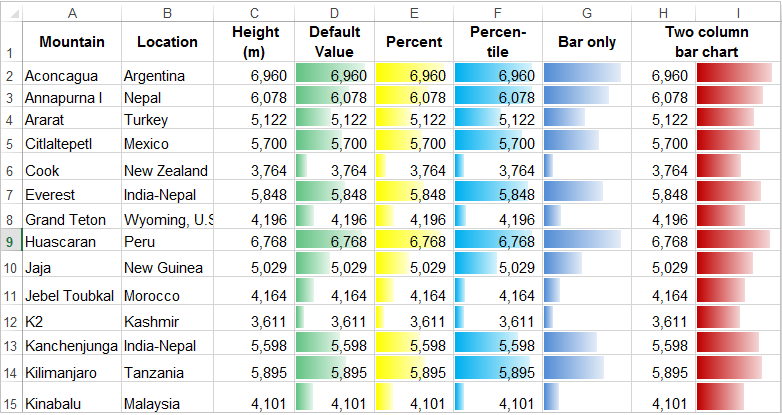
To apply the conditional format based on data bars, define the conditional format type as DataBar and specify the properties associated with DataBars such as bar color, MinPoint, MaxPoint etc.,.to the specified cell or range. Finally, invalidate that cells to update the view.
var worksheet = spreadsheet.Workbook.Worksheets[0];
var conditionalFormats = worksheet.Range["B1:B100"].ConditionalFormats;
var conditionalFormat = conditionalFormats.AddCondition();

conditionalFormat.FormatType = ExcelCFType.DataBar;
conditionalFormat.DataBar.BarColor = Color.FromArgb(255, 214, 0, 123);
conditionalFormat.DataBar.MinPoint.Type = ConditionValueType.LowestValue;
conditionalFormat.DataBar.MaxPoint.Type = ConditionValueType.HighestValue;

spreadsheet.ActiveGrid.InvalidateCell(GridRangeInfo.Col(2));
Sample Output
Color Scales
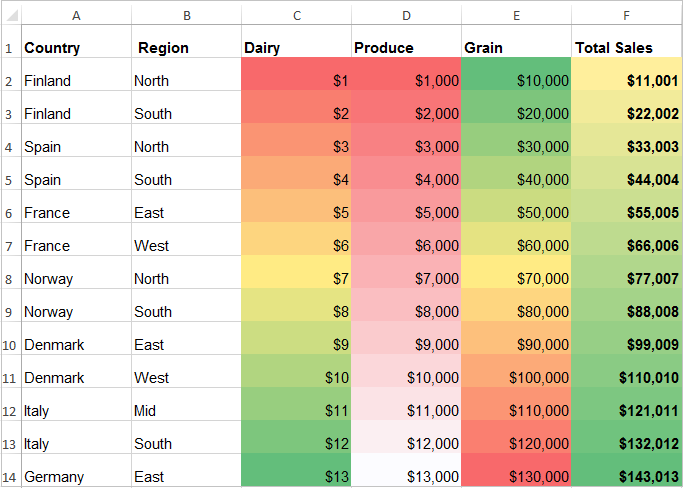
To apply the conditional format based on color scales, define the conditional format type as ColorScale and specify the other properties associated with ColorScale such as condition count,color criteria etc.,to the specified cell or range. Finally,invalidate that cells to update the view.
var worksheet = spreadsheet.Workbook.Worksheets[0];
var conditionalFormats = worksheet.Range["C2:C100"].ConditionalFormats;
var conditionalFormat = conditionalFormats.AddCondition();

conditionalFormat.FormatType = ExcelCFType.ColorScale;
conditionalFormat.ColorScale.SetConditionCount(2);
conditionalFormat.ColorScale.Criteria[0].FormatColorRGB = Color.FromArgb(255, 99, 190, 123);
conditionalFormat.ColorScale.Criteria[1].FormatColorRGB = Color.FromArgb(255, 90, 138, 198);

spreadsheet.ActiveGrid.InvalidateCell(GridRangeInfo.Col(3));
Sample Output
Icon Sets
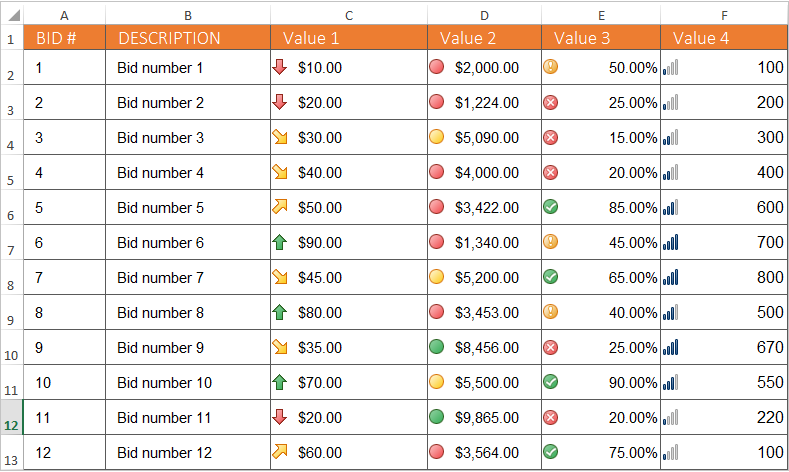
To apply the conditional format based on icon sets, define the conditional format type as IconSet and the properties associated with IconSet such as the type of the icon,criteria etc., to the specified cell or range. Finally, invalidate that cells to update the view.
var worksheet = spreadsheet.Workbook.Worksheets[0];
var conditionalFormats = worksheet.Range["D2:D100"].ConditionalFormats;
var conditionalFormat = conditionalFormats.AddCondition();

conditionalFormat.FormatType = ExcelCFType.IconSet;
conditionalFormat.IconSet.IconSet = ExcelIconSetType.ThreeSymbols;

spreadsheet.ActiveGrid.InvalidateCell(GridRangeInfo.Col(4));
Sample Output