Getting Started with Windows Forms Spreadsheet
14 Aug 20266 minutes to read
This section briefly explains how to include the WinForms Spreadsheet Editor component in Windows Forms App using Visual Studio.
Prerequisites
Create a new Windows Forms App in Visual Studio
You can create a Windows Forms Application using Visual Studio via Microsoft Templates or the Syncfusion® Windows Forms.
Installation
You can add the WinForms Spreadsheet component to your application either by installing the NuGet package (recommended) or by manually adding the required assemblies to the project.
Install Syncfusion® Windows Forms Spreadsheet NuGet package
To add the Windows Forms Spreadsheet component in the application, open the NuGet package manager in Visual Studio (Tools → NuGet Package Manager → Manage NuGet Packages for Solution), search for and install the following package:
• Syncfusion.Spreadsheet.Windows
The following table lists the optional NuGet packages that enable additional features in the Spreadsheet control.
| Optional NuGet Packages | Description |
|---|---|
| Contains the classes that import charts and sparklines into the Spreadsheet. | |
| Contains the classes that convert charts to images. | |
| Contains the classes that create charts that hold axes, series, and legends. |
Add Syncfusion® WinForms Spreadsheet Assemblies
The table below lists the assemblies required to be added to the project when the Syncfusion WinForms Spreadsheet control is used in your application. The assemblies can be obtained from the Syncfusion Essential Studio installer (default install path: C:\Program Files (x86)\Syncfusion\Essential Studio\35.1.37\Assemblies).
Required Assemblies
| Assembly | Description |
|---|---|
| Syncfusion.Spreadsheet.Windows.dll | Contains the classes that handle all the UI operations of the Spreadsheet, such as importing sheets and applying formulas and styles. |
| Syncfusion.Shared.Base.dll | Contains the classes that provide controls like TabBarPage and TabBarSplitterControl. |
| Syncfusion.Tools.Windows.dll | Contains the classes that provide controls like Ribbon, ToolStripPanelItem, MaskedEditBox, ToolStripGallery, and BackStageButton, which are used in the Spreadsheet. |
| Syncfusion.XlsIO.Base.dll | Contains the base classes that are responsible for reading and writing Excel files, worksheet manipulation, and formula calculations. |
The following table lists the optional assemblies that enable additional features in the Spreadsheet control.
| Optional Assemblies | Description |
|---|---|
| Syncfusion.SpreadsheetHelper.Windows.dll | Contains the classes that import charts and sparklines into the Spreadsheet. |
| Syncfusion.ExcelChartToImageConverter.WPF.dll | Contains the classes that convert charts to images. |
| Syncfusion.Chart.Base.dll | Contains the base classes that import charts such as line, pie, and sparklines. |
| Syncfusion.Chart.Windows.dll | Contains the classes that create charts that hold axes, series, and legends. |
| Syncfusion.ExcelToPDFConverter.Base.dll | Contains the base and fundamental classes that convert Excel to PDF. |
| Syncfusion.Pdf.Base.dll | Contains the base and fundamental classes for creating PDFs. |
Add the Windows Forms Spreadsheet Component
WinForms Spreadsheet control can be added to an application either through the designer (Form1.cs[Design]) or programmatically using code.
-
Open the Visual Studio Toolbox. Navigate to the Syncfusion® Controls tab and find the
SpreadsheetandSpreadsheetRibbontoolbox items.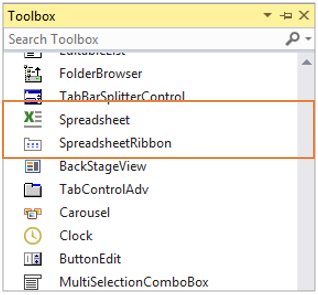
2.Drag Spreadsheet and SpreadsheetRibbon from the Toolbox onto the Designer area.
....
    partial class Form1
    {
    ....
    private void InitializeComponent()
    {
    Spreadsheet spreadsheet = new Spreadsheet();
    }
    ....
    }
    ....
3.Ribbon can be added to the application by dragging SpreadsheetRibbon to the Designer area.
....
    partial class Form1
    {
    ....
    private void InitializeComponent()
    {
    Spreadsheet spreadsheet = new Spreadsheet();
    SpreadsheetRibbon spreadsheetRibbon = new SpreadsheetRibbon();
    }
    ....
    }
    ....
4.To make an interaction between Ribbon items and Spreadsheet, bind the Spreadsheet as DataContext to the SpreadsheetRibbon.
....
    partial class Form1
    {
    ....
    private void InitializeComponent()
    {
    Spreadsheet spreadsheet = new Spreadsheet();
    SpreadsheetRibbon spreadsheetRibbon = new SpreadsheetRibbon();
    spreadsheetRibbon.Spreadsheet = spreadsheet;
    }
    ....
    }
    ....
The Spreadsheet control is available in the Syncfusion.Windows.Forms.Spreadsheet namespace and can be created programmatically with the following code.
For Spreadsheet
using Syncfusion.Windows.Forms.Spreadsheet;
....
    public Form1()
    {
        InitializeComponent();
        Spreadsheet spreadsheet = new Spreadsheet();
        SpreadsheetRibbon ribbon = new SpreadsheetRibbon() { Spreadsheet = spreadsheet };
        spreadsheet.Dock = DockStyle.Fill;
        spreadsheet.Anchor = AnchorStyles.Left | AnchorStyles.Top;
        this.Controls.Add(spreadsheet);
        this.Controls.Add(ribbon);
    }
....
Run the Application
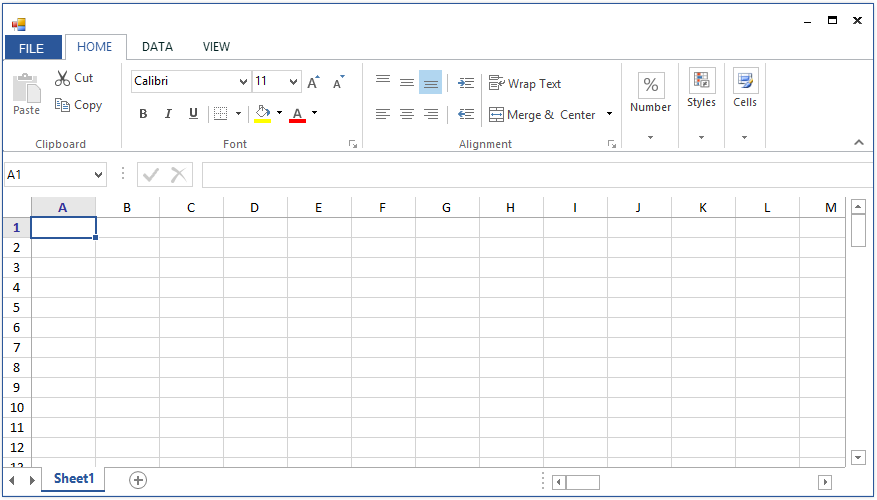
Press Ctrl+F5 in Visual Studio to launch the application.The output will appear as follows:
Next Steps
- To learn how to create, open, and save files in the WinForms Spreadsheet control, see Workbook Operations.
- For a complete working sample that demonstrates everything in this getting-started guide, see the WinForms Spreadsheet Getting Started sample on GitHub.
- For a full overview of the WinForms Spreadsheet Editor component, including features, pricing, and documentation, visit the WinForms Spreadsheet Editor page.