Open Excel Files in React Spreadsheet
14 Aug 202624 minutes to read
The React Spreadsheet Editor component uses a server-assisted workflow to open Excel files efficiently and accurately. When a user uploads an Excel file, the file is sent to a server endpoint for processing. This keeps the browser fast and responsive, as all heavy parsing and conversion are handled on the server.
On the server, the Syncfusion.EJ2.Spreadsheet library is used to process the uploaded Excel file. This library is built on top of Syncfusion XlsIO, which itself is implemented using .NET Frameworks. The server extracts all data, styles, formulas, formatting, and sheet structure, then converts everything into a Spreadsheet-compatible JSON format. This JSON is sent back to the client, where the React Spreadsheet component renders the workbook in the browser, preserving the original Excel layout and content.
In the code samples and demos, you may see Syncfusion-hosted service URLs used for the openUrl and saveUrl properties. These URLs point to Syncfusion’s own WebAPI services (built with ASP.NET Core) that handle opening and saving Excel files. These hosted URLs are provided only for demonstration and evaluation purposes:
Hosted Syncfusion Service URLs
openUrl='https://document.syncfusion.com/web-services/spreadsheet-editor/api/spreadsheet/open'
saveUrl='https://document.syncfusion.com/web-services/spreadsheet-editor/api/spreadsheet/save'
For your own development and production, you must set up your own web service for open/save operations. This ensures your data remains private, secure, and fully under your control. Using your own service also allows you to customize processing, apply business logic, and comply with your organization’s security requirements.
Server Configuration
Below is an example of a server-side Open endpoint using ASP.NET Core WebAPI, which is the same approach used for building the hosted Syncfusion URLs. This endpoint receives the uploaded Excel file, processes it with the Syncfusion Spreadsheet library, and returns the workbook JSON to the client:
// Open action
[HttpPost]
[Route("Open")]
public IActionResult Open([FromForm] IFormCollection openRequest)
{
    OpenRequest open = new OpenRequest();
    if (openRequest.Files && openRequest.Files.Count > 0) {
        open.File = openRequest.Files[0];
        return Content(Workbook.Open(open));
    }
    return BadRequest("No file uploaded.");
}
Note: For details on how to set up your own web service for open/save operations, refer to the web service section of this documentation.
Install Required Dependencies
For spreadsheet open and save operations, install the following NuGet packages based on your server platform:
| Platform | Assembly | NuGet Package |
|---|---|---|
| ASP.NET Core | Syncfusion.EJ2.Spreadsheet.AspNet.Core Syncfusion.EJ2.AspNet.Core Syncfusion.XlsIORenderer.Net.Core |
Syncfusion.EJ2.Spreadsheet.AspNet.Core Syncfusion.EJ2.AspNet.Core Syncfusion.XlsIORenderer.Net.Core |
| ASP.NET MVC5 | Syncfusion.XlsIO.AspNet.Mvc5 Syncfusion.ExcelToPdfConverter.AspNet.Mvc5 Syncfusion.Pdf.AspNet.Mvc5 Syncfusion.ExcelChartToImageConverter.AspNet.Mvc5 Syncfusion.EJ2.MVC5 |
Syncfusion.XlsIO.AspNet.Mvc5 Syncfusion.ExcelToPdfConverter.AspNet.Mvc5 Syncfusion.Pdf.AspNet.Mvc5 Syncfusion.ExcelChartToImageConverter.AspNet.Mvc5 Syncfusion.EJ2.MVC5 |
For more details, see the dependencies section on nuget.org.
To enable opening Excel files, set the allowOpen property to true and specify the service url using the openUrl property. The control will send the uploaded file to this endpoint, where it is processed and returned as JSON for the Spreadsheet to render.
For a quick walkthrough on how the open functionality works, refer to the following video:
UI options to open Excel files
In the user interface you can open an Excel document by clicking File > Open menu item in ribbon.
The following sample shows the Open option configured by using the openUrl property. You can also use the beforeOpen event to customize or cancel the import action, which is triggered before opening an Excel file.
import * as React from 'react';
import { createRoot } from 'react-dom/client';
import { SpreadsheetComponent } from '@syncfusion/ej2-react-spreadsheet';

function App() {
    const beforeOpen = () => {};
    return (
        <SpreadsheetComponent allowOpen={true} openUrl='https://document.syncfusion.com/web-services/spreadsheet-editor/api/spreadsheet/open' beforeOpen={beforeOpen} />
    );
};
export default App;

const root = createRoot(document.getElementById('root'));
root.render(<App />);
import * as React from 'react';
import { createRoot } from 'react-dom/client';
import { SpreadsheetComponent } from '@syncfusion/ej2-react-spreadsheet';
function App() {
const beforeOpen = ():void => {};
return (
<SpreadsheetComponent allowOpen={true} openUrl='https://document.syncfusion.com/web-services/spreadsheet-editor/api/spreadsheet/open' beforeOpen={beforeOpen} />
);
};
export default App;
const root = createRoot(document.getElementById('root')!);
root.render(<App />);Please find the below table for the beforeOpen event arguments.
BeforeOpenEventArgs – Properties
| Property | Type | Description |
|---|---|---|
| cancel | boolean |
Specifies whether the open action should be canceled. |
| file |
FileList | string | File
|
Specifies the file to be opened. |
| parseOptions | WorkbookParseOptions |
Specifies the parsing options that control how the Excel file is interpreted during loading. |
| password | string |
Specifies the password required to open the Excel file, if it is protected. |
| requestData | object | Specifies any additional data sent along with the open request. |
| requestType | string |
Specifies the type of open request that triggered the beforeOpen event. Possible values: • initial – The default request made when loading a workbook. • chunk – A follow‑up request to load a portion of the workbook when chunking is enabled and the server provides a chunk plan. • thresholdLimitConfirmed – A request made after the user confirms a threshold warning (such as maximumDataLimit or maximumFileSizeLimit) and chooses to proceed. |
Open Excel files programmatically
To open Excel files programmatically in the Spreadsheet, you can use the open method of the Spreadsheet component. Before invoking this method, ensure that the openUrl property is properly configured, as it is required for processing the file on the server.
Please find the table below for the open method arguments.
| Parameter | Type | Description |
|---|---|---|
| options | OpenOptions | Options for opening the excel file. |
The following code example demonstrates how to open an Excel file programmatically in the Spreadsheet.
import React, { useRef } from 'react';
import { createRoot } from 'react-dom/client';
import { SpreadsheetComponent } from '@syncfusion/ej2-react-spreadsheet';

const App = () => {
  const spreadsheetRef = useRef(null);

  const onCreated = () => {
    fetch('https://js.syncfusion.com/demos/ejservices/data/Spreadsheet/LargeData.xlsx')
      .then((response) => response.blob())
      .then((fileBlob) => {
        const file = new File([fileBlob], 'Sample.xlsx');
        spreadsheetRef.current?.open({ file });
      });
  };

  return (
    <SpreadsheetComponent
      ref={spreadsheetRef}
      created={onCreated}
      openUrl="https://document.syncfusion.com/web-services/spreadsheet-editor/api/spreadsheet/open"
      saveUrl="https://document.syncfusion.com/web-services/spreadsheet-editor/api/spreadsheet/save"
    />
  );
};

export default App;

const root = createRoot(document.getElementById('spreadsheet'));
root.render(<App />);
Supported Excel file formats for Open
The following Excel file formats are supported for opening in the Spreadsheet component:
- Microsoft Excel Workbook (.xlsx)
- Microsoft Excel 97–2003 Workbook (.xls)
- Comma-Separated Values (.csv)
- Excel Macro‑Enabled Workbook (.xlsm)
- Excel Binary Workbook (.xlsb)
Import options
Open Excel files from local system
If you explore your machine to select and upload an Excel document using the file upload component, you will receive the uploaded document as a raw file in the success event of the file upload component. In this success event, you should pass the received raw file as an argument to the Spreadsheet’s open method to see the appropriate output.
The following code example shows how to import an Excel document using file upload component in spreadsheet.
import * as React from 'react';
import { createRoot } from 'react-dom/client';
import { SpreadsheetComponent } from '@syncfusion/ej2-react-spreadsheet';
import { UploaderComponent } from '@syncfusion/ej2-react-inputs';
function App() {
  const spreadsheetRef = React.useRef(null);
  const uploaderRef = React.useRef(null);
  const asyncSettings = {
    saveUrl:
      'https://services.syncfusion.com/react/production/api/FileUploader/Save',
    removeUrl:
      'https://services.syncfusion.com/react/production/api/FileUploader/Remove',
  };
  const allowedExtensions = '.xlsx, .xls, .csv';
  const onSuccess = (args) => {
    if (args.operation == 'upload')
      spreadsheetRef.current.open({ file: args.file.rawFile });
  };

  return (
    <div>
      <UploaderComponent
        ref={uploaderRef}
        asyncSettings={asyncSettings}
        success={onSuccess}
        allowedExtensions={allowedExtensions}
      ></UploaderComponent>
      <SpreadsheetComponent
        ref={spreadsheetRef}
        openUrl="https://document.syncfusion.com/web-services/spreadsheet-editor/api/spreadsheet/open"
      />
    </div>
  );
}
export default App;

const root = createRoot(document.getElementById('root'));
root.render(<App />);
import * as React from 'react';
import { createRoot } from 'react-dom/client';
import { SpreadsheetComponent } from '@syncfusion/ej2-react-spreadsheet';
import { UploaderComponent } from '@syncfusion/ej2-react-inputs';
function App() {
const spreadsheetRef = React.useRef<SpreadsheetComponent>(null);
const uploaderRef = React.useRef<UploaderComponent>(null);
const asyncSettings = {
saveUrl:
'https://services.syncfusion.com/react/production/api/FileUploader/Save',
removeUrl:
'https://services.syncfusion.com/react/production/api/FileUploader/Remove',
};
const allowedExtensions: string = '.xlsx, .xls, .csv';
const onSuccess = (args) => {
if (args.operation == 'upload')
spreadsheetRef.current.open({ file: args.file.rawFile });
};
return (
<div>
<UploaderComponent
ref={uploaderRef}
asyncSettings={asyncSettings}
success={onSuccess}
allowedExtensions={allowedExtensions}
></UploaderComponent>
<SpreadsheetComponent
ref={spreadsheetRef}
openUrl="https://document.syncfusion.com/web-services/spreadsheet-editor/api/spreadsheet/open"
/>
</div>
);
}
export default App;
const root = createRoot(document.getElementById('root')!);
root.render(<App />);Open Excel files from URL
You can achieve to access the remote Excel file by using the created event. In this event you can fetch the Excel file and convert it to a blob. Convert this blob to a file and open this file by using Spreadsheet component open method.
import * as React from 'react';
import { createRoot } from 'react-dom/client';
import { SpreadsheetComponent } from '@syncfusion/ej2-react-spreadsheet';

function App() {
    const spreadsheetRef = React.useRef(null);
    React.useEffect(() => {
        const fetchData = async () => {
            const response = await fetch('https://cdn.syncfusion.com/scripts/spreadsheet/Sample.xlsx'); // fetch the remote url
            const fileBlob = await response.blob(); // convert the excel file to blob
            const file = new File([fileBlob], 'Sample.xlsx'); //convert the blob into file
            let spreadsheet = spreadsheetRef.current;
            if (spreadsheet) {
                spreadsheet.open({ file }); // open the file into Spreadsheet
            }
        };
        fetchData();
    }, []);

    return (
        <SpreadsheetComponent ref={spreadsheetRef} openUrl='https://document.syncfusion.com/web-services/spreadsheet-editor/api/spreadsheet/open' />
    );
};
export default App;

const root = createRoot(document.getElementById('root'));
root.render(<App />);
import * as React from 'react';
import { createRoot } from 'react-dom/client';
import { SpreadsheetComponent } from '@syncfusion/ej2-react-spreadsheet';
function App() {
const spreadsheetRef = React.useRef<SpreadsheetComponent>(null);
React.useEffect(() => {
const fetchData = async (): Promise<void> => {
const response: Response = await fetch('https://cdn.syncfusion.com/scripts/spreadsheet/Sample.xlsx'); // fetch the remote url
const fileBlob: Blob = await response.blob(); // convert the excel file to blob
const file: File = new File([fileBlob], 'Sample.xlsx'); //convert the blob into file
let spreadsheet = spreadsheetRef.current;
if (spreadsheet) {
spreadsheet.open({ file }); // open the file into Spreadsheet
}
};
fetchData();
}, []);
return (
<SpreadsheetComponent ref={spreadsheetRef} openUrl='https://document.syncfusion.com/web-services/spreadsheet-editor/api/spreadsheet/open' />
);
};
export default App;
const root = createRoot(document.getElementById('root')!);
root.render(<App />);Open Excel files from Blob Data
By default, the Spreadsheet component provides an option to browse files from the local file system and open them within the component. If you want to open an Excel file from blob data, you need to fetch the blob data from the server or another source and convert this blob data into a File object. Then, you can use the open method in the Spreadsheet component to load that File object.
Please find the code to fetch the blob data and load it into the Spreadsheet component below.
import * as React from 'react';
import { createRoot } from 'react-dom/client';
import { SpreadsheetComponent } from '@syncfusion/ej2-react-spreadsheet';


function App() {

  const spreadsheetRef = React.useRef(null);

  const base64String = "data:application/vnd.openxmlformats-officedocument.spreadsheetml.sheet;base64,UEsDBBQAAAAIAP1o41i4AvtcvQIAAHISAAANAAAAeGwvc3R5bGVzLnhtbOxYW2vbMBT+K0LvreM0ydoQp2yFQGGUsm4wGHuQZdkR1cXIcrH363ckO3bSJOvW9iEDv0RHx/q+c9ElOlpcV1KgJ2YKrlWEw/MRRkxRnXCVRbi06dklRoUlKiFCKxbhmhX4erkobC3Yw5oxi4BAFXNJI7y2Np8HQUHXTJLiXOdMwcdUG0ksdE0WSGIey/yMapkTy2MuuK2D8Wg0w0jS+W2mtCGxADNVOCEUt9y+s0cvOTW60Kk9B7pApymnLChyw0hSOMekcMxXwVXQMf2Ni3sMM/CaK7xcpFrZAlFdKhvhaauAVPxCT0RA7kKMguVCEckaxQ0RPDbca+mamAKS5T+MvCpo4APJfk58U0BuuBBdxse4USwXsHYsM2oFHdTKX+scVo2CJepGZTdaaIO4SljFkgjPJp493tNPG6tbhM64b14wlRlSh+Ppe1nzDUQca5PAZtzEHOKNarkQLLUOb3i29oLVubejrdXSSQknmVZEeCsbWCsAN2VCPLh9+z3tk+oiqFKkSrmS9jbxE+GyvxHBrVZseNpOcBwVHkeRPBf1R8EzJZmzvlF98oP6/l0pY2ZWflf2WpewvndvtGXU+mPrP3NoPDj0QoZGpzZlg0NDhoY1NOyy4Rxyp+Hk4l3/XVdA9cojeuLMn4YncOs7EU/Gp+LJ1ak48uZL7XEU1AidbSQ0fXRX/baaqVL42b52N5dwL7zCvyp9i6MtfHwAH07+keDADaupfn20XaA+7K7WuMRbWuTq5AjfObTYCi0uubBc9YE+R9xoKckGEE53EBfHEejH6GeHmu2gZodRpTHwElJ3oA87oMkfQTvWLneAQHMAeM8MhcXfYWDnbGGawnHPGDHogbgEf2G5NvazX3xQdJZS+XHPpvwl/Dd1nGFrdptJhWqz6svIxoB1bze7c95uhP65aPkbAAD//wMAUEsDBBQAAAAIAP1o41iHwWa9AgMAALMIAAAUAAAAeGwvc2hhcmVkU3RyaW5ncy54bWx0Vl1vGksM/SsW7y1JVN1GFaEKNJCm5ENASe+jYR3Wysx4Mx9ptr++XlVXV1pvn4A5Mx77+PgMk89v3sErxcQSLkan709GQOEgFYfjxajkp3fno8/TSUoZSuCXQnMpIV+Mzk9HcPjz9fTsbAQaJaSLUZ1z82k8ToeaPKb30lBQ5Emix6w/43GcmkhYpZooezc+Ozn5Z+yRw0jv4OkkT+clZfEU4Q49TcZ5Ohl3wB/wVipy/cW5OIn9xQdsPYUM3Yk+9oUca8UtfMFswEvfVdVfXYuXgHBNmBw3fXSLJZZkIr0U9Bg5DCSw5wxzjJWpxWEkmGHOFLOEPrxpMEb5aYrl8GwiYarhPsB/xfbxK9SKYBuRk8lvGTFUMK8pyjMZdOaKWbujrFmHZ1VNH7opjkuCpcRApk3L7b1JPFL1F3ZuKGgTNodaxD0xObNh9aO/8i85Zwm7xdi6NgSCayV0IOm5KiOi5YXI9GTHribnWTNbETfkjHg+woYikxHIUlxFIYopY4Zx36rYODlL2VziK6k+jETJxPmmZQaYCRt1rOmIZpC+hoqPYknH0N0HD+gbx1aTH/ori5IObMibR06Z4So1HMRwsV2ZbFJSDor3dkbKHh7xaMdjWyhV2MICS3ZG8btz2GHIeKSB1Hyy4daS1MUiI2xr8RjMBtUovuKAIsSRUcGqVSnCoqgr0S/T8S5QZThbYxu6U6vuc9D3sJKBQwSPtfqOYfnDuqjojaR2HI+dfi9rjBLY0LoxY/VAGTuDSDUPWG+unzhU9h61AoLvUV8aU4vefLQHVvQTluxa9UPDmGglr+yc4eVG9qQakJiLuWf2bngUZ05U/ATzWLyx9520OJDctsSXIgP2udC+aJdVNzMOIQ2760Pktz5yr4hV5w3qs6uDB0t0+iYYfFPCnq1ZXqN6t4crTIn2ZhhuOQ4Mwh0fnsVhZ9dcqeL7+I9vA5asQoOvR0fJzvzl4SA2swW+wSNnfV5SIwNj15EAa9FXCzaNtvH/DWP9HzL9DQAA//8DAFBLAwQUAAAACAD9aONYKH0NfPcGAAAGJAAAGAAAAHhsL3dvcmtzaGVldHMvc2hlZXQxLnhtbKSabY+jNhDHvwri/QEGzMNqd09NsqiVrmrVSr3XbOJs0JGQAvtw377GBg5mhgbr3qyy5Jc/nmE8/hu4//xxLq03UTdFdXmwmePZlrjsq0NxeXmwX9vjp8S2mja/HPKyuogH+7to7M+P9+9V/a05CdFa8veX5q5+sE9te71z3WZ/Eue8caqruMjvjlV9zlv5b/3iVsdjsRe7av96FpfW9T0vcmtR5q08d3Mqro3dq32wEOmdi31dNdWxdfbVuZdym2st8oMayLnsBFM3dc95cRmUzvs1Azvn9bfX6ycpfJWDeS7Kov2uhjcO6LAqwEOdv8vE6aFE09Ht9De93hotFFqkA3u8V8f+rC338f5QyEx2l86qxfHB/oXdZYG8gm4P/VOI92by2Wqr6xdxbLeiLDvatt7k0Qf70p23tK02f/5blGLfioOsBdvqrvJzVX3rfvubPOR1Z1dAd8pr3hVEL2lbuTz6Jn5IN//2Y1LjccdBTD8Pg8tU4DKm/WvTVudfRfFyaqV2/Sps6yCO+WvZ/lW9D8dZ6Phcye6rUmrIv9a56OrXts75hx57cWhPD7bPnZh5aRBLvmm/l0J9qU/zVSN6gKOG32sEowZLHB57AfNXa4S9RvgT4+C9Bv+JcUS9RvRDI3ZY6EU3JVydWV28eZs/3tfVuyVnQXdl5ZWXNczupKy6HFJsfuGYLJR9R6tCUD+SRxt59O3Ru3ffOv2e2GCCzYktJvw5scNEMCeeMBHOiQwTfCRcGfyYAd8sAz7SjUAGMBGDDGAiARnARAoyoAlfx+6zFIwiGxSUOvdTx/fp+AOz+AN8fWEJEAisAQKBRUAgsAqCWQ54BGtgkFA/jpMoclhKJyE0S0KIxwbOvSEQDpJAIOAq7ggEFNNTOEuCz0Gqs0FCZzDhgeMtJIGbJYHjsYEy3hAIqOMtvzkXMOGDinvi0xwEXgILYZBQPw6CxIlDOgWRWQoiPDSQ/g2BgErfEgio9F10OwfRNAcshd9ng4RqJjxOnHChIcZmOYjx0OBcIBA4FwgEzoX4dkOIZ3MhhXMlGyR0JbKQOdFCV0zMkpDg4YNzbwgEVPqWQMB02SW3CyGZJSHg4CzZIKHWLh4GTkCnIDVLQYoXbbgwEAhcGAgELgzp7RSk87kQwToYJHQReQF3vIhOAvMMDZKHAwBVuqEYMGW2FAPmzI5goEvokSETcQxXh1FD9+8wSZxkIROmVpFwcdAqUQw0SxQDlwiCQetkzwzzwvPAZclGEW1HAumtvYVlghmaRsWDGMCl2hBMCOp6SzAoFf7t6dEzQ1VEsNVmo4jqEX7gOZNWO8+EoX1UPIgSLpkUA9dMtsJBUgzaSMw9pAfLLxtF1PSKvdQJF+wTMzSRigdholZBMKhVEAxqFeHtVhGCpgnSmY0aOhOdm15IhKGRVDwIAHUKgkGdgmDQ9OArOsXMTrIohivoKKI2d1HCl2vC0FAqHoSAGgVmOGoU0YpURLdrYmYqfZ6g2TF1lSzxmL9oK5mhr1Q8CBN1CoJBnSJe0SniFU1zbi45MtijiLZ//1cVhu5S8SBM1CkIBnWK5La7IhhUFXOHGcO9bzZqqF9L+7W432KGJlPxIErQ6zYUA9rJlmBwUaQrlg/gNKFHy0YRPdQkdCZ2cH4fytBpKh6ECfccFAM3HQSDioJgUNfsmXHfgdaPUURP0yRy+FIqDK2m4kGYsGsSTAS7JsGgrkkw6NbczGkynsL1Y9TQNcUZc9KFtdQ3vT1J3J+EXZNiYNckGGQqCAZ1zZ75kQu4gowiahhhmizeo/MNrabiQZiwa1IM7JoEg+7TUQyaIDOryVLoabNRRN9VDXjqTHau81wYek3Fgzhh36QY2DcpBsS5IxhcFjOzGRC3r6dmM2HyWclkwzRPhaHbVDwIAd63pBh445JgYhDmjmDQEtIzQ9+M4FqVjSK6LHxPriFLZWFoNxUPYkDdgmBQt4hWrCHRiikyv4nJYdKzUURXsJ8s3rjxDe2m4kGYqFsQDOoW8YrGGd9eQ2ZukyUp9FijhvY3TD7gWXrAZeg2FQ+iRL2CYFCvSFZMkNtus0dG3+2htjl1m9xLmTPZRs8zYeg2FQ8iQBaLYJDFSldkIr2diZnZDAK4Sc5GDTW5Qi636N7C3bzuvQKjx37YAcbQYhFMAi0WpQNTQTBoAemZcQGB+yH14sTUbYbOZPOqU6FfXNCPw6/5i/g9r1+KS2OV8gUI+XaEI2dYrfOgPstXI9QnmaXnqpVZGv47yTc7hDyn58gF/FhV7fiPfPKuv8zUUavZ56X4WrQn+daMCjAvi5dLd6A/d/dShnUojkdRy3dqsqJuurNPDv1xODy9CfkugH4vRHy0X5pWPeEf3+F5/A8AAP//AwBQSwMEFAAAAAgA/WjjWEIio45GAQAAQgIAAA8AAAB4bC93b3JrYm9vay54bWyMkctOwzAQRX/F8p46iUiAqmklHotuUAVVWRtn3Fj1S7ZD+/lM0kQFumEVj69z5ni8WJ2MJl8QonK2pvksowSscI2y+5p2Sd7c09VycXTh8OncgeBpG+ehpm1Kfs5YFC0YHmfOg8VMumB4wjLsmZNSCXh2ojNgEyuyrGIBNE/YKbbKRzrSTnl5xTNKBBedTDPhzIhi0QfgTWwBktEIzDOW58xwZUfUf7T+QtBqICwXUmnYnSdBuPev3EBNT5oSzWN6aVSCpqa3WLoj/NoInX/slO6LMqsoYZeBbQLBYcKZtW1V/BgDShqQvNNpi6ZTW3yAqnooygHRn9opOMYLrS/7iP3IhptMX2KHRk88kHeuIZI38C4kSoZ0jYY56s4VLsK6wXUPmwiCa4G+stN6E0Co0YiSPhj+Lcq7UY5NSstvAAAA//8DAFBLAwQUAAAACAD9aONYjtrdGNsAAAA3AgAAGgAAAHhsL19yZWxzL3dvcmtib29rLnhtbC5yZWxzrJHBasMwDIZfxei+OOlglFK3l1563fYCxlbi0MQ2ktoubz+zQkihlB16EpLR939Y2/3POKgLEvcpGmiqGhRGl3wfOwNnad/WoFhs9HZIEQ1MyLDfbT9xsFJWOPSZVWFENhBE8kZrdgFHy1XKGMtLm2i0UlrqdLbuZDvUq7r+0LRkwD1THb0BOvoG1PeU8T/s1La9w0Ny5xGjPIjQ10QnDohSoJY6FAPziPVfaapCBaUf26xeacMyDeUzZ5Vb/zT//aX5wRL6L6Fy6qXGcjzb6LuD734BAAD//wMAUEsDBBQAAAAIAP1o41gb/8y3sQAAAOwAAAAQAAAAZG9jUHJvcHMvYXBwLnhtbEyOTwsCIRBHv4p4b7WCiHCNoA6d6hRdxZ0twR3FmaK+fVb05zjzHj+eWd6GKK5QKCRs5bjRUgD61AU8tfLC/WguBbHDzsWE0Mo7kFxasy8pQ+EAJOoAUivPzHmhFPkzDI6airGSPpXBcT3LSaW+Dx7WyV8GQFYTrWcKbgzYQTfK30FpzSrnGLzj2mQ3RNUOLopjpO3OqH/4NA/veDueNXqq9Uv4/Iz6hdoHAAAA//8DAFBLAwQUAAAACAD9aONYpj2ahycBAAA2AgAAEQAAAGRvY1Byb3BzL2NvcmUueG1spJHNasMwEIRfxYhebcl22gRhO4eUnlooNNDSm5DWiYj1g6TUydtXdrDbktx63flm2Nmt1ifVJV/gvDS6RnlGUAKaGyH1rkbH0KYrlPjAtGCd0VCjM3i0bipuKTcOXp2x4IIEn8Qc7angNdqHYCnG9ui6zLgdFhxDBwp08DjPcoxmNoBT/qZhVH6RSoazhZvoJM70ycsZ7Ps+68sRLQjJ8cfL8xvfg2Kp1EMtDpOL29nkR8JnsZuOYmucYsGPIZbxA9vBEPaAFQQmWGB4OEVq51ugphKccgcsGNdYQZToD4QUm3JxV8V9ZyliY9HLAEQSV6eXopPyXm4et0+oKUixSMkyJeU2LylZ0vvV55D1x/8TqOIHW/mPxCmgqfDVr5tvAAAA//8DAFBLAwQUAAAACAD9aONYT1g2JpgAAADlAAAAEwAAAGRvY1Byb3BzL2N1c3RvbS54bWyczkEKgzAQBdCrhNlrbBeliNFND9BF6T7EiQomEzKj1Ns3pdADdPn5n8fvhldY1Y6ZF4oGTnUDCqOjcYmTgU18dQXFYuNoV4po4ECGoe/umRJmWZBVASK3uxiYRVKrNbsZg+W6LGIpPeVgpcQ8afJ+cXgjtwWMos9Nc9EjuY/Gz8eRCv71/sXcxkKhSr97oHT/BgAA//8DAFBLAwQUAAAACAD9aONYylePDEoBAACjBAAAEwAAAFtDb250ZW50X1R5cGVzXS54bWyslE1OwzAQha8SeYsStywQQk27ALZQCS5g7Elj1X/yTEp7eyYJrRCqWiq6GiUz773Pziizxda7YgMZbQy1mFYTUUDQ0diwqkVHTXkvCiQVjHIxQC12gGIxn73vEmDB2oC1aInSg5SoW/AKq5ggcKeJ2Svix7ySSem1WoG8nUzupI6BIFBJvYeYz56gUZ2j4nnLr0cOlovicZzro2qhUnJWK+K2HLryqDCDwxPKTTC/8MpvtIqVwwy2NuHNPuKVryZbA8VSZXpRnv3k1kmknQOsTmMeCYtNYzWYqDvPkgpTBmWwBSDvqtH0bHSrMpg3yvyFrk7w0/scyGfM648Y11dn4Fp5ZcNfAIZplEOZXpnk4H8ShMXLHBNKjvo3APSbbMCUiS0hkz2zD4dwHTNcnr7f/V59eWSHFP2/jzzaHEuXw09m/gUAAP//AwBQSwMEFAAAAAgA/WjjWLgS9sP5AAAA4QIAAAsAAABfcmVscy8ucmVsc6ySQU7DMBBFr2LNvnFaEEKobjfddIcQFxjsSRol9lj2BNLbY1hUFJXQRZe2/zw/fc16O/lBvVPKHQcDy6oGRcGy60JrYJRm8QgqCwaHAwcycKQM2836hQaUMpIPXcyqMEI2cBCJT1pneyCPueJIobw0nDxKOaZWR7Q9tqRXdf2g008GnDPV3hlIe7cE9XqMdA2bm6aztGM7egpy4YtfiULG1JIYmAb9wal/Y+6rAgWlL8usbilDk1Bw5BYxlfkkXSn2ZOTYPpfrrDHGWaW765X+7l57EnQoqC0nmhf6Sswa3d+yJDtmYf+P0Xfm5KTPVnPzCQAA//8DAFBLAQItABQAAAAIAP1o41i4AvtcvQIAAHISAAANAAAAAAAAAAAAIAAAAAAAAAB4bC9zdHlsZXMueG1sUEsBAi0AFAAAAAgA/WjjWIfBZr0CAwAAswgAABQAAAAAAAAAAAAgAAAA6AIAAHhsL3NoYXJlZFN0cmluZ3MueG1sUEsBAi0AFAAAAAgA/WjjWCh9DXz3BgAABiQAABgAAAAAAAAAAAAgAAAAHAYAAHhsL3dvcmtzaGVldHMvc2hlZXQxLnhtbFBLAQItABQAAAAIAP1o41hCIqOORgEAAEICAAAPAAAAAAAAAAAAIAAAAEkNAAB4bC93b3JrYm9vay54bWxQSwECLQAUAAAACAD9aONYjtrdGNsAAAA3AgAAGgAAAAAAAAAAACAAAAC8DgAAeGwvX3JlbHMvd29ya2Jvb2sueG1sLnJlbHNQSwECLQAUAAAACAD9aONYG//Mt7EAAADsAAAAEAAAAAAAAAAAACAAAADPDwAAZG9jUHJvcHMvYXBwLnhtbFBLAQItABQAAAAIAP1o41imPZqHJwEAADYCAAARAAAAAAAAAAAAIAAAAK4QAABkb2NQcm9wcy9jb3JlLnhtbFBLAQItABQAAAAIAP1o41hPWDYmmAAAAOUAAAATAAAAAAAAAAAAIAAAAAQSAABkb2NQcm9wcy9jdXN0b20ueG1sUEsBAi0AFAAAAAgA/WjjWMpXjwxKAQAAowQAABMAAAAAAAAAAAAgAAAAzRIAAFtDb250ZW50X1R5cGVzXS54bWxQSwECLQAUAAAACAD9aONYuBL2w/kAAADhAgAACwAAAAAAAAAAACAAAABIFAAAX3JlbHMvLnJlbHNQSwUGAAAAAAoACgCAAgAAahUAAAAA";

  const onCreated = () => {
    let spreadsheet = spreadsheetRef.current;
    // To obtain blob data from base64 string.
    fetch(base64String)
      .then((response) => response.blob())
      .then((fileBlob) => {
        // To convert obtained blob data as a file.
        let file = new File([fileBlob], 'Sample.xlsx');
        spreadsheet.open({ file: file });
      });
  }

  return (
    <div className='control-section spreadsheet-control'>
      <SpreadsheetComponent openUrl='https://document.syncfusion.com/web-services/spreadsheet-editor/api/spreadsheet/open' saveUrl='https://document.syncfusion.com/web-services/spreadsheet-editor/api/spreadsheet/save' ref={spreadsheetRef} created={onCreated}>
      </SpreadsheetComponent>
    </div>
  );
}

export default App;

const root = createRoot(document.getElementById('root'));
root.render(<App />);
import * as React from 'react';
import { createRoot } from 'react-dom/client';
import { SpreadsheetComponent } from '@syncfusion/ej2-react-spreadsheet';
function App() {
const spreadsheetRef = React.useRef<SpreadsheetComponent>(null);
const base64String: string | ArrayBuffer = "data:application/vnd.openxmlformats-officedocument.spreadsheetml.sheet;base64,UEsDBBQAAAAIAP1o41i4AvtcvQIAAHISAAANAAAAeGwvc3R5bGVzLnhtbOxYW2vbMBT+K0LvreM0ydoQp2yFQGGUsm4wGHuQZdkR1cXIcrH363ckO3bSJOvW9iEDv0RHx/q+c9ElOlpcV1KgJ2YKrlWEw/MRRkxRnXCVRbi06dklRoUlKiFCKxbhmhX4erkobC3Yw5oxi4BAFXNJI7y2Np8HQUHXTJLiXOdMwcdUG0ksdE0WSGIey/yMapkTy2MuuK2D8Wg0w0jS+W2mtCGxADNVOCEUt9y+s0cvOTW60Kk9B7pApymnLChyw0hSOMekcMxXwVXQMf2Ni3sMM/CaK7xcpFrZAlFdKhvhaauAVPxCT0RA7kKMguVCEckaxQ0RPDbca+mamAKS5T+MvCpo4APJfk58U0BuuBBdxse4USwXsHYsM2oFHdTKX+scVo2CJepGZTdaaIO4SljFkgjPJp493tNPG6tbhM64b14wlRlSh+Ppe1nzDUQca5PAZtzEHOKNarkQLLUOb3i29oLVubejrdXSSQknmVZEeCsbWCsAN2VCPLh9+z3tk+oiqFKkSrmS9jbxE+GyvxHBrVZseNpOcBwVHkeRPBf1R8EzJZmzvlF98oP6/l0pY2ZWflf2WpewvndvtGXU+mPrP3NoPDj0QoZGpzZlg0NDhoY1NOyy4Rxyp+Hk4l3/XVdA9cojeuLMn4YncOs7EU/Gp+LJ1ak48uZL7XEU1AidbSQ0fXRX/baaqVL42b52N5dwL7zCvyp9i6MtfHwAH07+keDADaupfn20XaA+7K7WuMRbWuTq5AjfObTYCi0uubBc9YE+R9xoKckGEE53EBfHEejH6GeHmu2gZodRpTHwElJ3oA87oMkfQTvWLneAQHMAeM8MhcXfYWDnbGGawnHPGDHogbgEf2G5NvazX3xQdJZS+XHPpvwl/Dd1nGFrdptJhWqz6svIxoB1bze7c95uhP65aPkbAAD//wMAUEsDBBQAAAAIAP1o41iHwWa9AgMAALMIAAAUAAAAeGwvc2hhcmVkU3RyaW5ncy54bWx0Vl1vGksM/SsW7y1JVN1GFaEKNJCm5ENASe+jYR3Wysx4Mx9ptr++XlVXV1pvn4A5Mx77+PgMk89v3sErxcQSLkan709GQOEgFYfjxajkp3fno8/TSUoZSuCXQnMpIV+Mzk9HcPjz9fTsbAQaJaSLUZ1z82k8ToeaPKb30lBQ5Emix6w/43GcmkhYpZooezc+Ozn5Z+yRw0jv4OkkT+clZfEU4Q49TcZ5Ohl3wB/wVipy/cW5OIn9xQdsPYUM3Yk+9oUca8UtfMFswEvfVdVfXYuXgHBNmBw3fXSLJZZkIr0U9Bg5DCSw5wxzjJWpxWEkmGHOFLOEPrxpMEb5aYrl8GwiYarhPsB/xfbxK9SKYBuRk8lvGTFUMK8pyjMZdOaKWbujrFmHZ1VNH7opjkuCpcRApk3L7b1JPFL1F3ZuKGgTNodaxD0xObNh9aO/8i85Zwm7xdi6NgSCayV0IOm5KiOi5YXI9GTHribnWTNbETfkjHg+woYikxHIUlxFIYopY4Zx36rYODlL2VziK6k+jETJxPmmZQaYCRt1rOmIZpC+hoqPYknH0N0HD+gbx1aTH/ori5IObMibR06Z4So1HMRwsV2ZbFJSDor3dkbKHh7xaMdjWyhV2MICS3ZG8btz2GHIeKSB1Hyy4daS1MUiI2xr8RjMBtUovuKAIsSRUcGqVSnCoqgr0S/T8S5QZThbYxu6U6vuc9D3sJKBQwSPtfqOYfnDuqjojaR2HI+dfi9rjBLY0LoxY/VAGTuDSDUPWG+unzhU9h61AoLvUV8aU4vefLQHVvQTluxa9UPDmGglr+yc4eVG9qQakJiLuWf2bngUZ05U/ATzWLyx9520OJDctsSXIgP2udC+aJdVNzMOIQ2760Pktz5yr4hV5w3qs6uDB0t0+iYYfFPCnq1ZXqN6t4crTIn2ZhhuOQ4Mwh0fnsVhZ9dcqeL7+I9vA5asQoOvR0fJzvzl4SA2swW+wSNnfV5SIwNj15EAa9FXCzaNtvH/DWP9HzL9DQAA//8DAFBLAwQUAAAACAD9aONYKH0NfPcGAAAGJAAAGAAAAHhsL3dvcmtzaGVldHMvc2hlZXQxLnhtbKSabY+jNhDHvwri/QEGzMNqd09NsqiVrmrVSr3XbOJs0JGQAvtw377GBg5mhgbr3qyy5Jc/nmE8/hu4//xxLq03UTdFdXmwmePZlrjsq0NxeXmwX9vjp8S2mja/HPKyuogH+7to7M+P9+9V/a05CdFa8veX5q5+sE9te71z3WZ/Eue8caqruMjvjlV9zlv5b/3iVsdjsRe7av96FpfW9T0vcmtR5q08d3Mqro3dq32wEOmdi31dNdWxdfbVuZdym2st8oMayLnsBFM3dc95cRmUzvs1Azvn9bfX6ycpfJWDeS7Kov2uhjcO6LAqwEOdv8vE6aFE09Ht9De93hotFFqkA3u8V8f+rC338f5QyEx2l86qxfHB/oXdZYG8gm4P/VOI92by2Wqr6xdxbLeiLDvatt7k0Qf70p23tK02f/5blGLfioOsBdvqrvJzVX3rfvubPOR1Z1dAd8pr3hVEL2lbuTz6Jn5IN//2Y1LjccdBTD8Pg8tU4DKm/WvTVudfRfFyaqV2/Sps6yCO+WvZ/lW9D8dZ6Phcye6rUmrIv9a56OrXts75hx57cWhPD7bPnZh5aRBLvmm/l0J9qU/zVSN6gKOG32sEowZLHB57AfNXa4S9RvgT4+C9Bv+JcUS9RvRDI3ZY6EU3JVydWV28eZs/3tfVuyVnQXdl5ZWXNczupKy6HFJsfuGYLJR9R6tCUD+SRxt59O3Ru3ffOv2e2GCCzYktJvw5scNEMCeeMBHOiQwTfCRcGfyYAd8sAz7SjUAGMBGDDGAiARnARAoyoAlfx+6zFIwiGxSUOvdTx/fp+AOz+AN8fWEJEAisAQKBRUAgsAqCWQ54BGtgkFA/jpMoclhKJyE0S0KIxwbOvSEQDpJAIOAq7ggEFNNTOEuCz0Gqs0FCZzDhgeMtJIGbJYHjsYEy3hAIqOMtvzkXMOGDinvi0xwEXgILYZBQPw6CxIlDOgWRWQoiPDSQ/g2BgErfEgio9F10OwfRNAcshd9ng4RqJjxOnHChIcZmOYjx0OBcIBA4FwgEzoX4dkOIZ3MhhXMlGyR0JbKQOdFCV0zMkpDg4YNzbwgEVPqWQMB02SW3CyGZJSHg4CzZIKHWLh4GTkCnIDVLQYoXbbgwEAhcGAgELgzp7RSk87kQwToYJHQReQF3vIhOAvMMDZKHAwBVuqEYMGW2FAPmzI5goEvokSETcQxXh1FD9+8wSZxkIROmVpFwcdAqUQw0SxQDlwiCQetkzwzzwvPAZclGEW1HAumtvYVlghmaRsWDGMCl2hBMCOp6SzAoFf7t6dEzQ1VEsNVmo4jqEX7gOZNWO8+EoX1UPIgSLpkUA9dMtsJBUgzaSMw9pAfLLxtF1PSKvdQJF+wTMzSRigdholZBMKhVEAxqFeHtVhGCpgnSmY0aOhOdm15IhKGRVDwIAHUKgkGdgmDQ9OArOsXMTrIohivoKKI2d1HCl2vC0FAqHoSAGgVmOGoU0YpURLdrYmYqfZ6g2TF1lSzxmL9oK5mhr1Q8CBN1CoJBnSJe0SniFU1zbi45MtijiLZ//1cVhu5S8SBM1CkIBnWK5La7IhhUFXOHGcO9bzZqqF9L+7W432KGJlPxIErQ6zYUA9rJlmBwUaQrlg/gNKFHy0YRPdQkdCZ2cH4fytBpKh6ECfccFAM3HQSDioJgUNfsmXHfgdaPUURP0yRy+FIqDK2m4kGYsGsSTAS7JsGgrkkw6NbczGkynsL1Y9TQNcUZc9KFtdQ3vT1J3J+EXZNiYNckGGQqCAZ1zZ75kQu4gowiahhhmizeo/MNrabiQZiwa1IM7JoEg+7TUQyaIDOryVLoabNRRN9VDXjqTHau81wYek3Fgzhh36QY2DcpBsS5IxhcFjOzGRC3r6dmM2HyWclkwzRPhaHbVDwIAd63pBh445JgYhDmjmDQEtIzQ9+M4FqVjSK6LHxPriFLZWFoNxUPYkDdgmBQt4hWrCHRiikyv4nJYdKzUURXsJ8s3rjxDe2m4kGYqFsQDOoW8YrGGd9eQ2ZukyUp9FijhvY3TD7gWXrAZeg2FQ+iRL2CYFCvSFZMkNtus0dG3+2htjl1m9xLmTPZRs8zYeg2FQ8iQBaLYJDFSldkIr2diZnZDAK4Sc5GDTW5Qi636N7C3bzuvQKjx37YAcbQYhFMAi0WpQNTQTBoAemZcQGB+yH14sTUbYbOZPOqU6FfXNCPw6/5i/g9r1+KS2OV8gUI+XaEI2dYrfOgPstXI9QnmaXnqpVZGv47yTc7hDyn58gF/FhV7fiPfPKuv8zUUavZ56X4WrQn+daMCjAvi5dLd6A/d/dShnUojkdRy3dqsqJuurNPDv1xODy9CfkugH4vRHy0X5pWPeEf3+F5/A8AAP//AwBQSwMEFAAAAAgA/WjjWEIio45GAQAAQgIAAA8AAAB4bC93b3JrYm9vay54bWyMkctOwzAQRX/F8p46iUiAqmklHotuUAVVWRtn3Fj1S7ZD+/lM0kQFumEVj69z5ni8WJ2MJl8QonK2pvksowSscI2y+5p2Sd7c09VycXTh8OncgeBpG+ehpm1Kfs5YFC0YHmfOg8VMumB4wjLsmZNSCXh2ojNgEyuyrGIBNE/YKbbKRzrSTnl5xTNKBBedTDPhzIhi0QfgTWwBktEIzDOW58xwZUfUf7T+QtBqICwXUmnYnSdBuPev3EBNT5oSzWN6aVSCpqa3WLoj/NoInX/slO6LMqsoYZeBbQLBYcKZtW1V/BgDShqQvNNpi6ZTW3yAqnooygHRn9opOMYLrS/7iP3IhptMX2KHRk88kHeuIZI38C4kSoZ0jYY56s4VLsK6wXUPmwiCa4G+stN6E0Co0YiSPhj+Lcq7UY5NSstvAAAA//8DAFBLAwQUAAAACAD9aONYjtrdGNsAAAA3AgAAGgAAAHhsL19yZWxzL3dvcmtib29rLnhtbC5yZWxzrJHBasMwDIZfxei+OOlglFK3l1563fYCxlbi0MQ2ktoubz+zQkihlB16EpLR939Y2/3POKgLEvcpGmiqGhRGl3wfOwNnad/WoFhs9HZIEQ1MyLDfbT9xsFJWOPSZVWFENhBE8kZrdgFHy1XKGMtLm2i0UlrqdLbuZDvUq7r+0LRkwD1THb0BOvoG1PeU8T/s1La9w0Ny5xGjPIjQ10QnDohSoJY6FAPziPVfaapCBaUf26xeacMyDeUzZ5Vb/zT//aX5wRL6L6Fy6qXGcjzb6LuD734BAAD//wMAUEsDBBQAAAAIAP1o41gb/8y3sQAAAOwAAAAQAAAAZG9jUHJvcHMvYXBwLnhtbEyOTwsCIRBHv4p4b7WCiHCNoA6d6hRdxZ0twR3FmaK+fVb05zjzHj+eWd6GKK5QKCRs5bjRUgD61AU8tfLC/WguBbHDzsWE0Mo7kFxasy8pQ+EAJOoAUivPzHmhFPkzDI6airGSPpXBcT3LSaW+Dx7WyV8GQFYTrWcKbgzYQTfK30FpzSrnGLzj2mQ3RNUOLopjpO3OqH/4NA/veDueNXqq9Uv4/Iz6hdoHAAAA//8DAFBLAwQUAAAACAD9aONYpj2ahycBAAA2AgAAEQAAAGRvY1Byb3BzL2NvcmUueG1spJHNasMwEIRfxYhebcl22gRhO4eUnlooNNDSm5DWiYj1g6TUydtXdrDbktx63flm2Nmt1ifVJV/gvDS6RnlGUAKaGyH1rkbH0KYrlPjAtGCd0VCjM3i0bipuKTcOXp2x4IIEn8Qc7angNdqHYCnG9ui6zLgdFhxDBwp08DjPcoxmNoBT/qZhVH6RSoazhZvoJM70ycsZ7Ps+68sRLQjJ8cfL8xvfg2Kp1EMtDpOL29nkR8JnsZuOYmucYsGPIZbxA9vBEPaAFQQmWGB4OEVq51ugphKccgcsGNdYQZToD4QUm3JxV8V9ZyliY9HLAEQSV6eXopPyXm4et0+oKUixSMkyJeU2LylZ0vvV55D1x/8TqOIHW/mPxCmgqfDVr5tvAAAA//8DAFBLAwQUAAAACAD9aONYT1g2JpgAAADlAAAAEwAAAGRvY1Byb3BzL2N1c3RvbS54bWyczkEKgzAQBdCrhNlrbBeliNFND9BF6T7EiQomEzKj1Ns3pdADdPn5n8fvhldY1Y6ZF4oGTnUDCqOjcYmTgU18dQXFYuNoV4po4ECGoe/umRJmWZBVASK3uxiYRVKrNbsZg+W6LGIpPeVgpcQ8afJ+cXgjtwWMos9Nc9EjuY/Gz8eRCv71/sXcxkKhSr97oHT/BgAA//8DAFBLAwQUAAAACAD9aONYylePDEoBAACjBAAAEwAAAFtDb250ZW50X1R5cGVzXS54bWyslE1OwzAQha8SeYsStywQQk27ALZQCS5g7Elj1X/yTEp7eyYJrRCqWiq6GiUz773Pziizxda7YgMZbQy1mFYTUUDQ0diwqkVHTXkvCiQVjHIxQC12gGIxn73vEmDB2oC1aInSg5SoW/AKq5ggcKeJ2Svix7ySSem1WoG8nUzupI6BIFBJvYeYz56gUZ2j4nnLr0cOlovicZzro2qhUnJWK+K2HLryqDCDwxPKTTC/8MpvtIqVwwy2NuHNPuKVryZbA8VSZXpRnv3k1kmknQOsTmMeCYtNYzWYqDvPkgpTBmWwBSDvqtH0bHSrMpg3yvyFrk7w0/scyGfM648Y11dn4Fp5ZcNfAIZplEOZXpnk4H8ShMXLHBNKjvo3APSbbMCUiS0hkz2zD4dwHTNcnr7f/V59eWSHFP2/jzzaHEuXw09m/gUAAP//AwBQSwMEFAAAAAgA/WjjWLgS9sP5AAAA4QIAAAsAAABfcmVscy8ucmVsc6ySQU7DMBBFr2LNvnFaEEKobjfddIcQFxjsSRol9lj2BNLbY1hUFJXQRZe2/zw/fc16O/lBvVPKHQcDy6oGRcGy60JrYJRm8QgqCwaHAwcycKQM2836hQaUMpIPXcyqMEI2cBCJT1pneyCPueJIobw0nDxKOaZWR7Q9tqRXdf2g008GnDPV3hlIe7cE9XqMdA2bm6aztGM7egpy4YtfiULG1JIYmAb9wal/Y+6rAgWlL8usbilDk1Bw5BYxlfkkXSn2ZOTYPpfrrDHGWaW765X+7l57EnQoqC0nmhf6Sswa3d+yJDtmYf+P0Xfm5KTPVnPzCQAA//8DAFBLAQItABQAAAAIAP1o41i4AvtcvQIAAHISAAANAAAAAAAAAAAAIAAAAAAAAAB4bC9zdHlsZXMueG1sUEsBAi0AFAAAAAgA/WjjWIfBZr0CAwAAswgAABQAAAAAAAAAAAAgAAAA6AIAAHhsL3NoYXJlZFN0cmluZ3MueG1sUEsBAi0AFAAAAAgA/WjjWCh9DXz3BgAABiQAABgAAAAAAAAAAAAgAAAAHAYAAHhsL3dvcmtzaGVldHMvc2hlZXQxLnhtbFBLAQItABQAAAAIAP1o41hCIqOORgEAAEICAAAPAAAAAAAAAAAAIAAAAEkNAAB4bC93b3JrYm9vay54bWxQSwECLQAUAAAACAD9aONYjtrdGNsAAAA3AgAAGgAAAAAAAAAAACAAAAC8DgAAeGwvX3JlbHMvd29ya2Jvb2sueG1sLnJlbHNQSwECLQAUAAAACAD9aONYG//Mt7EAAADsAAAAEAAAAAAAAAAAACAAAADPDwAAZG9jUHJvcHMvYXBwLnhtbFBLAQItABQAAAAIAP1o41imPZqHJwEAADYCAAARAAAAAAAAAAAAIAAAAK4QAABkb2NQcm9wcy9jb3JlLnhtbFBLAQItABQAAAAIAP1o41hPWDYmmAAAAOUAAAATAAAAAAAAAAAAIAAAAAQSAABkb2NQcm9wcy9jdXN0b20ueG1sUEsBAi0AFAAAAAgA/WjjWMpXjwxKAQAAowQAABMAAAAAAAAAAAAgAAAAzRIAAFtDb250ZW50X1R5cGVzXS54bWxQSwECLQAUAAAACAD9aONYuBL2w/kAAADhAgAACwAAAAAAAAAAACAAAABIFAAAX3JlbHMvLnJlbHNQSwUGAAAAAAoACgCAAgAAahUAAAAA";
const onCreated = (): void => {
let spreadsheet: SpreadsheetComponent = spreadsheetRef.current;
// To obtain blob data from base64 string.
fetch(base64String as string)
.then((response) => response.blob())
.then((fileBlob) => {
// To convert obtained blob data as a file.
let file: File = new File([fileBlob], 'Sample.xlsx');
spreadsheet.open({ file: file });
});
}
return (
<div className='control-section spreadsheet-control'>
<SpreadsheetComponent openUrl='https://document.syncfusion.com/web-services/spreadsheet-editor/api/spreadsheet/open' saveUrl='https://document.syncfusion.com/web-services/spreadsheet-editor/api/spreadsheet/save' ref={spreadsheetRef} created={onCreated} >
</SpreadsheetComponent>
</div>
);
}
export default App;
const root = createRoot(document.getElementById('root')!);
root.render(<App />);Load Workbook as JSON
The Spreadsheet component allows you to load an entire workbook using a JSON object. This JSON is typically generated by the Spreadsheet server by converting an Excel file into a Spreadsheet‑compatible workbook JSON, but it can also be created manually. When loaded, the component reads the JSON and restores all workbook details, including sheets, cells, styles, formulas, formatting, and other associated metadata.
You can optionally pass deserialization options to the openFromJson method to ignore specific features when loading the JSON. For example, you can exclude styles, formulas, number formats, images, or conditional formatting. These options are optional—if you do not specify them, the method restores the full workbook details by default.
Reference: Guide to Creating the JSON Structure: https://help.syncfusion.com/document-processing/excel/spreadsheet/react/how-to/create-a-object-structure.
The following example demonstrates how to load a workbook JSON into the Spreadsheet component.
import * as React from 'react';
import { createRoot } from 'react-dom/client';
import { SpreadsheetComponent } from '@syncfusion/ej2-react-spreadsheet';
import { jsonData } from './datasource';

function App() {
  const spreadsheetRef = React.useRef(null);

  const handleOpenFromJson = React.useCallback(() => {
    if (!spreadsheetRef.current) return;
      spreadsheetRef.current.openFromJson({ file: jsonData });
  }, []);

  return (
    <div className="control-pane">
      <div className="control-section spreadsheet-control">
        <div style=>
          <button className="e-btn e-primary" onClick={handleOpenFromJson}>
            Load workbook JSON
          </button>
        </div>
        <div>
          <SpreadsheetComponent id="spreadsheet" ref={spreadsheetRef} />
        </div>
      </div>
    </div>
  );
}

export default App;

const root = createRoot(document.getElementById('root'));
root.render(<App />);
import * as React from 'react';
import { createRoot } from 'react-dom/client';
import { SpreadsheetComponent } from '@syncfusion/ej2-react-spreadsheet';
import { jsonData } from './datasource';
function App(): React.ReactElement {
const spreadsheetRef = React.useRef<SpreadsheetComponent | null>(null);
const handleOpenFromJson = React.useCallback((): void => {
if (!spreadsheetRef.current) return;
spreadsheetRef.current.openFromJson({ file: jsonData });
}, []);
return (
<div className="control-pane">
<div className="control-section spreadsheet-control">
<div style=>
<button className="e-btn e-primary" onClick={handleOpenFromJson}>
Load workbook JSON
</button>
</div>
<div>
<SpreadsheetComponent id="spreadsheet" ref={spreadsheetRef} />
</div>
</div>
</div>
);
}
export default App;
const root = createRoot(document.getElementById('root')!);
root.render(<App />);Load server-side Excel files into Spreadsheet
By default, the Spreadsheet component provides an option to browse files from the local file system and open them within the component. If you want to load an Excel file located on a server, you need to configure the server endpoint to fetch the Excel file from the server location, process it using Syncfusion.EJ2.Spreadsheet.AspNet.Core, and send it back to the client side as JSON data. On the client side, you should use the openFromJson method to load that JSON data into the Spreadsheet component.
Server Endpoint:
    public IActionResult Open([FromBody] FileOptions options)
    {
        OpenRequest open = new OpenRequest();
        string filePath = _env.ContentRootPath.ToString() + "\\Files\\" + options.FileName + ".xlsx";
        // Getting the file stream from the file path.
        FileStream fileStream = new FileStream(filePath, FileMode.Open);
        // Converting "MemoryStream" to "IFormFile".
        IFormFile formFile = new FormFile(fileStream, 0, fileStream.Length, "", options.FileName + ".xlsx");
        open.File = formFile;
        // Processing the Excel file and return the workbook JSON.
        var result = Workbook.Open(open);
        fileStream.Close();
        return Content(result);
    }

    public class FileOptions
    {
        public string FileName { get; set; } = string.Empty;
    }
Client Side:
    // Fetch call to server to load the Excel file.
    fetch('https://localhost:/Home/Open', {
        method: 'POST',
        headers: {
            'Content-Type': 'application/json',
        },
        body: JSON.stringify({ FileName: 'Sample' }),
    })
    .then((response) => response.json())
    .then((data) => {
            // Load the JSON data into spreadsheet.
            spreadsheet.openFromJson({ file: data });
    })
You can find the server endpoint code to fetch and process the Excel file in this attachment. After launching the server endpoint, you need to update the URL on the client side sample as shown below.
// To open an Excel file from the server.
fetch('https://localhost:/Home/Open')
Open Excel files with AWS Lambda
Before proceeding with the opening process, you should deploy the spreadsheet open/save web API service in AWS Lambda. To host the open/save web service in the AWS Lambda environment, please refer to the following KB documentation.
How to deploy a spreadsheet open and save web API service to AWS Lambda
After deployment, you will get the AWS service URL for the open and save actions. Before opening the Excel file with this hosted open URL, you need to prevent the default file opening process to avoid getting a corrupted file on the open service end. The spreadsheet component appends the file to the formData and sends it to the open service, which causes the file to get corrupted. To prevent this, set the args.cancel value to true in the beforeOpen event. After that, you will get the selected file in the beforeOpen event argument. Then, convert this file into a base64 string and send it to the open service URL using a fetch request.
On the open service end, convert the base64 string back to a file and pass it as an argument to the workbook Open method. The open service will process the file and return the spreadsheet data in JSON format. You will then receive this JSON data in the fetch success callback. Finally, use the openFromJson method to load this JSON data into the spreadsheet component.
The following code example shows how to open an Excel file using a hosted web service in AWS Lambda, as mentioned above.
function Default() {
    let spreadsheet;
    const beforeOpenHandler = (eventArgs) => {
        eventArgs.cancel = true; // To prevent the default open action.
        if (eventArgs.file) {
            const reader = new FileReader();
            reader.readAsDataURL(eventArgs.file);
            reader.onload = () => {
                // Removing the xlsx file content-type.
                const base64Data = reader.result.replace('data:application/vnd.openxmlformats-officedocument.spreadsheetml.sheet;base64,', '');
                openExcel({
                    file: base64Data,
                    extension: eventArgs.file.name.slice(eventArgs.file.name.lastIndexOf('.') + 1),
                    password: eventArgs.password || ''
                });
            };
        }
    };
    const openExcel = (requestData) => {
        // Fetch call to AWS server for open processing.
        fetch('https://xxxxxxxxxxxxxxxxxx.amazonaws.com/Prod/api/spreadsheet/open', {
            method: 'POST',
            headers: {
                'Accept': 'application/json, text/plain',
                'Content-Type': 'application/json;charset=UTF-8'
            },
            body: JSON.stringify(requestData)
        }).then((response) => {
            if (response.ok) {
                return response.json();
            }
        }).then((data) => {
            // Loading the JSON data into our spreadsheet.
            if (data.Workbook && data.Workbook.sheets) {
                spreadsheet.openFromJson({ file: data });
            }
        }).catch((error) => {
            console.log(error);
        });
    };
    return (<div className='control-pane'>
            <div className='control-section spreadsheet-control'>
                <SpreadsheetComponent openUrl='https://xxxxxxxxxxxxxxxxxx.amazonaws.com/Prod/api/spreadsheet/open' ref={(ssObj) => { spreadsheet = ssObj; }} beforeOpen={beforeOpenHandler}>
                </SpreadsheetComponent>
            </div>
        </div>);
}
export default Default;
public IActionResult Open(OpenOptions openOptions)
{
// Convert the base64 string to bytes array.
byte[] bytes = Convert.FromBase64String(openOptions.File);
// Loading the bytes array to stream.
MemoryStream stream = new MemoryStream(bytes);
OpenRequest open = new OpenRequest();
// Converting the stream into FormFile.
open.File = new FormFile(stream, 0, bytes.Length, "Sample", "Sample." + openOptions.Extension);
if (string.IsNullOrEmpty(openOptions.Password))
open.Password = openOptions.Password;
var result = Workbook.Open(open);
return Content(result);
}
public class OpenOptions
{
public string File { get; set; } = string.Empty;
public string Password { get; set; } = string.Empty;
public string Extension { get; set; } = string.Empty;
}Open Base64-encoded Excel data
In the Spreadsheet, there is no direct option to open data as a Base64 string. To achieve this, the import() function fetches the Base64 string, converts it to a Blob, creates a File object from the Blob, and then opens it using the open method in the spreadsheet.
The following code example shows how to open the spreadsheet data as base64 string.
import * as React from 'react';
import { createRoot } from 'react-dom/client';
import { SpreadsheetComponent, SheetsDirective, SheetDirective, RangesDirective, RangeDirective, ColumnsDirective, ColumnDirective } from '@syncfusion/ej2-react-spreadsheet';
import { data } from './datasource';
function App() {
  const spreadsheetRef = React.useRef(null);
  const [base64String, setBase64String] = React.useState('');
    const beforeSave = (args) => {
        args.needBlobData = true; // To trigger the saveComplete event.
        args.isFullPost = false; // Get the spreadsheet data as blob data in the saveComplete event.
      }

    const saveComplete = (args) => {
        // Convert blob data to base64 string.
        let reader = new FileReader();
        reader.readAsDataURL(args.blobData);
        reader.onloadend = function () {
          setBase64String(reader.result);
        };
      }
    const importBtn = () => {
      let spreadsheet = spreadsheetRef.current;
        fetch(base64String)
            .then((response) => response.blob())
            .then((fileBlob) => {
                let file = new File([fileBlob], 'Sample.xlsx');
                spreadsheet.open({ file: file });
            });
    }
    const exportBtn = () => {
      let spreadsheet = spreadsheetRef.current;
        spreadsheet.save({
            url: 'https://document.syncfusion.com/web-services/spreadsheet-editor/api/spreadsheet/save',
            fileName: 'Worksheet',
            saveType: 'Xlsx',
          }); // Specifies the save URL, file name, file type need to be saved.
          // Logs base64 string into the console.
          console.log('Base64 String - ', base64String);
    }
  return (
    <div className='control-section spreadsheet-control'>
            <button className="e-btn custom-btn" onClick={importBtn}>Import Base64</button>
            <button className="e-btn custom-btn" onClick={exportBtn}>Export as Base64</button>
                <SpreadsheetComponent openUrl='https://document.syncfusion.com/web-services/spreadsheet-editor/api/spreadsheet/open'  ref={spreadsheetRef} beforeSave={beforeSave} saveComplete={saveComplete} >
                    <SheetsDirective>
                        <SheetDirective name="Car Sales Report">
                            <RangesDirective>
                                <RangeDirective dataSource={data}></RangeDirective>
                            </RangesDirective>
                            <ColumnsDirective>
                                <ColumnDirective width={180}></ColumnDirective>
                                <ColumnDirective width={130}></ColumnDirective>
                                <ColumnDirective width={130}></ColumnDirective>
                                <ColumnDirective width={180}></ColumnDirective>
                                <ColumnDirective width={130}></ColumnDirective>
                                <ColumnDirective width={120}></ColumnDirective>
                            </ColumnsDirective>
                        </SheetDirective>
                    </SheetsDirective>
                </SpreadsheetComponent>
            </div>
  );
}

export default App;

const root = createRoot(document.getElementById('root'));
root.render(<App />);
import * as React from 'react';
import { createRoot } from 'react-dom/client';
import { SpreadsheetComponent, SheetsDirective, SheetDirective, RangesDirective, RangeDirective, ColumnsDirective, ColumnDirective, SaveCompleteEventArgs, BeforeSaveEventArgs } from '@syncfusion/ej2-react-spreadsheet';
import { data } from './datasource';
function App() {
const spreadsheetRef = React.useRef<SpreadsheetComponent>(null);
const [base64String, setBase64String] = React.useState<string>('')
const beforeSave = (args: BeforeSaveEventArgs): void => {
args.needBlobData = true; // To trigger the saveComplete event.
args.isFullPost = false; // Get the spreadsheet data as blob data in the saveComplete event.
}
const saveComplete = (args: SaveCompleteEventArgs): void => {
// Convert blob data to base64 string.
let reader: FileReader = new FileReader();
reader.readAsDataURL(args.blobData);
reader.onloadend = function () {
setBase64String(reader.result);
};
}
const importBtn = (): void => {
let spreadsheet: SpreadsheetComponent = spreadsheetRef.current;
fetch(base64String)
.then((response) => response.blob())
.then((fileBlob) => {
let file: File = new File([fileBlob], 'Sample.xlsx');
spreadsheet.open({ file: file });
});
}
const exportBtn = (): void => {
let spreadsheet: SpreadsheetComponent = spreadsheetRef.current;
spreadsheet.save({
url: 'https://document.syncfusion.com/web-services/spreadsheet-editor/api/spreadsheet/save',
fileName: 'Worksheet',
saveType: 'Xlsx',
}); // Specifies the save URL, file name, file type need to be saved.
// Logs base64 string into the console.
console.log('Base64 String - ', base64String);
}
return (
<div className='control-section spreadsheet-control'>
<button className="e-btn custom-btn" onClick={importBtn}>Import Base64</button>
<button className="e-btn custom-btn" onClick={exportBtn}>Export as Base64</button>
<SpreadsheetComponent openUrl='https://document.syncfusion.com/web-services/spreadsheet-editor/api/spreadsheet/open' ref={spreadsheetRef} beforeSave={beforeSave} saveComplete={saveComplete} >
<SheetsDirective>
<SheetDirective name="Car Sales Report">
<RangesDirective>
<RangeDirective dataSource={data}></RangeDirective>
</RangesDirective>
<ColumnsDirective>
<ColumnDirective width={180}></ColumnDirective>
<ColumnDirective width={130}></ColumnDirective>
<ColumnDirective width={130}></ColumnDirective>
<ColumnDirective width={180}></ColumnDirective>
<ColumnDirective width={130}></ColumnDirective>
<ColumnDirective width={120}></ColumnDirective>
</ColumnsDirective>
</SheetDirective>
</SheetsDirective>
</SpreadsheetComponent>
</div>
);
}
export default App;
const root = createRoot(document.getElementById('root')!);
root.render(<App />);Open Excel files in read-only mode
You can open Excel file into a read-only mode by using the openComplete event. In this event, you must protect all the sheets and lock its used range cells by using protectSheet and lockCells methods.
import * as React from 'react';
import { createRoot } from 'react-dom/client';
import { getRangeAddress, SpreadsheetComponent } from '@syncfusion/ej2-react-spreadsheet';

function App() {
    const spreadsheetRef = React.useRef(null);
    const openComplete = () => {
        let spreadsheet = spreadsheetRef.current;
        if (spreadsheet) {
            let sheets = spreadsheet.sheets;
            for (let index = 0; index < sheets.length; index++) {
                let name = spreadsheet.sheets[index].name;
                let protectSetting = { selectCells: true, formatCells: false };
                //To protect the sheet using sheet name
                spreadsheet.protectSheet(name, protectSetting);
                let address = getRangeAddress([0, 0, sheets[index].usedRange.rowIndex, sheets[index].usedRange.colIndex,]);
                //To lock the used range cells
                spreadsheet.lockCells(name + '!' + address, true);
            }
        }
    };

    return (
        <SpreadsheetComponent ref={spreadsheetRef} openComplete={openComplete}
            openUrl="https://document.syncfusion.com/web-services/spreadsheet-editor/api/spreadsheet/open" />
    );
};
export default App;

const root = createRoot(document.getElementById('root'));
root.render(<App />);
import * as React from 'react';
import { createRoot } from 'react-dom/client';
import { getRangeAddress, ProtectSettingsModel, SheetModel, SpreadsheetComponent } from '@syncfusion/ej2-react-spreadsheet';
function App() {
const spreadsheetRef = React.useRef<SpreadsheetComponent>(null);
const openComplete = (): void => {
let spreadsheet = spreadsheetRef.current;
if (spreadsheet) {
let sheets: SheetModel[] = spreadsheet.sheets;
for (let index: number = 0; index < sheets.length; index++) {
let name: string = spreadsheet.sheets[index].name as string;
let protectSetting: ProtectSettingsModel = { selectCells: true, formatCells: false };
//To protect the sheet using sheet name
spreadsheet.protectSheet(name, protectSetting);
let address: string = getRangeAddress([0, 0, sheets[index].usedRange.rowIndex as number, sheets[index].usedRange.colIndex as number,]);
//To lock the used range cells
spreadsheet.lockCells(name + '!' + address, true);
}
}
};
return (
<SpreadsheetComponent ref={spreadsheetRef} openComplete={openComplete}
openUrl="https://document.syncfusion.com/web-services/spreadsheet-editor/api/spreadsheet/open" />
);
};
export default App;
const root = createRoot(document.getElementById('root')!);
root.render(<App />);Advanced Open Options
Configure JSON Deserialization
Previously, when opening a workbook JSON object into the Spreadsheet using the openFromJson method, the entire workbook, including all features specified in the JSON object, was processed and loaded into the Spreadsheet.
Now, you have the option to selectively ignore some features during the opening of the JSON object by configuring deserialization options and passing them as arguments to the openFromJson method. This argument is optional, and if not configured, the entire workbook JSON object will be loaded without ignoring any features.
spreadsheet.openFromJson({ file: file }, { ignoreStyle: true });| Option | Description |
|---|---|
| onlyValues | If true, only cell values are loaded. |
| ignoreStyle | If true, styles are excluded when loading the JSON data. |
| ignoreFormula | If true, formulas are excluded when loading the JSON data. |
| ignoreFormat | If true, number formats are excluded when loading the JSON data. |
| ignoreConditionalFormat | If true, conditional formatting is excluded when loading the JSON data. |
| ignoreValidation | If true, data validation rules are excluded when loading the JSON data. |
| ignoreFreezePane | If true, freeze panes are excluded when loading the JSON data. |
| ignoreWrap | If true, text wrapping settings are excluded when loading the JSON data. |
| ignoreChart | If true, charts are excluded when loading the JSON data. |
| ignoreImage | If true, images are excluded when loading the JSON data. |
| ignoreNote | If true, notes are excluded when loading the JSON data. |
The following code snippet demonstrates how to configure the deserialization options and pass them as arguments to the openFromJson method:
import * as React from 'react';
import { createRoot } from 'react-dom/client';
import { SpreadsheetComponent } from '@syncfusion/ej2-react-spreadsheet';
import { UploaderComponent } from '@syncfusion/ej2-react-inputs';

function App() {
  const spreadsheetRef = React.useRef(null);
  const uploaderRef = React.useRef(null);
  const asyncSettings = {
    saveUrl:
      'https://services.syncfusion.com/react/production/api/FileUploader/Save',
    removeUrl:
      'https://services.syncfusion.com/react/production/api/FileUploader/Remove',
  };
  const allowedExtensions = '.xlsx, .xls, .csv';
  const buttons = { browse: 'Choose file' },
  const onSuccess = (args) => {
    if (args.operation == 'upload')
      spreadsheetRef.current.open({ file: args.file.rawFile });
  };
  const createOptions = () => {
    let options = {};
    options.ignoreStyle = document.getElementById('style').checked;
    options.ignoreFormula = document.getElementById('formula').checked;
    options.ignoreFormat = document.getElementById('format').checked;
    options.ignoreConditionalFormat = document.getElementById('cf').checked;
    options.ignoreValidation = document.getElementById('dv').checked;
    options.ignoreFreezePane = document.getElementById('freeze').checked;
    options.ignoreWrap = document.getElementById('wrap').checked;
    options.ignoreChart = document.getElementById('chart').checked;
    options.ignoreImage = document.getElementById('image').checked;
    options.ignoreNote = document.getElementById('note').checked;
    return options;
  }

  const toggleCheckboxes = () => {
    let valueOnlyCheckbox = document.getElementById('valueOnly');
    let checkboxes = document.querySelectorAll('#Openfromjson input[type="checkbox"]:not(#valueOnly)');
    checkboxes.forEach(checkbox => {
      (checkbox).disabled = valueOnlyCheckbox.checked;
      if (valueOnlyCheckbox.checked) {
        (checkbox).checked = false;
      }
    });
  }

  const beforeOpen = (args) => {
    args.cancel = true;
    let valueOnlyCheckbox = document.getElementById("valueOnly").checked;
    let options = valueOnlyCheckbox ? { onlyValues: true } : createOptions();
    fetch(
      'https://document.syncfusion.com/web-services/spreadsheet-editor/api/spreadsheet/open',
      args.requestData
    ).then((response) => {
      response.json().then((data) => {
        spreadsheetRef.current.openFromJson({ file: data }, options)
      });
    });
  }

    return (<div className='control-pane'>
            <div className='control-section spreadsheet-control'>
                <div id="Openfromjson">
                    <label id="Heading">Open From Json Options:</label> <br/>
                    <input type="checkbox" id="valueOnly" onChange={toggleCheckboxes}/><label htmlFor="valueOnly">Only Values</label>
                    <input type="checkbox" id="style"/><label htmlFor="style">Ignore Style</label>
                    <input type="checkbox" id="formula"/><label htmlFor="formula">Ignore Formula</label>
                    <input type="checkbox" id="format"/><label htmlFor="format">Ignore Format</label>
                    <input type="checkbox" id="cf"/><label htmlFor="cf">Ignore CF</label>
                    <input type="checkbox" id="dv"/><label htmlFor="dv">Ignore Validation</label>
                    <input type="checkbox" id="freeze"/><label htmlFor="freeze">Ignore Freezepane</label>
                    <input type="checkbox" id="wrap"/><label htmlFor="wrap">Ignore Wrap</label>
                    <input type="checkbox" id="chart"/><label htmlFor="chart">Ignore Chart</label>
                    <input type="checkbox" id="image"/><label htmlFor="image">Ignore Image</label>
                    <input type="checkbox" id="note"/><label htmlFor="note">Ignore Note</label>
                    <UploaderComponent
                        ref={uploaderRef}
                        asyncSettings={asyncSettings}
                        success={onSuccess}
                        allowedExtensions={allowedExtensions}
                        buttons={buttons}
                        showFileList={false}
                    ></UploaderComponent>
                </div>
                <SpreadsheetComponent  ref={spreadsheetRef} beforeOpen={beforeOpen}>
                </SpreadsheetComponent>
            </div>
        </div>);
}

export default App;

const root = createRoot(document.getElementById('root'));
root.render(<App />);
import * as React from 'react';
import { createRoot } from 'react-dom/client';
import { SpreadsheetComponent, BeforeOpenEventArgs, SerializationOptions } from '@syncfusion/ej2-react-spreadsheet';
import { UploaderComponent } from '@syncfusion/ej2-react-inputs';
function App() {
const spreadsheetRef = React.useRef<SpreadsheetComponent>(null);
const uploaderRef = React.useRef<UploaderComponent>(null);
const asyncSettings = {
saveUrl:
'https://services.syncfusion.com/react/production/api/FileUploader/Save',
removeUrl:
'https://services.syncfusion.com/react/production/api/FileUploader/Remove',
};
const allowedExtensions: string = '.xlsx, .xls, .csv';
const buttons = { browse: 'Choose file' },
const onSuccess = (args) => {
if (args.operation == 'upload')
spreadsheetRef.current.open({ file: args.file.rawFile });
};
const createOptions = () => {
const options: SerializationOptions = {};
options.ignoreStyle = (document.getElementById('style') as HTMLInputElement).checked;
options.ignoreFormula = (document.getElementById('formula') as HTMLInputElement).checked;
options.ignoreFormat = (document.getElementById('format') as HTMLInputElement).checked;
options.ignoreConditionalFormat = (document.getElementById('cf') as HTMLInputElement).checked;
options.ignoreValidation = (document.getElementById('dv') as HTMLInputElement).checked;
options.ignoreFreezePane = (document.getElementById('freeze') as HTMLInputElement).checked;
options.ignoreWrap = (document.getElementById('wrap') as HTMLInputElement).checked;
options.ignoreChart = (document.getElementById('chart') as HTMLInputElement).checked;
options.ignoreImage = (document.getElementById('image') as HTMLInputElement).checked;
options.ignoreNote = (document.getElementById('note') as HTMLInputElement).checked;
return options;
}
const toggleCheckboxes = () => {
let valueOnlyCheckbox: HTMLInputElement = document.getElementById('valueOnly') as HTMLInputElement;
let checkboxes: NodeListOf<Element> = document.querySelectorAll('#Openfromjson input[type="checkbox"]:not(#valueOnly)');
checkboxes.forEach(checkbox => {
(checkbox as HTMLInputElement).disabled = valueOnlyCheckbox.checked;
if (valueOnlyCheckbox.checked) {
(checkbox as HTMLInputElement).checked = false;
}
});
}
const beforeOpen = (args: BeforeOpenEventArgs) => {
args.cancel = true;
let valueOnlyCheckbox: boolean = (document.getElementById("valueOnly") as HTMLInputElement).checked;
let options: SerializationOptions = valueOnlyCheckbox ? { onlyValues: true } : createOptions();
fetch(
'https://document.syncfusion.com/web-services/spreadsheet-editor/api/spreadsheet/open',
args.requestData
).then((response) => {
response.json().then((data) => {
spreadsheetRef.current.openFromJson({ file: data }, options)
});
});
}
return (<div className='control-pane'>
<div className='control-section spreadsheet-control'>
<div id="Openfromjson">
<label id="Heading">Open From Json Options:</label> <br/>
<input type="checkbox" id="valueOnly" onChange={toggleCheckboxes}/><label htmlFor="valueOnly">Only Values</label>
<input type="checkbox" id="style"/><label htmlFor="style">Ignore Style</label>
<input type="checkbox" id="formula"/><label htmlFor="formula">Ignore Formula</label>
<input type="checkbox" id="format"/><label htmlFor="format">Ignore Format</label>
<input type="checkbox" id="cf"/><label htmlFor="cf">Ignore CF</label>
<input type="checkbox" id="dv"/><label htmlFor="dv">Ignore Validation</label>
<input type="checkbox" id="freeze"/><label htmlFor="freeze">Ignore Freezepane</label>
<input type="checkbox" id="wrap"/><label htmlFor="wrap">Ignore Wrap</label>
<input type="checkbox" id="chart"/><label htmlFor="chart">Ignore Chart</label>
<input type="checkbox" id="image"/><label htmlFor="image">Ignore Image</label>
<input type="checkbox" id="note"/><label htmlFor="note">Ignore Note</label>
<UploaderComponent
ref={uploaderRef}
asyncSettings={asyncSettings}
success={onSuccess}
allowedExtensions={allowedExtensions}
buttons={buttons}
showFileList={false}
></UploaderComponent>
</div>
<SpreadsheetComponent ref={spreadsheetRef} beforeOpen={beforeOpen}>
</SpreadsheetComponent>
</div>
</div>);
}
export default App;
const root = createRoot(document.getElementById('root')!);
root.render(<App />);Optimize Open Performance with Parsing Options
Opening large Excel files into the React Spreadsheet can sometimes lead to slower performance and increased memory usage. This is often caused by the processing of additional elements such as styles and number formats—even when the actual data content is minimal. For example, an Excel file with only a small amount of data but a large number of styled or formatted empty cells can significantly impact load time and memory consumption.
To address this, we’ve introduced parsing options that allow users to selectively skip non-essential features during the open process. By enabling options like IgnoreStyle and IgnoreFormat, you can reduce the amount of data processed, resulting in:
- Faster load times
- Lower memory usage
- Smaller JSON responses
These enhancements are especially beneficial for users working with large or complex Excel files, offering a more efficient and responsive experience.
Note: These options are ideal when styles and number formats are not critical to your use case and the focus is on loading the actual data efficiently.
The code example below demonstrates how to configure the IgnoreStyle and IgnoreFormat parsing options on the server-side.
Code Snippet:
Server-Side Configuration:
public IActionResult Open(IFormCollection openRequest)
{
    OpenRequest open = new OpenRequest();
    ...
    open.ParseOptions = new WorkbookParseOptions() {
        IgnoreStyle = true,
        IgnoreFormat = true
    };
    ...
    return Content(Workbook.Open(open));
}
Open Large Excel Files with Chunk Response Processing
When opening large Excel files with many features and data, the server response can become very large. This might cause memory issues or connection problems during data transmission. The Chunk Response Processing feature solves this by dividing the server response into smaller parts, called chunks, and sending them to the client in parallel. The client receives these chunks and combines them to load the Excel data smoothly into the spreadsheet.
You can enable this feature by setting the chunkSize property in the openSettings object. Set the chunkSize to a value greater than 0 (in bytes). The chunkSize defines how large each chunk will be. Make sure your server supports chunked responses to use this feature effectively.
This feature reduces memory usage on both the server and client, ensuring that resources are managed efficiently during data transmission. By sending smaller parts of data, it prevents connection issues that could occur with large payloads, making the transmission process more reliable. Additionally, it allows large Excel files to be loaded smoothly into the spreadsheet, providing a seamless user experience even with extensive data.
The following code example demonstrates the client-side and server-side configuration required for handling chunk-based responses when opening an Excel file.
Client Side:
import { SpreadsheetComponent } from '@syncfusion/ej2-react-spreadsheet';

const App = () => {

    const spreadsheetRef = React.useRef(null);
    const openSettings = {
        // Specifies the size (in bytes) of each chunk for the server response when opening a document.
        chunkSize: 1000000,
        // Specifies the number of retry attempts for a failed server request when returning the opened file responses in chunks.
        // This ensures reliable handling of temporary network or server disruptions during the chunked response process.
        retryCount: 3,
        // Specifies the delay (in milliseconds) before retrying a failed server request when returning the opened file responses in chunks.
        // This ensures controlled retries in case of temporary network or server disruptions during the chunked response process.
        retryAfterDelay: 500
    }

    const openUrl = 'https://localhost:/Home/Open';

    return (
        <div className='control-section spreadsheet-control'>
            <SpreadsheetComponent openUrl={openUrl} openSettings={openSettings} ref={spreadsheetRef}>
            </SpreadsheetComponent>
        </div>
    );
}

export default App;
Server Endpoint:
public IActionResult Open(IFormCollection openRequest)
{
    OpenRequest open = new OpenRequest();
    if (openRequest.Files.Count > 0)
    {
        open.File = openRequest.Files[0];
    }
    Microsoft.Extensions.Primitives.StringValues chunkPayload;
    if (openRequest.TryGetValue("chunkPayload", out chunkPayload))
    {
        // The chunk payload JSON data includes information essential for processing chunked responses.
        open.ChunkPayload = chunkPayload;
    }
    var result = Workbook.Open(open, 150);
    return Content(result);
}
The attachment includes the server endpoint code for handling chunk-based open processing. After launching the server endpoint, update the openUrl property of the spreadsheet in the client-side sample with the server URL, as shown below.
    // Specifies the service URL for processing the Excel file, converting it into a format suitable for loading in the spreadsheet.
    <SpreadsheetComponent ref={spreadsheetRef} openUrl="https://localhost:/Home/Open">
    </SpreadsheetComponent>
Customization
Add custom headers to Open requests
You can add your own custom header to the open action in the Spreadsheet. For processing the data, it has to be sent from server to client side and adding customer header can provide privacy to the data with the help of Authorization Token. Through the beforeOpen event, the custom header can be added to the request during open action.
import * as React from 'react';
import { createRoot } from 'react-dom/client';
import { SpreadsheetComponent } from '@syncfusion/ej2-react-spreadsheet';

function App() {
    const beforeOpen = (args) => {
        args.requestData = {
            ...args.requestData,
            headers: { Authorization: 'YOUR TEXT' },
        };
    };

    return (
        <SpreadsheetComponent openUrl="https://document.syncfusion.com/web-services/spreadsheet-editor/api/spreadsheet/open" beforeOpen={beforeOpen} />
    );
};
export default App;

const root = createRoot(document.getElementById('root'));
root.render(<App />);
import * as React from 'react';
import { createRoot } from 'react-dom/client';
import { BeforeOpenEventArgs, SpreadsheetComponent } from '@syncfusion/ej2-react-spreadsheet';
function App() {
const beforeOpen = (args: BeforeOpenEventArgs): void => {
args.requestData = {
...args.requestData,
headers: { Authorization: 'YOUR TEXT' },
};
};
return (
<SpreadsheetComponent openUrl="https://document.syncfusion.com/web-services/spreadsheet-editor/api/spreadsheet/open" beforeOpen={beforeOpen} />
);
};
export default App;
const root = createRoot(document.getElementById('root')!);
root.render(<App />);Handle External workbook reference confirmation
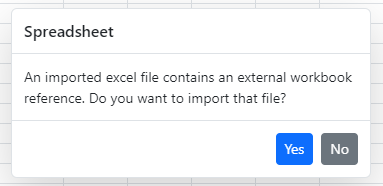
When you open an Excel file that contains external workbook references, you will see a confirmation dialog. This dialog allows you to either continue with the file opening or cancel the operation. This confirmation dialog will appear only if you set the AllowExternalWorkbook property value to false during the open request, as shown below. This prevents the spreadsheet from displaying inconsistent data.
public IActionResult Open(IFormCollection openRequest)
    {
        OpenRequest open = new OpenRequest();
        open.AllowExternalWorkbook = false;
        open.File = openRequest.Files[0];
        open.Guid = openRequest["Guid"];
        return Content(Workbook.Open(open));
    }
This feature is only applicable when importing an Excel file and not when loading JSON data or binding cell data.