How can I help you?
Getting Started with React Spreadsheet component
18 May 20263 minutes to read
This section explains how to create a simple React application and add the Syncfusion® React Spreadsheet component with the minimum required setup.
Prerequisites
System requirements for Syncfusion® React components
Create a React application
Use Vite to create a new React application, as it provides a faster development environment, smaller bundle sizes, and optimized builds.
To create a new React application, run one of the following commands based on your preferred environment.
npm create vite@latest spreadsheet-app -- --template react
cd spreadsheet-app
npm create vite@latest spreadsheet-app -- --template react-ts
cd spreadsheet-appInstall the Syncfusion® React Spreadsheet package
Install the Syncfusion® React Spreadsheet package from npm using the following command:
npm install @syncfusion/ej2-react-spreadsheet --save
Add CSS references
Add the following Spreadsheet and dependent component style references to the src/index.css file.
@import '../node_modules/@syncfusion/ej2-base/styles/tailwind3.css';
@import '../node_modules/@syncfusion/ej2-inputs/styles/tailwind3.css';
@import '../node_modules/@syncfusion/ej2-buttons/styles/tailwind3.css';
@import '../node_modules/@syncfusion/ej2-splitbuttons/styles/tailwind3.css';
@import '../node_modules/@syncfusion/ej2-lists/styles/tailwind3.css';
@import '../node_modules/@syncfusion/ej2-navigations/styles/tailwind3.css';
@import '../node_modules/@syncfusion/ej2-popups/styles/tailwind3.css';
@import '../node_modules/@syncfusion/ej2-dropdowns/styles/tailwind3.css';
@import '../node_modules/@syncfusion/ej2-grids/styles/tailwind3.css';
@import '../node_modules/@syncfusion/ej2-react-spreadsheet/styles/tailwind3.css';
Add the Syncfusion® React Spreadsheet component to the application
Now, import the SpreadsheetComponent into your src/App.jsx or src/App.tsx file and render it.
import { SpreadsheetComponent } from '@syncfusion/ej2-react-spreadsheet';

export default function App() {
    return (<SpreadsheetComponent openUrl='https://document.syncfusion.com/web-services/spreadsheet-editor/api/spreadsheet/open'
                saveUrl='https://document.syncfusion.com/web-services/spreadsheet-editor/api/spreadsheet/save' />);
}
import { SpreadsheetComponent } from '@syncfusion/ej2-react-spreadsheet';
export default function App() {
return (<SpreadsheetComponent openUrl='https://document.syncfusion.com/web-services/spreadsheet-editor/api/spreadsheet/open'
saveUrl='https://document.syncfusion.com/web-services/spreadsheet-editor/api/spreadsheet/save' />);
}NOTE
The
openUrlandsaveUrlendpoints used in this example are provided only for demonstration purposes. For development and production use, we strongly recommend configuring your own local or hosted web service for the Open and Save actions instead of relying on the online demo service. For more information, refer to theWeb Servicessection.
Run the application
Run the following command to start the development server:
npm run dev
After the application starts, open the localhost URL shown in the terminal to view the React Spreadsheet Editor in the browser. The output will appear as follows:
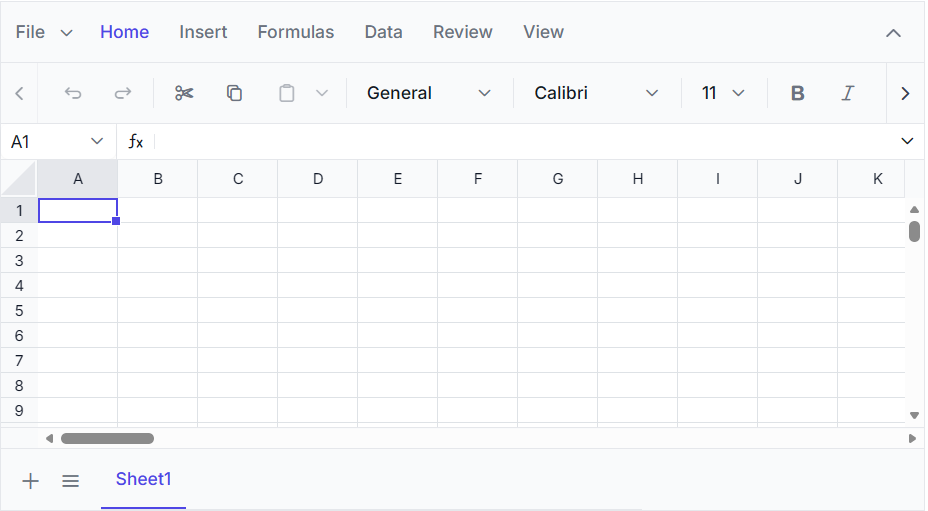
You can also explore the Spreadsheet interactively using the live sample below.
NOTE
View Sample in GitHub to explore the complete source code. You can also explore our React Spreadsheet example that shows you how to present and manipulate data.
Video tutorial
To get started quickly with React Spreadsheet, you can watch this video: