Getting Started with the TypeScript Spreadsheet
27 Aug 20264 minutes to read
This section explains how to create a TypeScript application and add the TypeScript Spreadsheet with the minimum required configuration.
Prerequisites
To get started, ensure the following software is installed on your machine:
Create a TypeScript application
Create a simple TypeScript application using the Essential® JS 2 quickstart seed repository.
This application is integrated with the
webpack.config.jsconfiguration and uses the latest version of the webpack-cli. For more information about webpack and its features, refer to the webpack documentation.
Step 1: Open the command prompt from the required directory and clone the quickstart project from GitHub.
git clone https://github.com/SyncfusionExamples/ej2-quickstart-webpack ej2-quickstartStep 2: Navigate to the ej2-quickstart folder.
cd ej2-quickstartStep 3: By default, the ej2‑quickstart repository is preconfigured with the @syncfusion/ej2 package in ~/package.json. This package installs all Syncfusion Essential JS 2 components packages, including the Spreadsheet component and other EJ2 controls.
To install only the Spreadsheet component, replace the existing dependency with @syncfusion/ej2-spreadsheet, as shown below:
"dependencies": {
  "@syncfusion/ej2-spreadsheet": "*"
}
Step 4: Install the dependent npm packages.
npm installRegister Syncfusion License Key
Before initializing any Syncfusion components, generate a Syncfusion license key and register it in the application.
Import the required CSS styles
Themes for Spreadsheet can be applied using CSS or SASS files from the npm theme packages, CDN, CRG, or Theme Studio. For more information, see the themes documentation.
This guide uses the Tailwind 3 theme as an example, sourced from the theme package. In this package, each component includes an index.css file that automatically loads all the required dependency styles. To install the Tailwind 3 theme package, use the following command:
npm install @syncfusion/ej2-tailwind3-themeAdd the required Spreadsheet theme style reference to src/styles/styles.css file.
@import '../../node_modules/@syncfusion/ej2-tailwind3-theme/styles/spreadsheet/index.css';Add the Syncfusion® Spreadsheet Component to the Application
Add a container element for the Spreadsheet component to the index.html file, and then initialize the component in the app.ts file.
<!DOCTYPE html>
<html lang="en">
<head>
    <title>Syncfusion TypeScript Spreadsheet</title>
    <meta charset="utf-8" />
    <meta name="viewport" content="width=device-width, initial-scale=1.0, user-scalable=no" />
    <meta name="description" content="Syncfusion TypeScript Spreadsheet" />
    <meta name="author" content="Syncfusion" />
    <link rel="shortcut icon" href="resources/favicon.ico" />
    <link href="https://maxcdn.bootstrapcdn.com/bootstrap/3.3.7/css/bootstrap.min.css" rel="stylesheet" />
</head>
<body>
    <!-- Element which will render as Spreadsheet -->
    <div id="element"></div>
</body>
</html>
import { Spreadsheet } from '@syncfusion/ej2-spreadsheet';
// Initialize the Spreadsheet component
const spreadsheet: Spreadsheet = new Spreadsheet({
openUrl: 'https://document.syncfusion.com/web-services/spreadsheet-editor/api/spreadsheet/open',
saveUrl: 'https://document.syncfusion.com/web-services/spreadsheet-editor/api/spreadsheet/save'
});
// Render the Spreadsheet Component.
spreadsheet.appendTo('#element');Note: The openUrl and saveUrl properties are used to connect the Spreadsheet component to a server-side service for Excel import and export operations. For development and production use, we recommend configuring your own local or hosted service instead of relying on demo endpoints. For more information, refer to
link.
Run the Application
The quickstart project is configured to compile and run the application in the browser. Use the following command to run the application.
npm startAfter the development server starts, open the local URL displayed in the terminal. Verify that the Spreadsheet component is rendered correctly, as shown in the following image.
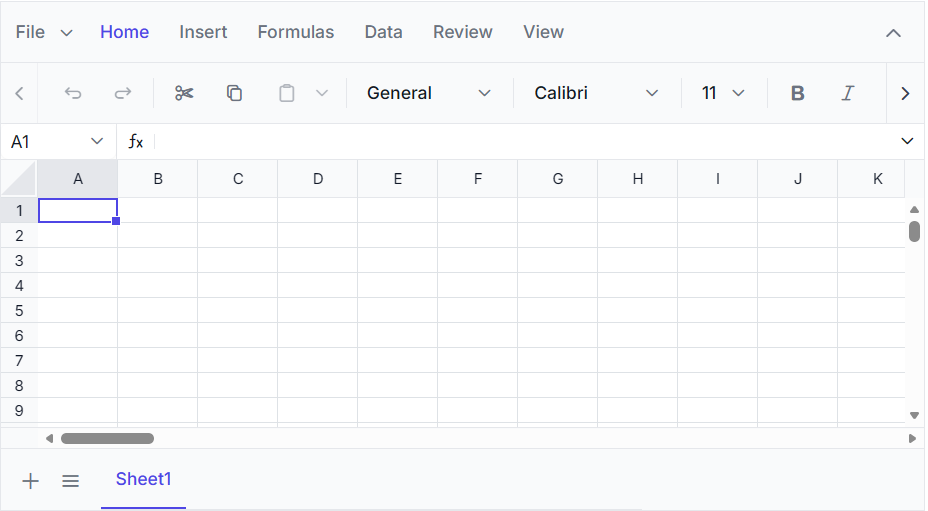
You can also explore the Spreadsheet component using the live sample below. The sample allows you to load an Excel file, analyze and modify its data, and save the updated data back to an Excel file.
View Sample in GitHub. For information about features, pricing, and related resources, visit the JavaScript Spreadsheet Editor page.