Merge Cells in Blazor Spreadsheet
14 Aug 20267 minutes to read
Merging cells in the Blazor Spreadsheet Editor component allows you to combine adjacent cells into a single larger cell, improving the layout and readability. This feature is commonly used to create headers, section labels, or grouped content for a structured view. To control this functionality, use the AllowMerge property, which enables or disables merge cell support in the Spreadsheet. The default value of the AllowMerge property is true.
Disabling Merge
@page "/"
@using Syncfusion.Blazor.Spreadsheet

<SfSpreadsheet AllowMerge="false">
    <SpreadsheetRibbon></SpreadsheetRibbon>
</SfSpreadsheet>
When AllowMerge is set to
false, merge options are disabled in the Ribbon. API methods related to merging are inactive. Additionally, if the worksheet is protected, the merging feature is disabled. For more information, refer to the Worksheet Protection documentation.
Merge operations
The Blazor Spreadsheet supports the following merge operations:
| Operation | Description |
|---|---|
| Merge cells | Combines all selected cells into one single cell. The value from the top-left cell is kept. |
| Merge & center | Combines all selected cells into one single cell and centers the content horizontally. The value from the top-left cell is kept. |
| Merge across | Merges cells row by row across columns in the selection. Each row keeps its first cell value. |
| Unmerge cells | Reverses a merge and restores individual cells. The top-left cell value remains, and other cells are cleared. |
The Merge Cell button is disabled when a single unmerged cell is selected. Merge options are also unavailable when the sheet is protected.
Merge Cells
Merge cells via UI
To merge cells through the Ribbon UI, follow these steps:
- Select a range of cells to merge.
- In the Home tab of the Ribbon, click the Merge Cell drop-down.
- Choose one of the following options:
- Merge & Center
- Merge Across
- Merge Cells
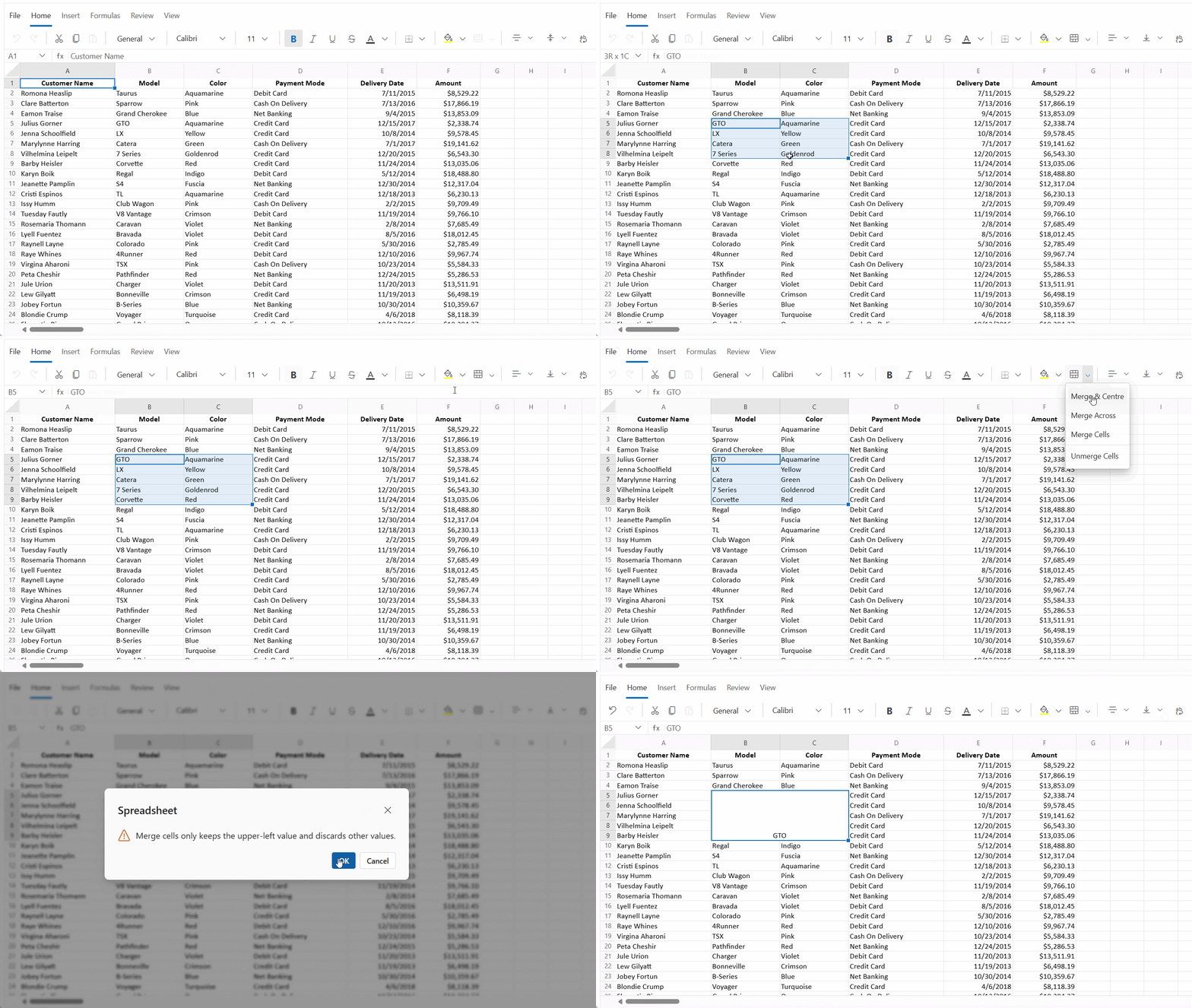
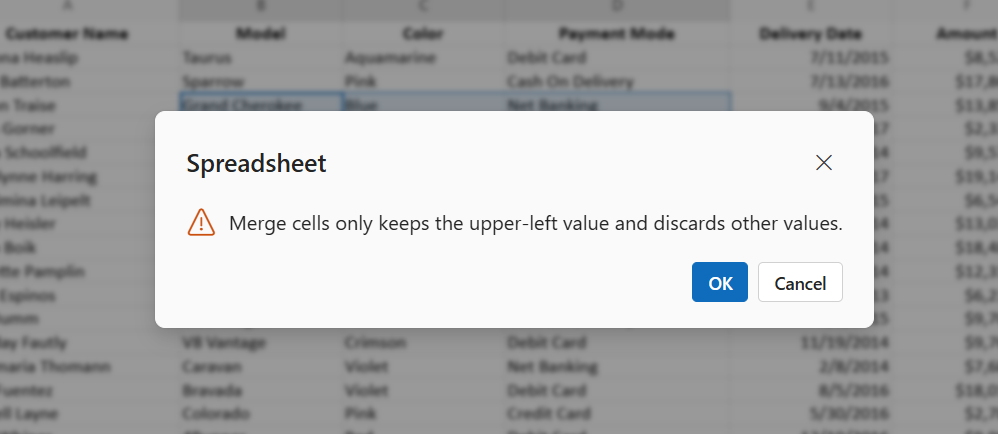
When merging cells through the user interface, a validation dialog is displayed to inform that only the upper-left cell value will be retained and other values will be discarded.
Clicking the Merge Cells button (not the drop-down) applies the default action. If the selection is not merged, the cells are merged into a single cell. If the selection includes or intersects a merged range, that merged range is unmerged.
Merge cells programmatically
The MergeAsync() method merges cells based on the specified MergeType.. If the cellRange parameter is not provided, the current selection is used. This method provides a programmatic way to merge cells without using the UI. The available parameters in the MergeAsync method are:
| Parameter | Type | Description |
|---|---|---|
| mergeType | MergeType | Specifies the merge behavior. The default MergeType is MergeType.Cells. Supported values:• MergeType.Cells - Merge the entire selection into one cell and preserve the top-left value;• MergeType.Center- Merge the entire selection and horizontally center the resulting cell’s content;• MergeType.Across - For each row in the selection, merge the cells across columns and preserve each row’s first cell value. |
| cellRange | string (optional) | Specifies the A1-style address of the range to unmerge (e.g., "A1:D1"). If not provided, the currently selected range will be unmerged. |
@page "/"
@using Syncfusion.Blazor.Spreadsheet

<button class="e-btn" @onclick="MergeSelection">Merge cells</button>
<button class="e-btn" @onclick="MergeAcrossRange">Merge across</button>
<button class="e-btn" @onclick="MergeAndCenterRange">Merge & center</button>

<SfSpreadsheet @ref="SpreadsheetInstance" DataSource="DataSourceBytes">
    <SpreadsheetRibbon></SpreadsheetRibbon>
</SfSpreadsheet>

@code {
    public byte[] DataSourceBytes { get; set; }
    public SfSpreadsheet SpreadsheetInstance;

    protected override void OnInitialized()
    {
        string filePath = "wwwroot/Sample.xlsx";
        DataSourceBytes = File.ReadAllBytes(filePath);
    }

    private async Task MergeSelection()
    {
        // Merge the current selection into a single cell
        await SpreadsheetInstance.MergeAsync(MergeType.Cells);
    }

    private async Task MergeAcrossRange()
    {
        // For each row in the range, merge across its columns
        await SpreadsheetInstance.MergeAsync(MergeType.Across, "C2:E6");
    }

    private async Task MergeAndCenterRange()
    {
        // Merge the range and center-align the merged cell's content
        await SpreadsheetInstance.MergeAsync(MergeType.Center, "A1:D1");
    }

}
Unmerge Cells
Unmerge cells via UI
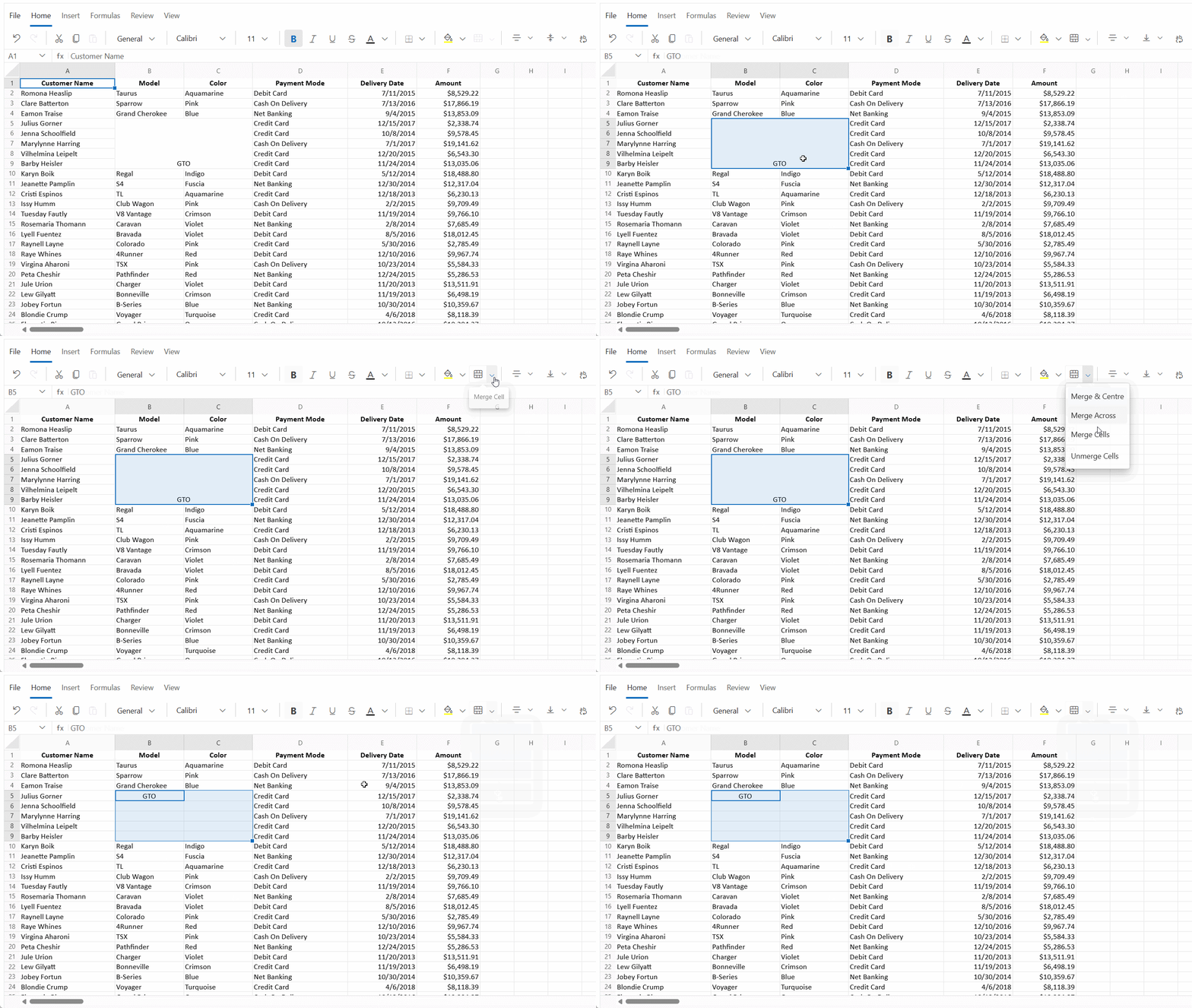
To unmerge cells through the Ribbon UI, follow these steps:
- Select a range of cells to unmerge.
- In the Home tab of the Ribbon, click the Merge Cell drop-down.
- Choose the Unmerge cells option.
Unmerge cells programmatically
The UnmergeAsync() method reverses a merge and restores individual cells. If the cellRange parameter is not provided, the current selection cell is unmerged. The available parameters in the UnmergeAsync() method are:
| Parameter | Type | Description |
|---|---|---|
| cellRange | string (optional) | Specifies the A1-style address of the range to unmerge (e.g., “A1:D1”). If not provided, the currently selected range will be unmerged. |
@page "/"
@using Syncfusion.Blazor.Spreadsheet

<button class="e-btn" @onclick="UnmergeRange">Unmerge</button>

<SfSpreadsheet @ref="SpreadsheetInstance" DataSource="DataSourceBytes">
    <SpreadsheetRibbon></SpreadsheetRibbon>
</SfSpreadsheet>

@code {
    public byte[] DataSourceBytes { get; set; }
    public SfSpreadsheet SpreadsheetInstance;

    protected override void OnInitialized()
    {
        string filePath = "wwwroot/Sample.xlsx";
        DataSourceBytes = File.ReadAllBytes(filePath);
    }

    private async Task UnmergeRange()
    {
        // Unmerge the specified merged region
        await SpreadsheetInstance.UnmergeAsync("A1:D1");
    }
}
Limitations of Merge
The Blazor Spreadsheet Editor enforces these merge constraints to ensure data integrity. In these cases, validation messages are displayed:
-
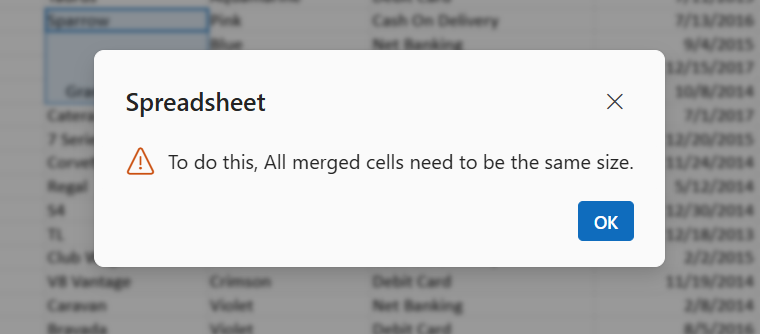
Sorting with merged cells - When sorting a range that contains merged cells, a validation dialog appears to indicate that sorting cannot proceed unless all merged cells are consistent in size.
-
Autofill on merged cells - When performing autofill and dropping the fill handle onto merged cells, a validation dialog appears to indicate that autofill requires all merged cells to be the same size.
These limitations are enforced to maintain data integrity and prevent unexpected behavior during operations like sorting and autofill.