Getting Started with Blazor WebAssembly Spreadsheet
24 Sep 20269 minutes to read
This section briefly explains how to include Blazor Spreadsheet Editor component in your Blazor WebAssembly App using Visual Studio, Visual Studio Code, and the .NET CLI.
Prerequisites
Install the required .NET workloads
If using WebAssembly Application, install the required workload for SkiaSharp. Run the following command in a command prompt (Windows), terminal (macOS), or shell (Linux):
dotnet workload install wasm-toolsThe wasm-tools workload is installed for the active .NET SDK. When targeting a different .NET SDK version, ensure that the corresponding version-specific workload is installed.
Create a new Blazor App in Visual Studio
You can create a Blazor WebAssembly App (Standalone) using Visual Studio via Microsoft Templates or the Blazor Extension.
Install Blazor Spreadsheet NuGet Packages
To add Syncfusion Blazor Spreadsheet component in the app, open the NuGet package manager in Visual Studio (Tools → NuGet Package Manager → Manage NuGet Packages for Solution), search and install:
- Syncfusion.Blazor.Spreadsheet
- Syncfusion.Blazor.Themes
- SkiaSharp.Views.Blazor (version 4.150.1)
Alternatively, you can utilize the following package manager command to achieve the same.
Install-Package Syncfusion.Blazor.Spreadsheet -Version 35.1.37
Install-Package Syncfusion.Blazor.Themes -Version 35.1.37
Install-Package SkiaSharp.Views.Blazor -Version 4.15
- Syncfusion® uses SkiaSharp.Views.Blazor version 4.150.1. Ensure this exact version to avoid runtime issues.
Prerequisites
Install the required .NET workloads
If using WebAssembly Application, install the required workload for SkiaSharp. Run the following command in a command prompt (Windows), terminal (macOS), or shell (Linux):
dotnet workload install wasm-toolsThe wasm-tools workload is installed for the active .NET SDK. When targeting a different .NET SDK version, ensure that the corresponding version-specific workload is installed.
Create a new Blazor App in Visual Studio Code
You can create a Blazor WebAssembly App (Standalone) using Visual Studio Code via Microsoft Templates or the Blazor Extension.
Alternatively, you can create a WebAssembly application using the following command in the terminal(Ctrl+`).
dotnet new blazorwasm -o BlazorApp
cd BlazorApp
Install Blazor Spreadsheet NuGet Packages
- Press Ctrl+` to open the integrated terminal in Visual Studio Code.
- Ensure you’re in the project root directory where your
.csprojfile is located. - Run the following command to install the Syncfusion.Blazor.Spreadsheet , Syncfusion.Blazor.Themes and SkiaSharp.Views.Blazor (version
4.150.1) NuGet packages and ensure all dependencies are installed.
dotnet add package Syncfusion.Blazor.Spreadsheet -v 35.1.37
dotnet add package Syncfusion.Blazor.Themes -v 35.1.37
dotnet add package SkiaSharp.Views.Blazor -v 4.15
dotnet restore
- After running
dotnet restore, ensure there are no error messages in the terminal. If restore fails, verify your NuGet source (https://api.nuget.org/v3/index.json) is configured, clear the local cache withdotnet nuget locals all --clear, and retry.- Syncfusion® uses SkiaSharp.Views.Blazor version 4.150.1. Ensure this exact version to avoid runtime issues.
Prerequisites
Install the latest version of .NET SDK. If the .NET SDK is already installed, determine the installed version by running the following command in a command prompt (Windows), terminal (macOS), or command shell (Linux). Also, review the System requirements for Blazor components.
dotnet --versionInstall the required .NET workloads
If using WebAssembly Application, install the required workload for SkiaSharp. Run the following command in a command prompt (Windows), terminal (macOS), or shell (Linux):
dotnet workload install wasm-toolsThe wasm-tools workload is installed for the active .NET SDK. When targeting a different .NET SDK version, ensure that the corresponding version-specific workload is installed.
Create a Blazor WebAssembly App using .NET CLI
Run the following command to create a new Blazor WebAssembly App in a command prompt (Windows) or terminal (macOS) or command shell (Linux). For detailed instructions, refer to the Blazor WASM App Getting Started documentation.
dotnet new blazorwasm -o BlazorApp
cd BlazorApp
Install Blazor Spreadsheet and Themes NuGet in the App
After creating the Blazor WebAssembly App, install the required Syncfusion NuGet packages using the .NET CLI.
- Open a command prompt, terminal, or shell.
- Ensure you’re in the project root directory where your
.csprojfile is located. - Run the following command to install the Syncfusion.Blazor.Spreadsheet , Syncfusion.Blazor.Themes and SkiaSharp.Views.Blazor (version
4.150.1) NuGet packages and ensure all dependencies are installed.
dotnet add package Syncfusion.Blazor.Spreadsheet -v 35.1.37
dotnet add package Syncfusion.Blazor.Themes -v 35.1.37
dotnet add package SkiaSharp.Views.Blazor -v 4.15
dotnet restore
- After running
dotnet restore, ensure there are no error messages in the terminal. If restore fails, verify your NuGet source (https://api.nuget.org/v3/index.json) is configured, clear the local cache withdotnet nuget locals all --clear, and retry.- Syncfusion® uses SkiaSharp.Views.Blazor version 4.150.1. Ensure this exact version to avoid runtime issues.
Add import namespaces
After the packages are installed, open the _Imports.razor file (typically located at the project root in a Blazor WebAssembly App) and import the Syncfusion.Blazor and Syncfusion.Blazor.Spreadsheet namespaces.
@using Syncfusion.Blazor
@using Syncfusion.Blazor.Spreadsheet
Register Blazor Service
Register the Syncfusion Blazor service in the Program.cs file of your Blazor WebAssembly App. Place the registration after the host builder is created and before await builder.Build().RunAsync();.
using Syncfusion.Blazor;

var builder = WebAssemblyHostBuilder.CreateDefault(args);

// Register Syncfusion Blazor service
builder.Services.AddSyncfusionBlazor();

await builder.Build().RunAsync();
AddSyncfusionBlazor()accepts optional configuration options such as enabling script isolation. See the Blazor service registration topic for available configuration options.
Register Syncfusion License Key
Register the Syncfusion license key in your application startup to avoid a license warning at runtime. Add the following line in the Program.cs file of your Blazor WebAssembly App, after the AddSyncfusionBlazor() call:
// Register Syncfusion license key
Syncfusion.Licensing.SyncfusionLicenseProvider.RegisterLicense("YOUR_LICENSE_KEY");
Replace
YOUR_LICENSE_KEYwith your actual Syncfusion license key. For details on generating and registering a license key, see Licensing.
Add stylesheet resource
The theme stylesheet can be accessed from NuGet through Static Web Assets. Include the stylesheet reference in the <head> section of the index.html file.
<head>
    <!-- Syncfusion Blazor components theme -->
    <link href="_content/Syncfusion.Blazor.Themes/bootstrap5.css" rel="stylesheet" />
</head>
Add script resource
The Spreadsheet Editor script can be accessed from NuGet through Static Web Assets. Include the script reference in the <head> section of the index.html file.
<head>
    <!-- Syncfusion Blazor Spreadsheet Editor script -->
    <script src="_content/Syncfusion.Blazor.Spreadsheet/scripts/syncfusion-blazor-spreadsheet.min.js" type="text/javascript"></script>
</head>
Check out the Blazor Themes topic to explore supported ways (such as static assets, CDN, and CRG) to apply themes in your Blazor application. Also, check out the Adding Script Reference topic to learn different approaches for adding script references in your Blazor application.
Add the Blazor Spreadsheet component
Add the Blazor Spreadsheet component in the Pages/Home.razor file.
@page "/"
@using Syncfusion.Blazor.Spreadsheet

<SfSpreadsheet>
    <SpreadsheetRibbon></SpreadsheetRibbon>
</SfSpreadsheet>
SpreadsheetRibbonis the optional ribbon toolbar child component ofSfSpreadsheet. Omit it if you want to render the spreadsheet without the ribbon UI.
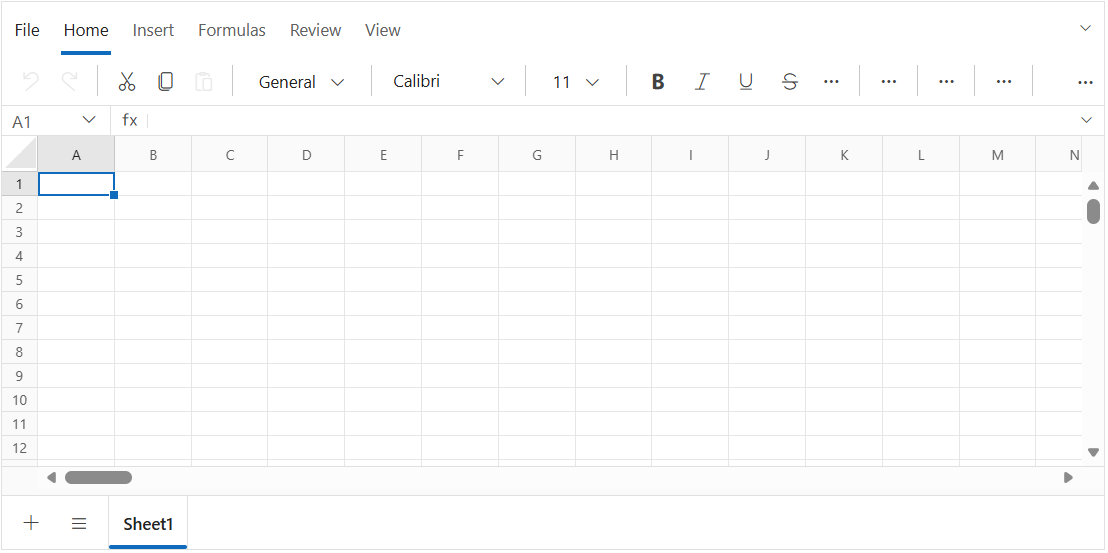
Press Ctrl+F5 (Windows) or ⌘+F5 (macOS) to launch the application. This will render the Syncfusion Blazor Spreadsheet in your default web browser. The output will appear as follows:
You can also experiment directly using the interactive playground below for a quick demo:
To learn how to open workbooks, bind data, or save files in the Spreadsheet component, see Open and Save.
Looking for the full Blazor Spreadsheet Editor component overview, features, pricing, and documentation? Visit the Blazor Spreadsheet Editor page