Cell Editing in Blazor Spreadsheet
14 Aug 20268 minutes to read
Cell editing in the Blazor Spreadsheet Editor component enables modification of cell content either directly within the spreadsheet or through the formula bar. This feature is enabled by default but can be disabled by setting the AllowEditing property. To disable or enable cell editing, set the value of this property accordingly.
@page "/"
@using Syncfusion.Blazor.Spreadsheet

<SfSpreadsheet AllowEditing="false">
    <SpreadsheetRibbon></SpreadsheetRibbon>
</SfSpreadsheet>
Edit cell
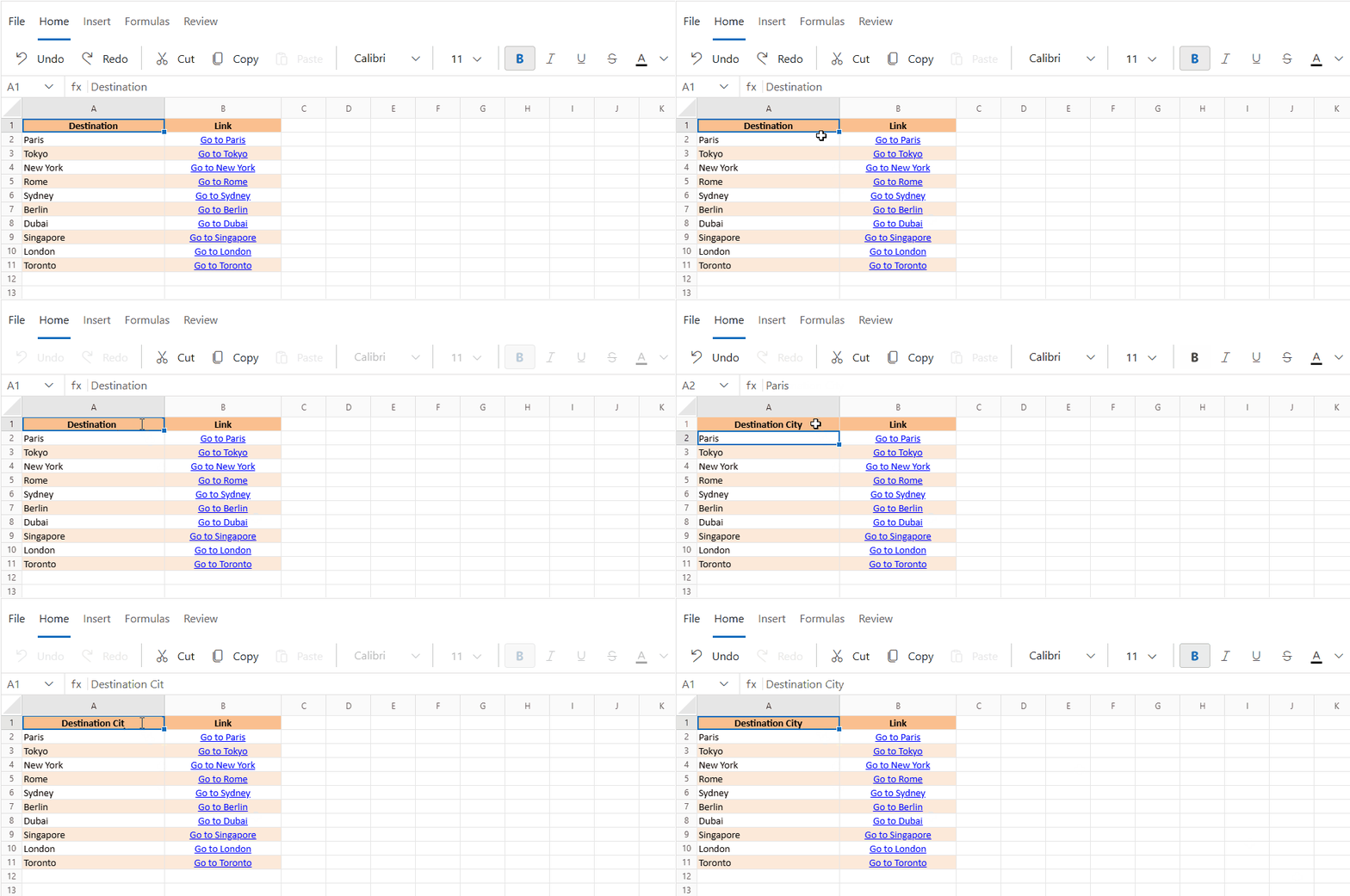
Cell editing can be initiated directly through the UI using any of the following options:
- Double-click a cell to enter edit mode.
- Press F2 to activate editing for the selected cell.
- Use the formula bar to modify the cell’s contents.
- Press BACKSPACE or SPACE to clear the cell and begin editing.
For additional keyboard shortcuts related to cell editing, refer to the Keyboard Shortcuts documentation.
Update cell
When a cell is in an editable state, the updated content can be saved using one of the following methods:
- Click any cell other than the one currently being edited.
- Press Enter or Tab to save changes and move the selection.
Update cell programmatically
Cell updates can be performed programmatically using the UpdateCellAsync() method, which supports values such as strings, numbers, booleans, and formulas. This method modifies the content of a designated cell and is suitable for tasks requiring precise changes, such as updating statuses or values in specific locations. The cell address must include the sheet name—for example, Sheet1!A1—to enable updates across different sheets within the same workbook.
If a cell address is incorrectly formatted, refers to a non-existent sheet, or lies outside the valid range, the update is skipped without triggering an error. When a range is specified, such as A1:B5, the method automatically assigns the provided value to each cell within that range, allowing efficient batch updates.
| Parameter | Type | Description |
|---|---|---|
| cellAddress | string | Specifies the address of the cell to update, including the sheet name (e.g., Sheet1!A1). Updates can be performed across different sheets. Invalid addresses—such as those referencing non-existent sheets or using improperly formatted cell references—are skipped without error. |
| cellValue | object | Defines the new value to assign to the cell. Supported types include strings, numbers, booleans, and formulas (e.g., =SUM(A1:B1)). When a range is specified (e.g., A1:B5), the value is automatically applied to all cells within the range. |
@page "/"
@using Syncfusion.Blazor.Spreadsheet
@inject HttpClient Http
<button @onclick="UpdateCell">Update Cell</button>

<SfSpreadsheet @ref="SpreadsheetInstance" DataSource="DataSourceBytes">
    <SpreadsheetRibbon></SpreadsheetRibbon>
</SfSpreadsheet>

@code {

    public byte[] DataSourceBytes { get; set; }
    public SfSpreadsheet SpreadsheetInstance;

    protected override void OnInitialized()
    {
        string filePath = "wwwroot/Sample.xlsx";
        DataSourceBytes = File.ReadAllBytes(filePath);
    }

    private async Task UpdateCell()
    {
        // Updates cell A3 with a product name.
        await SpreadsheetInstance.UpdateCellAsync("Sheet1!A3", "Tablet");

        // Updates cell B3 with a numeric value.
        await SpreadsheetInstance.UpdateCellAsync("Sheet1!B3", 799);

        // Updates cell C3 with a formula.
        await SpreadsheetInstance.UpdateCellAsync("Sheet1!C3", "=SUM(A3:B3)");
    }
}
Cancel editing
To exit edit mode without saving changes, press the ESCAPE key. This action restores the original content of the cell and cancels any modifications made during editing.
Events
The Blazor Spreadsheet component provides events that are triggered during editing operations, such as CellEditing and CellSaved. These events let you perform custom actions before and after a cell value is saved, enabling scenarios such as data validation or logging changes.
CellEditing
The CellEditing event is triggered before a cell enters edit mode. It provides an opportunity to validate or cancel the edit operation.
Purpose
This event is useful for scenarios where cell editing needs to be controlled dynamically, such as restricting editing in specific ranges or preventing editing based on certain conditions.
Event Arguments
The event uses the CellEditingEventArgs class, which includes the following properties:
| Event Arguments | Type | Description |
|---|---|---|
| RowIndex (read-only) | int | The zero-based row index of the cell being edited. |
| ColIndex (read-only) | int | The zero-based column index of the cell being edited. |
| Address (read-only) | string | The address of the cell being edited (e.g., “Sheet1!A1”). |
| Value (read-only) | object | The current value of the cell before editing. |
| Cancel | bool | Set to true to cancel the editing operation. |
@page "/"
@using Syncfusion.Blazor.Spreadsheet

<SfSpreadsheet DataSource="DataSourceBytes" CellEditing="OnCellEditing">
    <SpreadsheetRibbon></SpreadsheetRibbon>
</SfSpreadsheet>

@code {
    public byte[] DataSourceBytes { get; set; }

    protected override void OnInitialized()
    {
        string filePath = "wwwroot/Sample.xlsx";
        DataSourceBytes = File.ReadAllBytes(filePath);
    }

    private void OnCellEditing(CellEditingEventArgs args)
    {
        // Prevents editing in the first row.
        if (args.RowIndex == 0)
        {
            args.Cancel = true;
        }
    }
}
CellSaved
The CellSaved event is triggered after a cell’s value has been successfully saved, providing details about the updated value and the action that caused the change (such as Edit, Cut, Paste, or Autofill).
Purpose
This event is useful for scenarios where post-editing actions are needed, such as logging the cell change or refreshing the UI.
Event Arguments
The event uses the CellSavedEventArgs class, which includes the following properties:
| Event Arguments | Type | Description |
|---|---|---|
| Address (read-only) | string | The address of the cell whose value was saved (e.g., “Sheet1!A1”). |
| Value (read-only) | object | The new value of the cell after saving. |
| OldValue (read-only) | object | The original value of the cell before saving. |
| Action (read-only) | String | The action that triggered the save (e.g., Edit, Cut, Paste, Autofill). |
@page "/"
@using Syncfusion.Blazor.Spreadsheet

<SfSpreadsheet DataSource="DataSourceBytes" CellSaved="OnCellSaved">
    <SpreadsheetRibbon></SpreadsheetRibbon>
</SfSpreadsheet>

@code {
    public byte[] DataSourceBytes { get; set; }

    protected override void OnInitialized()
    {
        string filePath = "wwwroot/Sample.xlsx";
        DataSourceBytes = File.ReadAllBytes(filePath);
    }
    private void OnCellSaved(CellSavedEventArgs args)
    {
        // Log the cell change, including the action that triggered it.
        Console.WriteLine($"Cell {args.Address} changed from '{args.OldValue}' to '{args.Value}' by {args.Action}.");
    }
}
Cell editing in a protected sheet
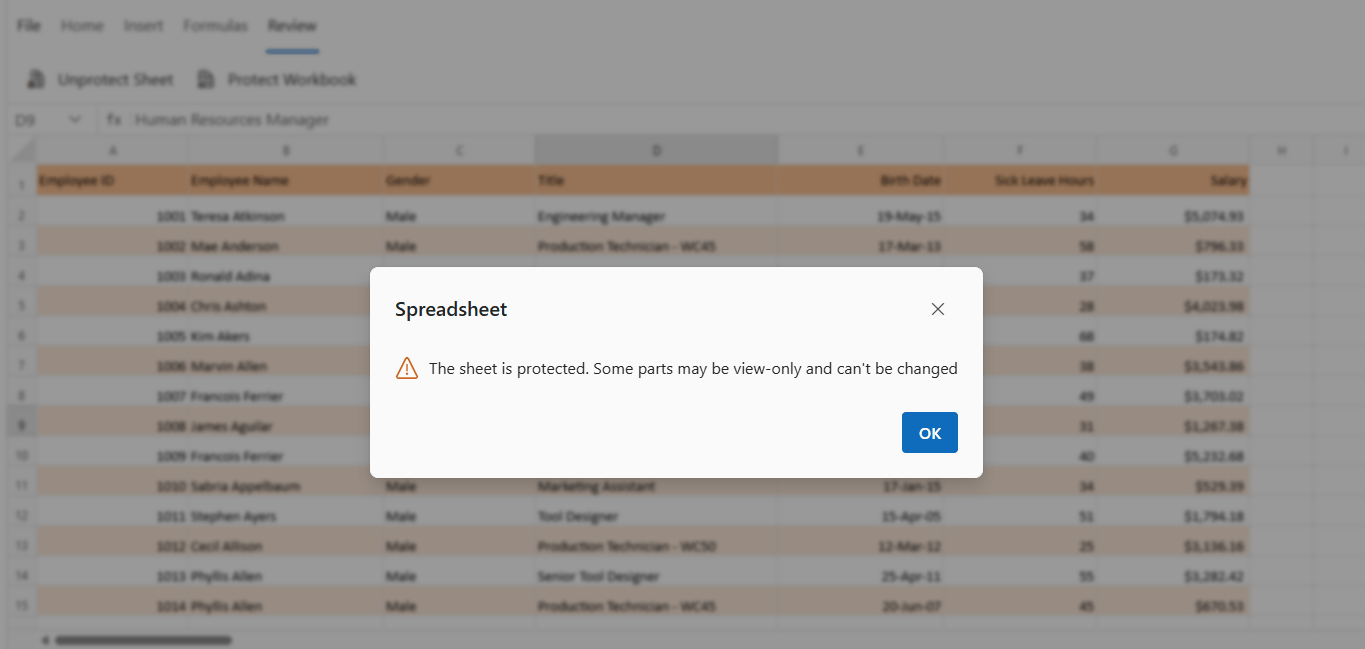
In a protected sheet, only unlocked ranges can be edited based on the sheet’s protection settings. If you try to modify a locked range, an error message appears, as shown below:
For more information on worksheet protection and on how to configure locked and unlocked ranges, refer to the Worksheet Protection documentation.