Loading and Saving Files in OneDrive
14 Aug 202624 minutes to read
Prerequisites
- An active Microsoft Azure subscription.
- An app registered in Microsoft Entra ID (formerly Azure AD) with the Microsoft Graph application permission
Files.Read.All(loading) orFiles.ReadWrite.All(saving), and admin consent granted. - The Application (client) ID, Directory (tenant) ID, and Client Secret from the registered app.
- A OneDrive account and the User ID (UPN or email) of the user whose OneDrive you want to access.
- Visual Studio 2019 or later with the ASP.NET and web development workload.
- A Syncfusion® license key. Refer to How to register the Syncfusion license key for details.
Do not hard-code the Client Secret in source code. Store it in a secure location (for example, Azure Key Vault, environment variables, or user secrets) and load it at runtime. Rotate the secret periodically.
Loading Excel files from OneDrive Cloud Storage
Steps to load an Excel document from OneDrive Cloud Storage.
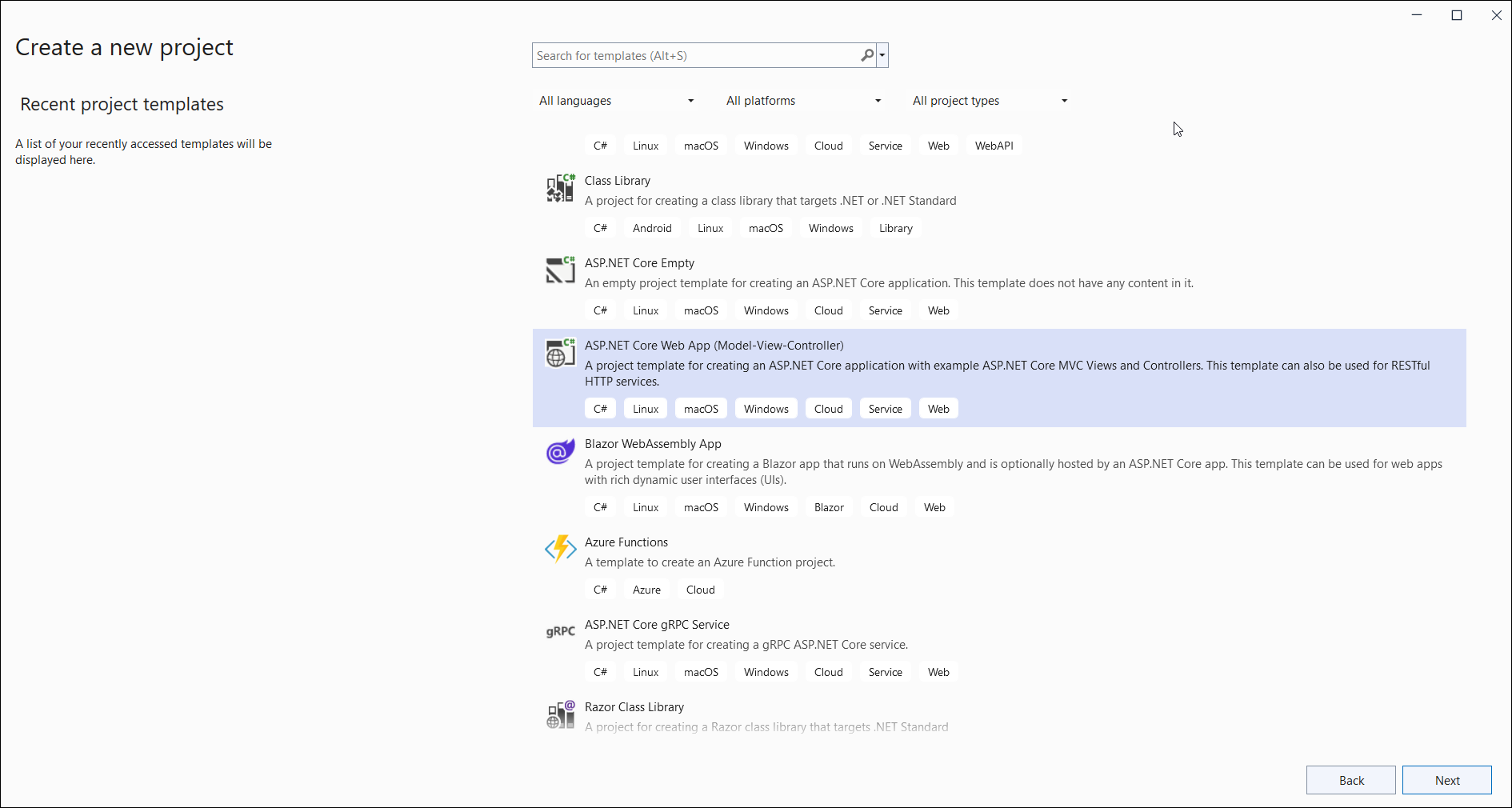
Step 1: Create a new ASP.NET Core Web Application (Model-View-Controller).
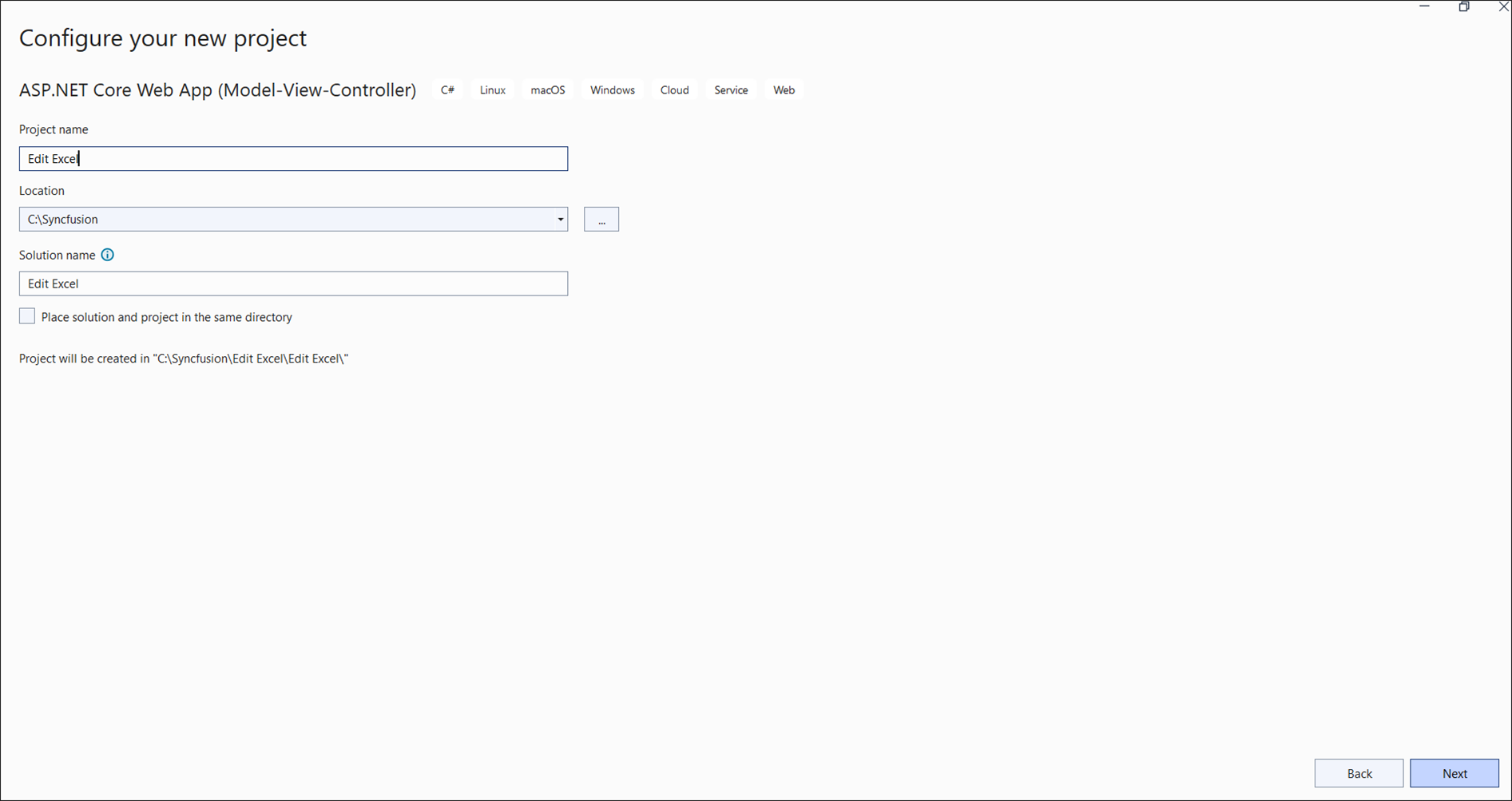
Step 2: Name the project.
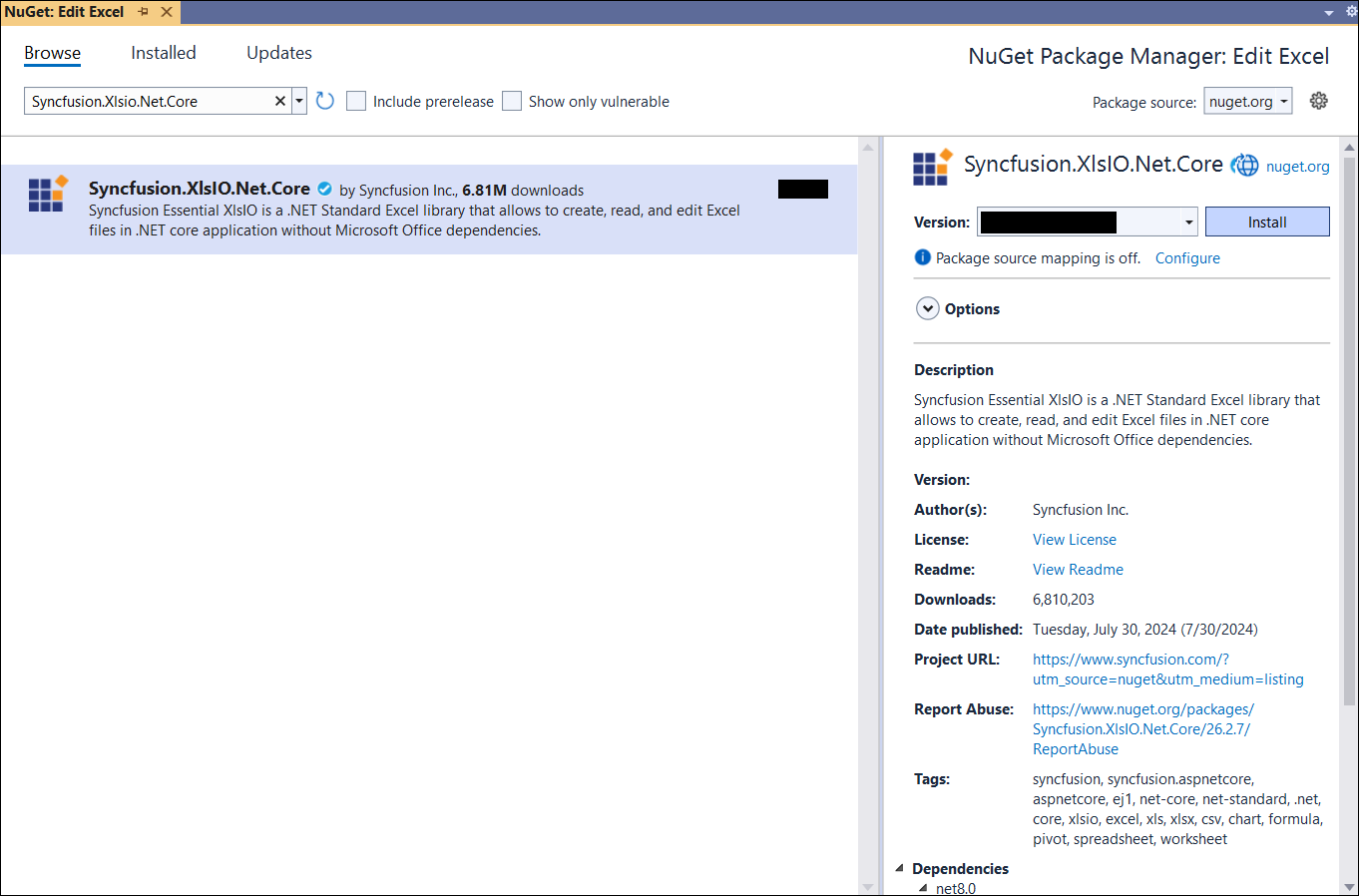
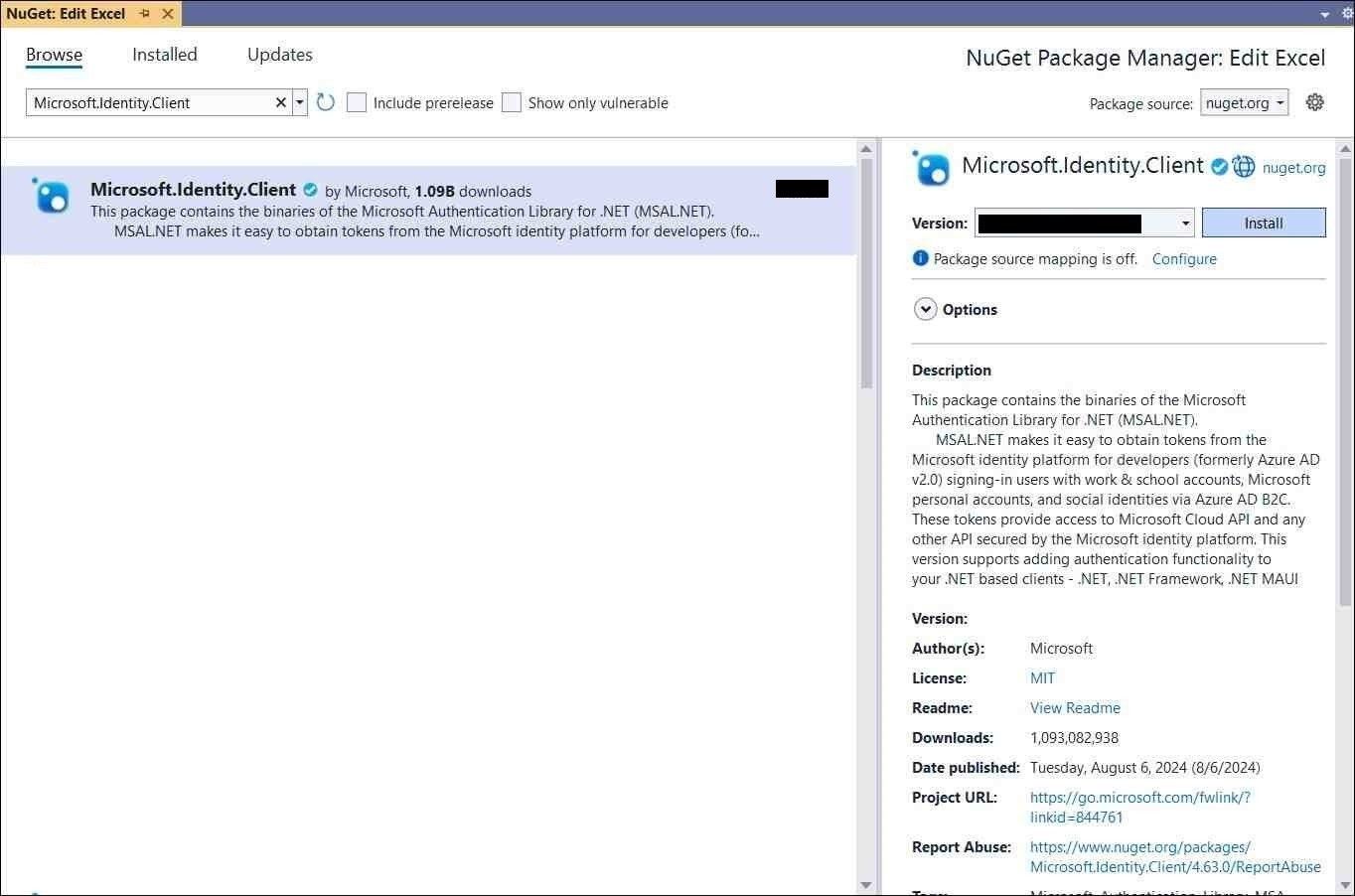
Step 3: Install the following NuGet packages in your application from NuGet.org.
Step 4: Add a new button in the Index.cshtml as shown below.
@{Html.BeginForm("EditDocument", "Home", FormMethod.Get);
    {
        <div>
            <input type="submit" value="Edit Document" style="width:150px;height:27px" />
        </div>
    }
    Html.EndForm();
}
Step 5: Include the following namespaces in HomeController.cs.
using System;
using System.IO;
using System.Net.Http;
using System.Net.Http.Headers;
using System.Threading.Tasks;
using Microsoft.AspNetCore.Mvc;
using Microsoft.Identity.Client;
using Syncfusion.XlsIO;
Step 6: Register the Syncfusion license key in Program.cs before builder.Build():
Syncfusion.Licensing.SyncfusionLicenseProvider.RegisterLicense("YOUR_LICENSE_KEY");Step 7: Include the following code snippet in HomeController.cs to load an Excel document from OneDrive Cloud Storage. The snippet is the body of the EditDocument action method that the button in Step 4 posts to, plus the DownloadDocumentFromOneDrive helper it calls.
using (ExcelEngine excelEngine = new ExcelEngine())
{
    IApplication application = excelEngine.Excel;
    application.DefaultVersion = ExcelVersion.Xlsx;

    //Download the document from OneDrive
    MemoryStream stream = await DownloadDocumentFromOneDrive();

    //Set the position as '0'
    stream.Position = 0;

    //Load the downloaded document
    IWorkbook workbook = application.Workbooks.Open(stream);

    IWorksheet worksheet = workbook.Worksheets[0];
    worksheet.Range["A3"].Text = "Hello world";

    //Saving the Excel to the MemoryStream
    MemoryStream outputStream = new MemoryStream();
    workbook.SaveAs(outputStream);

    //Set the position as '0'
    outputStream.Position = 0;

    //Download the Excel file in the browser
    FileStreamResult fileStreamResult = new FileStreamResult(outputStream, "application/vnd.openxmlformats-officedocument.spreadsheetml.sheet");
    fileStreamResult.FileDownloadName = "EditExcel.xlsx";
    return fileStreamResult;
}

// Download file from OneDrive
public async Task<MemoryStream> DownloadDocumentFromOneDrive()
{
    //Load these values from configuration (for example, Azure Key Vault, environment variables, or user secrets).
    //Do not hard-code the client secret in source code.
    string clientId = "your-client-id";
    string tenantId = "your-tenant-id";
    string clientSecret = "your-client-secret";

    //Replace with the user ID (email address) whose OneDrive you want to access
    string userId = "[email protected]";

    //Replace with the OneDrive file path where you want to download the file For ex: "/Template.xlsx"
    string filePath = "FilePath";

    //Initialize the MSAL client
    var confidentialClientApplication = ConfidentialClientApplicationBuilder
        .Create(clientId)
        .WithClientSecret(clientSecret)
        .WithAuthority(new Uri($"https://login.microsoftonline.com/{tenantId}"))
        .Build();

    //Acquire an access token
    string[] scopes = { "https://graph.microsoft.com/.default" };
    var authenticationResult = await confidentialClientApplication
        .AcquireTokenForClient(scopes)
        .ExecuteAsync();

    //Create an HTTP client with the access token
    var httpClient = new HttpClient();
    httpClient.DefaultRequestHeaders.Authorization = new AuthenticationHeaderValue("Bearer", authenticationResult.AccessToken);

    //Construct the OneDrive download URL using user ID and file path
    var downloadUrl = $"https://graph.microsoft.com/v1.0/users/{userId}/drive/root:{filePath}:/content";

    //Download the file from OneDrive
    var response = await httpClient.GetAsync(downloadUrl);
    if (response.IsSuccessStatusCode)
    {
        var stream = new MemoryStream();
        await response.Content.CopyToAsync(stream);

        // Reset the stream position to the beginning
        stream.Position = 0;

        Console.WriteLine("File downloaded successfully.");
        return stream;
    }
    else
    {
        Console.WriteLine($"Failed to download file. Status code: {response.StatusCode}");
        string responseBody = await response.Content.ReadAsStringAsync();
        Console.WriteLine($"Error details: {responseBody}");
        return null;
    }
}
A complete working example of how to load an Excel document from OneDrive Cloud Storage in ASP.NET Core is present on this GitHub page.
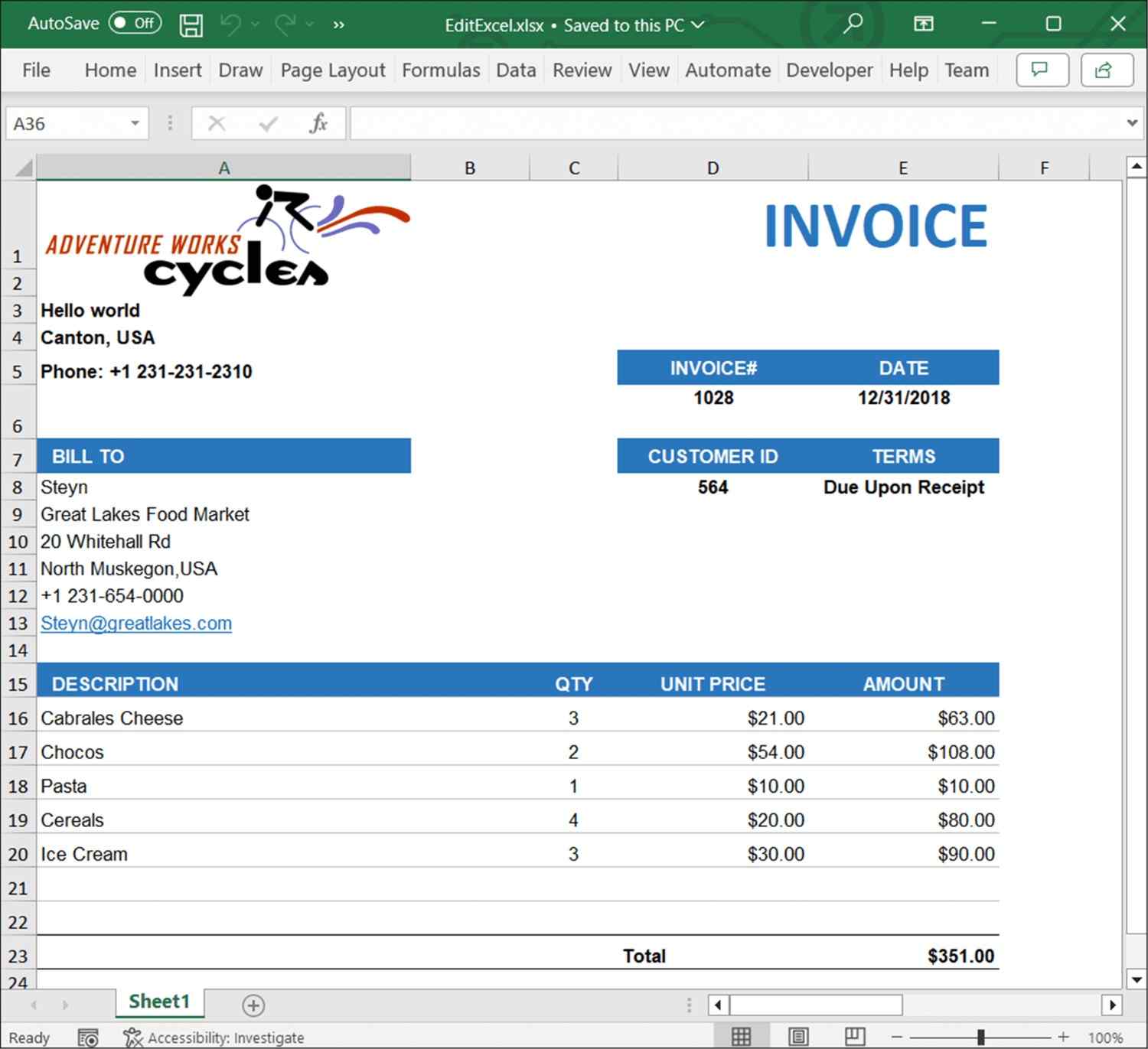
By executing the program, you will get the Excel document as follows.
Saving Excel files to OneDrive Cloud Storage
Steps to save an Excel document to OneDrive Cloud Storage.
Step 1: Create a new ASP.NET Core Web Application (Model-View-Controller).
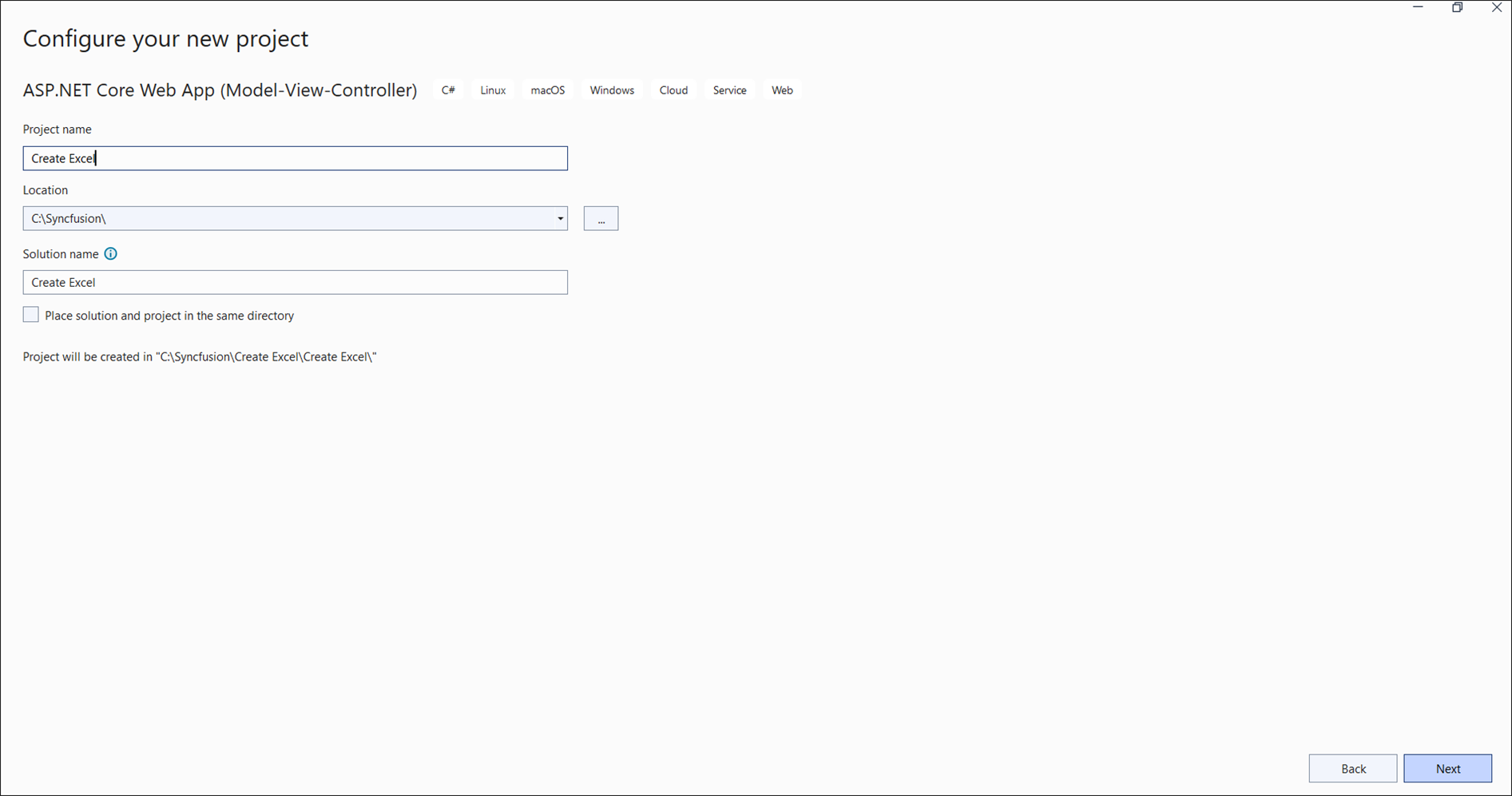
Step 2: Name the project.
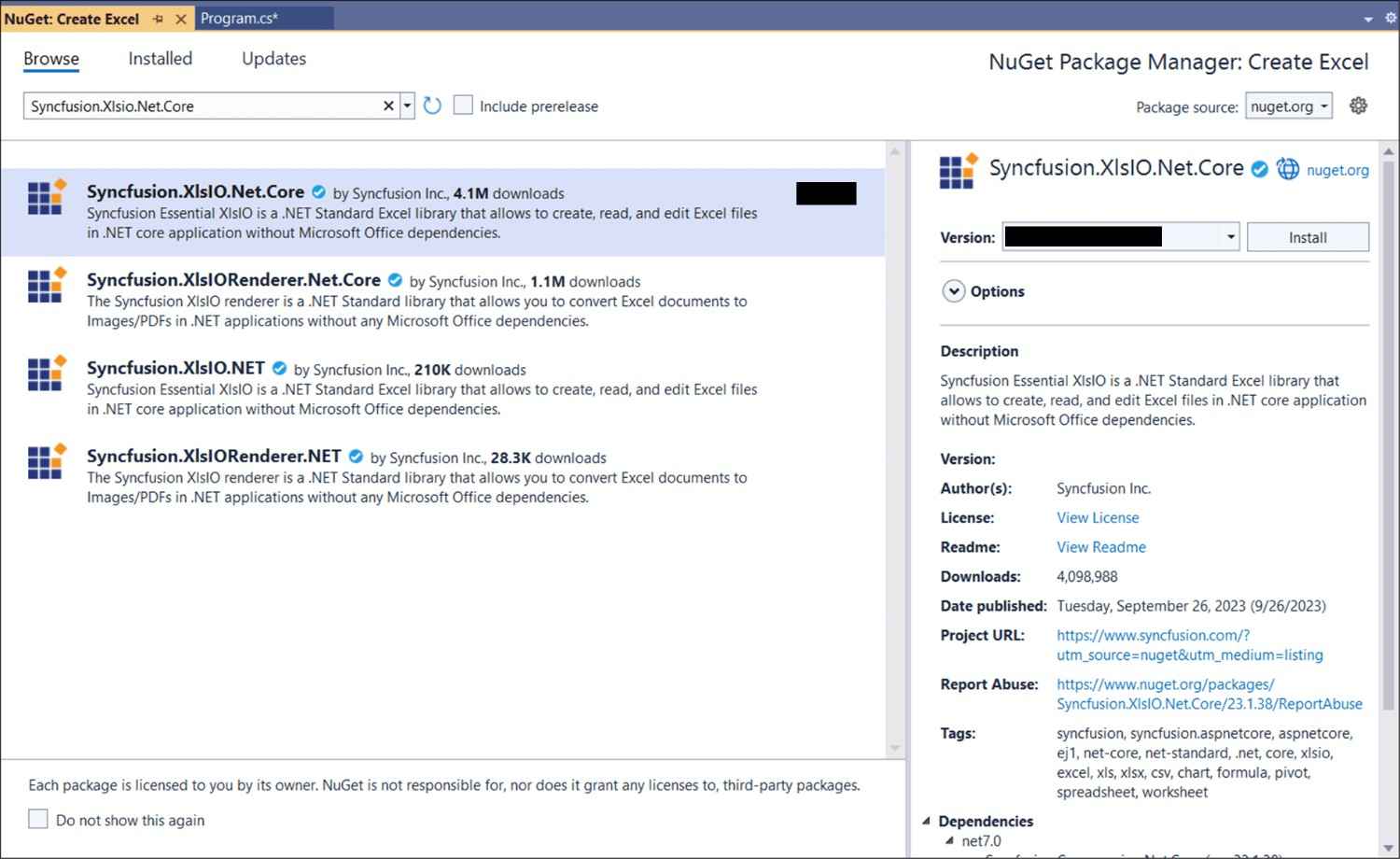
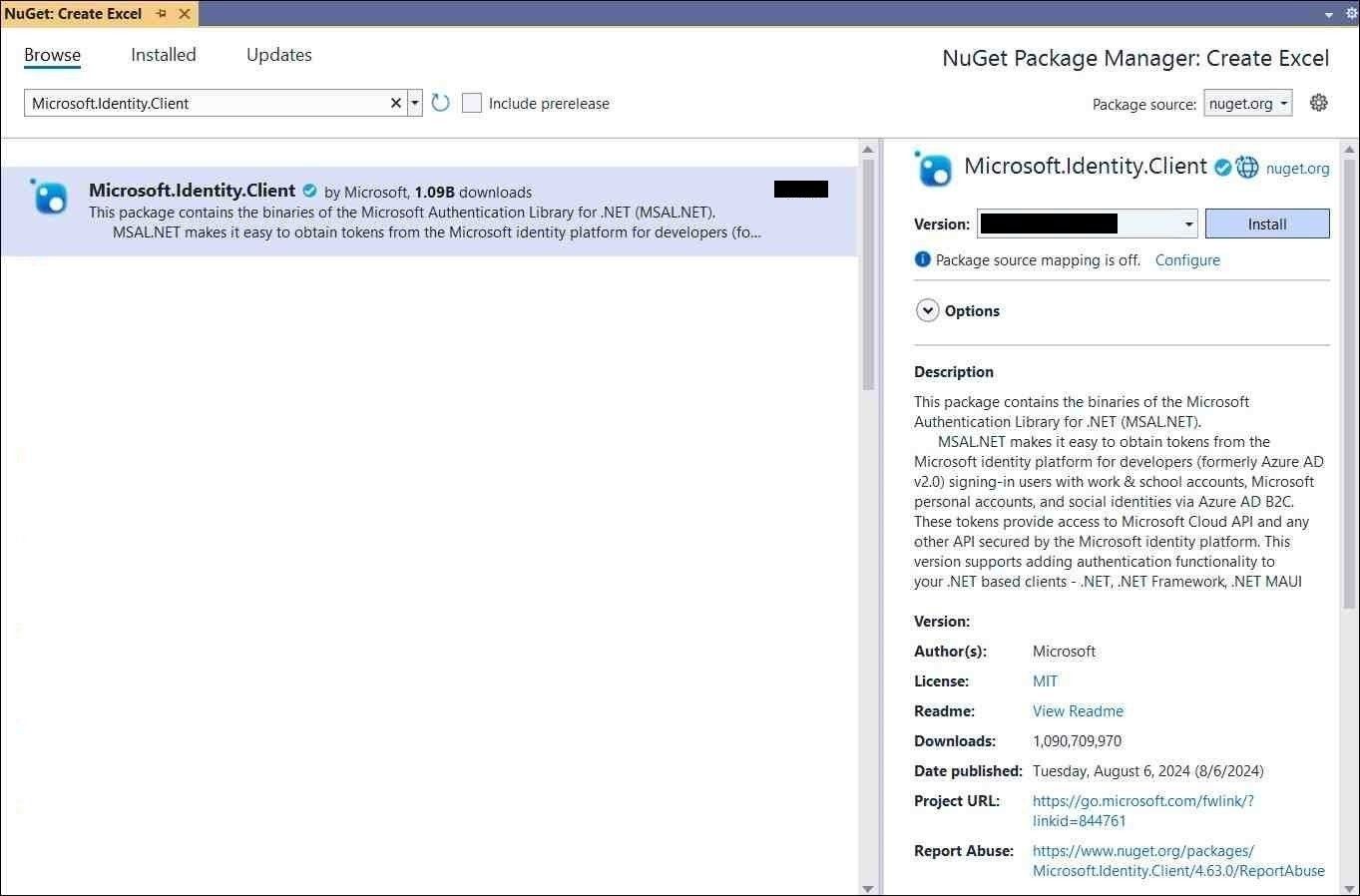
Step 3: Install the following NuGet packages in your application from NuGet.org.
Step 4: Add a new button in the Index.cshtml as shown below.
@{Html.BeginForm("CreateDocument", "Home", FormMethod.Get);
    {
        <div>
            <input type="submit" value="Upload Document" style="width:150px;height:27px" />
        </div>
    }
    Html.EndForm();
}
Step 5: Include the following namespaces in HomeController.cs.
using System;
using System.IO;
using System.Net.Http;
using System.Net.Http.Headers;
using System.Threading.Tasks;
using Microsoft.AspNetCore.Mvc;
using Microsoft.Identity.Client;
using Syncfusion.XlsIO;
using Syncfusion.Drawing;
Step 6: Register the Syncfusion license key (see the Loading section above) if you have not already done so.
Step 7: Include the following code snippet in HomeController.cs to save an Excel document to OneDrive Cloud Storage. The snippet is the body of the CreateDocument action method that the button in Step 4 posts to, plus the UploadDocumentToOneDrive helper it calls. The image file AdventureCycles-Logo.png must be present in the project and copied to the publish output.
//Create an instance of ExcelEngine
using (ExcelEngine excelEngine = new ExcelEngine())
{
    IApplication application = excelEngine.Excel;
    application.DefaultVersion = ExcelVersion.Xlsx;

    //Create a workbook
    IWorkbook workbook = application.Workbooks.Create(1);
    IWorksheet worksheet = workbook.Worksheets[0];

    //Adding a picture
    FileStream imageStream = new FileStream("AdventureCycles-Logo.png", FileMode.Open, FileAccess.Read);
    IPictureShape shape = worksheet.Pictures.AddPicture(1, 1, imageStream, 20, 20);

    //Disable gridlines in the worksheet
    worksheet.IsGridLinesVisible = false;

    //Enter values to the cells from A3 to A5
    worksheet.Range["A3"].Text = "46036 Michigan Ave";
    worksheet.Range["A4"].Text = "Canton, USA";
    worksheet.Range["A5"].Text = "Phone: +1 231-231-2310";

    //Make the text bold
    worksheet.Range["A3:A5"].CellStyle.Font.Bold = true;

    //Merge cells
    worksheet.Range["D1:E1"].Merge();

    //Enter text to the cell D1 and apply formatting.
    worksheet.Range["D1"].Text = "INVOICE";
    worksheet.Range["D1"].CellStyle.Font.Bold = true;
    worksheet.Range["D1"].CellStyle.Font.RGBColor = Color.FromArgb(42, 118, 189);
    worksheet.Range["D1"].CellStyle.Font.Size = 35;

    //Apply alignment in the cell D1
    worksheet.Range["D1"].CellStyle.HorizontalAlignment = ExcelHAlign.HAlignRight;
    worksheet.Range["D1"].CellStyle.VerticalAlignment = ExcelVAlign.VAlignTop;

    //Enter values to the cells from D5 to E8
    worksheet.Range["D5"].Text = "INVOICE#";
    worksheet.Range["E5"].Text = "DATE";
    worksheet.Range["D6"].Number = 1028;
    worksheet.SetValue(6, 5, "12/31/2018");
    worksheet.Range["D7"].Text = "CUSTOMER ID";
    worksheet.Range["E7"].Text = "TERMS";
    worksheet.Range["D8"].Number = 564;
    worksheet.Range["E8"].Text = "Due Upon Receipt";

    //Apply RGB backcolor to the cells from D5 to E8
    worksheet.Range["D5:E5"].CellStyle.Color = Color.FromArgb(42, 118, 189);
    worksheet.Range["D7:E7"].CellStyle.Color = Color.FromArgb(42, 118, 189);

    //Apply known colors to the text in cells D5 to E8
    worksheet.Range["D5:E5"].CellStyle.Font.Color = ExcelKnownColors.White;
    worksheet.Range["D7:E7"].CellStyle.Font.Color = ExcelKnownColors.White;

    //Make the text as bold from D5 to E8
    worksheet.Range["D5:E8"].CellStyle.Font.Bold = true;

    //Apply alignment to the cells from D5 to E8
    worksheet.Range["D5:E8"].CellStyle.HorizontalAlignment = ExcelHAlign.HAlignCenter;
    worksheet.Range["D5:E5"].CellStyle.VerticalAlignment = ExcelVAlign.VAlignCenter;
    worksheet.Range["D7:E7"].CellStyle.VerticalAlignment = ExcelVAlign.VAlignCenter;
    worksheet.Range["D6:E6"].CellStyle.VerticalAlignment = ExcelVAlign.VAlignTop;

    //Enter value and applying formatting in the cell A7
    worksheet.Range["A7"].Text = "  BILL TO";
    worksheet.Range["A7"].CellStyle.Color = Color.FromArgb(42, 118, 189);
    worksheet.Range["A7"].CellStyle.Font.Bold = true;
    worksheet.Range["A7"].CellStyle.Font.Color = ExcelKnownColors.White;

    //Apply alignment
    worksheet.Range["A7"].CellStyle.HorizontalAlignment = ExcelHAlign.HAlignLeft;
    worksheet.Range["A7"].CellStyle.VerticalAlignment = ExcelVAlign.VAlignCenter;

    //Enter values in the cells A8 to A12
    worksheet.Range["A8"].Text = "Steyn";
    worksheet.Range["A9"].Text = "Great Lakes Food Market";
    worksheet.Range["A10"].Text = "20 Whitehall Rd";
    worksheet.Range["A11"].Text = "North Muskegon,USA";
    worksheet.Range["A12"].Text = "+1 231-654-0000";

    //Create a Hyperlink for e-mail in the cell A13
    IHyperLink hyperlink = worksheet.HyperLinks.Add(worksheet.Range["A13"]);
    hyperlink.Type = ExcelHyperLinkType.Url;
    hyperlink.Address = "[email protected]";
    hyperlink.ScreenTip = "Send Mail";

    //Merge column A and B from row 15 to 22
    worksheet.Range["A15:B15"].Merge();
    worksheet.Range["A16:B16"].Merge();
    worksheet.Range["A17:B17"].Merge();
    worksheet.Range["A18:B18"].Merge();
    worksheet.Range["A19:B19"].Merge();
    worksheet.Range["A20:B20"].Merge();
    worksheet.Range["A21:B21"].Merge();
    worksheet.Range["A22:B22"].Merge();

    //Enter details of products and prices
    worksheet.Range["A15"].Text = "  DESCRIPTION";
    worksheet.Range["C15"].Text = "QTY";
    worksheet.Range["D15"].Text = "UNIT PRICE";
    worksheet.Range["E15"].Text = "AMOUNT";
    worksheet.Range["A16"].Text = "Cabrales Cheese";
    worksheet.Range["A17"].Text = "Chocos";
    worksheet.Range["A18"].Text = "Pasta";
    worksheet.Range["A19"].Text = "Cereals";
    worksheet.Range["A20"].Text = "Ice Cream";
    worksheet.Range["C16"].Number = 3;
    worksheet.Range["C17"].Number = 2;
    worksheet.Range["C18"].Number = 1;
    worksheet.Range["C19"].Number = 4;
    worksheet.Range["C20"].Number = 3;
    worksheet.Range["D16"].Number = 21;
    worksheet.Range["D17"].Number = 54;
    worksheet.Range["D18"].Number = 10;
    worksheet.Range["D19"].Number = 20;
    worksheet.Range["D20"].Number = 30;
    worksheet.Range["D23"].Text = "Total";

    //Apply number format
    worksheet.Range["D16:E22"].NumberFormat = "$.00";
    worksheet.Range["E23"].NumberFormat = "$.00";

    //Apply incremental formula for column Amount by multiplying Qty and UnitPrice
    application.EnableIncrementalFormula = true;
    worksheet.Range["E16:E20"].Formula = "=C16*D16";

    //Formula for Sum the total
    worksheet.Range["E23"].Formula = "=SUM(E16:E22)";

    //Apply borders
    worksheet.Range["A16:E22"].CellStyle.Borders[ExcelBordersIndex.EdgeTop].LineStyle = ExcelLineStyle.Thin;
    worksheet.Range["A16:E22"].CellStyle.Borders[ExcelBordersIndex.EdgeBottom].LineStyle = ExcelLineStyle.Thin;
    worksheet.Range["A16:E22"].CellStyle.Borders[ExcelBordersIndex.EdgeTop].Color = ExcelKnownColors.Grey_25_percent;
    worksheet.Range["A16:E22"].CellStyle.Borders[ExcelBordersIndex.EdgeBottom].Color = ExcelKnownColors.Grey_25_percent;
    worksheet.Range["A23:E23"].CellStyle.Borders[ExcelBordersIndex.EdgeTop].LineStyle = ExcelLineStyle.Thin;
    worksheet.Range["A23:E23"].CellStyle.Borders[ExcelBordersIndex.EdgeBottom].LineStyle = ExcelLineStyle.Thin;
    worksheet.Range["A23:E23"].CellStyle.Borders[ExcelBordersIndex.EdgeTop].Color = ExcelKnownColors.Black;
    worksheet.Range["A23:E23"].CellStyle.Borders[ExcelBordersIndex.EdgeBottom].Color = ExcelKnownColors.Black;

    //Apply font setting for cells with product details
    worksheet.Range["A3:E23"].CellStyle.Font.FontName = "Arial";
    worksheet.Range["A3:E23"].CellStyle.Font.Size = 10;
    worksheet.Range["A15:E15"].CellStyle.Font.Color = ExcelKnownColors.White;
    worksheet.Range["A15:E15"].CellStyle.Font.Bold = true;
    worksheet.Range["D23:E23"].CellStyle.Font.Bold = true;

    //Apply cell color
    worksheet.Range["A15:E15"].CellStyle.Color = Color.FromArgb(42, 118, 189);

    //Apply alignment to cells with product details
    worksheet.Range["A15"].CellStyle.HorizontalAlignment = ExcelHAlign.HAlignLeft;
    worksheet.Range["C15:C22"].CellStyle.HorizontalAlignment = ExcelHAlign.HAlignCenter;
    worksheet.Range["D15:E15"].CellStyle.HorizontalAlignment = ExcelHAlign.HAlignCenter;

    //Apply row height and column width to look good
    worksheet.Range["A1"].ColumnWidth = 36;
    worksheet.Range["B1"].ColumnWidth = 11;
    worksheet.Range["C1"].ColumnWidth = 8;
    worksheet.Range["D1:E1"].ColumnWidth = 18;
    worksheet.Range["A1"].RowHeight = 47;
    worksheet.Range["A2"].RowHeight = 15;
    worksheet.Range["A3:A4"].RowHeight = 15;
    worksheet.Range["A5"].RowHeight = 18;
    worksheet.Range["A6"].RowHeight = 29;
    worksheet.Range["A7"].RowHeight = 18;
    worksheet.Range["A8"].RowHeight = 15;
    worksheet.Range["A9:A14"].RowHeight = 15;
    worksheet.Range["A15:A23"].RowHeight = 18;

    //Saving the Excel to the MemoryStream
    MemoryStream stream = new MemoryStream();
    workbook.SaveAs(stream);

    //Set the position as '0'.
    stream.Position = 0;

    //Upload the document to OneDrive
    await UploadDocumentToOneDrive(stream);

    return Ok("Excel document uploaded to OneDrive cloud Storage.");
}

// Upload file to OneDrive
public async Task<MemoryStream> UploadDocumentToOneDrive(MemoryStream stream)
{
    //Load these values from configuration (for example, Azure Key Vault, environment variables, or user secrets).
    //Do not hard-code the client secret in source code.
    string clientId = "your-client-id";
    string tenantId = "your-tenant-id";
    string clientSecret = "your-client-secret";

    //Replace with the user ID (email address) whose OneDrive you want to access
    string userId = "[email protected]";

    //Replace with the OneDrive file path where you want to save the file For ex: "/Template.xlsx"
    string filePath = "FilePath";

    //Initialize the MSAL client
    var confidentialClientApplication = ConfidentialClientApplicationBuilder
        .Create(clientId)
        .WithClientSecret(clientSecret)
        .WithAuthority(new Uri($"https://login.microsoftonline.com/{tenantId}"))
        .Build();

    //Acquire an access token
    string[] scopes = { "https://graph.microsoft.com/.default" };
    var authenticationResult = await confidentialClientApplication
        .AcquireTokenForClient(scopes)
        .ExecuteAsync();

    //Create an HTTP client with the access token
    var httpClient = new HttpClient();
    httpClient.DefaultRequestHeaders.Authorization = new AuthenticationHeaderValue("Bearer", authenticationResult.AccessToken);

    //Upload the file to OneDrive. Set the content type to the standard Excel MIME for .xlsx
    //so the file opens directly in Excel Online.
    var content = new StreamContent(stream);
    content.Headers.ContentType = new MediaTypeHeaderValue("application/vnd.openxmlformats-officedocument.spreadsheetml.sheet");

    //Construct the OneDrive upload URL using user ID and file path
    var uploadUrl = $"https://graph.microsoft.com/v1.0/users/{userId}/drive/root:{filePath}:/content";

    using (var response = await httpClient.PutAsync(uploadUrl, content))
    {
        if (response.IsSuccessStatusCode)
        {
            Console.WriteLine("File uploaded successfully.");
        }
        else
        {
            Console.WriteLine($"Failed to upload file. Status code: {response.StatusCode}");
            string responseBody = await response.Content.ReadAsStringAsync();
            Console.WriteLine($"Error details: {responseBody}");
        }
    }
    return stream;
}
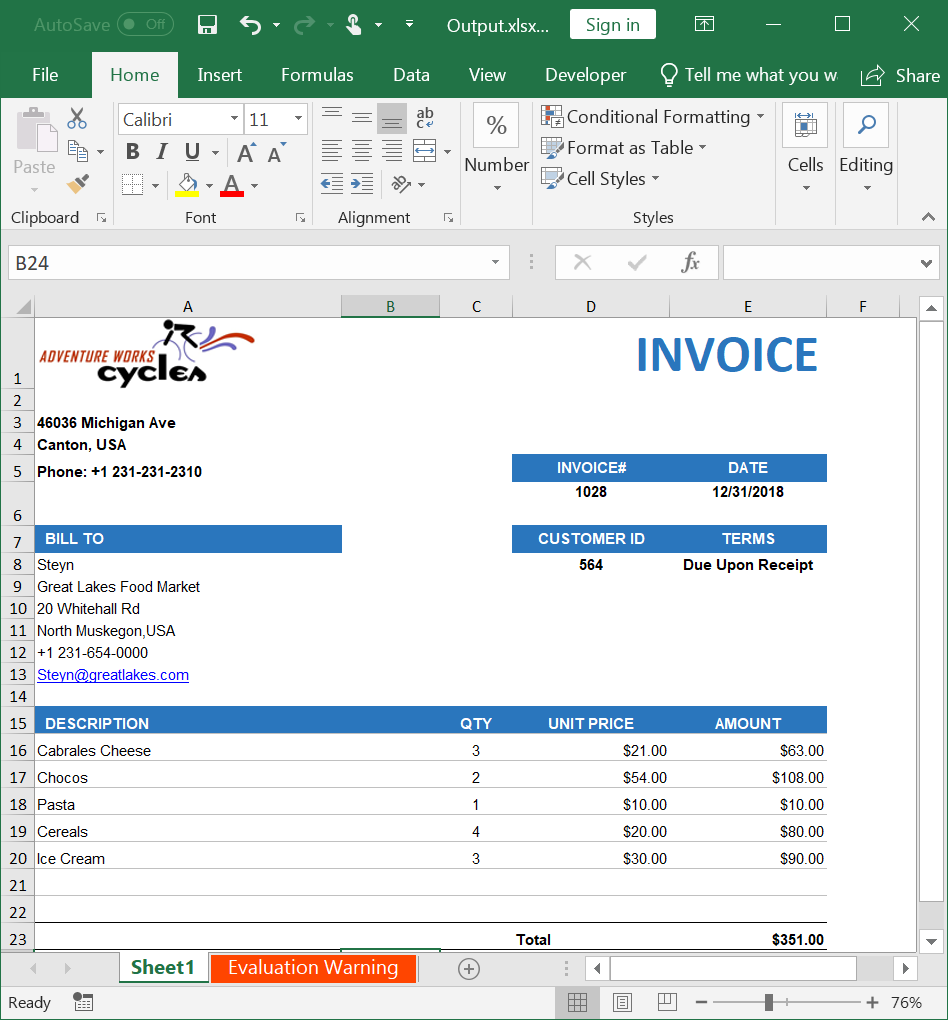
A complete working example of how to save an Excel document to OneDrive Cloud Storage in ASP.NET Core is present on this GitHub page.
By executing the program, you will get the Excel document as shown below.
Click here to explore the rich set of Syncfusion® Excel library (XlsIO) features.
An online sample link to create an Excel document in ASP.NET Core.