Loading and Saving Files in Google Drive
17 Aug 202621 minutes to read
Prerequisites
- A Google Cloud project created in the Google Cloud Console.
- A service account within your GCP project, with the Drive API scope and the appropriate Drive file permissions (Viewer for loading, Writer/Owner for saving).
- A service account key in JSON format.
- The Google Drive API enabled for the project.
- A Google Drive account.
- Visual Studio 2019 or later with the ASP.NET and web development workload.
- A Syncfusion® license key. Refer to How to register the Syncfusion license key for details.
Do not commit the service account key file to source control. Store it outside the project folder and reference it via configuration (for example, the
GOOGLE_APPLICATION_CREDENTIALSenvironment variable or user secrets). For production deployments, use a managed identity or workload identity federation instead of a key file.
Loading Excel files from Google Drive Cloud Storage
Steps to load an Excel document from Google Drive Cloud Storage.
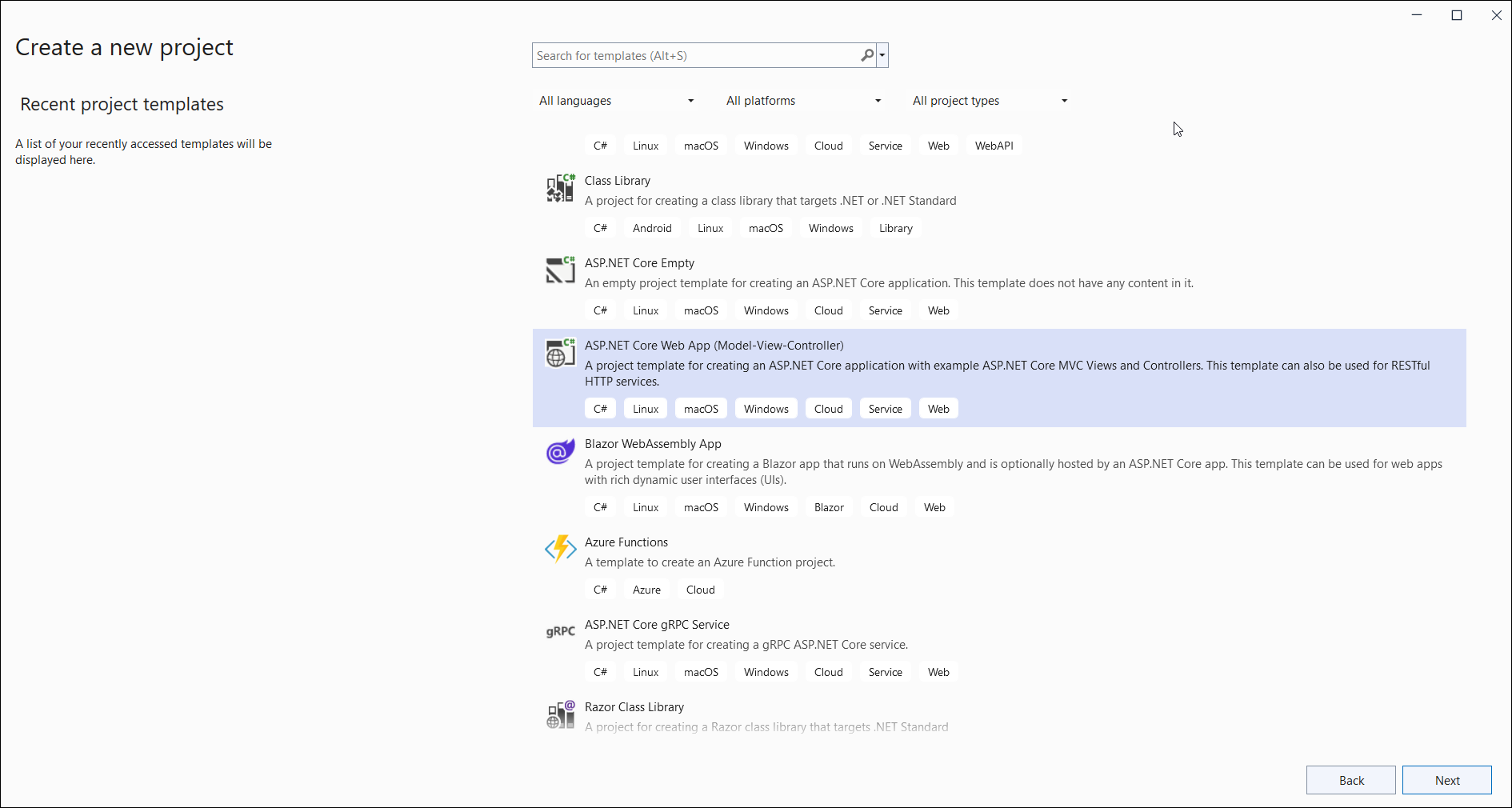
Step 1: Create a new ASP.NET Core Web Application (Model-View-Controller).
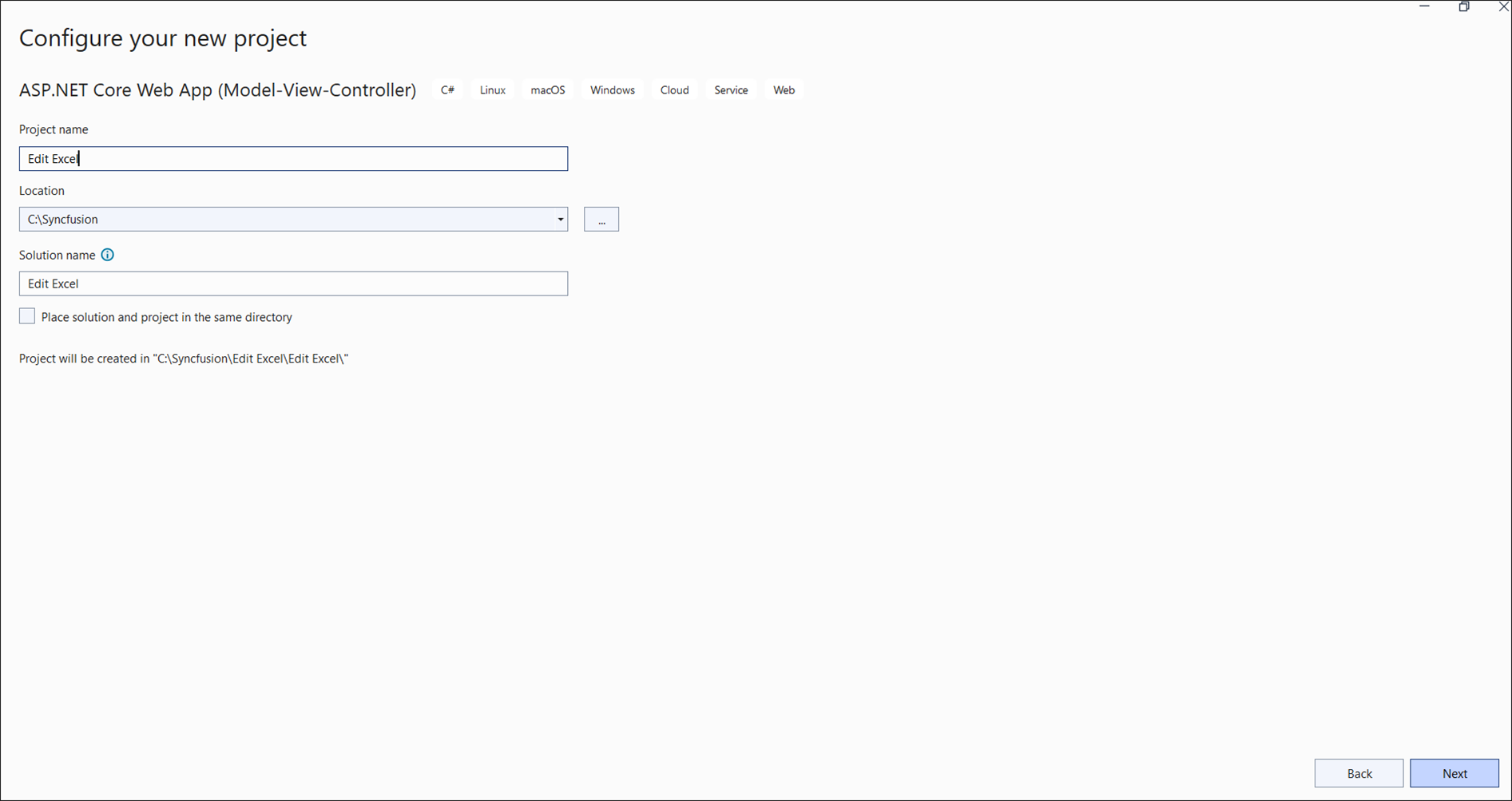
Step 2: Name the project.
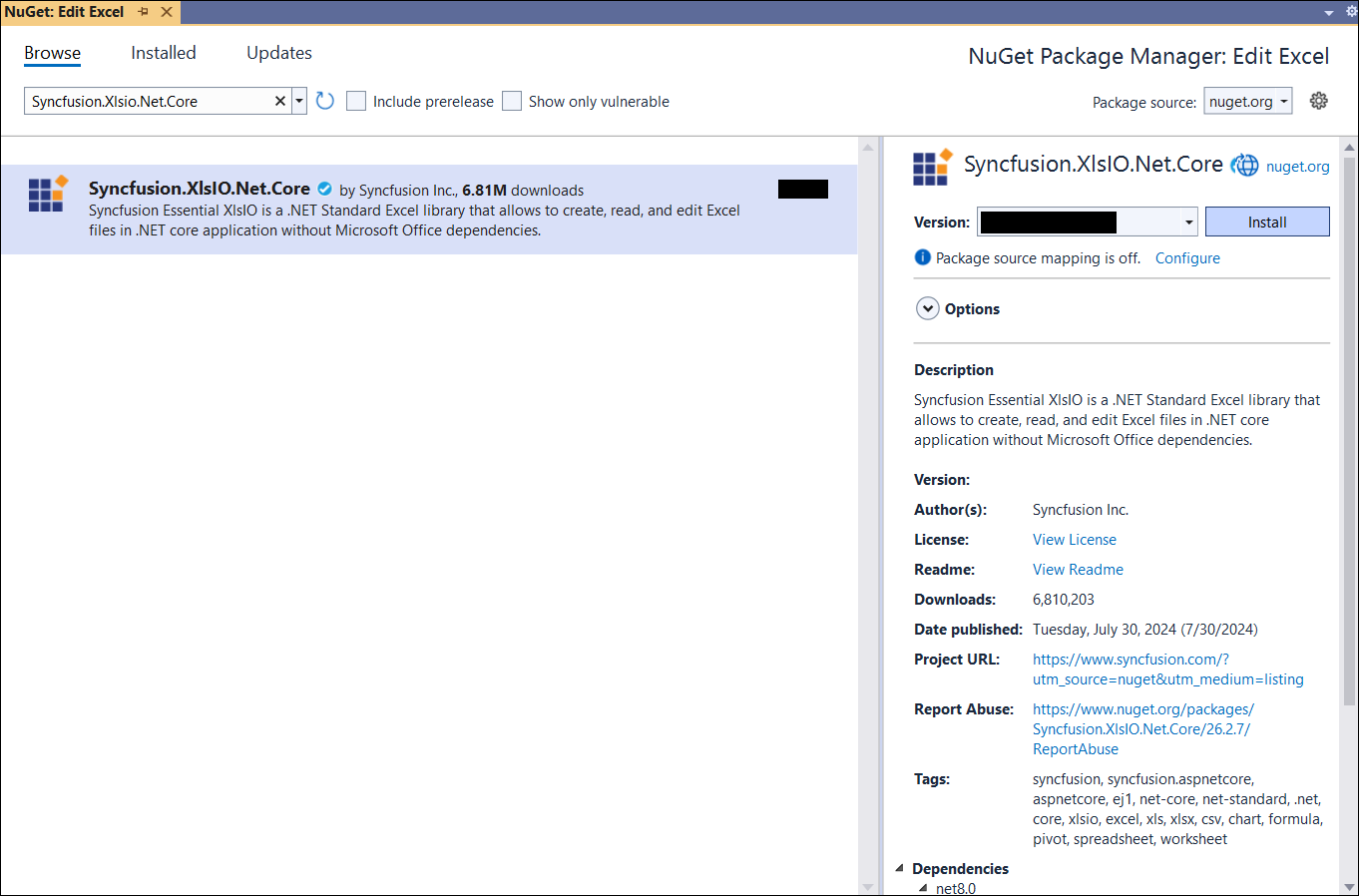
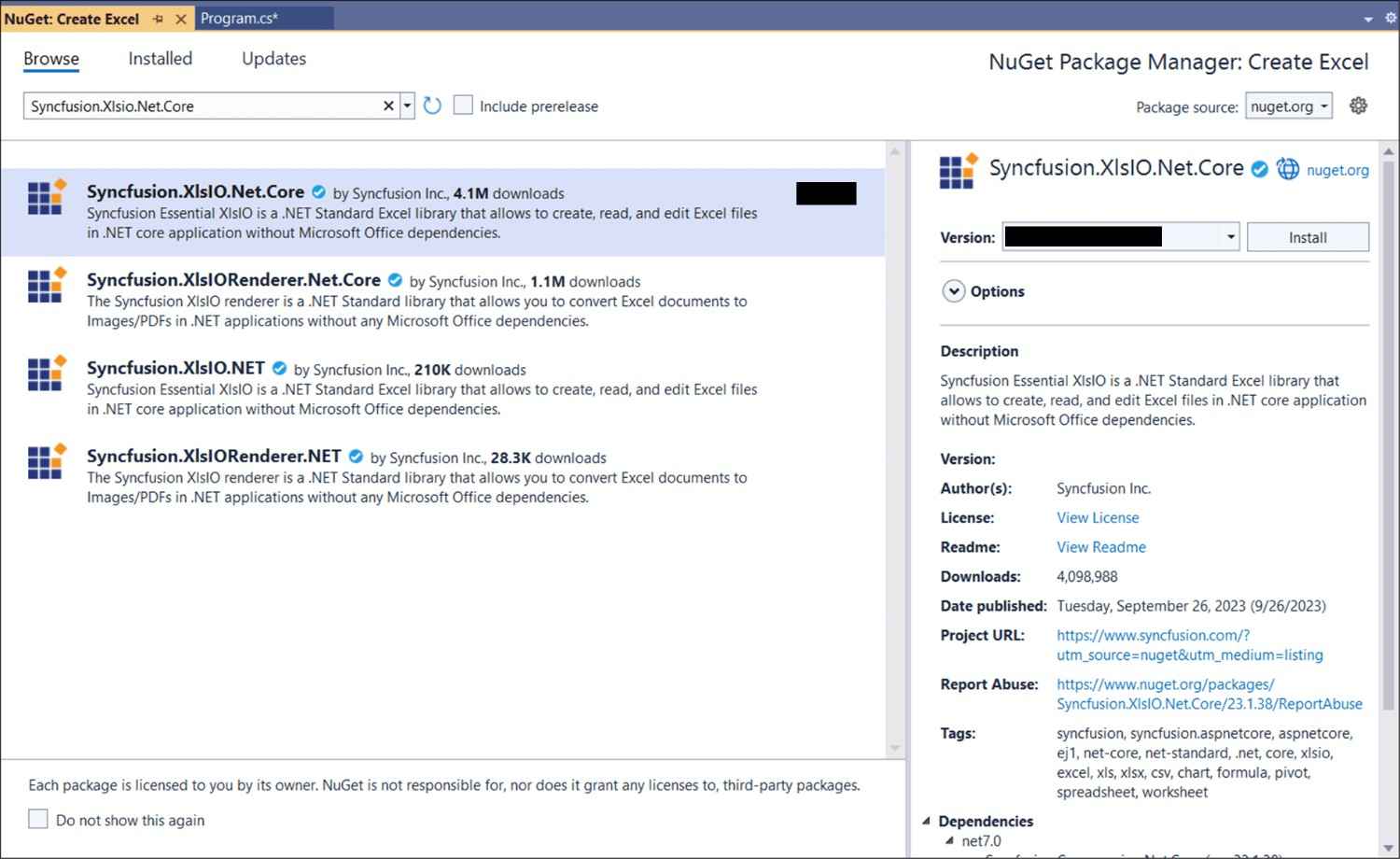
Step 3: Install the following NuGet packages in your application from NuGet.org.

Step 4: Add a new button in the Index.cshtml as shown below.
@{Html.BeginForm("EditDocument", "Home", FormMethod.Get);
    {
        <div>
            <input type="submit" value="Edit Document" style="width:150px;height:27px" />
        </div>
    }
    Html.EndForm();
}
Step 5: Include the following namespaces in HomeController.cs.
using Google.Apis.Auth.OAuth2;
using Google.Apis.Drive.v3;
using Google.Apis.Services;
using Syncfusion.XlsIO;
Step 6: Register the Syncfusion license key in Program.cs before builder.Build():
Syncfusion.Licensing.SyncfusionLicenseProvider.RegisterLicense("YOUR_LICENSE_KEY");Step 7: Include the following code snippet in HomeController.cs to load an Excel document from Google Drive Cloud Storage. The snippet is the body of the EditDocument action method that the button in Step 4 posts to, plus the GetDocumentFromGoogleDrive helper it calls. The serviceAccountKeyPath placeholder should point to the service account JSON key file.
using (ExcelEngine excelEngine = new ExcelEngine())
{
    IApplication application = excelEngine.Excel;
    application.DefaultVersion = ExcelVersion.Xlsx;

    //Download the document from Google Drive
    MemoryStream stream = await GetDocumentFromGoogleDrive();

    //Set the position as '0'
    stream.Position = 0;

    //Load the downloaded document
    IWorkbook workbook = application.Workbooks.Open(stream);

    IWorksheet worksheet = workbook.Worksheets[0];
    worksheet.Range["A3"].Text = "Hello world";

    //Saving the Excel to the MemoryStream
    MemoryStream outputStream = new MemoryStream();
    workbook.SaveAs(outputStream);

    //Set the position as '0'
    outputStream.Position = 0;

    //Download the Excel file in the browser
    FileStreamResult fileStreamResult = new FileStreamResult(outputStream, "application/vnd.openxmlformats-officedocument.spreadsheetml.sheet");
    fileStreamResult.FileDownloadName = "EditExcel.xlsx";
    return fileStreamResult;
}

// Download file from Google Drive
public async Task<MemoryStream> GetDocumentFromGoogleDrive()
{
    //Define the path to the service account key file
    string serviceAccountKeyPath = "Your_service_account_key_path";

    //Specify the FileID of the file to download
    string fileID = "Your_file_id";

    try
    {
        //Authenticate the Google Drive API access using the service account key
        GoogleCredential credential = GoogleCredential.FromFile(serviceAccountKeyPath).CreateScoped(DriveService.ScopeConstants.Drive);

        //Create the Google Drive service
        DriveService service = new DriveService(new BaseClientService.Initializer()
        {
            HttpClientInitializer = credential
        });

        //Create a request to get the file from Google Drive
        var request = service.Files.Get(fileID);

        //Download the file into a MemoryStream
        MemoryStream stream = new MemoryStream();
        await request.DownloadAsync(stream);

        return stream;
    }
    catch (Exception ex)
    {
        Console.WriteLine($"Error retrieving document from Google Drive: {ex.Message}");
        throw;
    }
}
A complete working example of how to load an Excel document from Google Drive Cloud Storage in ASP.NET Core is present on this GitHub page.
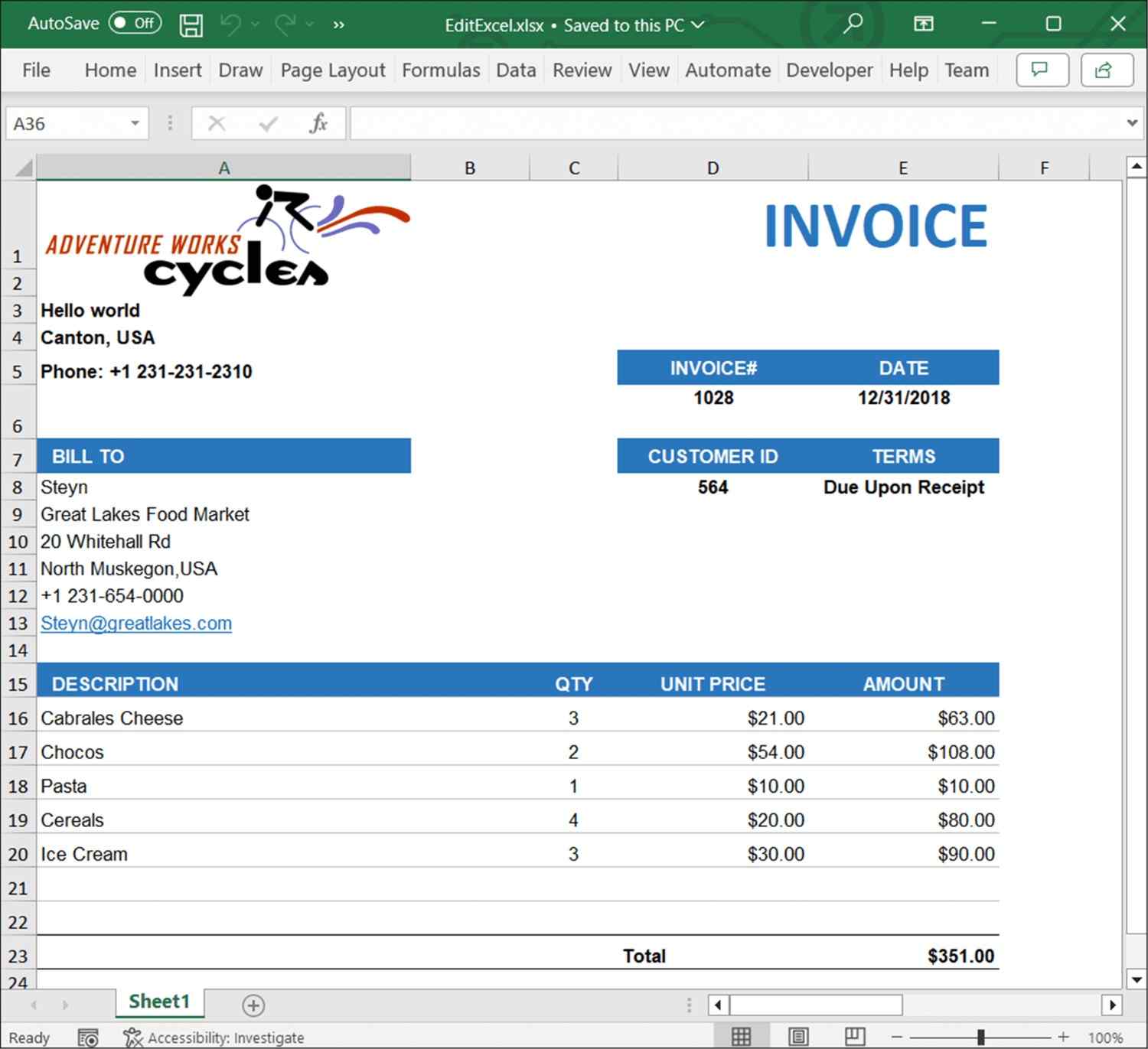
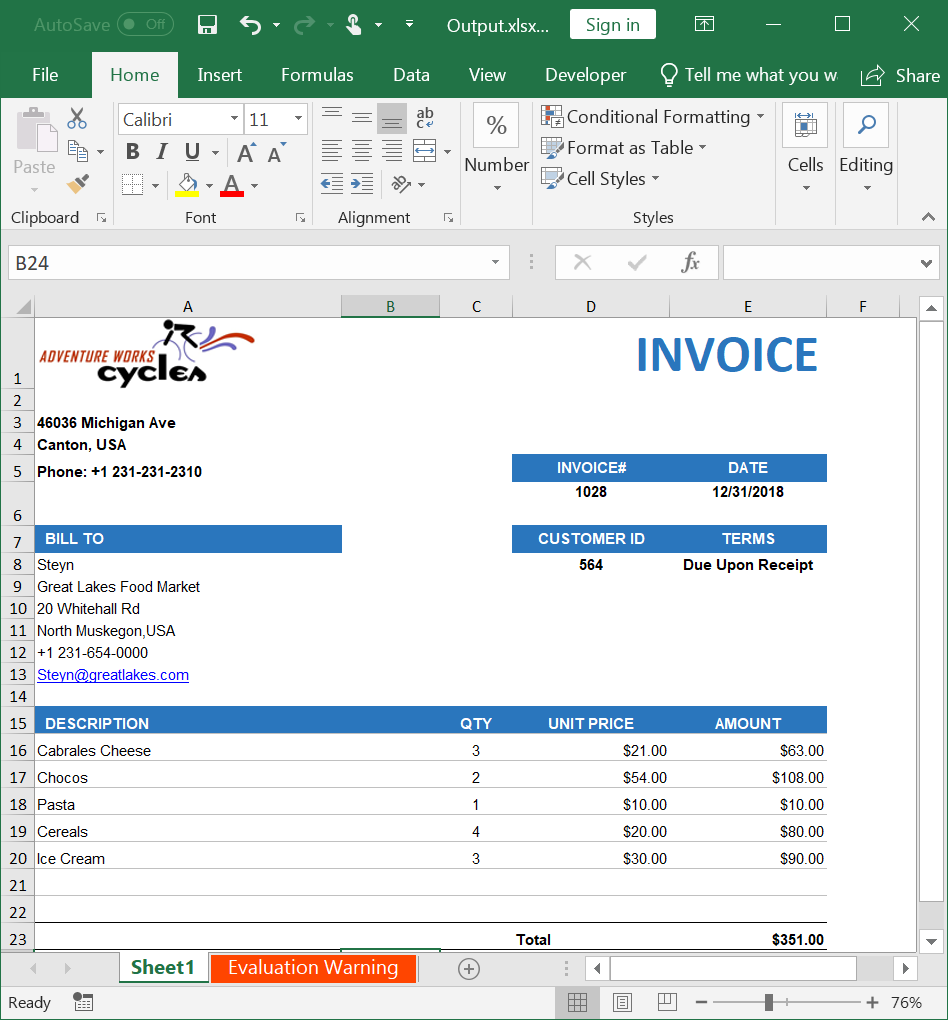
By executing the program, you will get the Excel document as follows.
Saving Excel files to Google Drive Cloud Storage
Steps to save an Excel document to Google Drive Cloud Storage.
Step 1: Create a new ASP.NET Core Web Application (Model-View-Controller).
Step 2: Name the project.
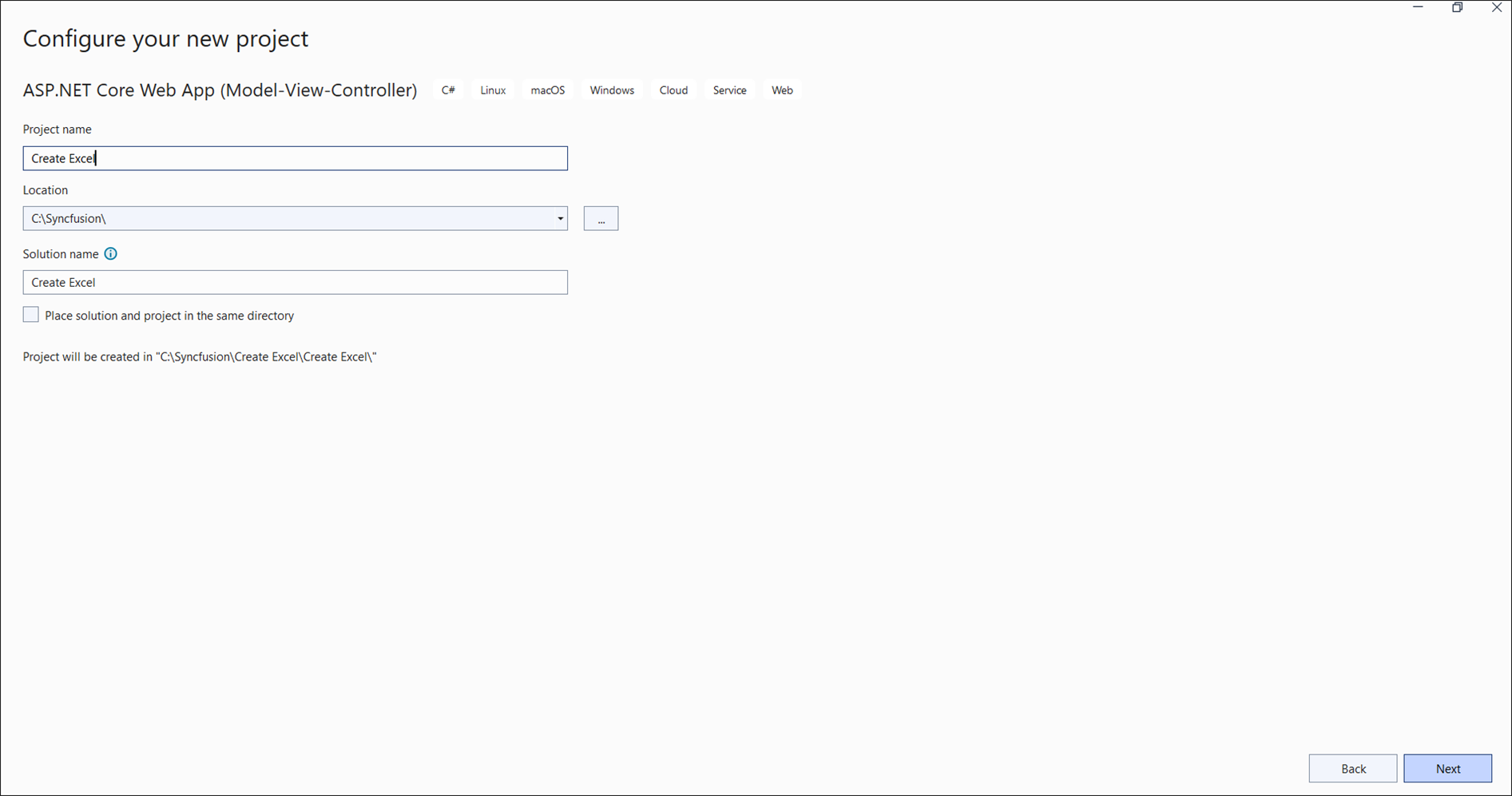
Step 3: Install the following NuGet packages in your application from NuGet.org.

Step 4: Add a new button in the Index.cshtml as shown below.
@{Html.BeginForm("CreateDocument", "Home", FormMethod.Get);
    {
        <div>
            <input type="submit" value="Upload Document" style="width:150px;height:27px" />
        </div>
    }
    Html.EndForm();
}
Step 5: Include the following namespaces in HomeController.cs.
using System;
using System.Collections.Generic;
using System.IO;
using System.Threading;
using System.Threading.Tasks;
using Google.Apis.Auth.OAuth2;
using Google.Apis.Drive.v3;
using Google.Apis.Services;
using Google.Apis.Upload;
using Microsoft.AspNetCore.Mvc;
using Syncfusion.XlsIO;
using Syncfusion.Drawing;
Step 6: Register the Syncfusion license key (see the Loading section above) if you have not already done so.
Step 7: Include the following code snippet in HomeController.cs to save an Excel document to Google Drive Cloud Storage. The snippet is the body of the CreateDocument action method that the button in Step 4 posts to, plus the UploadDocumentToGoogleDrive helper it calls. The image file AdventureCycles-Logo.png must be present in the project and copied to the publish output. The serviceAccountKeyPath placeholder should point to the service account JSON key file.
//Create an instance of ExcelEngine
using (ExcelEngine excelEngine = new ExcelEngine())
{
    IApplication application = excelEngine.Excel;
    application.DefaultVersion = ExcelVersion.Xlsx;

    //Create a workbook
    IWorkbook workbook = application.Workbooks.Create(1);
    IWorksheet worksheet = workbook.Worksheets[0];

    //Adding a picture
    FileStream imageStream = new FileStream("AdventureCycles-Logo.png", FileMode.Open, FileAccess.Read);
    IPictureShape shape = worksheet.Pictures.AddPicture(1, 1, imageStream, 20, 20);

    //Disable gridlines in the worksheet
    worksheet.IsGridLinesVisible = false;

    //Enter values to the cells from A3 to A5
    worksheet.Range["A3"].Text = "46036 Michigan Ave";
    worksheet.Range["A4"].Text = "Canton, USA";
    worksheet.Range["A5"].Text = "Phone: +1 231-231-2310";

    //Make the text bold
    worksheet.Range["A3:A5"].CellStyle.Font.Bold = true;

    //Merge cells
    worksheet.Range["D1:E1"].Merge();

    //Enter text to the cell D1 and apply formatting.
    worksheet.Range["D1"].Text = "INVOICE";
    worksheet.Range["D1"].CellStyle.Font.Bold = true;
    worksheet.Range["D1"].CellStyle.Font.RGBColor = Color.FromArgb(42, 118, 189);
    worksheet.Range["D1"].CellStyle.Font.Size = 35;

    //Apply alignment in the cell D1
    worksheet.Range["D1"].CellStyle.HorizontalAlignment = ExcelHAlign.HAlignRight;
    worksheet.Range["D1"].CellStyle.VerticalAlignment = ExcelVAlign.VAlignTop;

    //Enter values to the cells from D5 to E8
    worksheet.Range["D5"].Text = "INVOICE#";
    worksheet.Range["E5"].Text = "DATE";
    worksheet.Range["D6"].Number = 1028;
    worksheet.SetValue(6, 5, "12/31/2018");
    worksheet.Range["D7"].Text = "CUSTOMER ID";
    worksheet.Range["E7"].Text = "TERMS";
    worksheet.Range["D8"].Number = 564;
    worksheet.Range["E8"].Text = "Due Upon Receipt";

    //Apply RGB backcolor to the cells from D5 to E8
    worksheet.Range["D5:E5"].CellStyle.Color = Color.FromArgb(42, 118, 189);
    worksheet.Range["D7:E7"].CellStyle.Color = Color.FromArgb(42, 118, 189);

    //Apply known colors to the text in cells D5 to E8
    worksheet.Range["D5:E5"].CellStyle.Font.Color = ExcelKnownColors.White;
    worksheet.Range["D7:E7"].CellStyle.Font.Color = ExcelKnownColors.White;

    //Make the text as bold from D5 to E8
    worksheet.Range["D5:E8"].CellStyle.Font.Bold = true;

    //Apply alignment to the cells from D5 to E8
    worksheet.Range["D5:E8"].CellStyle.HorizontalAlignment = ExcelHAlign.HAlignCenter;
    worksheet.Range["D5:E5"].CellStyle.VerticalAlignment = ExcelVAlign.VAlignCenter;
    worksheet.Range["D7:E7"].CellStyle.VerticalAlignment = ExcelVAlign.VAlignCenter;
    worksheet.Range["D6:E6"].CellStyle.VerticalAlignment = ExcelVAlign.VAlignTop;

    //Enter value and applying formatting in the cell A7
    worksheet.Range["A7"].Text = "  BILL TO";
    worksheet.Range["A7"].CellStyle.Color = Color.FromArgb(42, 118, 189);
    worksheet.Range["A7"].CellStyle.Font.Bold = true;
    worksheet.Range["A7"].CellStyle.Font.Color = ExcelKnownColors.White;

    //Apply alignment
    worksheet.Range["A7"].CellStyle.HorizontalAlignment = ExcelHAlign.HAlignLeft;
    worksheet.Range["A7"].CellStyle.VerticalAlignment = ExcelVAlign.VAlignCenter;

    //Enter values in the cells A8 to A12
    worksheet.Range["A8"].Text = "Steyn";
    worksheet.Range["A9"].Text = "Great Lakes Food Market";
    worksheet.Range["A10"].Text = "20 Whitehall Rd";
    worksheet.Range["A11"].Text = "North Muskegon,USA";
    worksheet.Range["A12"].Text = "+1 231-654-0000";

    //Create a Hyperlink for e-mail in the cell A13
    IHyperLink hyperlink = worksheet.HyperLinks.Add(worksheet.Range["A13"]);
    hyperlink.Type = ExcelHyperLinkType.Url;
    hyperlink.Address = "[email protected]";
    hyperlink.ScreenTip = "Send Mail";

    //Merge column A and B from row 15 to 22
    worksheet.Range["A15:B15"].Merge();
    worksheet.Range["A16:B16"].Merge();
    worksheet.Range["A17:B17"].Merge();
    worksheet.Range["A18:B18"].Merge();
    worksheet.Range["A19:B19"].Merge();
    worksheet.Range["A20:B20"].Merge();
    worksheet.Range["A21:B21"].Merge();
    worksheet.Range["A22:B22"].Merge();

    //Enter details of products and prices
    worksheet.Range["A15"].Text = "  DESCRIPTION";
    worksheet.Range["C15"].Text = "QTY";
    worksheet.Range["D15"].Text = "UNIT PRICE";
    worksheet.Range["E15"].Text = "AMOUNT";
    worksheet.Range["A16"].Text = "Cabrales Cheese";
    worksheet.Range["A17"].Text = "Chocos";
    worksheet.Range["A18"].Text = "Pasta";
    worksheet.Range["A19"].Text = "Cereals";
    worksheet.Range["A20"].Text = "Ice Cream";
    worksheet.Range["C16"].Number = 3;
    worksheet.Range["C17"].Number = 2;
    worksheet.Range["C18"].Number = 1;
    worksheet.Range["C19"].Number = 4;
    worksheet.Range["C20"].Number = 3;
    worksheet.Range["D16"].Number = 21;
    worksheet.Range["D17"].Number = 54;
    worksheet.Range["D18"].Number = 10;
    worksheet.Range["D19"].Number = 20;
    worksheet.Range["D20"].Number = 30;
    worksheet.Range["D23"].Text = "Total";

    //Apply number format
    worksheet.Range["D16:E22"].NumberFormat = "$.00";
    worksheet.Range["E23"].NumberFormat = "$.00";

    //Apply incremental formula for column Amount by multiplying Qty and UnitPrice
    application.EnableIncrementalFormula = true;
    worksheet.Range["E16:E20"].Formula = "=C16*D16";

    //Formula for Sum the total
    worksheet.Range["E23"].Formula = "=SUM(E16:E22)";

    //Apply borders
    worksheet.Range["A16:E22"].CellStyle.Borders[ExcelBordersIndex.EdgeTop].LineStyle = ExcelLineStyle.Thin;
    worksheet.Range["A16:E22"].CellStyle.Borders[ExcelBordersIndex.EdgeBottom].LineStyle = ExcelLineStyle.Thin;
    worksheet.Range["A16:E22"].CellStyle.Borders[ExcelBordersIndex.EdgeTop].Color = ExcelKnownColors.Grey_25_percent;
    worksheet.Range["A16:E22"].CellStyle.Borders[ExcelBordersIndex.EdgeBottom].Color = ExcelKnownColors.Grey_25_percent;
    worksheet.Range["A23:E23"].CellStyle.Borders[ExcelBordersIndex.EdgeTop].LineStyle = ExcelLineStyle.Thin;
    worksheet.Range["A23:E23"].CellStyle.Borders[ExcelBordersIndex.EdgeBottom].LineStyle = ExcelLineStyle.Thin;
    worksheet.Range["A23:E23"].CellStyle.Borders[ExcelBordersIndex.EdgeTop].Color = ExcelKnownColors.Black;
    worksheet.Range["A23:E23"].CellStyle.Borders[ExcelBordersIndex.EdgeBottom].Color = ExcelKnownColors.Black;

    //Apply font setting for cells with product details
    worksheet.Range["A3:E23"].CellStyle.Font.FontName = "Arial";
    worksheet.Range["A3:E23"].CellStyle.Font.Size = 10;
    worksheet.Range["A15:E15"].CellStyle.Font.Color = ExcelKnownColors.White;
    worksheet.Range["A15:E15"].CellStyle.Font.Bold = true;
    worksheet.Range["D23:E23"].CellStyle.Font.Bold = true;

    //Apply cell color
    worksheet.Range["A15:E15"].CellStyle.Color = Color.FromArgb(42, 118, 189);

    //Apply alignment to cells with product details
    worksheet.Range["A15"].CellStyle.HorizontalAlignment = ExcelHAlign.HAlignLeft;
    worksheet.Range["C15:C22"].CellStyle.HorizontalAlignment = ExcelHAlign.HAlignCenter;
    worksheet.Range["D15:E15"].CellStyle.HorizontalAlignment = ExcelHAlign.HAlignCenter;

    //Apply row height and column width to look good
    worksheet.Range["A1"].ColumnWidth = 36;
    worksheet.Range["B1"].ColumnWidth = 11;
    worksheet.Range["C1"].ColumnWidth = 8;
    worksheet.Range["D1:E1"].ColumnWidth = 18;
    worksheet.Range["A1"].RowHeight = 47;
    worksheet.Range["A2"].RowHeight = 15;
    worksheet.Range["A3:A4"].RowHeight = 15;
    worksheet.Range["A5"].RowHeight = 18;
    worksheet.Range["A6"].RowHeight = 29;
    worksheet.Range["A7"].RowHeight = 18;
    worksheet.Range["A8"].RowHeight = 15;
    worksheet.Range["A9:A14"].RowHeight = 15;
    worksheet.Range["A15:A23"].RowHeight = 18;

    //Saving the Excel to the MemoryStream
    MemoryStream stream = new MemoryStream();
    workbook.SaveAs(stream);

    //Set the position as '0'.
    stream.Position = 0;

    //Upload the document to Google Drive
    await UploadDocumentToGoogleDrive(stream);

    return Ok("Excel document uploaded to Google Drive Cloud Storage.");
}

// Upload file to Google Drive
public async Task UploadDocumentToGoogleDrive(MemoryStream stream)
{
    //Define the path to the service account key file
    string serviceAccountKeyPath = "Your_service_account_key_path";

    //Specify the DirectoryID of the folder to upload the file
    string directoryID = "Your_directory_id";

    //Authenticate the Google Drive API access using the service account key
    GoogleCredential credential = GoogleCredential.FromFile(serviceAccountKeyPath).CreateScoped(DriveService.ScopeConstants.Drive);

    //Create the Google Drive service
    DriveService service = new DriveService(new BaseClientService.Initializer()
    {
        HttpClientInitializer = credential
    });

    //Upload file metadata
    var fileMetadata = new Google.Apis.Drive.v3.Data.File()
    {
        Name = "Excel.xlsx",
        Parents = new List<string>() { directoryID }
    };

    //Create a new file in Google Drive. Set the MIME type to the standard Excel MIME for .xlsx.
    var request = service.Files.Create(fileMetadata, stream, "application/vnd.openxmlformats-officedocument.spreadsheetml.sheet");
    request.Fields = "*";
    var results = await request.UploadAsync(CancellationToken.None);

    // Check the upload status and log the result
    if (results.Status == UploadStatus.Failed)
    {
        Console.WriteLine("Error uploading");
    }
    else
    {
        Console.WriteLine("File uploaded successfully");
    }
}
A complete working example of how to save an Excel document to Google Drive Cloud Storage in ASP.NET Core is present on this GitHub page.
By executing the program, you will get the Excel document as shown below.
Click here to explore the rich set of Syncfusion® Excel library (XlsIO) features.
An online sample link to create an Excel document in ASP.NET Core.