Create Excel Files in AWS Lambda with Excel Library
14 Aug 202618 minutes to read
Syncfusion® XlsIO is a .NET Core Excel library that can be used to create, read, and edit Excel files. This library supports manipulating Excel documents in AWS Lambda functions.
Prerequisites
Before you begin, ensure the following:
- An active AWS account with permissions to create IAM roles, Lambda functions, and S3 buckets. If you do not have one, see Create an AWS account.
- A Syncfusion license key. Register it in
Function.cs(see the snippet in Step 3a below). For production, store the key in AWS Secrets Manager or Parameter Store and load it via the SDK at startup see Syncfusion licensing overview.
Steps to create an Excel document in AWS Lambda
The steps below illustrate creating a simple invoice-formatted Excel document in AWS Lambda.
Step 1: Create a new AWS Lambda project as follows.

Step 2: Select Blueprint as Empty Function and click Finish.

Step 3: Install the Syncfusion.XlsIO.Net.Core NuGet package as a reference to your .NET Standard application from NuGet.org.
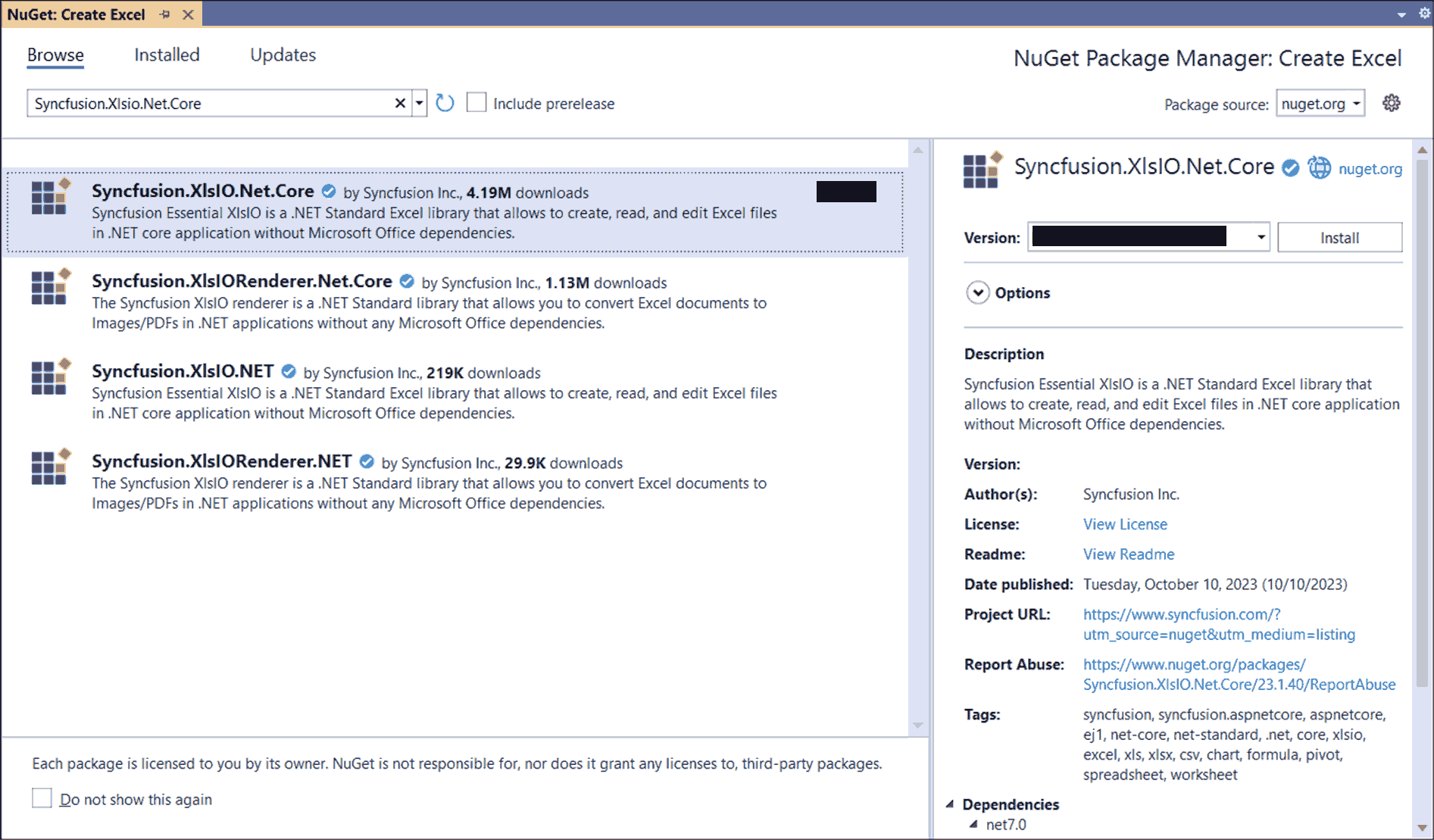
Starting with v16.2.0.x, if you reference Syncfusion® assemblies from trial setup or from the NuGet feed, you also have to add “Syncfusion.Licensing” assembly reference and include a license key in your projects. Please refer to this link to know about registering Syncfusion® license key in your applications to use our components.
Step 3a: Register your Syncfusion license key at the start of the FunctionHandler method (or in a static constructor) in Function.cs. Replace the placeholder with your actual key.
Syncfusion.Licensing.SyncfusionLicenseProvider.RegisterLicense("YOUR_LICENSE_KEY");For production deployments, load the key from AWS Secrets Manager or Parameter Store via the AWS SDK instead of hard-coding it.
Step 4: Create a folder (for example, Data/), copy the required data files (such as AdventureCycles-Logo.png and any input Excel files) into it, and include the files in the project.

Step 5: Set the copy to output directory to Copy if newer to all the data files.
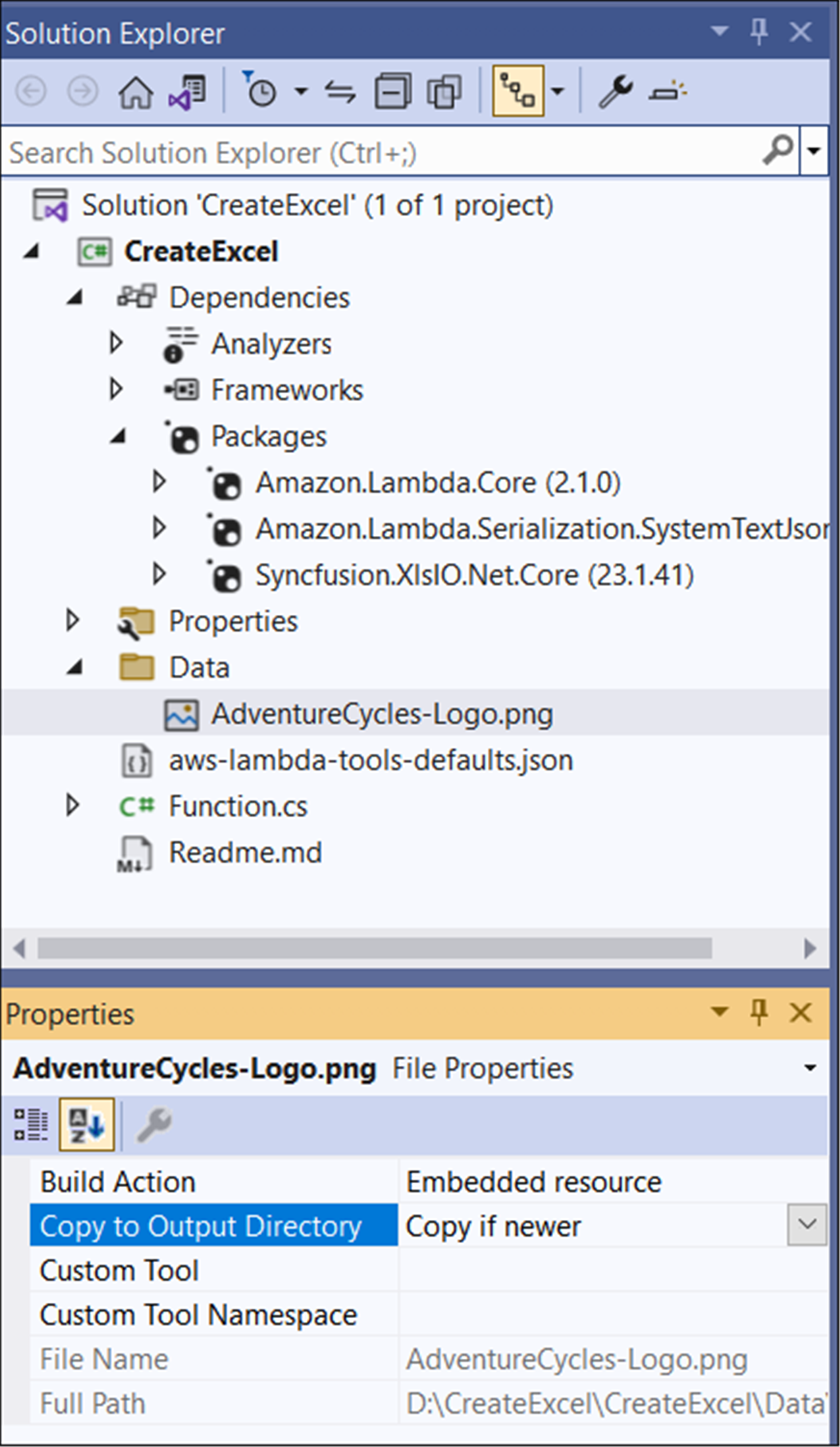
Step 6: Include the following namespaces in Function.cs file.
using Syncfusion.XlsIO;
using Syncfusion.Drawing;
using System.IO;
Step 7: Add the following code snippet in the FunctionHandler method of Function.cs to create an Excel document.
The code below assumes the following function handler signature. Place the body inside the
FunctionHandlermethod:
public string FunctionHandler(Stream input, ILambdaContext context)
{
    // ... place the snippet below inside this method ...
}
The image file (
AdventureCycles-Logo.png) is read from the working directory. Make sure the file is included in the deployment package (the AWS Toolkit adds files set to Copy if newer to the package automatically).
//Create an instance of ExcelEngine
using (ExcelEngine excelEngine = new ExcelEngine())
{
  IApplication application = excelEngine.Excel;
  application.DefaultVersion = ExcelVersion.Xlsx;

  //Create a workbook
  IWorkbook workbook = application.Workbooks.Create(1);
  IWorksheet worksheet = workbook.Worksheets[0];

  //Adding a picture (wrap in using for proper disposal)
  using (FileStream imageStream = new FileStream("AdventureCycles-Logo.png", FileMode.Open, FileAccess.Read))
  {
    IPictureShape shape = worksheet.Pictures.AddPicture(1, 1, imageStream, 20, 20);
  }

  //Disable gridlines in the worksheet
  worksheet.IsGridLinesVisible = false;

  //Enter values to the cells from A3 to A5
  worksheet.Range["A3"].Text = "46036 Michigan Ave";
  worksheet.Range["A4"].Text = "Canton, USA";
  worksheet.Range["A5"].Text = "Phone: +1 231-231-2310";

  //Make the text bold
  worksheet.Range["A3:A5"].CellStyle.Font.Bold = true;

  //Merge cells
  worksheet.Range["D1:E1"].Merge();

  //Enter text to the cell D1 and apply formatting.
  worksheet.Range["D1"].Text = "INVOICE";
  worksheet.Range["D1"].CellStyle.Font.Bold = true;
  worksheet.Range["D1"].CellStyle.Font.RGBColor = Color.FromArgb(42, 118, 189);
  worksheet.Range["D1"].CellStyle.Font.Size = 35;

  //Apply alignment in the cell D1
  worksheet.Range["D1"].CellStyle.HorizontalAlignment = ExcelHAlign.HAlignRight;
  worksheet.Range["D1"].CellStyle.VerticalAlignment = ExcelVAlign.VAlignTop;

  //Enter values to the cells from D5 to E8
  worksheet.Range["D5"].Text = "INVOICE#";
  worksheet.Range["E5"].Text = "DATE";
  worksheet.Range["D6"].Number = 1028;
  worksheet.Range["E6"].Value = "12/31/2018";
  worksheet.Range["D7"].Text = "CUSTOMER ID";
  worksheet.Range["E7"].Text = "TERMS";
  worksheet.Range["D8"].Number = 564;
  worksheet.Range["E8"].Text = "Due Upon Receipt";

  //Apply RGB backcolor to the cells from D5 to E8
  worksheet.Range["D5:E5"].CellStyle.Color = Color.FromArgb(42, 118, 189);
  worksheet.Range["D7:E7"].CellStyle.Color = Color.FromArgb(42, 118, 189);

  //Apply known colors to the text in cells D5 to E8
  worksheet.Range["D5:E5"].CellStyle.Font.Color = ExcelKnownColors.White;
  worksheet.Range["D7:E7"].CellStyle.Font.Color = ExcelKnownColors.White;

  //Make the text as bold from D5 to E8
  worksheet.Range["D5:E8"].CellStyle.Font.Bold = true;

  //Apply alignment to the cells from D5 to E8
  worksheet.Range["D5:E8"].CellStyle.HorizontalAlignment = ExcelHAlign.HAlignCenter;
  worksheet.Range["D5:E5"].CellStyle.VerticalAlignment = ExcelVAlign.VAlignCenter;
  worksheet.Range["D7:E7"].CellStyle.VerticalAlignment = ExcelVAlign.VAlignCenter;
  worksheet.Range["D6:E6"].CellStyle.VerticalAlignment = ExcelVAlign.VAlignTop;

  //Enter value and applying formatting in the cell A7
  worksheet.Range["A7"].Text = "  BILL TO";
  worksheet.Range["A7"].CellStyle.Color = Color.FromArgb(42, 118, 189);
  worksheet.Range["A7"].CellStyle.Font.Bold = true;
  worksheet.Range["A7"].CellStyle.Font.Color = ExcelKnownColors.White;

  //Apply alignment
  worksheet.Range["A7"].CellStyle.HorizontalAlignment = ExcelHAlign.HAlignLeft;
  worksheet.Range["A7"].CellStyle.VerticalAlignment = ExcelVAlign.VAlignCenter;

  //Enter values in the cells A8 to A12
  worksheet.Range["A8"].Text = "Steyn";
  worksheet.Range["A9"].Text = "Great Lakes Food Market";
  worksheet.Range["A10"].Text = "20 Whitehall Rd";
  worksheet.Range["A11"].Text = "North Muskegon,USA";
  worksheet.Range["A12"].Text = "+1 231-654-0000";

  //Create a Hyperlink for e-mail in the cell A13
  IHyperLink hyperlink = worksheet.HyperLinks.Add(worksheet.Range["A13"]);
  hyperlink.Type = ExcelHyperLinkType.Url;
  hyperlink.Address = "[email protected]";
  hyperlink.ScreenTip = "Send Mail";

  //Merge column A and B from row 15 to 22
  worksheet.Range["A15:B15"].Merge();
  worksheet.Range["A16:B16"].Merge();
  worksheet.Range["A17:B17"].Merge();
  worksheet.Range["A18:B18"].Merge();
  worksheet.Range["A19:B19"].Merge();
  worksheet.Range["A20:B20"].Merge();
  worksheet.Range["A21:B21"].Merge();
  worksheet.Range["A22:B22"].Merge();

  //Enter details of products and prices
  worksheet.Range["A15"].Text = "  DESCRIPTION";
  worksheet.Range["C15"].Text = "QTY";
  worksheet.Range["D15"].Text = "UNIT PRICE";
  worksheet.Range["E15"].Text = "AMOUNT";
  worksheet.Range["A16"].Text = "Cabrales Cheese";
  worksheet.Range["A17"].Text = "Chocos";
  worksheet.Range["A18"].Text = "Pasta";
  worksheet.Range["A19"].Text = "Cereals";
  worksheet.Range["A20"].Text = "Ice Cream";
  worksheet.Range["C16"].Number = 3;
  worksheet.Range["C17"].Number = 2;
  worksheet.Range["C18"].Number = 1;
  worksheet.Range["C19"].Number = 4;
  worksheet.Range["C20"].Number = 3;
  worksheet.Range["D16"].Number = 21;
  worksheet.Range["D17"].Number = 54;
  worksheet.Range["D18"].Number = 10;
  worksheet.Range["D19"].Number = 20;
  worksheet.Range["D20"].Number = 30;
  worksheet.Range["D23"].Text = "Total";

  //Apply number format
  worksheet.Range["D16:E22"].NumberFormat = "$0.00";
  worksheet.Range["E23"].NumberFormat = "$0.00";

  //Apply incremental formula for column Amount by multiplying Qty and UnitPrice
  application.EnableIncrementalFormula = true;
  worksheet.Range["E16:E20"].Formula = "=C16*D16";

  //Formula for Sum the total
  worksheet.Range["E23"].Formula = "=SUM(E16:E22)";

  //Apply borders
  worksheet.Range["A16:E22"].CellStyle.Borders[ExcelBordersIndex.EdgeTop].LineStyle = ExcelLineStyle.Thin;
  worksheet.Range["A16:E22"].CellStyle.Borders[ExcelBordersIndex.EdgeBottom].LineStyle = ExcelLineStyle.Thin;
  worksheet.Range["A16:E22"].CellStyle.Borders[ExcelBordersIndex.EdgeTop].Color = ExcelKnownColors.Grey_25_percent;
  worksheet.Range["A16:E22"].CellStyle.Borders[ExcelBordersIndex.EdgeBottom].Color = ExcelKnownColors.Grey_25_percent;
  worksheet.Range["A23:E23"].CellStyle.Borders[ExcelBordersIndex.EdgeTop].LineStyle = ExcelLineStyle.Thin;
  worksheet.Range["A23:E23"].CellStyle.Borders[ExcelBordersIndex.EdgeBottom].LineStyle = ExcelLineStyle.Thin;
  worksheet.Range["A23:E23"].CellStyle.Borders[ExcelBordersIndex.EdgeTop].Color = ExcelKnownColors.Black;
  worksheet.Range["A23:E23"].CellStyle.Borders[ExcelBordersIndex.EdgeBottom].Color = ExcelKnownColors.Black;

  //Apply font setting for cells with product details
  worksheet.Range["A3:E23"].CellStyle.Font.FontName = "Arial";
  worksheet.Range["A3:E23"].CellStyle.Font.Size = 10;
  worksheet.Range["A15:E15"].CellStyle.Font.Color = ExcelKnownColors.White;
  worksheet.Range["A15:E15"].CellStyle.Font.Bold = true;
  worksheet.Range["D23:E23"].CellStyle.Font.Bold = true;

  //Apply cell color
  worksheet.Range["A15:E15"].CellStyle.Color = Color.FromArgb(42, 118, 189);

  //Apply alignment to cells with product details
  worksheet.Range["A15"].CellStyle.HorizontalAlignment = ExcelHAlign.HAlignLeft;
  worksheet.Range["C15:C22"].CellStyle.HorizontalAlignment = ExcelHAlign.HAlignCenter;
  worksheet.Range["D15:E15"].CellStyle.HorizontalAlignment = ExcelHAlign.HAlignCenter;

  //Apply row height and column width to look good
  worksheet.Range["A1"].ColumnWidth = 36;
  worksheet.Range["B1"].ColumnWidth = 11;
  worksheet.Range["C1"].ColumnWidth = 8;
  worksheet.Range["D1:E1"].ColumnWidth = 18;
  worksheet.Range["A1"].RowHeight = 47;
  worksheet.Range["A2"].RowHeight = 15;
  worksheet.Range["A3:A4"].RowHeight = 15;
  worksheet.Range["A5"].RowHeight = 18;
  worksheet.Range["A6"].RowHeight = 29;
  worksheet.Range["A7"].RowHeight = 18;
  worksheet.Range["A8"].RowHeight = 15;
  worksheet.Range["A9:A14"].RowHeight = 15;
  worksheet.Range["A15:A23"].RowHeight = 18;

  MemoryStream stream = new MemoryStream();
  workbook.SaveAs(stream);
  return Convert.ToBase64String(stream.ToArray());
}
Step 8: Right-click the project and select Publish to AWS Lambda.
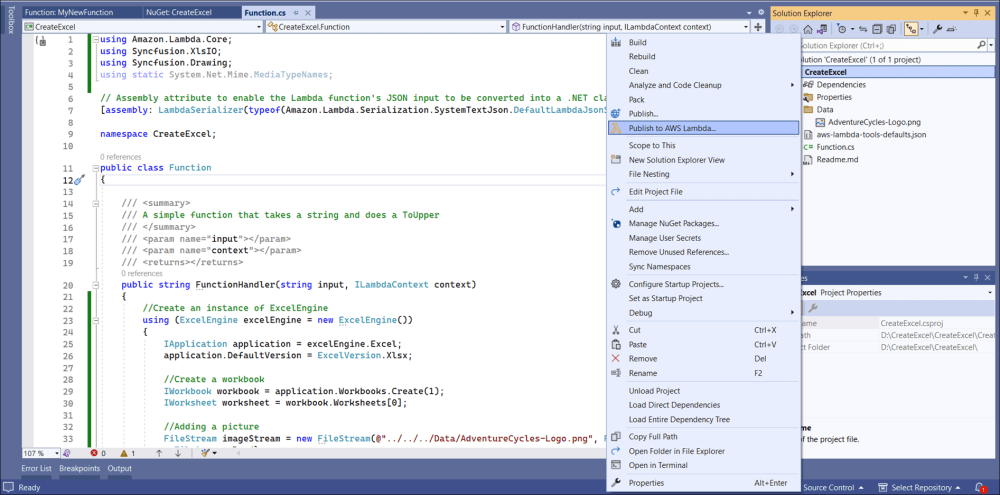
Step 9: Create a new AWS profile in the Upload Lambda Function Window. After creating the profile, add a name for the Lambda function to publish. Then, click Next.

Step 10: In the Advanced Function Details window, specify the Role Name as based on AWS Managed policy. After selecting the role, click the Upload button to deploy your application.
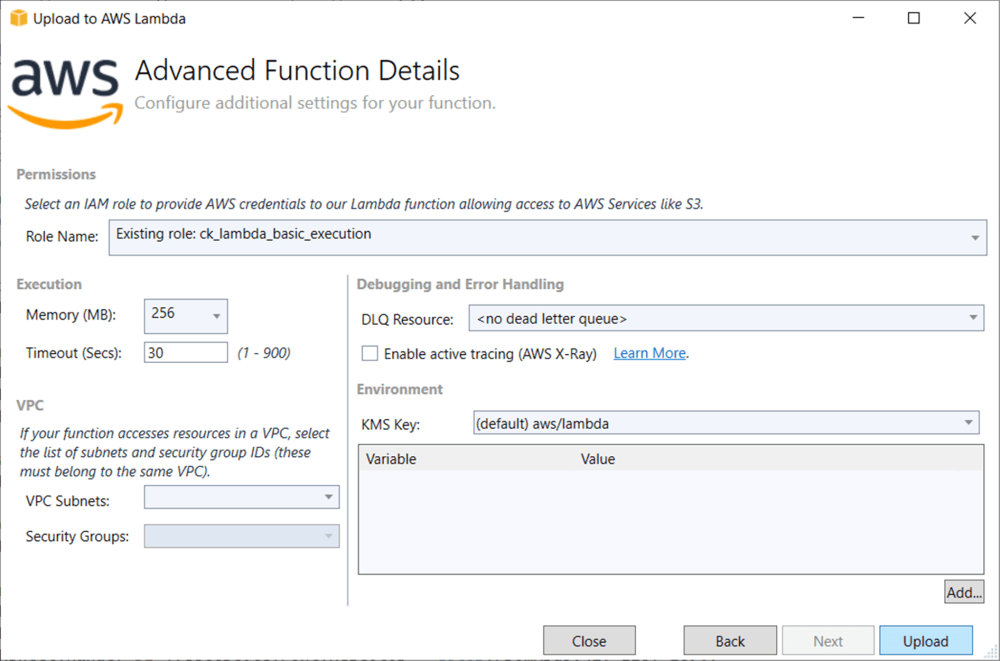
Step 11: After deploying the application, you can see the published Lambda function in AWS console.

Step 12: Edit Memory size and Timeout as maximum in Basic settings of the AWS Lambda function.
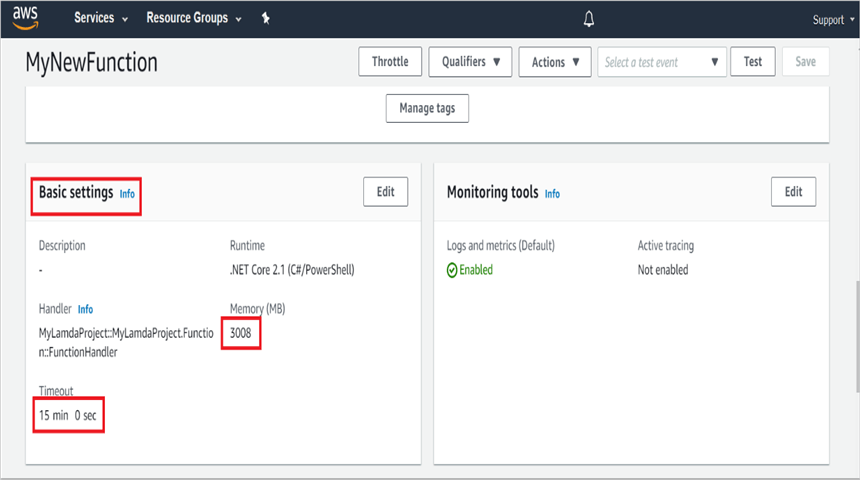
For typical XlsIO workloads, a memory setting of 512 MB to 1024 MB and a timeout of 1 to 5 minutes is usually sufficient. Larger workbooks (with many images, charts, or formulas) may need more memory or a longer timeout. The maximum values depend on your AWS account and region.
Steps to post the request to AWS Lambda
Step 1: Create a new console project.

Step 2: Install the following NuGet packages in your application from NuGet.org.


Step 3: Include the following namespaces in Program.cs file.
using Amazon;
using Amazon.Lambda;
using Amazon.Lambda.Model;
using Newtonsoft.Json;
Step 4: Add the following code snippet in Program.cs to invoke the published AWS Lambda function using the function name and access keys.
//Create a new AmazonLambdaClient
AmazonLambdaClient client = new AmazonLambdaClient("awsaccessKeyID", "awsSecreteAccessKey", RegionEndpoint.USEast2);
//Create new InvokeRequest with published function name.
InvokeRequest invoke = new InvokeRequest
{
    FunctionName = "MyNewFunction",
    InvocationType = InvocationType.RequestResponse,
    Payload = "\"Test\""
};
//Get the InvokeResponse from client InvokeRequest.
InvokeResponse response = client.Invoke(invoke);
//Read the response stream
var stream = new StreamReader(response.Payload);
JsonReader reader = new JsonTextReader(stream);
var serilizer = new JsonSerializer();
var responseText = serilizer.Deserialize(reader);
//Convert Base64String into Excel document
byte[] bytes = Convert.FromBase64String(responseText.ToString());
FileStream fileStream = new FileStream("Sample.xlsx", FileMode.Create);
BinaryWriter writer = new BinaryWriter(fileStream);
writer.Write(bytes, 0, bytes.Length);
writer.Close();
System.Diagnostics.Process.Start("Sample.xlsx");
By executing the program, you will get the Excel document as follows.
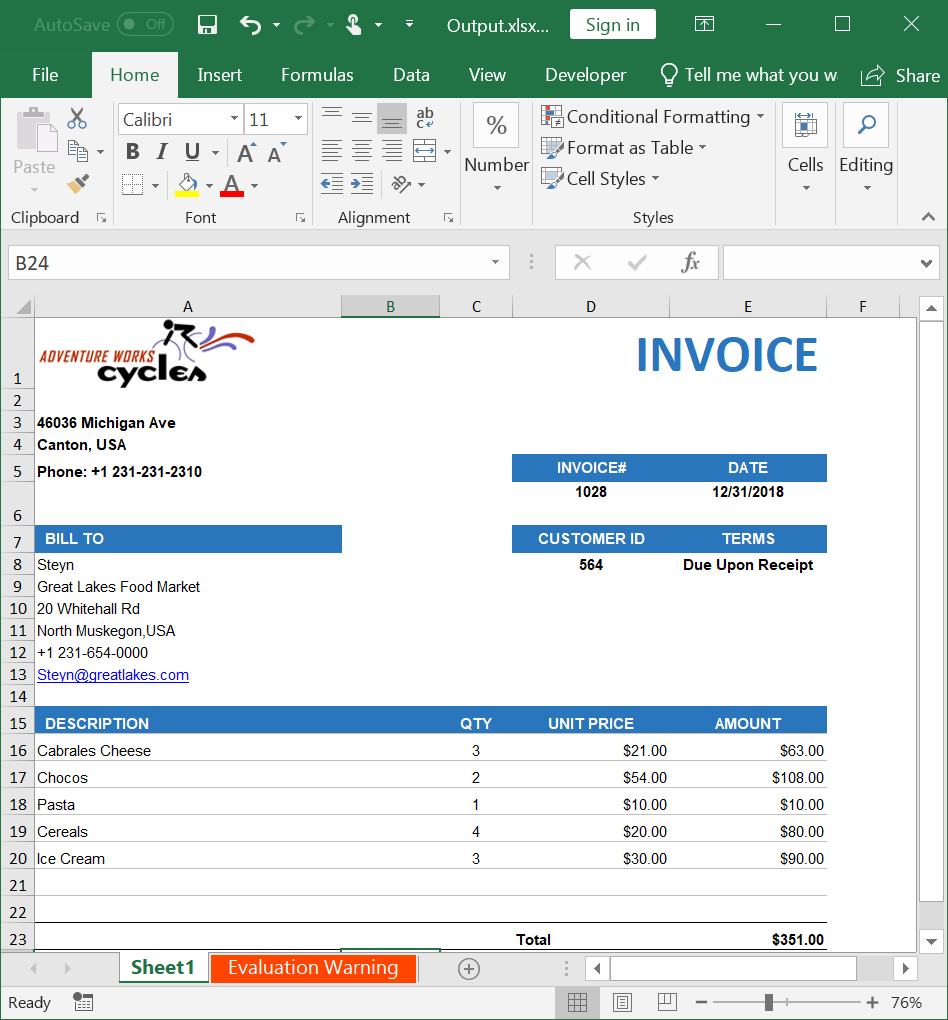
A complete working example of how to create an Excel file in AWS Lambda is present on this GitHub page, you can download the console application project here.
Read and Edit an Excel File
The following code snippet illustrates how to read and edit an Excel file in AWS Lambda.
The code below reads
Sample.xlsxfrom the working directory. Make sure the file is included in the deployment package (set Copy to Output Directory to Copy if newer in the file properties). The function returns the modified workbook as a Base64 string.
The snippet below assumes the following function handler signature. Place the body inside the FunctionHandler method:
public string FunctionHandler(Stream input, ILambdaContext context)
{
    // ... place the snippet below inside this method ...
}//Create an instance of ExcelEngine (wrap in using for proper disposal)
using (ExcelEngine excelEngine = new ExcelEngine())
{
//Instantiate the Excel application object
IApplication application = excelEngine.Excel;
//Assigns default application version
application.DefaultVersion = ExcelVersion.Xlsx;
//A existing workbook is opened.
IWorkbook workbook = application.Workbooks.Open("Sample.xlsx");
//Access first worksheet from the workbook.
IWorksheet worksheet = workbook.Worksheets[0];
//Set Text in cell A3.
worksheet.Range["A3"].Text = "Hello World";
//Creating stream object.
using (MemoryStream stream = new MemoryStream())
{
workbook.SaveAs(stream);
return Convert.ToBase64String(stream.ToArray());
}
}A complete working example of how to read and edit an Excel file in AWS Lambda is present on this GitHub page, you can download the console application project here.
Click here to explore the rich set of Syncfusion® Excel library (XlsIO) features.
An online sample link to create an Excel document in ASP.NET Core.