Excel to Image Conversion in Blazor Server using Excel Library
16 Aug 202610 minutes to read
Syncfusion® XlsIO is a .NET Core Excel library used to create, read, edit and convert Excel documents programmatically without Microsoft Excel or interop dependencies. Using this library, you can convert an Excel document to Image in Blazor Server Web application.
Steps to convert Excel document to Image in Blazor Server Web application
Step 1: Create a new C# Blazor Web application project.

Step 2: Name the project.
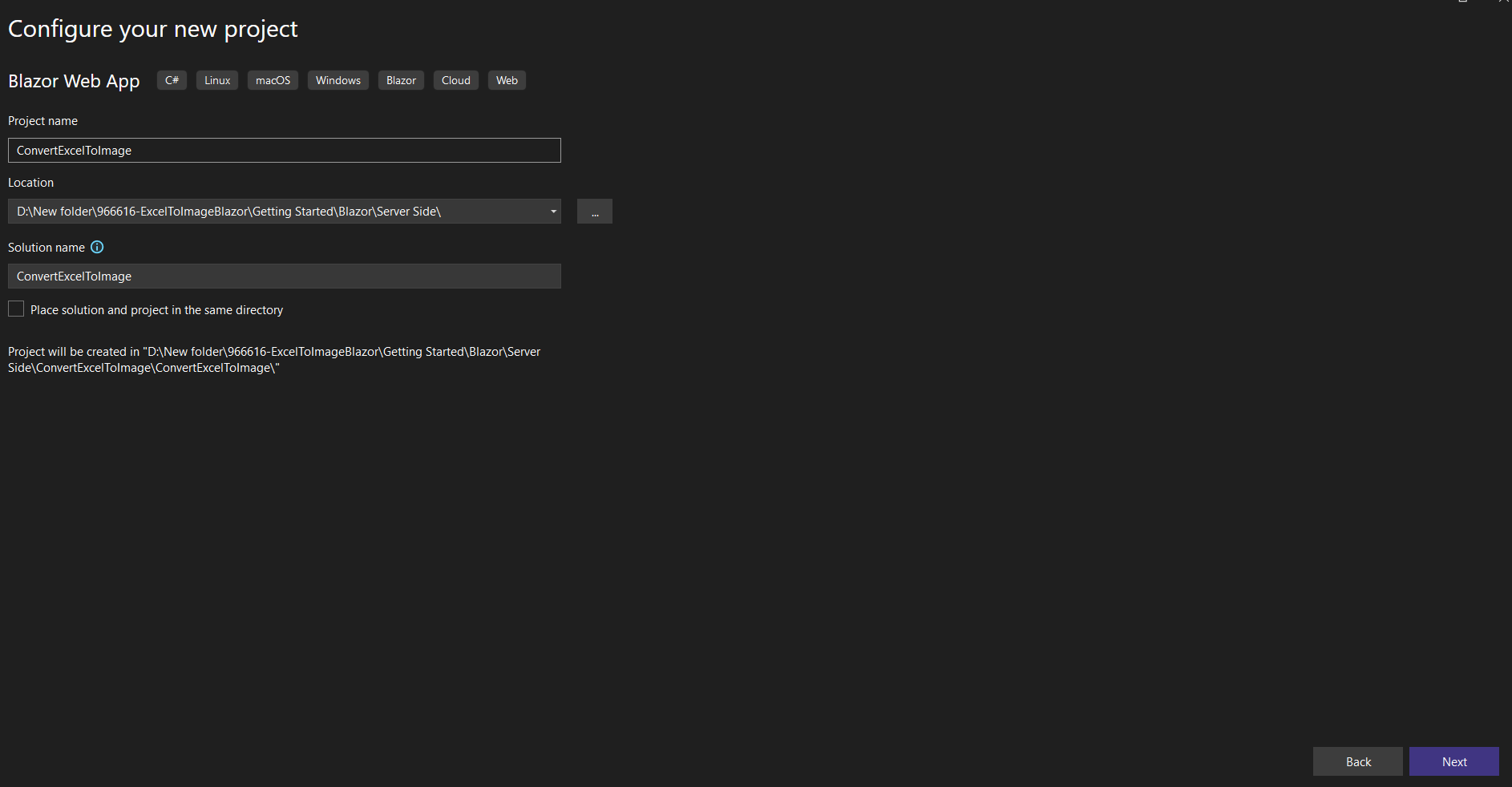
Step 3: Select the framework and click Create.

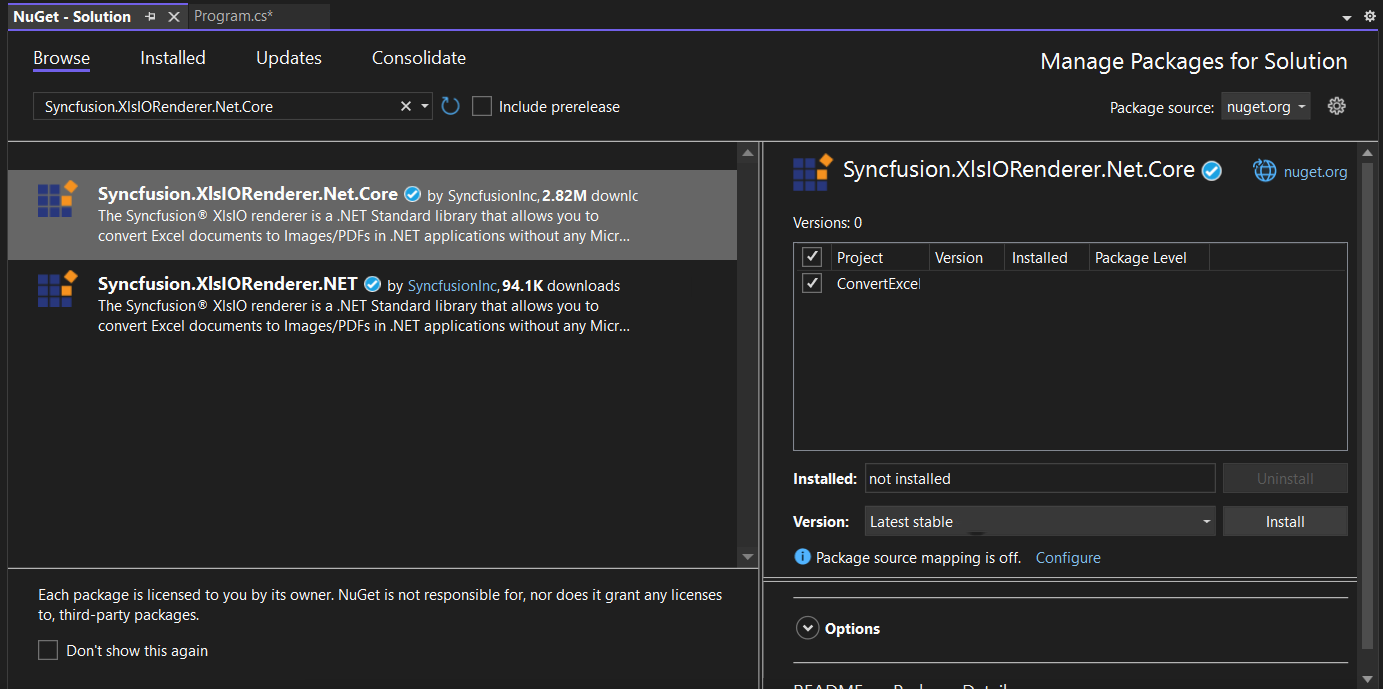
Step 4: Install the Syncfusion.XlsIORenderer.Net.Core NuGet package as a reference to your Blazor web application from NuGet.org. This package transitively pulls in the required Syncfusion.XlsIO.Net.Core and Syncfusion.Pdf.Net.Core assemblies.
Starting with v16.2.0.x, if you reference Syncfusion® assemblies from the trial setup or from the NuGet feed, you must also add the
Syncfusion.Licensingreference and register a license key. Refer to this link to learn how to register the Syncfusion® license key. The simplest approach is to add the following call inProgram.csbeforeapp.Run():Syncfusion.Licensing.SyncfusionLicenseProvider.RegisterLicense("YOUR_LICENSE_KEY");
Step 5: Create a razor file with name as Excel under Pages folder, which is located inside the Components folder and include the following namespaces in the file.
@rendermode InteractiveServer
   @page "/excel"
   @using System.IO;
   @using ConvertExceltoImage;
   @inject ConvertExceltoImage.Components.Data.ExcelService service
   @inject Microsoft.JSInterop.IJSRuntime JS
Step 6: Add the following code to create a new button.
<h2>.NET Excel Library</h2>
   <p>.NET Excel Library is a Blazor Excel library used to create, read, edit, and convert Excel files in your applications without Microsoft Office dependencies.</p>
   <button class="btn btn-primary" @onclick="@ConvertExceltoImage">Convert Excel to Image</button>
Step 7: Add the following code in Excel.razor file to convert Excel document to Image.
@code {
       MemoryStream excelStream;

       /// <summary>
       /// Convert Excel document to Image
       /// </summary>
       private async Task ConvertExceltoImage()
       {
           excelStream = service.ExceltoImage();
           await JS.SaveAs("Sample.jpeg", excelStream.ToArray());
       }
   }
Step 8: Create a new cs file with name as ExcelService under Data folder and include the following namespaces in the file.
using Syncfusion.XlsIO;
   using Syncfusion.XlsIORenderer;
   using System.IO;
Step 9: Create a new MemoryStream method with name as ExceltoImage and include the following code snippet to convert Excel document to Image in Blazor Server web application.
//Create an instance of ExcelEngine
   using (ExcelEngine excelEngine = new ExcelEngine())
   {
       IApplication application = excelEngine.Excel;
       application.DefaultVersion = ExcelVersion.Xlsx;
   	IWorkbook workbook = application.Workbooks.Open("InputTemplate.xlsx");
       IWorksheet worksheet = workbook.Worksheets[0];

       //Initialize XlsIORenderer
       application.XlsIORenderer = new XlsIORenderer();

       //Create the MemoryStream to save the image
       MemoryStream imageStream = new MemoryStream();

       //Save the converted image to MemoryStream
       worksheet.ConvertToImage(worksheet.UsedRange, imageStream);
       imageStream.Position = 0;

       //Download image in the browser
       return imageStream;
   }
Step 10: Create a new class file in the project, with name as FileUtils and add the following code to invoke the JavaScript action for downloading the file in browser.
public static class FileUtils
   {
       public static ValueTask<object> SaveAs(this IJSRuntime js, string filename, byte[] data)
           => js.InvokeAsync<object>(
              "saveAsFile",
              filename,
              Convert.ToBase64String(data));
   }
Step 11: Add the following JavaScript function in the App.razor.
<script type="text/javascript">
       function saveAsFile(filename, bytesBase64) {

           if (navigator.msSaveBlob) {
               //Download document in Edge browser
               var data = window.atob(bytesBase64);
               var bytes = new Uint8Array(data.length);
               for (var i = 0; i < data.length; i++) {
                   bytes[i] = data.charCodeAt(i);
               }
               var blob = new Blob([bytes.buffer], { type: "application/octet-stream" });
               navigator.msSaveBlob(blob, filename);
           }
           else {
               var link = document.createElement('a');
               link.download = filename;
               link.href = "data:application/octet-stream;base64," + bytesBase64;
               document.body.appendChild(link); // Needed for Firefox
               link.click();
               document.body.removeChild(link);
           }
       }
   </script>
Step 12: Add the following code in NavMenu.razor file present under Layout folder.
<div class="nav-item px-3">
    <NavLink class="nav-link" href="excel">
        <span class="oi oi-list-rich" aria-hidden="true"></span> Convert Excel to Image
    </NavLink>
</div>
Step 13: Add the service in the Program.cs file.
builder.Services.AddScoped<ConvertExceltoImage.Components.Data.ExcelService>();A complete working example of how to convert Excel to Image in Blazor Server web application in C# is present on this GitHub page.