Diagram Ribbon in WPF Diagram
The WPF Diagram ribbon control is a user interface that hosts a Quick Access Toolbar, Application Menu, and Tabs to provide the most common features and settings for the WPF Diagram. The diagram ribbon control contains the UI elements that allow end-users to load and save diagrams, add diagram items to the canvas, format text within the diagram items, rearrange and recolor shapes, change the canvas size and orientation, and perform copy-and-paste operations.

The following table lists actions that end-users can perform using the Diagram Ribbon.
| Ribbon Tab | Ribbon Bar | Actions |
|---|---|---|
| Home | Clipboard | Cut, Copy, and Paste operations. |
| Font | Change the font settings of the selected shape. | |
| Alignment | Realign the text within the selected shape. | |
| Tools | Select any of the pointer, pan, drawing, connector, annotation, and port tools. | |
| Shape Styles | Change the background and border colors for the currently selected shape using a palette of predefined patterns or by selecting the colors individually using color pickers. | |
| Arrange | Change the position, alignment, or Z-order of the selected shapes. | |
| Select | Select all the diagram items or by specific type. | |
| Insert | Diagram Parts | Allows you to add an image item or connection line to the canvas. |
| Design | Page Setup | Toggle between portrait and landscape page orientation, set the page size. |
| Themes | A diagram theme gives your diagram a variety of dynamic looks, ranging from professional and modern to stylish. By combining colors, fonts, and effects in a unified and purposeful manner, each theme delivers a polished, modern appearance. | |
| Variants | Variant styles are sets of styles applied to diagram elements. | |
| Connectors | Change the appearance of the connection lines in the canvas. | |
| View | Show | Toggle the visibility of the Zoom Pan window, Rulers, Gridlines, and Page Breaks. |
| Zoom | Zoom the diagram so that the entire page either fits the window or is as wide as the window. |
Assembly Deployment
Refer to the control dependencies section to get the list of assemblies or NuGet package that needs to be added as a reference to use the control in any application.
You can find more details about installing the NuGet package in a WPF application in the following link:
How to install nuget packages
Adding Diagram Ribbon
The following section helps you to add the SfDiagramRibbon in your application with the Diagram.
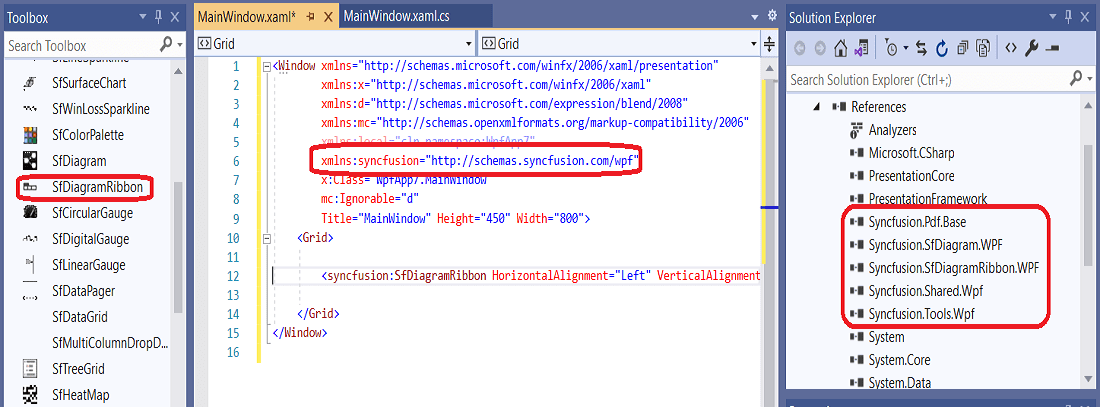
The SfDiagramRibbon control can be added to the application by dragging it from the toolbox and dropping it in the designer view. The required assembly references will be added automatically.
Manually
The following steps describe how to add the Diagram ribbon control manually, with a code example.
-
Add the following required assembly reference to the project:
Syncfusion.SfDiagramRibbon.WPF. -
Import the Syncfusion® WPF schema
http://schemas.syncfusion.com/wpfor the SfDiagramRibbon control namespaceSyncfusion.UI.Xaml.DiagramRibbonin your application. -
Declare the SfDiagramRibbon control in your application, and set the
SfDiagramas itsDataContextso the ribbon commands act on the diagram.<Window xmlns="http://schemas.microsoft.com/winfx/2006/xaml/presentation" xmlns:x="http://schemas.microsoft.com/winfx/2006/xaml" xmlns:d="http://schemas.microsoft.com/expression/blend/2008" xmlns:mc="http://schemas.openxmlformats.org/markup-compatibility/2006" xmlns:local="clr-namespace:SfDiagram_WPF" xmlns:syncfusion="http://schemas.syncfusion.com/wpf" x:Class="SfDiagram_WPF.MainWindow" mc:Ignorable="d" Title="MainWindow" Height="350" Width="525"> <Grid> <Grid.RowDefinitions> <RowDefinition Height="Auto"/> <RowDefinition Height="*"/> </Grid.RowDefinitions> <syncfusion:SfDiagramRibbon DataContext="{Binding ElementName=Diagram}" Grid.Row="0"/> <syncfusion:SfDiagram x:Name="Diagram" Grid.Row="1"> <syncfusion:SfDiagram.Theme> <syncfusion:OfficeTheme/> </syncfusion:SfDiagram.Theme> <syncfusion:SfDiagram.Nodes> <syncfusion:NodeCollection/> </syncfusion:SfDiagram.Nodes> <syncfusion:SfDiagram.Connectors> <syncfusion:ConnectorCollection/> </syncfusion:SfDiagram.Connectors> </syncfusion:SfDiagram> </Grid> </Window>using Syncfusion.UI.Xaml.Diagram; using Syncfusion.UI.Xaml.Diagram.Theming; using Syncfusion.UI.Xaml.DiagramRibbon; namespace SfDiagram_WPF { public partial class MainWindow : Window { public MainWindow() { InitializeComponent(); // Initialize and add a diagram and a diagram ribbon to the application. SfDiagram Sfdiagram = new SfDiagram() { Theme = new OfficeTheme(), Nodes = new NodeCollection(), Connectors = new ConnectorCollection() }; SfDiagramRibbon sfDiagramRibbon = new SfDiagramRibbon() { DataContext = Sfdiagram }; Sfdiagram.SetValue(Grid.RowProperty, 1); sfDiagramRibbon.SetValue(Grid.RowProperty, 0); Root_Grid.Children.Add(Sfdiagram); Root_Grid.Children.Add(sfDiagramRibbon); } } }
Simple Diagram Designer
This section describes how to build a simple diagram designer application with diagram ribbon, and diagram control.
Set the diagram as the
DataContextofSfDiagramRibbonso the ribbon commands act on the diagram. SettingGraphConstraints.Undoableon theSfDiagramenables the Undo and Redo buttons in the Quick Access Toolbar.
<Grid>

    <Grid.RowDefinitions>
        <RowDefinition Height="Auto"/>
        <RowDefinition Height="*"/>
    </Grid.RowDefinitions>

    <syncfusion:SfDiagramRibbon x:Name="DiagramRibbon" Grid.Row="0" DataContext="{Binding ElementName=Diagram}"/>
    <!-- GraphConstraints.Undoable enables the Undo and Redo buttons on the Quick Access Toolbar. -->
    <syncfusion:SfDiagram x:Name="Diagram" Grid.Row="1" Constraints="Undoable,Default">
        <syncfusion:SfDiagram.Theme>
            <syncfusion:OfficeTheme/>
        </syncfusion:SfDiagram.Theme>
        <syncfusion:SfDiagram.Nodes>
            <syncfusion:NodeCollection/>
        </syncfusion:SfDiagram.Nodes>
        <syncfusion:SfDiagram.Connectors>
            <syncfusion:ConnectorCollection/>
        </syncfusion:SfDiagram.Connectors>
        <syncfusion:SfDiagram.Groups>
            <syncfusion:GroupCollection/>
        </syncfusion:SfDiagram.Groups>
        <syncfusion:SfDiagram.SnapSettings>
            <syncfusion:SnapSettings SnapConstraints="All"/>
        </syncfusion:SfDiagram.SnapSettings>
        <syncfusion:SfDiagram.HorizontalRuler>
            <syncfusion:Ruler Orientation="Horizontal"/>
        </syncfusion:SfDiagram.HorizontalRuler>
        <syncfusion:SfDiagram.VerticalRuler>
            <syncfusion:Ruler Orientation="Vertical"/>
        </syncfusion:SfDiagram.VerticalRuler>
    </syncfusion:SfDiagram>

</Grid>SfSkinManager.SetTheme(this, new Syncfusion.SfSkinManager.Theme() { ThemeName = "Office2019Colorful" });
// Initialize and add a diagram and a diagram ribbon to the application.
SfDiagram Sfdiagram = new SfDiagram()
{
Theme = new OfficeTheme(),
Nodes = new NodeCollection(),
Connectors = new ConnectorCollection(),
Groups = new GroupCollection(),
Constraints = GraphConstraints.Default | GraphConstraints.Undoable,
SnapSettings = new SnapSettings() { SnapConstraints = SnapConstraints.All },
HorizontalRuler = new Syncfusion.UI.Xaml.Diagram.Controls.Ruler() { Orientation = Orientation.Horizontal },
VerticalRuler = new Syncfusion.UI.Xaml.Diagram.Controls.Ruler() { Orientation = Orientation.Vertical },
};
SfDiagramRibbon sfDiagramRibbon = new SfDiagramRibbon() { DataContext = Sfdiagram };
Sfdiagram.SetValue(Grid.RowProperty, 1);
sfDiagramRibbon.SetValue(Grid.RowProperty, 0);
Root_Grid.Children.Add(Sfdiagram);
Root_Grid.Children.Add(sfDiagramRibbon);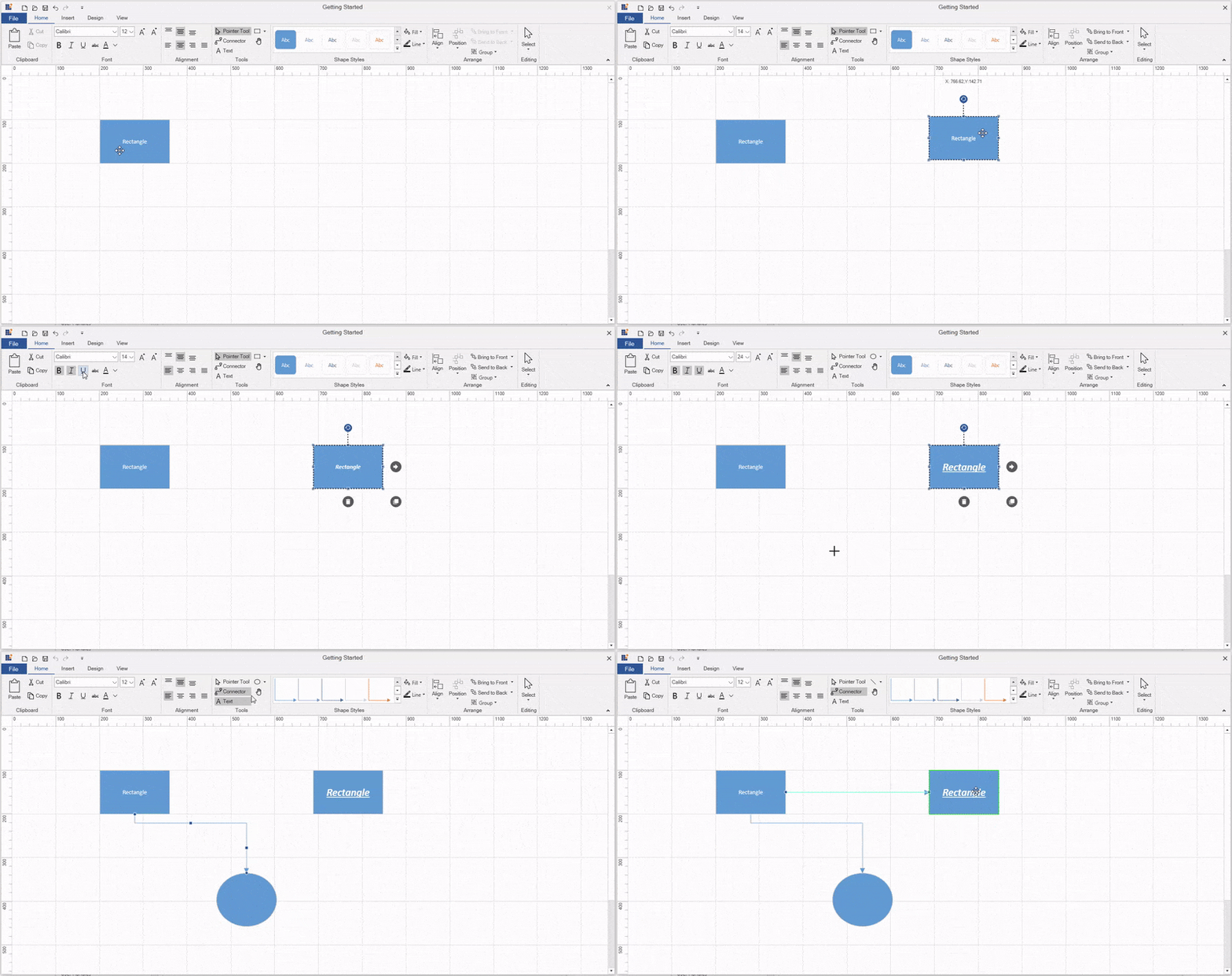
Ribbon Customization
The Ribbon can be customized in two ways.
Using the Control Template
A user can customize the ribbon items by overriding the template of the SfDiagramRibbon.
To override the template:
- In a WPF project, add a new
ResourceDictionary(for example,SfDiagramRibbonTemplate.xaml). - Copy the default
SfDiagramRibbontemplate from the Syncfusion WPF installation directory (Syncfusion.SfDiagramRibbon.WPF/Themes/Generic.xaml) into the newResourceDictionary. - Modify the template to add, remove, or restyle ribbon elements.
- Apply the template at the application or window scope:
Using the Tabs Property in Events
Handle the SfDiagramRibbon.Loaded event to add or remove ribbon tabs and ribbon items at startup with the help of the Tabs property in the SfDiagramRibbon.
Adding a Ribbon Tab
To add a custom ribbon tab with the default tabs in the SfDiagramRibbon.
DiagramRibbon.Loaded += DiagramRibbon_Loaded;

// Subscribed in XAML as Loaded="DiagramRibbon_Loaded".
private void DiagramRibbon_Loaded(object sender, RoutedEventArgs e)
{
    // Add a new Ribbon tab.
    RibbonTab FormatTab = new RibbonTab() { Caption = "Format" };
    (sender as SfDiagramRibbon).Tabs.Add(FormatTab);
}
Removing a Ribbon Tab
To remove a ribbon tab from the default tabs in SfDiagramRibbon.
DiagramRibbon.Loaded += DiagramRibbon_Loaded;

// Subscribed in XAML as Loaded="DiagramRibbon_Loaded".
private void DiagramRibbon_Loaded(object sender, RoutedEventArgs e)
{
    // Remove the Insert tab.
    (sender as SfDiagramRibbon).Tabs.RemoveAt(1);
}
Adding Ribbon Items
To add a custom ribbon item with the default items in an already existing ribbon tab.
DiagramRibbon.Loaded += DiagramRibbon_Loaded;

// Subscribed in XAML as Loaded="DiagramRibbon_Loaded".
private void DiagramRibbon_Loaded(object sender, RoutedEventArgs e)
{
    // Add new Ribbon Item.
    RibbonTab InsertTab = (sender as SfDiagramRibbon).Tabs.ElementAt(1);
    InsertTab.Items.Add(new RibbonBar() { Header = "Links" });
}
Removing a Ribbon Bar
To remove an already existing ribbon bar from a ribbon tab.
DiagramRibbon.Loaded += DiagramRibbon_Loaded;

// Subscribed in XAML as Loaded="DiagramRibbon_Loaded".
private void DiagramRibbon_Loaded(object sender, RoutedEventArgs e)
{
    // Remove the alignment bar from the Home Tab.
    RibbonTab HomeTab = (sender as SfDiagramRibbon).Tabs.ElementAt(0);
    HomeTab.Items.RemoveAt(2);
}