About Syncfusion® Windows Forms Diagram Control
This section covers information on the WinForms Diagram control, its key features, prerequisites for using the control, compatibility with supported operating systems and browsers, and the documentation included with the product. It comprises the following subsections:
Introduction to WinForms Diagram Control
WinForms Diagram is an extensible and high-performance .NET Diagramming Framework for Windows applications. It can be used for developing Microsoft Visio-like interactive graphics and diagramming applications. It stores graphical objects in a node graph and renders those objects onto the screen. WinForms Diagram supports both vector and raster graphics on the drawing surface.
WinForms Diagram lets users create interactive diagrams easily using the Diagram Builder utility included with the Diagram. It explicitly lays out diagram objects, or allows our built-in layout managers to handle the job, making complex layout diagrams a snap. Using the Symbol Designer utility, you can create domain or business specific symbols by using custom shapes and images.
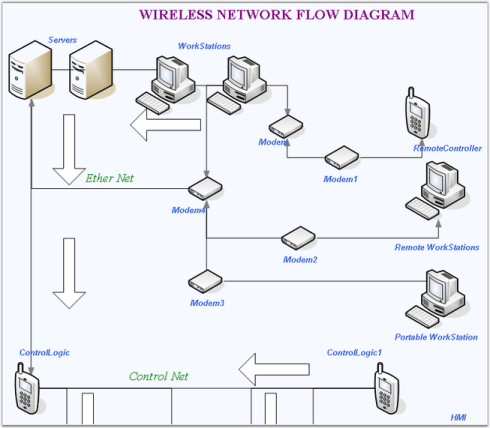
Key Features
Some of the key features of WinForms Diagram are listed below.
- WinForms Diagram supports matrix transformations like Translate (Move), Rotate, and Scale.
- Shape nodes are the graphical objects that can be drawn on the diagram area by activating one of several drawing tools such as the RectangleTool, RoundRectTool, EllipseTool, LineTool, PolylineTool, OrthogonalLineTool, BezierTool, CurveTool, ArcTool and PolygonTool.
- DecoratorShape can be added at the head and tail of Connectors. The shapes include arrows, circles, diamonds, crosses, squares and custom decorators.
- WinForms Diagram supports rendering TextNodes and RichTextNodes, and offers text formatting through available properties. Text editing and text rotation are also supported.
- Zooming, scrolling, and panning are supported and can be achieved using the available interactive diagram tools.
- Automatic Line Routing and Line Bridging: while a link is drawn between two nodes and if any other node is found in between them, the line will be automatically re-routed around those nodes.
- The PrintDialog class enables the user to set the printer to be used and define the pages and number of copies to be printed.
- The PrintPreviewDialog class provides an overview of how the document will appear when printed, which is invoked using the ShowDialog method.
- PaletteGroupBar control is a Windows Forms control that can be added to the Visual Studio .NET toolbox. It has the following capabilities:
- It displays a list of symbols in a symbol palette as icons.
- It allows users to drag symbols onto diagrams.
- It supports multiple symbol palettes at a time.
- It has a user interface similar to the Microsoft Outlook bar.
- It is implemented based on the Syncfusion® GroupBar and GroupView controls.
User Guide Organization
The product comes with numerous samples as well as extensive documentation to guide you. This User Guide provides detailed information on the features and functionalities of the controls. It is organized into the following sections:
- Overview - This section gives a brief introduction to our product and its key features.
- Installation and Deployment - This section elaborates on the install location of the samples, license etc.
- What’s New - This section lists the new features implemented for every release.
- Getting Started - This section guides you on getting started with Windows applications and controls.
- Concepts and Features - The features of WinForms Diagram are illustrated with use case scenarios, code examples and screen shots under this section.
Document Conventions
The conventions listed below will help you to quickly identify the important sections of information, while using the content:
Use Note for important information, Tip for helpful guidance, and Additional Information for related details.
| Convention | Icon | Description |
| Note |
Note: |
Represents important information |
| Example | Example | Represents an example |
| Tip |
|
Represents useful hints that will help you in using the controls/features |
| Additional Information |
|
Represents additional information on the topic |


Prerequisites and Compatibility
This section covers the requirements mandatory for using WinForms Diagram control. It also lists operating systems and browsers compatible with the product.
Prerequisites
The prerequisite details are listed below. Install the product before using the control.
| Development Environments | .NET Framework versions |
|
|
Compatibility
The compatibility details are listed below:
| Operating Systems |
|---|
|
Documentation
Syncfusion® provides the following documentation segments to provide all necessary information for using WinForms Diagram control in Windows application in an efficient manner.
| Type of documentation | Location |
|---|---|
| Readme | [drive:]\Program Files\Syncfusion®\Essential Studio\x.x.x.x\Infrastructure\Data\Release Notes\readme.htm |
| Release Notes | [drive:]\Program Files\Syncfusion®\Essential Studio\x.x.x.x\Infrastructure\Data\Release Notes\Release Notes.htm |
| User Guide (this document) | Online (Navigate to the Diagram for Windows Forms User Guide.)  _Note: Click Download as PDF to access a PDF version._ Installed Documentation: Dashboard -> Documentation -> Installed Documentation. |
| Class Reference | Online (Navigate to the Windows Forms User Guide. Select _Diagram_ in the second text box, and then click the Class Reference link found in the upper right section of the page.) Installed Documentation: Dashboard -> Documentation -> Installed Documentation. |
You can refer to our WinForms Diagram control feature tour page for its feature overview. You can also explore our WinForms Diagram example to see how to render and configure the Diagram.