Grouping in Windows Forms Diagram
A group is a node that acts as a transparent container for other nodes. A group is a composite node that controls a set of child nodes. The bounding rectangle of a group is the union of the bounds of its children. The group renders itself by iterating through its children and rendering them. Child nodes cannot be selected or manipulated individually. Members of the group are added and removed through the ICompositeNode interface.
There are two ways available to add a Group in WinForms Diagram control:
-
Add the children to the Group manually with the help of Group class methods. The following code snippet creates a group with two nodes.
//Node 1
Syncfusion.Windows.Forms.Diagram.Rectangle nodeRect = new Syncfusion.Windows.Forms.Diagram.Rectangle(50, 100, 125, 75);
nodeRect.FillStyle.Color = Color.FromArgb(255, 223, 189);
nodeRect.LineStyle.LineColor = Color.Orange;
Syncfusion.Windows.Forms.Diagram.Label lbl = new Syncfusion.Windows.Forms.Diagram.Label(nodeRect, "Rectangle");
lbl.FontStyle.Size = 12;
lbl.FontStyle.Bold = true;
nodeRect.Labels.Add(lbl);

//Node 2
Syncfusion.Windows.Forms.Diagram.Rectangle nodeRect1 = new Syncfusion.Windows.Forms.Diagram.Rectangle(150, 100, 125, 75);
nodeRect1.FillStyle.Color = Color.FromArgb(255, 223, 189);
nodeRect1.LineStyle.LineColor = Color.Orange;
Syncfusion.Windows.Forms.Diagram.Label lbl1 = new Syncfusion.Windows.Forms.Diagram.Label(nodeRect1, "Rectangle1");
lbl1.FontStyle.Size = 12;
lbl1.FontStyle.Bold = true;
nodeRect1.Labels.Add(lbl1);

//Grouping Nodes
Syncfusion.Windows.Forms.Diagram.Group grp = new Group();
grp.AppendChild(nodeRect);
grp.AppendChild(nodeRect1);
this.diagram1.Model.AppendChild(grp);
'Node 1 Dim nodeRect As Syncfusion.Windows.Forms.Diagram.Rectangle = New Syncfusion.Windows.Forms.Diagram.Rectangle(50, 100, 125, 75) nodeRect.FillStyle.Color = Color.FromArgb(255, 223, 189) nodeRect.LineStyle.LineColor = Color.Orange Dim lbl As Syncfusion.Windows.Forms.Diagram.Label = New Syncfusion.Windows.Forms.Diagram.Label(nodeRect, "Rectangle") lbl.FontStyle.Size = 12 lbl.FontStyle.Bold = True nodeRect.Labels.Add(lbl) 'Node 2 Dim nodeRect1 As Syncfusion.Windows.Forms.Diagram.Rectangle = New Syncfusion.Windows.Forms.Diagram.Rectangle(150, 100, 125, 75) nodeRect1.FillStyle.Color = Color.FromArgb(255, 223, 189) nodeRect1.LineStyle.LineColor = Color.Orange Dim lbl1 As Syncfusion.Windows.Forms.Diagram.Label = New Syncfusion.Windows.Forms.Diagram.Label(nodeRect1, "Rectangle1") lbl1.FontStyle.Size = 12 lbl1.FontStyle.Bold = True nodeRect1.Labels.Add(lbl1) 'Grouping Nodes Dim grp As Syncfusion.Windows.Forms.Diagram.Group = New Syncfusion.Windows.Forms.Diagram.Group() grp.AppendChild(nodeRect) grp.AppendChild(nodeRect1) Me.diagram1.Model.AppendChild(grp) -
Group the currently selected nodes automatically. Select the nodes first, then use the Group and UnGroup methods of the Diagram control’s Controller for grouping and ungrouping as follows.
this.diagram1.Controller.Group(); //Method to group the nodes this.diagram1.Controller.UnGroup(); //Method to ungroup the nodesMe.diagram1.Controller.Group() 'Method to group the nodes Me.diagram1.Controller.UnGroup() 'Method to ungroup the nodes
Access, Delete, or Remove Child Nodes in a Group
The first step is to check whether the node is a group.
if (node is Group)
{
// Your code here
}
If TypeOf node Is Group Then
' Your code here
End IfIf the node is a group, the following special methods are available:
| Method | Description |
|---|---|
| (int childIndex) | Returns the child node at the specified index. |
| (string childName) | Returns the child node with the specified name. |
| () | Removes all child nodes from the group. |
| (int childIndex) | Removes the child node at the specified index. |
| (Node nodeToRemove) | Removes the specified child node from the group. |
| (Node child, int childIndex) | Inserts the specified child node at the specified index. |
The Group class has an int ChildCount property that returns the number of child nodes in a group. To delete the first element in a group, use the following code.
foreach (Node node in diagram1.Model.Nodes)
{
if (node is Group) // Check for group
{
Group groupNode = (Group)node;
if (groupNode.ChildCount > 0) // Group has sub nodes
{
Node nodeToRemove = groupNode.GetChild(0);
groupNode.RemoveChild(nodeToRemove);
}
}
}
For Each node As Node In diagram1.Model.Nodes
If TypeOf node Is Group Then ' Check for group
Dim groupNode As Group = CType(node, Group)
If groupNode.ChildCount > 0 Then ' Group has sub nodes
Dim nodeToRemove As Node = groupNode.GetChild(0)
groupNode.RemoveChild(nodeToRemove)
End If
End If
Next
Positioning a Group’s Child Nodes
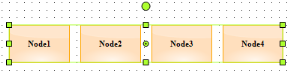
The Diagram group node supports absolute and relative positioning. The group node has an enum property called GroupNodePosition of type GroupNodePositions to position its child nodes. GroupNodePositions has two values: Absolute and Relative. The Absolute option places the nodes inside a group based on their actual PinPoint, whereas the Relative option places the nodes based on their default PinPoint. The default value is Relative.
//Group
Group group = new Group();
//Absolute positioning
group.GroupNodePosition = GroupNodePositions.Absolute;
'Group
Dim group As Group = New Group()
'Absolute positioning
group.GroupNodePosition = GroupNodePositions.Absolute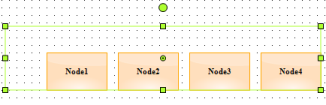
Properties
| Name | Description | Type | Default value | Value Accepted | Reference |
|---|---|---|---|---|---|
| GroupNodePosition | Specifies the mode in which the group node’s child nodes should be positioned. | GroupNodePositions | Relative | Absolute,Relative |