Shapes in JavaScript Diagram
Diagram provides support to add different kind of nodes. They are as follows:
- Text node
- Image node
- HTML node
- Native node
- Basic shapes
- Flow shapes
Text
Texts can be added to the diagram as text node. The shape property of the node allows you to set the type of node and for text nodes, it should be set as text. In addition, define the content object that is used to define the text to be added and style is used to customize the appearance of that text. The following code illustrates how to create a text node.
var node = {
    // Position of the node
    offsetX: 250,
    offsetY: 250,
    // Size of the node
    width: 100,
    height: 100,
    //Sets type of the node
    shape: { type: 'Text', content: 'Text Element' },
    //Customizes the appearances such as text, font, fill, and stroke.
    style: { strokeColor: 'none', fill: 'none', color: 'black', textAlign: 'Center' }
        };

// initialize Diagram component

var diagram = new ej.diagrams.Diagram({
    width: '100%', height: '600px', nodes: [node]
    }, '#element');
<!DOCTYPE html><html lang="en"><head>
<title>EJ2 Diagram</title>
<meta charset="utf-8">
<meta name="viewport" content="width=device-width, initial-scale=1.0">
<meta name="description" content="Typescript UI Controls">
<meta name="author" content="Syncfusion">
<link href="index.css" rel="stylesheet">
<link href="https://cdn.syncfusion.com/ej2/35.1.37/ej2-base/styles/tailwind3.css" rel="stylesheet">
<link href="https://cdn.syncfusion.com/ej2/35.1.37/ej2-buttons/styles/tailwind3.css" rel="stylesheet">
<link href="https://cdn.syncfusion.com/ej2/35.1.37/ej2-popups/styles/tailwind3.css" rel="stylesheet">
<link href="https://cdn.syncfusion.com/ej2/35.1.37/ej2-splitbuttons/styles/tailwind3.css" rel="stylesheet">
<link href="https://cdn.syncfusion.com/ej2/35.1.37/ej2-diagrams/styles/tailwind3.css" rel="stylesheet">
<link href="https://cdn.syncfusion.com/ej2/35.1.37/ej2-navigations/styles/tailwind3.css" rel="stylesheet">
<script src="https://cdn.syncfusion.com/ej2/35.1.37/dist/ej2.min.js" type="text/javascript"></script>
</head>
<body>
<div id="container">
<div id="element"></div>
</div>
<script>
var ele = document.getElementById('container');
if(ele) {
ele.style.visibility = "visible";
}
</script>
<script src="index.js" type="text/javascript"></script>
</body></html>Image
Diagram allows to add images as image nodes. The shape property of node allows you to set the type of node and for image nodes, it should be set as image. In addition, the source property of shape enables you to set the image source.
The following code illustrates how an image node is created.
var node = {
    // Position of the node
    offsetX: 250,
    offsetY: 250,
    // Size of the node
    width: 100,
    height: 100,
    shape: { type: 'Image', source: 'https://ej2.syncfusion.com/demos/src/diagram/employees/image16.png' },
    //Customizes the appearances such as text, font, fill, and stroke.
    style: { fill: 'none' }
        };

// initialize Diagram component

var diagram = new ej.diagrams.Diagram({
    width: '100%', height: '600px', nodes: [node]
    }, '#element');
<!DOCTYPE html><html lang="en"><head>
<title>EJ2 Diagram</title>
<meta charset="utf-8">
<meta name="viewport" content="width=device-width, initial-scale=1.0">
<meta name="description" content="Typescript UI Controls">
<meta name="author" content="Syncfusion">
<link href="index.css" rel="stylesheet">
<link href="https://cdn.syncfusion.com/ej2/35.1.37/ej2-base/styles/tailwind3.css" rel="stylesheet">
<link href="https://cdn.syncfusion.com/ej2/35.1.37/ej2-buttons/styles/tailwind3.css" rel="stylesheet">
<link href="https://cdn.syncfusion.com/ej2/35.1.37/ej2-popups/styles/tailwind3.css" rel="stylesheet">
<link href="https://cdn.syncfusion.com/ej2/35.1.37/ej2-splitbuttons/styles/tailwind3.css" rel="stylesheet">
<link href="https://cdn.syncfusion.com/ej2/35.1.37/ej2-diagrams/styles/tailwind3.css" rel="stylesheet">
<link href="https://cdn.syncfusion.com/ej2/35.1.37/ej2-navigations/styles/tailwind3.css" rel="stylesheet">
<script src="https://cdn.syncfusion.com/ej2/35.1.37/dist/ej2.min.js" type="text/javascript"></script>
</head>
<body>
<div id="container">
<div id="element"></div>
</div>
<script>
var ele = document.getElementById('container');
if(ele) {
ele.style.visibility = "visible";
}
</script>
<script src="index.js" type="text/javascript"></script>
</body></html>Base64 Encoded Image Into The Image Node:
The following code illustrates how to add Base64 image into image node.
var node = {
    // Position of the node
    offsetX: 250,
    offsetY: 250,
    // Size of the node
    width: 100,
    height: 100,
    shape: { type: 'Image', source: 'data:image/gif;base64,R0lGODlhPQBEAPeoAJosM//AwO/AwHVYZ/z595kzAP/s7P+goOXMv8+fhw/v739/f+8PD98fH/8mJl+fn/9ZWb8/PzWlwv///6wWGbImAPgTEMImIN9gUFCEm/gDALULDN8PAD6atYdCTX9gUNKlj8wZAKUsAOzZz+UMAOsJAP/Z2ccMDA8PD/95eX5NWvsJCOVNQPtfX/8zM8+QePLl38MGBr8JCP+zs9myn/8GBqwpAP/GxgwJCPny78lzYLgjAJ8vAP9fX/+MjMUcAN8zM/9wcM8ZGcATEL+QePdZWf/29uc/P9cmJu9MTDImIN+/r7+/vz8/P8VNQGNugV8AAF9fX8swMNgTAFlDOICAgPNSUnNWSMQ5MBAQEJE3QPIGAM9AQMqGcG9vb6MhJsEdGM8vLx8fH98AANIWAMuQeL8fABkTEPPQ0OM5OSYdGFl5jo+Pj/+pqcsTE78wMFNGQLYmID4dGPvd3UBAQJmTkP+8vH9QUK+vr8ZWSHpzcJMmILdwcLOGcHRQUHxwcK9PT9DQ0O/v70w5MLypoG8wKOuwsP/g4P/Q0IcwKEswKMl8aJ9fX2xjdOtGRs/Pz+Dg4GImIP8gIH0sKEAwKKmTiKZ8aB/f39Wsl+LFt8dgUE9PT5x5aHBwcP+AgP+WltdgYMyZfyywz78AAAAAAAD///8AAP9mZv///wAAAAAAAAAAAAAAAAAAAAAAAAAAAAAAAAAAAAAAAAAAAAAAAAAAAAAAAAAAAAAAAAAAAAAAAAAAAAAAAAAAAAAAAAAAAAAAAAAAAAAAAAAAAAAAAAAAAAAAAAAAAAAAAAAAAAAAAAAAAAAAAAAAAAAAAAAAAAAAAAAAAAAAAAAAAAAAAAAAAAAAAAAAAAAAAAAAAAAAAAAAAAAAAAAAAAAAAAAAAAAAAAAAAAAAAAAAAAAAAAAAAAAAAAAAAAAAAAAAAAAAAAAAAAAAAAAAAAAAAAAAAAAAAAAAAAAAAAAAAAAAAAAAAAAAAAAAAAAAAAAAAAAAAAAAAAAAAAAAAAAAAAAAACH5BAEAAKgALAAAAAA9AEQAAAj/AFEJHEiwoMGDCBMqXMiwocAbBww4nEhxoYkUpzJGrMixogkfGUNqlNixJEIDB0SqHGmyJSojM1bKZOmyop0gM3Oe2liTISKMOoPy7GnwY9CjIYcSRYm0aVKSLmE6nfq05QycVLPuhDrxBlCtYJUqNAq2bNWEBj6ZXRuyxZyDRtqwnXvkhACDV+euTeJm1Ki7A73qNWtFiF+/gA95Gly2CJLDhwEHMOUAAuOpLYDEgBxZ4GRTlC1fDnpkM+fOqD6DDj1aZpITp0dtGCDhr+fVuCu3zlg49ijaokTZTo27uG7Gjn2P+hI8+PDPERoUB318bWbfAJ5sUNFcuGRTYUqV/3ogfXp1rWlMc6awJjiAAd2fm4ogXjz56aypOoIde4OE5u/F9x199dlXnnGiHZWEYbGpsAEA3QXYnHwEFliKAgswgJ8LPeiUXGwedCAKABACCN+EA1pYIIYaFlcDhytd51sGAJbo3onOpajiihlO92KHGaUXGwWjUBChjSPiWJuOO/LYIm4v1tXfE6J4gCSJEZ7YgRYUNrkji9P55sF/ogxw5ZkSqIDaZBV6aSGYq/lGZplndkckZ98xoICbTcIJGQAZcNmdmUc210hs35nCyJ58fgmIKX5RQGOZowxaZwYA+JaoKQwswGijBV4C6SiTUmpphMspJx9unX4KaimjDv9aaXOEBteBqmuuxgEHoLX6Kqx+yXqqBANsgCtit4FWQAEkrNbpq7HSOmtwag5w57GrmlJBASEU18ADjUYb3ADTinIttsgSB1oJFfA63bduimuqKB1keqwUhoCSK374wbujvOSu4QG6UvxBRydcpKsav++Ca6G8A6Pr1x2kVMyHwsVxUALDq/krnrhPSOzXG1lUTIoffqGR7Goi2MAxbv6O2kEG56I7CSlRsEFKFVyovDJoIRTg7sugNRDGqCJzJgcKE0ywc0ELm6KBCCJo8DIPFeCWNGcyqNFE06ToAfV0HBRgxsvLThHn1oddQMrXj5DyAQgjEHSAJMWZwS3HPxT/QMbabI/iBCliMLEJKX2EEkomBAUCxRi42VDADxyTYDVogV+wSChqmKxEKCDAYFDFj4OmwbY7bDGdBhtrnTQYOigeChUmc1K3QTnAUfEgGFgAWt88hKA6aCRIXhxnQ1yg3BCayK44EWdkUQcBByEQChFXfCB776aQsG0BIlQgQgE8qO26X1h8cEUep8ngRBnOy74E9QgRgEAC8SvOfQkh7FDBDmS43PmGoIiKUUEGkMEC/PJHgxw0xH74yx/3XnaYRJgMB8obxQW6kL9QYEJ0FIFgByfIL7/IQAlvQwEpnAC7DtLNJCKUoO/w45c44GwCXiAFB/OXAATQryUxdN4LfFiwgjCNYg+kYMIEFkCKDs6PKAIJouyGWMS1FSKJOMRB/BoIxYJIUXFUxNwoIkEKPAgCBZSQHQ1A2EWDfDEUVLyADj5AChSIQW6gu10bE/JG2VnCZGfo4R4d0sdQoBAHhPjhIB94v/wRoRKQWGRHgrhGSQJxCS+0pCZbEhAAOw==' },
    //Customizes the appearances such as text, font, fill, and stroke.
    style: { fill: 'none' }
        };

// initialize Diagram component

var diagram = new ej.diagrams.Diagram({
    width: '100%', height: '600px', nodes: [node]
    }, '#element');
<!DOCTYPE html><html lang="en"><head>
<title>EJ2 Diagram</title>
<meta charset="utf-8">
<meta name="viewport" content="width=device-width, initial-scale=1.0">
<meta name="description" content="Typescript UI Controls">
<meta name="author" content="Syncfusion">
<link href="index.css" rel="stylesheet">
<link href="https://cdn.syncfusion.com/ej2/35.1.37/ej2-base/styles/tailwind3.css" rel="stylesheet">
<link href="https://cdn.syncfusion.com/ej2/35.1.37/ej2-buttons/styles/tailwind3.css" rel="stylesheet">
<link href="https://cdn.syncfusion.com/ej2/35.1.37/ej2-popups/styles/tailwind3.css" rel="stylesheet">
<link href="https://cdn.syncfusion.com/ej2/35.1.37/ej2-splitbuttons/styles/tailwind3.css" rel="stylesheet">
<link href="https://cdn.syncfusion.com/ej2/35.1.37/ej2-diagrams/styles/tailwind3.css" rel="stylesheet">
<link href="https://cdn.syncfusion.com/ej2/35.1.37/ej2-navigations/styles/tailwind3.css" rel="stylesheet">
<script src="https://cdn.syncfusion.com/ej2/35.1.37/dist/ej2.min.js" type="text/javascript"></script>
</head>
<body>
<div id="container">
<div id="element"></div>
</div>
<script>
var ele = document.getElementById('container');
if(ele) {
ele.style.visibility = "visible";
}
</script>
<script src="index.js" type="text/javascript"></script>
</body></html>Deploy your HTML file in the web application and export the diagram (image node) or else the image node will not be exported in the Chrome and Firefox due to security issues. Refer to the following link.
Link 1: http://asked.online/draw-images-on-canvas-locally-using-chrome/2546077/
Link 2: http://stackoverflow.com/questions/4761711/local-image-in-canvas-in-chrome
Image alignment
Stretch and align the image content anywhere but within the node boundary.
The scale property of the node allows to stretch the image as you desired (either to maintain proportion or to stretch). By default, the scale property of the node is set as meet. The align property is used to set the alignment of the image.
The following code illustrates how to use scale and align properties to stretch the image.
var node = {
    // Position of the node
    offsetX: 250,
    offsetY: 250,
    // Size of the node
    width: 300,
    height: 100,
    shape: {
      type: 'Image',
      source:
        'https://ej2.syncfusion.com/demos/src/diagram/employees/image16.png',
      scale: 'Stretch',
      align: 'None',
    },
    //Customizes the appearances such as text, font, fill, and stroke.
    style: { fill: 'none' },
  };

  // initialize Diagram component

  var diagram = new ej.diagrams.Diagram(
    {
      width: '100%',
      height: '600px',
      nodes: [node],
    },
    '#element'
  );
<!DOCTYPE html><html lang="en"><head>
<title>EJ2 Diagram</title>
<meta charset="utf-8">
<meta name="viewport" content="width=device-width, initial-scale=1.0">
<meta name="description" content="Typescript UI Controls">
<meta name="author" content="Syncfusion">
<link href="index.css" rel="stylesheet">
<link href="https://cdn.syncfusion.com/ej2/35.1.37/ej2-base/styles/tailwind3.css" rel="stylesheet">
<link href="https://cdn.syncfusion.com/ej2/35.1.37/ej2-buttons/styles/tailwind3.css" rel="stylesheet">
<link href="https://cdn.syncfusion.com/ej2/35.1.37/ej2-popups/styles/tailwind3.css" rel="stylesheet">
<link href="https://cdn.syncfusion.com/ej2/35.1.37/ej2-splitbuttons/styles/tailwind3.css" rel="stylesheet">
<link href="https://cdn.syncfusion.com/ej2/35.1.37/ej2-diagrams/styles/tailwind3.css" rel="stylesheet">
<link href="https://cdn.syncfusion.com/ej2/35.1.37/ej2-navigations/styles/tailwind3.css" rel="stylesheet">
<script src="https://cdn.syncfusion.com/ej2/35.1.37/dist/ej2.min.js" type="text/javascript"></script>
</head>
<body>
<div id="container">
<div id="element"></div>
</div>
<script>
var ele = document.getElementById('container');
if(ele) {
ele.style.visibility = "visible";
}
</script>
<script src="index.js" type="text/javascript"></script>
</body></html>The following table illustrates all the possible scale options for the image node.
| Values | Images |
|---|---|
| None |  |
| Meet | 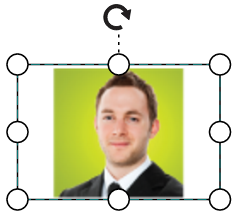 |
| Slice | 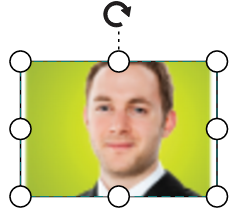 |
| Stretch | 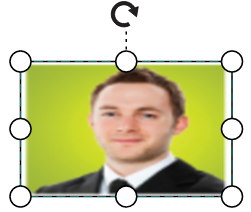 |
To visualize the changes in image scaling, it is Essential® to use the align property along with scale.
HTML
Html elements can be embedded in the diagram through Html type node. The shape property of node allows you to set the type of node and to create a HTML node it should be set as HTML.
HTML node cannot be exported to image format, like JPEG, PNG, and BMP. It is by design, while exporting the diagram is drawn in a canvas. Further, this canvas is exported into image formats. Currently, drawing in a canvas equivalent from all possible HTML is not feasible. Hence, this limitation. To overcome this limiatation we can use Blink rendering engine. Refer to -
Html node export
HTML Node with contentTemplate.
To render an HTML node with a content template, we need to define the desired template string within the content property. The following code illustrates how to create an HTML node with a content template:
var node = {
    // Position of the node
    offsetX: 250,
    offsetY: 250,
    // Size of the node
    width: 100,
    height: 100,
 style: { fill: '#6BA5D7', strokeColor: 'white' },
    shape: {
        type: 'HTML',
        content: '<div style="background:#6BA5D7;height:100%;width:100%;"><button type="button" style="width:100px"> Button</button></div>'
        }
        };

// initialize Diagram component

var diagram = new ej.diagrams.Diagram({
    width: '100%', height: '600px', nodes: [node]
    }, '#element');
<!DOCTYPE html><html lang="en"><head>
<title>EJ2 Diagram</title>
<meta charset="utf-8">
<meta name="viewport" content="width=device-width, initial-scale=1.0">
<meta name="description" content="Typescript UI Controls">
<meta name="author" content="Syncfusion">
<link href="index.css" rel="stylesheet">
<link href="https://cdn.syncfusion.com/ej2/35.1.37/ej2-base/styles/tailwind3.css" rel="stylesheet">
<link href="https://cdn.syncfusion.com/ej2/35.1.37/ej2-buttons/styles/tailwind3.css" rel="stylesheet">
<link href="https://cdn.syncfusion.com/ej2/35.1.37/ej2-popups/styles/tailwind3.css" rel="stylesheet">
<link href="https://cdn.syncfusion.com/ej2/35.1.37/ej2-splitbuttons/styles/tailwind3.css" rel="stylesheet">
<link href="https://cdn.syncfusion.com/ej2/35.1.37/ej2-diagrams/styles/tailwind3.css" rel="stylesheet">
<link href="https://cdn.syncfusion.com/ej2/35.1.37/ej2-navigations/styles/tailwind3.css" rel="stylesheet">
<script src="https://cdn.syncfusion.com/ej2/35.1.37/dist/ej2.min.js" type="text/javascript"></script>
</head>
<body>
<div id="container">
<div id="element"></div>
</div>
<script>
var ele = document.getElementById('container');
if(ele) {
ele.style.visibility = "visible";
}
</script>
<script src="index.js" type="text/javascript"></script>
</body></html>Functional content template.
To render an HTML node using a functional template, we define a function that returns the template string. Within this function, modifications can be made based on the node’s ID.
The following code illustrates how to render an HTML node using the function and manipulate its content dynamically.
var nodes = [
    {
      id: 'node1',
      // Position of the node
      offsetX: 250,
      offsetY: 250,
      // Size of the node
      width: 100,
      height: 100,
      style: { fill: '#6BA5D7', strokeColor: 'white' },
      shape: {
        type: 'HTML',
        content: template.bind(this),
      },
    },
    {
      id: 'node2',
      // Position of the node
      offsetX: 450,
      offsetY: 250,
      // Size of the node
      width: 100,
      height: 100,
      style: { fill: '#6BA5D7', strokeColor: 'white' },
      shape: {
        type: 'HTML',
        content: template.bind(this),
      },
    },
  ];
  //Template for the HTML Shape
  function template(obj) {
    let background = '#6BA5D7';
    let name = 'button';
    if (obj.id === 'node1') {
      background = 'yellow';
      name = 'YELLOW';
    } else {
      name = 'BLUE';
    }
    return `<div style="background:${background};height:100%;width:100%;"><button type="button" style="width:100px"> ${name}</button></div>`;
  }

  // initialize Diagram component

  var diagram = new ej.diagrams.Diagram(
    {
      width: '100%',
      height: '600px',
      nodes: nodes,
    },
    '#element'
  );
<!DOCTYPE html><html lang="en"><head>
<title>EJ2 Diagram</title>
<meta charset="utf-8">
<meta name="viewport" content="width=device-width, initial-scale=1.0">
<meta name="description" content="Typescript UI Controls">
<meta name="author" content="Syncfusion">
<link href="index.css" rel="stylesheet">
<link href="https://cdn.syncfusion.com/ej2/35.1.37/ej2-base/styles/tailwind3.css" rel="stylesheet">
<link href="https://cdn.syncfusion.com/ej2/35.1.37/ej2-buttons/styles/tailwind3.css" rel="stylesheet">
<link href="https://cdn.syncfusion.com/ej2/35.1.37/ej2-popups/styles/tailwind3.css" rel="stylesheet">
<link href="https://cdn.syncfusion.com/ej2/35.1.37/ej2-splitbuttons/styles/tailwind3.css" rel="stylesheet">
<link href="https://cdn.syncfusion.com/ej2/35.1.37/ej2-diagrams/styles/tailwind3.css" rel="stylesheet">
<link href="https://cdn.syncfusion.com/ej2/35.1.37/ej2-navigations/styles/tailwind3.css" rel="stylesheet">
<script src="https://cdn.syncfusion.com/ej2/35.1.37/dist/ej2.min.js" type="text/javascript"></script>
</head>
<body>
<div id="container">
<div id="element"></div>
</div>
<script>
var ele = document.getElementById('container');
if(ele) {
ele.style.visibility = "visible";
}
</script>
<script src="index.js" type="text/javascript"></script>
</body></html>HTML Node With nodeTemplate
To render html node with nodeTemplate we need to define the nodeTemplate in the html file and assign it to the nodeTemplate property of the diagram. The following code illustrates how to render html node with nodeTemplate.
var nodes = [
    {
      // Id of the node
      id: 'node1',
      // Position of the node
      offsetX: 250,
      offsetY: 250,
      // Size of the node
      width: 100,
      height: 100,
      shape: {
        type: 'HTML',
      },
    },
    {
      // Id of the node
      id: 'node2',
      // Position of the node
      offsetX: 450,
      offsetY: 250,
      // Size of the node
      width: 100,
      height: 100,
      shape: {
        type: 'HTML',
      },
    },
  ];

  // initialize Diagram component

  var diagram = new ej.diagrams.Diagram(
    {
      width: '100%',
      height: '600px',
      nodes: nodes,
      nodeTemplate: '#nodetemplate',
    },
    '#element'
  );
<!DOCTYPE html><html lang="en"><head>
<title>EJ2 Diagram</title>
<meta charset="utf-8">
<meta name="viewport" content="width=device-width, initial-scale=1.0">
<meta name="description" content="Typescript UI Controls">
<meta name="author" content="Syncfusion">
<link href="index.css" rel="stylesheet">
<link href="https://cdn.syncfusion.com/ej2/35.1.37/ej2-base/styles/tailwind3.css" rel="stylesheet">
<link href="https://cdn.syncfusion.com/ej2/35.1.37/ej2-buttons/styles/tailwind3.css" rel="stylesheet">
<link href="https://cdn.syncfusion.com/ej2/35.1.37/ej2-popups/styles/tailwind3.css" rel="stylesheet">
<link href="https://cdn.syncfusion.com/ej2/35.1.37/ej2-splitbuttons/styles/tailwind3.css" rel="stylesheet">
<link href="https://cdn.syncfusion.com/ej2/35.1.37/ej2-diagrams/styles/tailwind3.css" rel="stylesheet">
<link href="https://cdn.syncfusion.com/ej2/35.1.37/ej2-navigations/styles/tailwind3.css" rel="stylesheet">
<script src="https://cdn.syncfusion.com/ej2/35.1.37/dist/ej2.min.js" type="text/javascript"></script>
</head>
<body>
<script id="nodetemplate" type="text/x-template">
${if(id == 'node1')}
<div style="background: yellow; height: 100%; width: 100%;">
<input type="button" id="button" value="${id}">
</div>
${else if(id == 'node2')}
<div style="width:100%;height:100%;background:red;overflow:hidden">
<button >${id}</button>
</div>
${/if}
</script>
<div id="container">
<div id="element"></div>
</div>
<script>
var ele = document.getElementById('container');
if(ele) {
ele.style.visibility = "visible";
}
</script>
<script src="index.js" type="text/javascript"></script>
</body></html>Functional nodeTemplate
We can define a function which returns a template string and assign it directly to the nodeTemplate property of diagram.
Refer the code example below.
var nodes = [
  {
    // Id of the node
    id: 'node1',
    // Position of the node
    offsetX: 250,
    offsetY: 250,
    // Size of the node
    width: 100,
    height: 100,
    shape: {
      type: 'HTML',
    },
  },
  {
    // Id of the node
    id: 'node2',
    // Position of the node
    offsetX: 450,
    offsetY: 250,
    // Size of the node
    width: 100,
    height: 100,
    shape: {
      type: 'HTML',
    },
  },
];

function template(obj) {
  let background = '#6BA5D7';
  let name = 'button';
  if (obj.id === 'node1') {
    background = 'yellow';
    name = 'YELLOW';
  } else {
    name = 'BLUE';
  }
  return `<div style="background:${background};height:100%;width:100%;"><button type="button" style="width:100px"> ${name}</button></div>`;
}

// initialize Diagram component

var diagram = new ej.diagrams.Diagram(
  {
    width: '100%',
    height: '600px',
    nodes: nodes,
    nodeTemplate: template.bind(this),
  },
  '#element'
);
<!DOCTYPE html><html lang="en"><head>
<title>EJ2 Diagram</title>
<meta charset="utf-8">
<meta name="viewport" content="width=device-width, initial-scale=1.0">
<meta name="description" content="Typescript UI Controls">
<meta name="author" content="Syncfusion">
<link href="index.css" rel="stylesheet">
<link href="https://cdn.syncfusion.com/ej2/35.1.37/ej2-base/styles/tailwind3.css" rel="stylesheet">
<link href="https://cdn.syncfusion.com/ej2/35.1.37/ej2-buttons/styles/tailwind3.css" rel="stylesheet">
<link href="https://cdn.syncfusion.com/ej2/35.1.37/ej2-popups/styles/tailwind3.css" rel="stylesheet">
<link href="https://cdn.syncfusion.com/ej2/35.1.37/ej2-splitbuttons/styles/tailwind3.css" rel="stylesheet">
<link href="https://cdn.syncfusion.com/ej2/35.1.37/ej2-diagrams/styles/tailwind3.css" rel="stylesheet">
<link href="https://cdn.syncfusion.com/ej2/35.1.37/ej2-navigations/styles/tailwind3.css" rel="stylesheet">
<script src="https://cdn.syncfusion.com/ej2/35.1.37/dist/ej2.min.js" type="text/javascript"></script>
</head>
<body>
<div id="container">
<div id="element"></div>
</div>
<script>
var ele = document.getElementById('container');
if(ele) {
ele.style.visibility = "visible";
}
</script>
<script src="index.js" type="text/javascript"></script>
</body></html>Refresh node template
Use the refreshTemplate method to refresh a node template after modifying its properties.
To refresh a specific node template, provide the node ID. If no ID is provided, the method refreshes all node templates.
The following example demonstrates how to modify a node and refresh its template.
var node = {
  id: 'node1',
  offsetX: 250,
  offsetY: 250,
  width: 120,
  height: 120,
  shape: {
    type: 'HTML',
  },
  addInfo: {
    title: 'Employee',
    department: 'Engineering',
  },
};

function nodeTemplate(obj) {
  return `<div style="background:#e3165b;color:white;padding:10px;border-radius:5px;text-align:center;height:100%;width:100%;display:flex;flex-direction:column;justify-content:center;">
            <div style="font-weight:bold;font-size:14px;">${obj.addInfo.title}</div>
            <div style="font-size:12px;margin-top:5px;">${obj.addInfo.department}</div>
          </div>`;
}

var diagram = new ej.diagrams.Diagram(
  {
    width: '100%',
    height: '600px',
    nodes: [node],
    nodeTemplate: nodeTemplate,
  },
  '#element'
);

// Update the node data and refresh the template
document.getElementById('updateBtn').onclick = function () {
  // Update the additional data
  diagram.nodes[0].addInfo.title = 'Manager';
  diagram.nodes[0].addInfo.department = 'Human Resources';
  // Refresh the template to reflect the changes
  diagram.refreshTemplate(diagram.nodes[0]);
};
<!DOCTYPE html><html lang="en"><head>
<title>EJ2 Diagram</title>
<meta charset="utf-8">
<meta name="viewport" content="width=device-width, initial-scale=1.0">
<meta name="description" content="Typescript UI Controls">
<meta name="author" content="Syncfusion">
<link href="index.css" rel="stylesheet">
<link href="https://cdn.syncfusion.com/ej2/35.1.37/ej2-base/styles/tailwind3.css" rel="stylesheet">
<link href="https://cdn.syncfusion.com/ej2/35.1.37/ej2-buttons/styles/tailwind3.css" rel="stylesheet">
<link href="https://cdn.syncfusion.com/ej2/35.1.37/ej2-popups/styles/tailwind3.css" rel="stylesheet">
<link href="https://cdn.syncfusion.com/ej2/35.1.37/ej2-splitbuttons/styles/tailwind3.css" rel="stylesheet">
<link href="https://cdn.syncfusion.com/ej2/35.1.37/ej2-diagrams/styles/tailwind3.css" rel="stylesheet">
<link href="https://cdn.syncfusion.com/ej2/35.1.37/ej2-navigations/styles/tailwind3.css" rel="stylesheet">
<script src="https://cdn.syncfusion.com/ej2/35.1.37/dist/ej2.min.js" type="text/javascript"></script>
</head>
<body>
<div id="container">
<button id="updateBtn" type="button" style="margin-bottom:10px;">Update Node Data</button>
<div id="element"></div>
</div>
<script>
var ele = document.getElementById('container');
if(ele) {
ele.style.visibility = "visible";
}
</script>
<script src="index.js" type="text/javascript"></script>
</body></html>Native
Diagram provides support to embed SVG element into a node. The shape property of node allows you to set the type of node. To create a native node, it should be set as native. The following code illustrates how a native node is created.
var node = {
    // Position of the node
    offsetX: 250,
    offsetY: 250,
    // Size of the node
    width: 100,
    height: 100,
    shape: {
      type: 'Native',
      scale: 'Stretch',
      content:
        '<g xmlns="http://www.w3.org/2000/svg"> <g transform="translate(1 1)"><g>	   <path style="fill:#61443C;" d="M61.979,435.057c2.645-0.512,5.291-0.853,7.936-1.109c-2.01,1.33-4.472,             1.791-6.827,1.28 C62.726,435.13,62.354,435.072,61.979,435.057z"/><path style="fill:#61443C;"d="M502.469,502.471h-25.6c0.163-30.757-20.173-57.861-49.749-66.304 c-5.784-1.581-11.753-2.385-17.749-2.389c-2.425-0.028-4.849,0.114-7.253,0.427c1.831-7.63,2.747-15.45,2.731-23.296 c0.377-47.729-34.52-88.418-81.749-95.317c4.274-0.545,8.577-0.83,12.885-0.853c25.285,0.211,49.448,10.466,67.167,28.504 c17.719,18.039,27.539,42.382,27.297,67.666c0.017,7.846-0.9,15.666-2.731,23.296c2.405-0.312,4.829-0.455,7.253-0.427     C472.572,434.123,502.783,464.869,502.469,502.471z"/>		</g>	<path style="fill:#8B685A;" d="M476.869,502.471H7.536c-0.191-32.558,22.574-60.747,54.443-67.413    c0.375,0.015,0.747,0.072,1.109,0.171c2.355,0.511,4.817,0.05,6.827-1.28c1.707-0.085,3.413-0.171,5.12-0.171    c4.59,0,9.166,0.486,13.653,1.451c2.324,0.559,4.775,0.147,6.787-1.141c2.013-1.288,3.414-3.341,3.879-5.685    c7.68-39.706,39.605-70.228,79.616-76.117c4.325-0.616,8.687-0.929,13.056-0.939c13.281-0.016,26.409,2.837,38.485,8.363    c3.917,1.823,7.708,3.904,11.349,6.229c2.039,1.304,4.527,1.705,6.872,1.106c2.345-0.598,4.337-2.142,5.502-4.264    c14.373-25.502,39.733-42.923,68.693-47.189h0.171c47.229,6.899,82.127,47.588,81.749,95.317c0.017,7.846-0.9,15.666-2.731,23.296    c2.405-0.312,4.829-0.455,7.253-0.427c5.996,0.005,11.965,0.808,17.749,2.389C456.696,444.61,477.033,471.713,476.869,502.471    L476.869,502.471z"/>		<path style="fill:#66993E;" d="M502.469,7.537c0,0-6.997,264.96-192.512,252.245c-20.217-1.549-40.166-5.59-59.392-12.032    c-1.365-0.341-2.731-0.853-4.096-1.28c0,0-0.597-2.219-1.451-6.144c-6.656-34.048-25.088-198.997,231.765-230.144    C485.061,9.159,493.595,8.22,502.469,7.537z"/>		<path style="fill:#9ACA5C;" d="M476.784,10.183c-1.28,26.197-16.213,238.165-166.827,249.6    c-20.217-1.549-40.166-5.59-59.392-12.032c-1.365-0.341-2.731-0.853-4.096-1.28c0,0-0.597-2.219-1.451-6.144    C238.363,206.279,219.931,41.329,476.784,10.183z"/>		<path style="fill:#66993E;" d="M206.192,246.727c-0.768,3.925-1.365,6.144-1.365,6.144c-1.365,0.427-2.731,0.939-4.096,1.28    c-21.505,7.427-44.293,10.417-66.987,8.789C21.104,252.103,8.816,94.236,7.621,71.452c-0.085-1.792-0.085-2.731-0.085-2.731    C222.747,86.129,211.653,216.689,206.192,246.727z"/>		<path style="fill:#9ACA5C;" d="M180.336,246.727c-0.768,3.925-1.365,6.144-1.365,6.144c-1.365,0.427-2.731,0.939-4.096,1.28    c-13.351,4.412-27.142,7.359-41.131,8.789C21.104,252.103,8.816,94.236,7.621,71.452    C195.952,96.881,185.541,217.969,180.336,246.727z"/>	</g>	<g>		<path d="M162.136,426.671c3.451-0.001,6.562-2.08,7.882-5.268s0.591-6.858-1.849-9.298l-8.533-8.533    c-3.341-3.281-8.701-3.256-12.012,0.054c-3.311,3.311-3.335,8.671-0.054,12.012l8.533,8.533    C157.701,425.773,159.872,426.673,162.136,426.671L162.136,426.671z"/>		<path d="M292.636,398.57c3.341,3.281,8.701,3.256,12.012-0.054c3.311-3.311,3.335-8.671,0.054-12.012l-8.533-8.533    c-3.341-3.281-8.701-3.256-12.012,0.054s-3.335,8.671-0.054,12.012L292.636,398.57z"/>		<path d="M296.169,454.771c-3.341-3.281-8.701-3.256-12.012,0.054c-3.311,3.311-3.335,8.671-0.054,12.012l8.533,8.533    c3.341,3.281,8.701,3.256,12.012-0.054c3.311-3.311,3.335-8.671,0.054-12.012L296.169,454.771z"/>		<path d="M386.503,475.37c3.341,3.281,8.701,3.256,12.012-0.054c3.311-3.311,3.335-8.671,0.054-12.012l-8.533-8.533    c-3.341-3.281-8.701-3.256-12.012,0.054c-3.311,3.311-3.335,8.671-0.054,12.012L386.503,475.37z"/>		<path d="M204.803,409.604c2.264,0.003,4.435-0.897,6.033-2.5l8.533-8.533c3.281-3.341,3.256-8.701-0.054-12.012    c-3.311-3.311-8.671-3.335-12.012-0.054l-8.533,8.533c-2.44,2.44-3.169,6.11-1.849,9.298    C198.241,407.524,201.352,409.603,204.803,409.604z"/>		<path d="M332.803,443.737c2.264,0.003,4.435-0.897,6.033-2.5l8.533-8.533c3.281-3.341,3.256-8.701-0.054-12.012    c-3.311-3.311-8.671-3.335-12.012-0.054l-8.533,8.533c-2.44,2.44-3.169,6.11-1.849,9.298    C326.241,441.658,329.352,443.737,332.803,443.737z"/>		<path d="M341.336,366.937c2.264,0.003,4.435-0.897,6.033-2.5l8.533-8.533c3.281-3.341,3.256-8.701-0.054-12.012    c-3.311-3.311-8.671-3.335-12.012-0.054l-8.533,8.533c-2.44,2.44-3.169,6.11-1.849,9.298    C334.774,364.858,337.885,366.937,341.336,366.937z"/>		<path d="M164.636,454.771l-8.533,8.533c-2.188,2.149-3.055,5.307-2.27,8.271c0.785,2.965,3.1,5.28,6.065,6.065    c2.965,0.785,6.122-0.082,8.271-2.27l8.533-8.533c3.281-3.341,3.256-8.701-0.054-12.012    C173.337,451.515,167.977,451.49,164.636,454.771L164.636,454.771z"/>		<path d="M232.903,429.171l-8.533,8.533c-2.188,2.149-3.055,5.307-2.27,8.271c0.785,2.965,3.1,5.28,6.065,6.065    c2.965,0.785,6.122-0.082,8.271-2.27l8.533-8.533c3.281-3.341,3.256-8.701-0.054-12.012    C241.604,425.915,236.243,425.89,232.903,429.171L232.903,429.171z"/>		<path d="M384.003,409.604c2.264,0.003,4.435-0.897,6.033-2.5l8.533-8.533c3.281-3.341,3.256-8.701-0.054-12.012    c-3.311-3.311-8.671-3.335-12.012-0.054l-8.533,8.533c-2.44,2.44-3.169,6.11-1.849,9.298    C377.441,407.524,380.552,409.603,384.003,409.604z"/>		<path d="M70.77,463.304l-8.533,8.533c-2.188,2.149-3.055,5.307-2.27,8.271s3.1,5.28,6.065,6.065    c2.965,0.785,6.122-0.082,8.271-2.27l8.533-8.533c3.281-3.341,3.256-8.701-0.054-12.012    C79.47,460.048,74.11,460.024,70.77,463.304L70.77,463.304z"/>		<path d="M121.97,446.238l-8.533,8.533c-2.188,2.149-3.055,5.307-2.27,8.271c0.785,2.965,3.1,5.28,6.065,6.065    c2.965,0.785,6.122-0.082,8.271-2.27l8.533-8.533c3.281-3.341,3.256-8.701-0.054-12.012    C130.67,442.981,125.31,442.957,121.97,446.238L121.97,446.238z"/>		<path d="M202.302,420.638c-1.6-1.601-3.77-2.5-6.033-2.5c-2.263,0-4.433,0.899-6.033,2.5l-8.533,8.533    c-2.178,2.151-3.037,5.304-2.251,8.262c0.786,2.958,3.097,5.269,6.055,6.055c2.958,0.786,6.111-0.073,8.262-2.251l8.533-8.533    c1.601-1.6,2.5-3.77,2.5-6.033C204.802,424.408,203.903,422.237,202.302,420.638L202.302,420.638z"/>		<path d="M210.836,463.304c-3.341-3.281-8.701-3.256-12.012,0.054c-3.311,3.311-3.335,8.671-0.054,12.012l8.533,8.533    c2.149,2.188,5.307,3.055,8.271,2.27c2.965-0.785,5.28-3.1,6.065-6.065c0.785-2.965-0.082-6.122-2.27-8.271L210.836,463.304z"/>		<path d="M343.836,454.771l-8.533,8.533c-2.188,2.149-3.055,5.307-2.27,8.271c0.785,2.965,3.1,5.28,6.065,6.065    c2.965,0.785,6.122-0.082,8.271-2.27l8.533-8.533c3.281-3.341,3.256-8.701-0.054-12.012    C352.537,451.515,347.177,451.49,343.836,454.771L343.836,454.771z"/>		<path d="M429.17,483.904c3.341,3.281,8.701,3.256,12.012-0.054s3.335-8.671,0.054-12.012l-8.533-8.533    c-3.341-3.281-8.701-3.256-12.012,0.054c-3.311,3.311-3.335,8.671-0.054,12.012L429.17,483.904z"/>		<path d="M341.336,401.071c2.264,0.003,4.435-0.897,6.033-2.5l8.533-8.533c3.281-3.341,3.256-8.701-0.054-12.012    s-8.671-3.335-12.012-0.054l-8.533,8.533c-2.44,2.441-3.169,6.11-1.849,9.298C334.774,398.991,337.885,401.07,341.336,401.071z"/>		<path d="M273.069,435.204c2.264,0.003,4.435-0.897,6.033-2.5l8.533-8.533c3.281-3.341,3.256-8.701-0.054-12.012    s-8.671-3.335-12.012-0.054l-8.533,8.533c-2.44,2.44-3.169,6.11-1.849,9.298C266.508,433.124,269.618,435.203,273.069,435.204z"/>		<path d="M253.318,258.138c22.738,7.382,46.448,11.338,70.351,11.737c31.602,0.543,62.581-8.828,88.583-26.796    c94.225-65.725,99.567-227.462,99.75-234.317c0.059-2.421-0.91-4.754-2.667-6.421c-1.751-1.679-4.141-2.52-6.558-2.308    C387.311,9.396,307.586,44.542,265.819,104.5c-28.443,42.151-38.198,94.184-26.956,143.776c-3.411,8.366-6.04,17.03-7.852,25.881    c-4.581-7.691-9.996-14.854-16.147-21.358c8.023-38.158,0.241-77.939-21.57-110.261C160.753,95.829,98.828,68.458,9.228,61.196    c-2.417-0.214-4.808,0.628-6.558,2.308c-1.757,1.667-2.726,4-2.667,6.421c0.142,5.321,4.292,130.929,77.717,182.142    c20.358,14.081,44.617,21.428,69.367,21.008c18.624-0.309,37.097-3.388,54.814-9.138c11.69,12.508,20.523,27.407,25.889,43.665    c0.149,15.133,2.158,30.19,5.982,44.832c-12.842-5.666-26.723-8.595-40.759-8.6c-49.449,0.497-91.788,35.567-101.483,84.058    c-5.094-1.093-10.29-1.641-15.5-1.638c-42.295,0.38-76.303,34.921-76.025,77.217c-0.001,2.263,0.898,4.434,2.499,6.035    c1.6,1.6,3.771,2.499,6.035,2.499h494.933c2.263,0.001,4.434-0.898,6.035-2.499c1.6-1.6,2.499-3.771,2.499-6.035    c0.249-41.103-31.914-75.112-72.967-77.154c0.65-4.78,0.975-9.598,0.975-14.421c0.914-45.674-28.469-86.455-72.083-100.045    c-43.615-13.59-90.962,3.282-116.154,41.391C242.252,322.17,242.793,288.884,253.318,258.138L253.318,258.138z M87.519,238.092    c-55.35-38.567-67.358-129.25-69.833-158.996c78.8,7.921,133.092,32.454,161.458,72.992    c15.333,22.503,22.859,49.414,21.423,76.606c-23.253-35.362-77.83-105.726-162.473-140.577c-2.82-1.165-6.048-0.736-8.466,1.125    s-3.658,4.873-3.252,7.897c0.406,3.024,2.395,5.602,5.218,6.761c89.261,36.751,144.772,117.776,161.392,144.874    C150.795,260.908,115.29,257.451,87.519,238.092z M279.969,114.046c37.6-53.788,109.708-86.113,214.408-96.138    c-2.65,35.375-17.158,159.05-91.892,211.175c-37.438,26.116-85.311,30.57-142.305,13.433    c19.284-32.09,92.484-142.574,212.405-191.954c2.819-1.161,4.805-3.738,5.209-6.76c0.404-3.022-0.835-6.031-3.25-7.892    c-2.415-1.861-5.64-2.292-8.459-1.131C351.388,82.01,279.465,179.805,252.231,222.711    C248.573,184.367,258.381,145.945,279.969,114.046L279.969,114.046z M262.694,368.017c15.097-26.883,43.468-43.587,74.3-43.746    c47.906,0.521,86.353,39.717,85.95,87.625c-0.001,7.188-0.857,14.351-2.55,21.337c-0.67,2.763,0.08,5.677,1.999,7.774    c1.919,2.097,4.757,3.1,7.568,2.676c1.994-0.272,4.005-0.393,6.017-0.362c29.59,0.283,54.467,22.284,58.367,51.617H17.661    c3.899-29.333,28.777-51.334,58.367-51.617c4-0.004,7.989,0.416,11.9,1.254c4.622,0.985,9.447,0.098,13.417-2.467    c3.858-2.519,6.531-6.493,7.408-11.017c7.793-40.473,43.043-69.838,84.258-70.192c16.045-0.002,31.757,4.582,45.283,13.212    c4.01,2.561,8.897,3.358,13.512,2.205C256.422,375.165,260.36,372.163,262.694,368.017L262.694,368.017z"/>	</g></g>',
    },
  };

  var diagram = new ej.diagrams.Diagram(
    {
      width: '100%',
      height: '600px',
      nodes: [node],
    },
    '#element'
  );
<!DOCTYPE html><html lang="en"><head>
<title>EJ2 Diagram</title>
<meta charset="utf-8">
<meta name="viewport" content="width=device-width, initial-scale=1.0">
<meta name="description" content="Typescript UI Controls">
<meta name="author" content="Syncfusion">
<link href="index.css" rel="stylesheet">
<link href="https://cdn.syncfusion.com/ej2/35.1.37/ej2-base/styles/tailwind3.css" rel="stylesheet">
<link href="https://cdn.syncfusion.com/ej2/35.1.37/ej2-buttons/styles/tailwind3.css" rel="stylesheet">
<link href="https://cdn.syncfusion.com/ej2/35.1.37/ej2-popups/styles/tailwind3.css" rel="stylesheet">
<link href="https://cdn.syncfusion.com/ej2/35.1.37/ej2-splitbuttons/styles/tailwind3.css" rel="stylesheet">
<link href="https://cdn.syncfusion.com/ej2/35.1.37/ej2-diagrams/styles/tailwind3.css" rel="stylesheet">
<link href="https://cdn.syncfusion.com/ej2/35.1.37/ej2-navigations/styles/tailwind3.css" rel="stylesheet">
<script src="https://cdn.syncfusion.com/ej2/35.1.37/dist/ej2.min.js" type="text/javascript"></script>
</head>
<body>
<div id="container">
<div id="element"></div>
</div>
<script>
var ele = document.getElementById('container');
if(ele) {
ele.style.visibility = "visible";
}
</script>
<script src="index.js" type="text/javascript"></script>
</body></html>Like HTML node, the native node also cannot be exported to image format. Fill color of native node can be overridden by the inline style or fill of the SVG element specified in the template.
SVG content alignment
Stretch and align the svg content anywhere but within the node boundary.
The scale property of the node allows to stretch the svg content as you desired (either to maintain proportion or to stretch). By default, the scale property of native shape is set as meet.
The following tables illustrates all the possible scale options for the node.
| Values | Images |
|---|---|
| None | 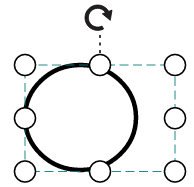 |
| Meet | 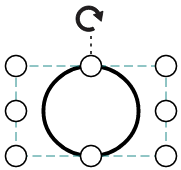 |
| Slice | 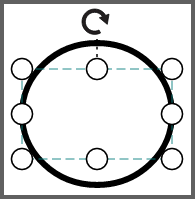 |
| Stretch | 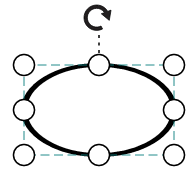 |
Basic shapes
-
The
Basicshapes are common shapes that are used to represent the geometrical information visually. To create basic shapes, the type of the shape should be set as basic. Its shape property can be set with any one of the built-in shape. -
To render a rounded rectangle, you need to set the type as basic and shape as rectangle. Set the
cornerRadiusproperty to specify the radius of rounded rectangle.
The following code example illustrates how to create a basic shape.
var node = {
    // Position of the node
    offsetX: 250,
    offsetY: 250,
    // Size of the node
    width: 100,
    height: 100,
 style: { fill: '#6BA5D7', strokeColor: 'white' },
    shape: { type: 'Basic', shape: 'Rectangle', cornerRadius: 10 },
    // Text(label) added to the node
        };

// initialize Diagram component

var diagram = new ej.diagrams.Diagram({
    width: '100%', height: '600px'
    }, '#element');

diagram.add(node);
<!DOCTYPE html><html lang="en"><head>
<title>EJ2 Diagram</title>
<meta charset="utf-8">
<meta name="viewport" content="width=device-width, initial-scale=1.0">
<meta name="description" content="Typescript UI Controls">
<meta name="author" content="Syncfusion">
<link href="index.css" rel="stylesheet">
<link href="https://cdn.syncfusion.com/ej2/35.1.37/ej2-base/styles/tailwind3.css" rel="stylesheet">
<link href="https://cdn.syncfusion.com/ej2/35.1.37/ej2-buttons/styles/tailwind3.css" rel="stylesheet">
<link href="https://cdn.syncfusion.com/ej2/35.1.37/ej2-popups/styles/tailwind3.css" rel="stylesheet">
<link href="https://cdn.syncfusion.com/ej2/35.1.37/ej2-splitbuttons/styles/tailwind3.css" rel="stylesheet">
<link href="https://cdn.syncfusion.com/ej2/35.1.37/ej2-diagrams/styles/tailwind3.css" rel="stylesheet">
<link href="https://cdn.syncfusion.com/ej2/35.1.37/ej2-navigations/styles/tailwind3.css" rel="stylesheet">
<script src="https://cdn.syncfusion.com/ej2/35.1.37/dist/ej2.min.js" type="text/javascript"></script>
</head>
<body>
<div id="container">
<div id="element"></div>
</div>
<script>
var ele = document.getElementById('container');
if(ele) {
ele.style.visibility = "visible";
}
</script>
<script src="index.js" type="text/javascript"></script>
</body></html>By default, the
shapeproperty of the node is set as basic.
Default property for shape is Rectangle.
When the
shapeis not set for a basic shape, it is considered as a rectangle.
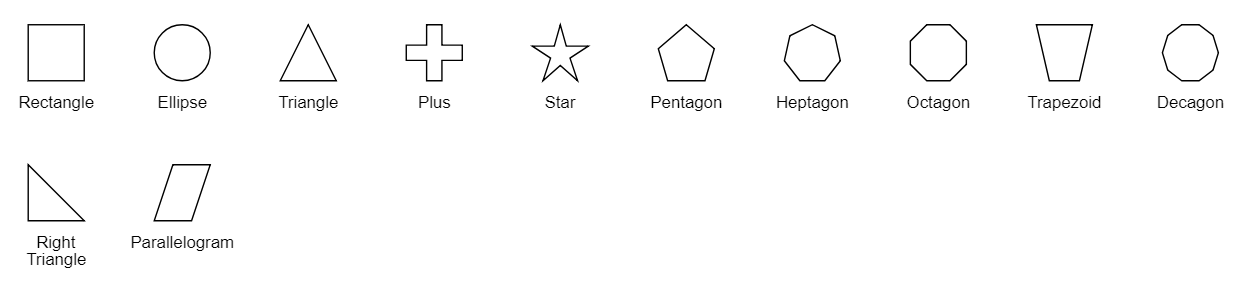
The list of basic shapes are as follows.
Path
The Path shape is a commonly used basic shape that allows visually to represent the geometrical information. As node path data, any geometrical data can be provided. You can create your own Geometry and assign it to data if you want anything different from the standard figures. A geometry does not require any dimension specifications, such as width or height, because it specifies its own size. If the node’s size is set, the geometry is extended to fit the node’s dimensions.
To create a path node, specify the shape as Path. The data property of node allows you to define the path to be drawn. The following code illustrates how a path node is created.
var node = {
    // Position of the node
    offsetX: 250,
    offsetY: 250,
    // Size of the node
    width: 100,
    height: 100,
    shape: { type: 'Path', data: 'M35.2441,25 L22.7161,49.9937 L22.7161,0.00657536 L35.2441,25 z M22.7167,25 L-0.00131226,25 M35.2441,49.6337 L35.2441,0.368951 M35.2441,25 L49.9981,25'},
        };

// initialize Diagram component

var diagram = new ej.diagrams.Diagram({
    width: '100%', height: '600px', nodes: [node]
    }, '#element');
<!DOCTYPE html><html lang="en"><head>
<title>EJ2 Diagram</title>
<meta charset="utf-8">
<meta name="viewport" content="width=device-width, initial-scale=1.0">
<meta name="description" content="Typescript UI Controls">
<meta name="author" content="Syncfusion">
<link href="index.css" rel="stylesheet">
<link href="https://cdn.syncfusion.com/ej2/35.1.37/ej2-base/styles/tailwind3.css" rel="stylesheet">
<link href="https://cdn.syncfusion.com/ej2/35.1.37/ej2-buttons/styles/tailwind3.css" rel="stylesheet">
<link href="https://cdn.syncfusion.com/ej2/35.1.37/ej2-popups/styles/tailwind3.css" rel="stylesheet">
<link href="https://cdn.syncfusion.com/ej2/35.1.37/ej2-splitbuttons/styles/tailwind3.css" rel="stylesheet">
<link href="https://cdn.syncfusion.com/ej2/35.1.37/ej2-diagrams/styles/tailwind3.css" rel="stylesheet">
<link href="https://cdn.syncfusion.com/ej2/35.1.37/ej2-navigations/styles/tailwind3.css" rel="stylesheet">
<script src="https://cdn.syncfusion.com/ej2/35.1.37/dist/ej2.min.js" type="text/javascript"></script>
</head>
<body>
<div id="container">
<div id="element"></div>
</div>
<script>
var ele = document.getElementById('container');
if(ele) {
ele.style.visibility = "visible";
}
</script>
<script src="index.js" type="text/javascript"></script>
</body></html>Flow Shapes
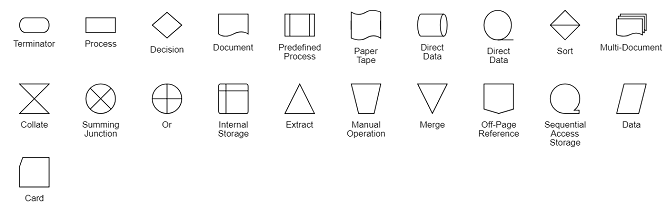
The flow shapes are used to represent the process flow. It is used for analyzing, designing, and managing for documentation process. To create a flow shape, specify the shape type as flow. Flow shapes and by default, it is considered as process. The following code example illustrates how to create a flow shape.
var node = {
    // Position of the node
    offsetX: 250,
    offsetY: 250,
    // Size of the node
    width: 100,
    height: 100,
    shape: { type: 'Flow', shape: 'Document' },
 style: { fill: '#6BA5D7', strokeColor: 'white' },
        };

// initialize Diagram component

var diagram = new ej.diagrams.Diagram({
    width: '100%', height: '600px', nodes: [node]
    }, '#element');

diagram.select([diagram.nodes[0]]);
<!DOCTYPE html><html lang="en"><head>
<title>EJ2 Diagram</title>
<meta charset="utf-8">
<meta name="viewport" content="width=device-width, initial-scale=1.0">
<meta name="description" content="Typescript UI Controls">
<meta name="author" content="Syncfusion">
<link href="index.css" rel="stylesheet">
<link href="https://cdn.syncfusion.com/ej2/35.1.37/ej2-base/styles/tailwind3.css" rel="stylesheet">
<link href="https://cdn.syncfusion.com/ej2/35.1.37/ej2-buttons/styles/tailwind3.css" rel="stylesheet">
<link href="https://cdn.syncfusion.com/ej2/35.1.37/ej2-popups/styles/tailwind3.css" rel="stylesheet">
<link href="https://cdn.syncfusion.com/ej2/35.1.37/ej2-splitbuttons/styles/tailwind3.css" rel="stylesheet">
<link href="https://cdn.syncfusion.com/ej2/35.1.37/ej2-diagrams/styles/tailwind3.css" rel="stylesheet">
<link href="https://cdn.syncfusion.com/ej2/35.1.37/ej2-navigations/styles/tailwind3.css" rel="stylesheet">
<script src="https://cdn.syncfusion.com/ej2/35.1.37/dist/ej2.min.js" type="text/javascript"></script>
</head>
<body>
<div id="container">
<div id="element"></div>
</div>
<script>
var ele = document.getElementById('container');
if(ele) {
ele.style.visibility = "visible";
}
</script>
<script src="index.js" type="text/javascript"></script>
</body></html>The list of flow shapes are as follows.