Positioning a Node in Blazor Diagram Component
How to Arrange Nodes
-
Control a Node’s position by using the OffsetX and OffsetY properties. By default, these represent the distance from the diagram page’s origin to the node’s pivot (center) point.
-
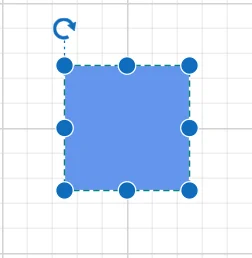
If the expected reference is the node’s top-left corner instead of its center, adjust the Pivot property. The default pivot is (0.5, 0.5), which corresponds to the node’s center.
-
Control the node size using the Width and Height properties.
The following table explains how the pivot relates offset values with node boundaries.
| Pivot | Offset |
|---|---|
| (0.5,0.5) | OffsetX and OffsetY values are considered as the node’s center point. |
| (0,0) | OffsetX and OffsetY values are considered as the top-left corner of the node. |
| (1,1) | OffsetX and OffsetY values are considered as the bottom-right corner of the node. |
The following code shows how to change the pivot value.
@using Syncfusion.Blazor.Diagram

<SfDiagramComponent Height="600px" @ref="@_diagram" Nodes="@_nodes" />

@code
{
    //Reference the diagram
    private SfDiagramComponent _diagram;
    //Define diagram's nodes collection
    private DiagramObjectCollection<Node> _nodes;

    protected override void OnInitialized()
    {
        //Intialize diagram's nodes collection

        _nodes = new DiagramObjectCollection<Node>();
        // A node is created and stored in nodes array.
        Node node = new Node()
        {
            ID = "node",
            // Position of the node
            OffsetX = 250,
            OffsetY = 250,
            // Size of the node
            Width = 100,
            Height = 100,
            Style = new ShapeStyle() { Fill = "#6495ED", StrokeColor = "white" },
            // Pivot of the node
            Pivot = new DiagramPoint() { X = 0, Y = 0 }
        };
        _nodes.Add(node);
    }

    protected override async Task OnAfterRenderAsync(bool firstRender)
    {
        if (firstRender)
        {
            //OnAfterRenderAsync will be triggered after the component rendered.
            await Task.Delay(200);
            _diagram.Select(new ObservableCollection<IDiagramObject>() { _diagram.Nodes[0] });
        }
    }
}
A complete working sample can be downloaded from GitHub
How to Update Node Position at Runtime
The OffsetX and OffsetY properties can be updated at runtime. The following code shows how to change the offset value at run time.
@using Syncfusion.Blazor.Diagram
@using Syncfusion.Blazor.Buttons

<SfButton Content="Move Node" OnClick="@MoveNode" />
<SfDiagramComponent @ref="_diagram" Height="600px" Nodes="@_nodes" />

@code
{
    private SfDiagramComponent _diagram;
    private DiagramObjectCollection<Node> _nodes;

    protected override void OnInitialized()
    {
        _nodes = new DiagramObjectCollection<Node>();
        _nodes.Add(new Node()
        {
            ID = "node",
            Width = 100,
            Height = 100,
            OffsetX = 250,
            OffsetY = 250,
            Style = new ShapeStyle() { Fill = "#6495ED", StrokeColor = "white" }
        });
    }

    private async Task MoveNode()
    {
        _diagram.BeginUpdate();
        _diagram.Nodes[0].OffsetX += 50;
        _diagram.Nodes[0].OffsetY += 50;
        await _diagram.EndUpdateAsync();
    }
}
How to Rotate a Node Using RotationAngle
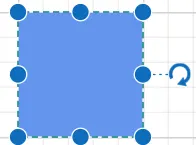
Rotation of a node is controlled by the RotationAngle property. The following code shows how to change the RotationAngle value.
@using Syncfusion.Blazor.Diagram

<SfDiagramComponent Height="600px" @ref="@_diagram" Nodes="@_nodes" />

@code
{
    private SfDiagramComponent _diagram;
    private DiagramObjectCollection<Node> _nodes;

    protected override void OnInitialized()
    {
        _nodes = new DiagramObjectCollection<Node>();
        // A node is created and stored in nodes array.
        Node node = new Node()
        {
            ID = "node",
            // Position of the node.
            OffsetX = 250,
            OffsetY = 250,
            // Size of the node.
            Width = 100,
            Height = 100,
            Style = new ShapeStyle()
            {
                Fill = "#6495ED",
                StrokeColor = "white"
            },
            // RotationAngle of the node.
            RotationAngle = 90
        };
        _nodes.Add(node);
    }
}
A complete working sample can be downloaded from GitHub
How to Set Minimum and Maximum Node Size

The MinWidth and MinHeight properties control the minimum size of a node during resizing. Similarly, the MaxWidth and MaxHeight properties control the maximum size of the node during resizing. The below gif explains how minimum and maximum sizes are controlled.
@using Syncfusion.Blazor.Diagram

<SfDiagramComponent Height="600px" @ref="@_diagram" Nodes="@_nodes" />

@code
{
    private SfDiagramComponent _diagram;
    private DiagramObjectCollection<Node> _nodes;

    protected override void OnInitialized()
    {
        _nodes = new DiagramObjectCollection<Node>();
        // A node is created and stored in nodes array.
        Node node = new Node()
        {
            ID = "node",
            // Position of the node.
            OffsetX = 250,
            OffsetY = 250,
            // Size of the node.
            Width = 100,
            Height = 100,
            //Minimum Size of the node.
            MinHeight = 50,
            MinWidth = 50,
            //Maximum Size of the node.
            MaxHeight = 200,
            MaxWidth = 200,
            Style = new ShapeStyle()
            {
                Fill = "#6495ED",
                StrokeColor = "white"
            },
        };
        _nodes.Add(node);
    }
}
A complete working sample can be downloaded from GitHub
See also
-
How to Drag a Node Programmatically Without User Interaction in Blazor Diagram
-
How to Disable Node Interaction While Maintaining Layout Updates in Blazor Diagram
-
How to Update HTML Node Size on HTML Template in Blazor Diagram
-
How to Make HTML Node Resizable but Not Draggable in Blazor Diagram
-
How to Dynamically Create and Connect Diagram Nodes with Annotations via Ports in Blazor Diagram
-
How to Detect Nodes That Cross Page Breaks in Blazor Diagram