Getting Started with Blazor Diagram in the Blazor WebAssembly App
This section explains the step-by-step process for integrating the Blazor Diagram component into a Blazor WebAssembly App using Visual Studio, Visual Studio Code, and the .NET CLI. This guide walks you through each step to make it easy to follow. Additionally, you can find a fully functional example project on our GitHub repository.
The Blazor Diagram component requires .NET 8.0 or later and a modern browser with ES6 and WebAssembly support.
Ready to streamline your Blazor development?
Discover the full potential of Blazor components with AI Coding Assistants. Effortlessly integrate, configure, and enhance your projects with intelligent, context-aware code suggestions, streamlined setups, and real-time insights—all seamlessly integrated into your preferred AI-powered IDEs like VS Code, Cursor, CodeStudio and more. Explore AI Coding Assistants
Using .NET CLI Templates
Quickly set up a Blazor application using the preconfigured Syncfusion WebAssembly App Template.
First, install the template using the .NET CLI.
dotnet new install Syncfusion.Blazor.WebAssemblyApp.TemplatesNext, create a new project with following command.
dotnet new syncfusionblazorwasmapp --name MyApp --pwa trueAfter creating the project, navigate to the main project folder (for example, MyApp) and run the following command.
cd MyApp
dotnet run
Manually creating a new Blazor WebAssembly (Standalone) App
Create a Blazor WebAssembly App using Visual Studio via Microsoft Templates or the Syncfusion® Blazor Extension. For detailed instructions, refer to the Blazor WebAssembly App Getting Started documentation.
Run the following command to create a new Blazor WebAssembly App.
dotnet new blazorwasm -o BlazorApp
cd BlazorApp
Alternatively, create a Blazor WebAssembly App using Visual Studio Code via Microsoft Templates, the Syncfusion® Blazor Extension, or the C# Dev Kit extension.
Install the required Blazor packages
Install the Syncfusion.Blazor.Diagram and Syncfusion.Blazor.Themes NuGet packages. All Syncfusion Blazor packages are available on nuget.org. See the NuGet packages topic for details.
- Go to Tools → NuGet Package Manager → Manage NuGet Packages for Solution.
- Search the required NuGet packages (
Syncfusion.Blazor.DiagramandSyncfusion.Blazor.Themes) and install them.
Alternatively, you can install the same packages using the Package Manager Console with the following commands.
Install-Package Syncfusion.Blazor.Diagram -Version 35.1.37
Install-Package Syncfusion.Blazor.Themes -Version 35.1.37
Open the terminal and run the following commands.
dotnet add package Syncfusion.Blazor.Diagram --version 35.1.37
dotnet add package Syncfusion.Blazor.Themes --version 35.1.37
Add import namespaces
After the packages are installed, open the ~/_Imports.razor file and import the Syncfusion.Blazor and Syncfusion.Blazor.Diagram namespaces.
@using Syncfusion.Blazor
@using Syncfusion.Blazor.Diagram
Register the Blazor service
Open the Program.cs file in Blazor WebAssembly App and register the Blazor service and include the required namespace reference using Syncfusion.Blazor; at the top.
builder.Services.AddSyncfusionBlazor();Add stylesheet and script resources
The theme stylesheet and script can be accessed from NuGet through Static Web Assets. Include the stylesheet at the end of the <head> section in the ~wwwroot/index.html file.
<link href="_content/Syncfusion.Blazor.Themes/fluent2.css" rel="stylesheet" />Include the required script references at the end of the <body> section in the ~wwwroot/index.html file to enable Diagram functionality.
<script src="_content/Syncfusion.Blazor.Diagram/scripts/sf-diagramcomponent.min.js" type="text/javascript"></script>Add Blazor Diagram component
Open a Razor file located in the ~/Pages/*.razor (for example, Home.razor) and add the Blazor Diagram component inside the razor file to create an empty diagram.
<SfDiagramComponent Width="100%" Height="600px"/>Create your first Diagram with nodes and connectors
This section explains how to create a simple flowchart by adding nodes, customizing their appearance, and connecting them using connectors.
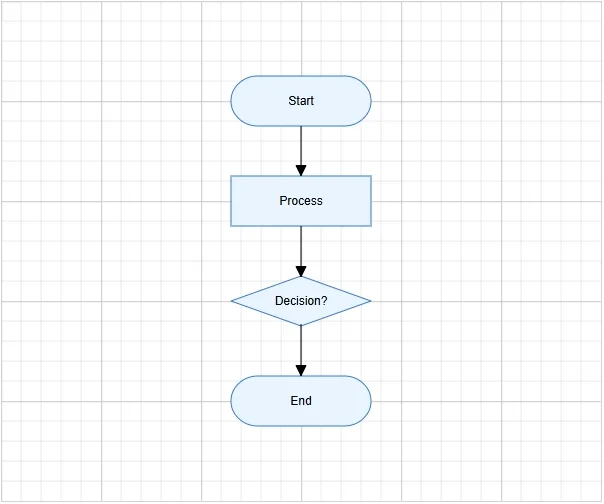
The following example creates a flowchart with four nodes: Start, Process, Decision, and End. It also applies common node and connector settings using the NodeCreating and ConnectorCreating properties.
@using Syncfusion.Blazor.Diagram

<SfDiagramComponent Width="100%" Height="600px" Nodes="@nodes" Connectors="@connectors" NodeCreating="@NodeCreating" ConnectorCreating="@ConnectorCreating" />

@code {
    DiagramObjectCollection<Node> nodes = new DiagramObjectCollection<Node>();
    DiagramObjectCollection<Connector> connectors = new DiagramObjectCollection<Connector>();
    protected override void OnInitialized()
    {
        nodes = new DiagramObjectCollection<Node>()
        {
            new Node()
            {
               ID = "node1",
               OffsetX = 300,
               OffsetY = 100,
               Shape = new FlowShape() { Type = NodeShapes.Flow, Shape = NodeFlowShapes.Terminator },
               Annotations = new DiagramObjectCollection<ShapeAnnotation>()
               {
                  new ShapeAnnotation(){ Content = "Start" }
               }
            },
            new Node()
            {
               ID = "node2",
               OffsetX = 300,
               OffsetY = 200,
               Shape = new FlowShape() { Type = NodeShapes.Flow, Shape = NodeFlowShapes.Process },
               Annotations = new DiagramObjectCollection<ShapeAnnotation>()
               {
                  new ShapeAnnotation(){ Content = "Process" }
               }
            },
            new Node()
            {
               ID = "node3",
               OffsetX = 300,
               OffsetY = 300,
               Shape = new FlowShape() { Type = NodeShapes.Flow, Shape = NodeFlowShapes.Decision },
               Annotations = new DiagramObjectCollection<ShapeAnnotation>()
               {
                  new ShapeAnnotation(){ Content = "Decision?" }
               }
            },
            new Node()
            {
               ID = "node4",
               OffsetX = 300,
               OffsetY = 400,
               Shape = new FlowShape() { Type = NodeShapes.Flow, Shape = NodeFlowShapes.Terminator },
               Annotations = new DiagramObjectCollection<ShapeAnnotation>()
               {
                  new ShapeAnnotation(){ Content = "End" }
               }
            }
        };
        connectors = new DiagramObjectCollection<Connector>()
        {
            new Connector()
            {
                ID = "connector1",
                SourceID = "node1",
                TargetID = "node2",
            },
            new Connector()
            {
                ID = "connector2",
                SourceID = "node2",
                TargetID = "node3",
            },
            new Connector()
            {
                ID = "connector3",
                SourceID = "node3",
                TargetID = "node4",
            },
        };
    }

    private void NodeCreating(IDiagramObject obj)
    {
        Node node = obj as Node;
        node.Style = new ShapeStyle() { Fill = "#E8F4FF", StrokeColor = "#357BD2" };
        node.Width = 140;
        node.Height = 50;
    }

    private void ConnectorCreating(IDiagramObject obj)
    {
        (obj as Connector).Type = ConnectorSegmentType.Orthogonal;
    }
}
A complete working sample can be downloaded from GitHub
In this example:
-
OffsetXandOffsetYdefine the position of each node. -
Shapedefines the node shape configuration, andFlowShape.Shapespecifies flowchart shapes such as Terminator, Process, or Decision. -
ShapeAnnotationadds text inside each node using theContentproperty. -
SourceIDandTargetIDconnect one node to another. -
NodeCreatingapplies common width, height, fill color, and stroke color to all nodes. -
ConnectorCreatingapplies common connector settings, such as orthogonal routing.
Run the application
Press Ctrl+F5 (Windows) or ⌘+F5 (macOS) to launch the application. The Blazor Diagram component will render in your default web browser.
Open the terminal and run the following command.
dotnet runThe output will appear as follows: