Annotation Interaction in Blazor Diagram Component
Diagram provides extensive support for annotation interactions. Annotations can be selected, dragged, resized, and rotated interactively. By default, annotation interaction is disabled and can be enabled by configuring the Constraints property of the annotation.
How to Enable Annotation Interaction
The AnnotationConstraints enumeration controls the interactions supported by an annotation. Interactions can be enabled by using the Interaction flag, which allows all supported behaviors, or by enabling specific constraints such as Select, Drag, Resize, and Rotate.
| AnnotationConstraints | Description |
|---|---|
| None | Disables all interactions on the annotation. |
| ReadOnly | Enables read-only mode for the annotation (cannot be edited). |
| InheritReadOnly | Enables inheriting the ReadOnly option from the parent. |
| Select | Enables selection of the annotation. |
| Drag | Enables dragging the annotation. |
| Resize | Enables resizing the annotation. |
| Rotate | Enables rotating the annotation. |
| Interaction | Enables all interactive behaviors: Select, Drag, Resize, and Rotate combined. |
@using Syncfusion.Blazor.Diagram

<SfDiagramComponent Height="600px" Nodes="@_nodes" />

@code
{
    DiagramObjectCollection<Node> _nodes;

    protected override void OnInitialized()
    {
        _nodes = new DiagramObjectCollection<Node>();
        Node node = new Node()
        {
            ID = "node1",
            // Position of the node
            OffsetX = 100,
            OffsetY = 100,
            // Size of the node
            Width = 100,
            Height = 100,
            Style = new ShapeStyle()
            {
                Fill = "#6BA5D7",
                StrokeColor = "white"
            },
            // Sets the annotation for the node
            Annotations = new DiagramObjectCollection<ShapeAnnotation>()
            {
                new ShapeAnnotation
                {
                    Content = "Annotation Text",
                    // Sets the constraints as Interaction (enables all interactions)
                    Constraints = AnnotationConstraints.Interaction
                }
            }
        };
        _nodes.Add(node);
    }
}A complete working sample can be downloaded from GitHub
How to Set a Drag Limit for Connector Annotations
The DragLimit property allows a connector annotation’s movement to be restricted within a defined area along the connector. The boundary is specified using the Left, Right, Top, and Bottom values. During dragging, the annotation position snaps to the nearest connector segment offset within the configured boundary.
By default, drag limits are disabled for connector annotations. To enable this behavior, configure the annotation constraints to include Drag along with the Interaction flag, as shown in the following example.
@using Syncfusion.Blazor.Diagram

<SfDiagramComponent Height="600px" Connectors="@_connectors" />

@code
{
    DiagramObjectCollection<Connector> _connectors;

    protected override void OnInitialized()
    {
        _connectors = new DiagramObjectCollection<Connector>();
        Connector connector = new Connector()
        {
            ID = "connector",
            Type = ConnectorSegmentType.Orthogonal,
            SourcePoint = new DiagramPoint() { X = 200, Y = 200 },
            TargetPoint = new DiagramPoint() { X = 300, Y = 300 },
            // Sets the annotation for the connector
            Annotations = new DiagramObjectCollection<PathAnnotation>()
            {
                new PathAnnotation
                {
                    Content = "connector1",
                    Offset = 0.5,
                    Constraints = AnnotationConstraints.Interaction | AnnotationConstraints.Drag,
                    // Set drag limit for a connector annotation
                    DragLimit = new DiagramThickness()
                    {
                        Left = 20,
                        Right = 20,
                        Top = 20,
                        Bottom = 20
                    }
                }
            }
        };
        _connectors.Add(connector);
    }
}A complete working sample can be downloaded from GitHub
NOTE
The
DragLimitproperty applies only to PathAnnotation (connector annotations).
How to Rotate Annotations
The RotationReference property of an annotation controls whether the annotation text rotates relative to its parent node or the page. The default value is Parent. The following code example illustrate how to configure RotationReference for an annotation.
@using Syncfusion.Blazor.Diagram

<SfDiagramComponent Height="600px" Nodes="@_nodes" />

@code
{
    // Defines diagram's node collection.
    DiagramObjectCollection<Node> _nodes;

    protected override void OnInitialized()
    {
        _nodes = new DiagramObjectCollection<Node>();
        Node node1 = new Node()
        {
            ID = "node1",
            Width = 100,
            Height = 100,
            OffsetX = 100,
            OffsetY = 100,
            Annotations = new DiagramObjectCollection<ShapeAnnotation>()
            {
                new ShapeAnnotation
                {
                    Content = "Node1",
                    RotationReference = AnnotationRotationReference.Parent,
                }
            },

        };
        Node node2 = new Node()
        {
            ID = "node2",
            Width = 100,
            Height = 100,
            OffsetX = 300,
            OffsetY = 100,
            Annotations = new DiagramObjectCollection<ShapeAnnotation>()
            {
                new ShapeAnnotation
                {
                    Content = "Node2",
                    RotationReference = AnnotationRotationReference.Page,
                }
            },

        };
        _nodes.Add(node1);
        _nodes.Add(node2);
    }
}| Value | Description | Image |
|---|---|---|
| Page | When this option is set, the annotation remains fixed in its original orientation even if its parent node is rotated. |  |
| Parent | When this option is set, the annotation rotates along with its parent node. |  |
A complete working sample can be downloaded from GitHub
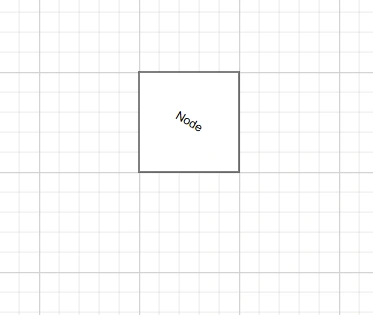
How to Rotate an Annotation Using the RotationAngle Property
The RotationAngle property sets the rotation angle of an annotation in degrees. This determines how much the annotation text is tilted from its normal position. The default value is 0.
The following code example illustrate how to configure RotationAngle for an annotation.
@using Syncfusion.Blazor.Diagram
<SfDiagramComponent Height="600px" Nodes="@_nodes" />
@code
{
    DiagramObjectCollection<Node> _nodes = new DiagramObjectCollection<Node>();
    protected override void OnInitialized()
    {
        Node node = new Node()
        {
            ID = "node1",
            Height = 100,
            Width = 100,
            OffsetX = 100,
            OffsetY = 100,
            Annotations = new DiagramObjectCollection<ShapeAnnotation>()
            {
                new ShapeAnnotation
                {
                    Content = "Node",
                    ID = "Annotation",
                    RotationAngle = 30,
                }
            },
        };
        _nodes.Add(node);
    }
}A complete working sample can be downloaded from GitHub