Shapes in ASP.NET MVC Diagram
ASP.NET MVC Diagram provides support to add different kind of nodes. They are as follows:
- Text node
- Image node
- HTML node
- Native node
- Basic shapes
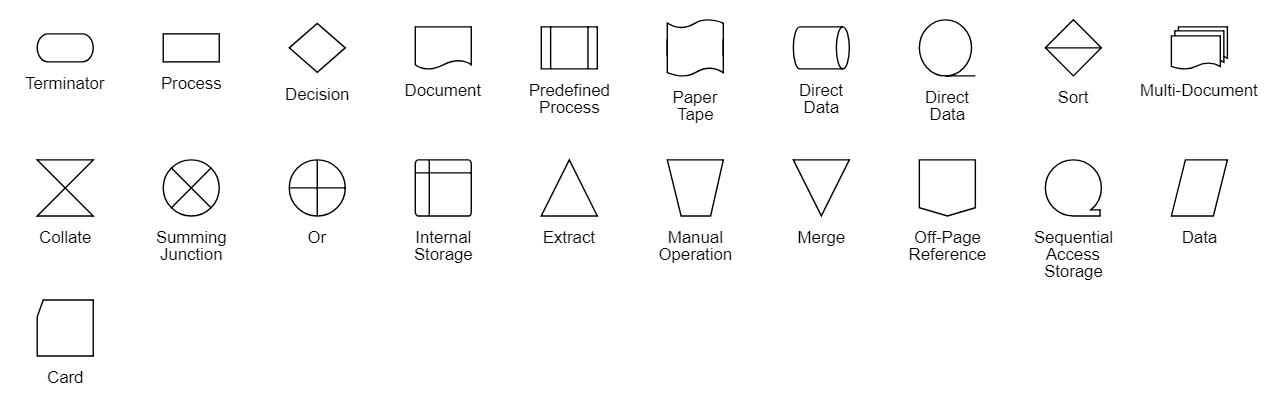
- Flow shapes
Text
Texts can be added to the diagram as text nodes. The shape property of the node allows to set the type of node and for text nodes, it should be set as text. In addition, define the content object that is used to define the text to be added and style is used to customize the appearance of that text.
Image
ASP.NET MVC Diagram allows to add images as image nodes. The shape property of node allows you to set the type of node and for image nodes, it should be set as image. In addition, the source property of shape enables you to set the image source.
Base64 Encoded Image Into The Image Node:
Deploy your HTML file in the web application and export the diagram (image node) or else the image node will not be exported in the Chrome and Firefox due to security issues.
Link 1: Draw images on canvas locally using chrome
Link 2: Local image in canvas in chrome
Image alignment
Stretch and align the image content anywhere but within the node boundary.
The scale property of the node allows to stretch the image as you desired (either to maintain proportion or to stretch). By default, the scale property of the node is set as meet.
| Values | Images |
|---|---|
| None |  |
| Meet |  |
| Slice | 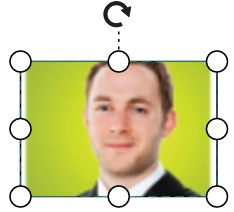 |
| Stretch | 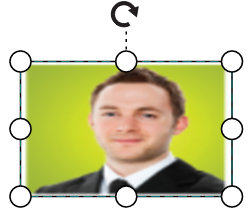 |
HTML
Html elements can be embedded in the diagram through Html type node. The shape property of node allows to set the type of node and to create a HTML node it should be set as HTML.
HTML node cannot be exported to image format, like JPEG, PNG, and BMP. It is by design, while exporting the diagram is drawn in a canvas. Further, this canvas is exported into image formats. Currently, drawing in a canvas equivalent from all possible HTML is not feasible. Hence, this limitation.
HTML node with content template
To render an HTML node with a content template, we need to define the desired template string within the content property. The following code illustrates how to create an HTML node with a content template:
Functional content template
To render an HTML node using a functional template, we define a function that returns the template string. Within this function, modifications can be made based on the node’s ID.
The following code illustrates how to render an HTML node using the function and manipulate its content dynamically.
HTML Node With node template
To render html node with nodeTemplate we need to define the nodeTemplate in the html file and assign it to the nodeTemplate property of the diagram. The following code illustrates how to render html node with nodeTemplate.
Functional node template
We can define a function which returns a template string and assign it directly to the nodeTemplate property of diagram.
Refer the code example below.
Native
ASP.NET MVC Diagram provides support to embed SVG element into a node. The shape property of node allows to set the type of node. To create a native node, it should be set as native.
Like HTML node, the native node also cannot be exported to image format. Fill color of native node can be overridden by the inline style or fill of the SVG element specified in the template.
Native node with content template
To render an SVG node using a content template, define the desired template string in the node’s content property. The following example demonstrates how to create an SVG node using a content template.
Functional content template
Dynamic SVG content generation is supported through function-based templates that return SVG markup based on runtime conditions. This approach enables responsive graphics that adapt to node properties or the application’s state.
The following example demonstrates how to render an SVG node using a function and dynamically manipulate its content.
Native node with node template
The nodeTemplate property allows defining reusable SVG templates at the diagram level. This approach is efficient when multiple nodes share similar vector graphics or when centralized template management is required.
Functional node template
A functional nodeTemplate implementation provides maximum flexibility for generating SVG templates programmatically and creating dynamic content.
The following example demonstrates this approach.
SVG content alignment
Stretch and align the svg content anywhere but within the node boundary.
The scale property of the node allows to stretch the svg content as you desired (either to maintain proportion or to stretch). By default, the scale property of node is set as meet.
The following tables illustrates all the possible scale options for the node.
| Values | Images |
|---|---|
| None |  |
| Meet | 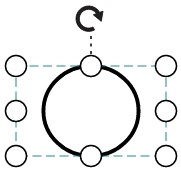 |
| Slice | 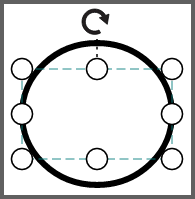 |
| Stretch | 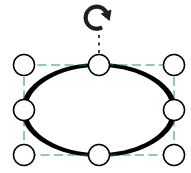 |
Basic shapes
-
The
Basicshapes are common shapes that are used to represent the geometrical information visually. To create basic shapes, the type of the shape should be set as basic. Its shape property can be set with any one of the built-in shape. -
To render a rounded rectangle, you need to set the type as basic and shape as rectangle. Set the
cornerRadiusproperty to specify the radius of rounded rectangle.
By default, the
shapeproperty of the node is set as basic.
Default property for shape is Rectangle.
When the
shapeis not set for a basic shape, it is considered as a rectangle.
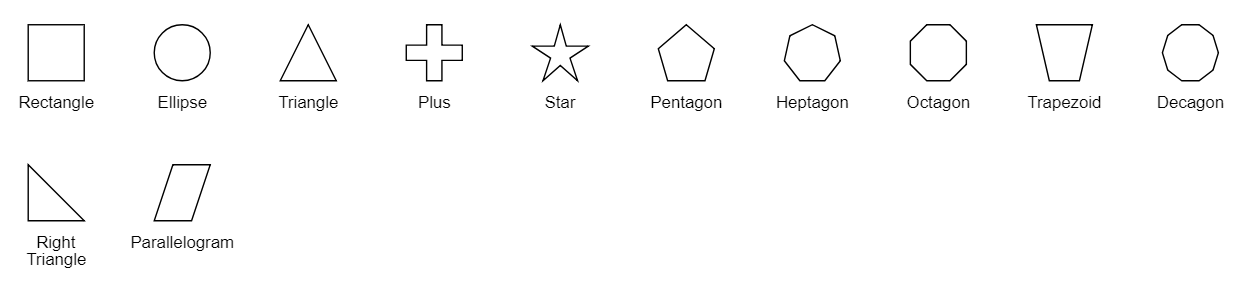
The list of basic shapes are as follows.
Path
The Path node is a commonly used basic shape that allows visually to represent the geometrical information. To create a path node, specify the shape as path. The path property of node allows you to define the path to be drawn.
Flow Shapes
The flow shapes are used to represent the process flow. It is used for analyzing, designing, and managing for documentation process. To create a flow shape, specify the shape type as flow. Flow shapes and by default, it is considered as process.