Commands in ASP.NET Core Diagram
There are several commands available in the diagram as follows.
- Alignment commands
- Spacing commands
- Sizing commands
- Clipboard commands
- Grouping commands
- Z-order commands
- Zoom commands
- Nudge commands
- FitToPage commands
- Undo/Redo commands
Align
Alignment commands enables to align the selected or defined objects such as nodes and connectors with respect to the selection boundary. Refer to align commands which shows how to use align methods in the diagram.
| Parameters | Description | ||||||||||||
|---|---|---|---|---|---|---|---|---|---|---|---|---|---|
|
Defines the specific direction, with respect to which the objects to be aligned.
|
|||||||||||||
| Objects | Defines the objects to be aligned. This is an optional parameter. By default, all the nodes and connectors in the selected region of the diagram gets aligned. |
||||||||||||
| Defines the specific mode, with respect to which the objects to be aligned. This is an optional parameter. The default alignment mode is `Object`.
|
var diagram = document.getElementById("container").ej2_instances[0];
var selArray = [];
selArray.push(diagram.nodes[0], diagram.nodes[1], diagram.nodes[2]);
//Selects the nodes
diagram.select(selArray);
//Sets direction as left
diagram.align('Left', diagram.selectedItems.nodes, 'Selector');
diagram.dataBind();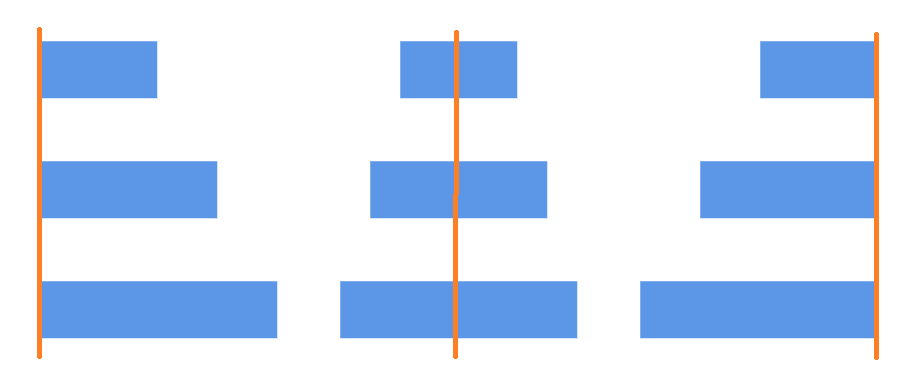
Distribute
The Distribute commands enable to place the selected objects on the page at equal intervals from each other. The selected objects are equally spaced within the selection boundary.
The factor to distribute the shapes DistributeOptions are listed as follows:
- RightToLeft: Distributes the objects based on the distance between the right and left sides of the adjacent objects.
- Left: Distributes the objects based on the distance between the left sides of the adjacent objects.
- Right: Distributes the objects based on the distance between the right sides of the adjacent objects.
- Center: Distributes the objects based on the distance between the center of the adjacent objects.
- BottomToTop: Distributes the objects based on the distance between the bottom and top sides of the adjacent objects.
- Top: Distributes the objects based on the distance between the top sides of the adjacent objects.
- Bottom: Distributes the objects based on the distance between the bottom sides of the adjacent objects.
- Middle: Distributes the objects based on the distance between the vertical center of the adjacent objects.
var diagram = document.getElementById("container").ej2_instances[0];
var selArray = [];
selArray.push(diagram.nodes[0], diagram.nodes[1], diagram.nodes[2]);
//Selects the nodes
diagram.select(selArray);
//Distributes space between the nodes
diagram.distribute('RightToLeft', diagram.selectedItems.nodes);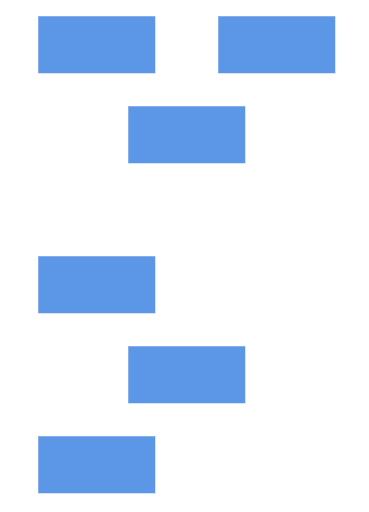
Sizing
Sizing sameSize commands enable to equally size the selected nodes with respect to the first selected object.
SizingOptions are as follows:
- Width: Scales the width of the selected objects.
- Height: Scales the height of the selected objects.
- Size: Scales the selected objects both vertically and horizontally.
var diagram = document.getElementById("container").ej2_instances[0];
var selArray = [];
selArray.push(diagram.nodes[0], diagram.nodes[1], diagram.nodes[2]);
//Selects the nodes
diagram.select(selArray);
//Resizes the selected nodes with the same width
diagram.sameSize('Width', diagram.selectedItems.nodes);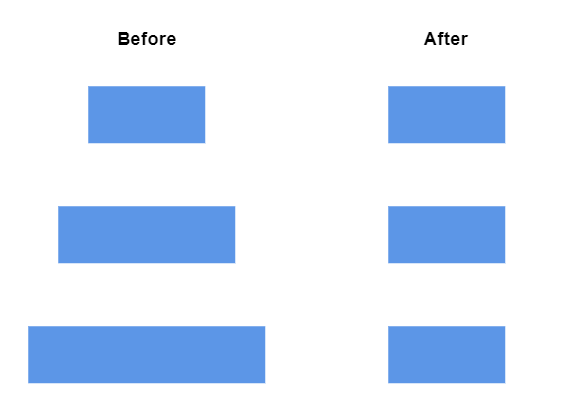
Clipboard
Clipboard commands are used to cut, copy, or paste the selected elements.
-
Cuts the selected elements from the diagram to the diagram’s clipboard,
cut. -
Copies the selected elements from the diagram to the diagram’s clipboard,
copy. -
Pastes the diagram’s clipboard data (nodes/connectors) into the diagram,
paste.
var diagram = document.getElementById("container").ej2_instances[0];
diagram.select([diagram.nodes[0], diagram.nodes[1], diagram.connectors[0]]);
//copies the selected nodes
diagram.copy();
//pastes the copied objects
diagram.paste(diagram.copy() as(NodeModel | ConnectorModel)[]);
Grouping
Grouping commands are used to group or ungroup the selected elements on the diagram.
Group the selected nodes and connectors in the diagram.
Ungroup the selected nodes and connectors in the diagram.
var diagram = document.getElementById("container").ej2_instances[0];
diagram.appendTo('#element');
//Selects the diagram
diagram.selectAll();
//Groups the selected elements.
diagram.group();
Z-Order command
Z-Order commands enables to visually arrange the selected objects such as nodes and connectors on the page.
bringToFront command
The bringToFront command visually brings the selected element to front over all the other overlapped elements. The following code illustrates how to execute the bringToFront command.
var diagram = document.getElementById("container").ej2_instances[0];
let selArray: (NodeModel)[] = [];
diagram.appendTo('#element');
selArray.push(diagram.nodes[2]);
//Selects the nodes
diagram.select(selArray);
//Brings to front
diagram.bringToFront();
sendToBack command
The sendToBack command visually moves the selected element behind all the other overlapped elements. The following code illustrates how to execute the sendToBack command.
var diagram = document.getElementById("container").ej2_instances[0];
let selArray: (NodeModel)[] = [];
diagram.appendTo('#element');
selArray.push(diagram.nodes[2]);
//Selects the nodes
diagram.select(selArray);
//Sends to back
diagram.sendToBack();
moveForward command
The moveForward command visually moves the selected element over the nearest overlapping element. The following code illustrates how to execute the moveForward command.
var diagram = document.getElementById("container").ej2_instances[0];
let selArray: (NodeModel)[] = [];
diagram.appendTo('#element');
selArray.push(diagram.nodes[1]);
//Selects the nodes
diagram.select(selArray);
//Moves forward
diagram.moveForward();
sendBackward command
The sendBackward command visually moves the selected element behind the underlying element. The following code illustrates how to execute the sendBackward command.
var diagram = document.getElementById("container").ej2_instances[0];
let selArray: (NodeModel)[] = [];
diagram.appendTo('#element');
selArray.push(diagram.nodes[1]);
diagram.select(selArray);
//Sends backward
diagram.sendBackward();
Zoom
The zoom command is used to zoom-in and zoom-out the diagram view.
var diagram = document.getElementById("container").ej2_instances[0];
// Sets the zoomFactor
//Defines the focusPoint to zoom the Diagram with respect to any point
//When you do not set focus point, zooming is performed with reference to the center of current Diagram view.
diagram.zoom(1.2, {
    x: 100,
    y: 100
});
Nudge command
The nudge commands move the selected elements towards up, down, left, or right by 1 pixel.
NudgeDirection nudge command moves the selected elements towards the specified direction by 1 pixel, by default.
The accepted values of the argument “direction” are as follows:
- Up: Moves the selected elements towards up by the specified delta value.
- Down: Moves the selected elements towards down by the specified delta value.
- Left: Moves the selected elements towards left by the specified delta value.
- Right: Moves the selected elements towards right by the specified delta value.
var diagram = document.getElementById("container").ej2_instances[0];
//Nudges to right
diagram.nudge('Right');
Nudge by using arrow keys
The corresponding arrow keys are used to move the selected elements towards up, down, left, or right direction by 1 pixel.

Nudge commands are particularly useful for accurate placement of elements.
BringIntoView
The bringIntoView command brings the specified rectangular region into the viewport of the diagram.
The following code illustrates how to execute the bringIntoView command.
var diagram = document.getElementById("container").ej2_instances[0];
//Brings the specified rectangular region of the Diagram content to the viewport of the page.
var bound = new Rect(200, 400, 500, 400);
diagram.bringIntoView(bound);
BringToCenter
The bringToCenter command brings the specified rectangular region of the diagram content to the center of the viewport.
The following code illustrates how to execute the bringToCenter command.
var diagram = document.getElementById("container").ej2_instances[0];
//Brings the specified rectangular region of the Diagram content to the center of the viewport.
let bound: Rect = new Rect(200, 400, 500, 400);
diagram.bringToCenter(bound);
FitToPage command
The fitToPage command helps to fit the diagram content into the view with respect to either width, height, or at the whole.
The mode parameter defines whether the diagram has to be horizontally/vertically fits into the viewport with respect to width, height, or entire bounds of the diagram.
The region parameter defines the region that has to be drawn as an image.
The margin parameter defines the region/bounds of the diagram content that is to be fit into the view.
The canZoomIn parameter enables/disables zooming to fit the smaller content into a larger viewport.
The customBounds parameter the custom region that has to be fit into the viewport.
The following code illustrates how to execute FitToPage command.
var diagram = document.getElementById("container").ej2_instances[0];
//fit the diagram to the page with respect to mode and region
diagram.fitToPage({
    mode: 'Page',
    region: 'Content',
    margin: {
        bottom: 50
    },
    canZoomIn: false
});
Command manager
ASP.NET Core Diagram provides support to map or bind command execution with desired combination of key gestures. ASP.NET Core Diagram provides some built-in commands. CommandManager provides support to define custom commands. The custom commands are executed, when the specified key gesture is recognized.
Custom command
To define a custom command, specify the following properties:
-
execute: A method to be executed. -
canExecute: A method to define whether the command can be executed at the moment. -
gesture: A combination ofkeysandKeyModifiers. -
parameter: Defines any additional parameters that are required at runtime. -
name: Defines the name of the command.
To explore the properties of custom commands, refer to Commands.
    function canExecute() {
            var diagram = document.getElementById("diagram").ej2_instances[0];
        //Defines that the clone command can be executed, if and only if the selection list is not empty.
        if (diagram.selectedItems.nodes.length > 0 || diagram.selectedItems.connectors.length > 0) {
            return true;
        }
        return false;
    }
    //Command handler
    function execute() {
        //Logic to clone the selected element
        var diagram = document.getElementById("diagram").ej2_instances[0];
        diagram.copy();
        diagram.paste();
        diagram.dataBind();
    }
Modify the existing command
When any one of the default commands is not desired, they can be disabled. To change the functionality of a specific command, the command can be completely modified.
    function canExecute() {
        return false;
    }