Edit Mode
16 Sep 20262 minutes to read
Overview
Edit Mode is an AI-powered feature in Syncfusion Code Studio that helps developers modify source code using natural language prompts. It enables targeted, bulk, or repetitive changes with a consistent workflow, allowing users to preview, keep, or undo each suggested change for maximum control and accuracy.
Use Cases
- Refactoring code or optimizing logic across files
- Applying repetitive changes (e.g., renaming variables, updating patterns)
- Fixing bugs or updating documentation
- Modifying shared components or helper functions
- Bulk editing UI or business logic
How to Use the Edit mode
Step 1: Open Syncfusion Code Studio in your machine.
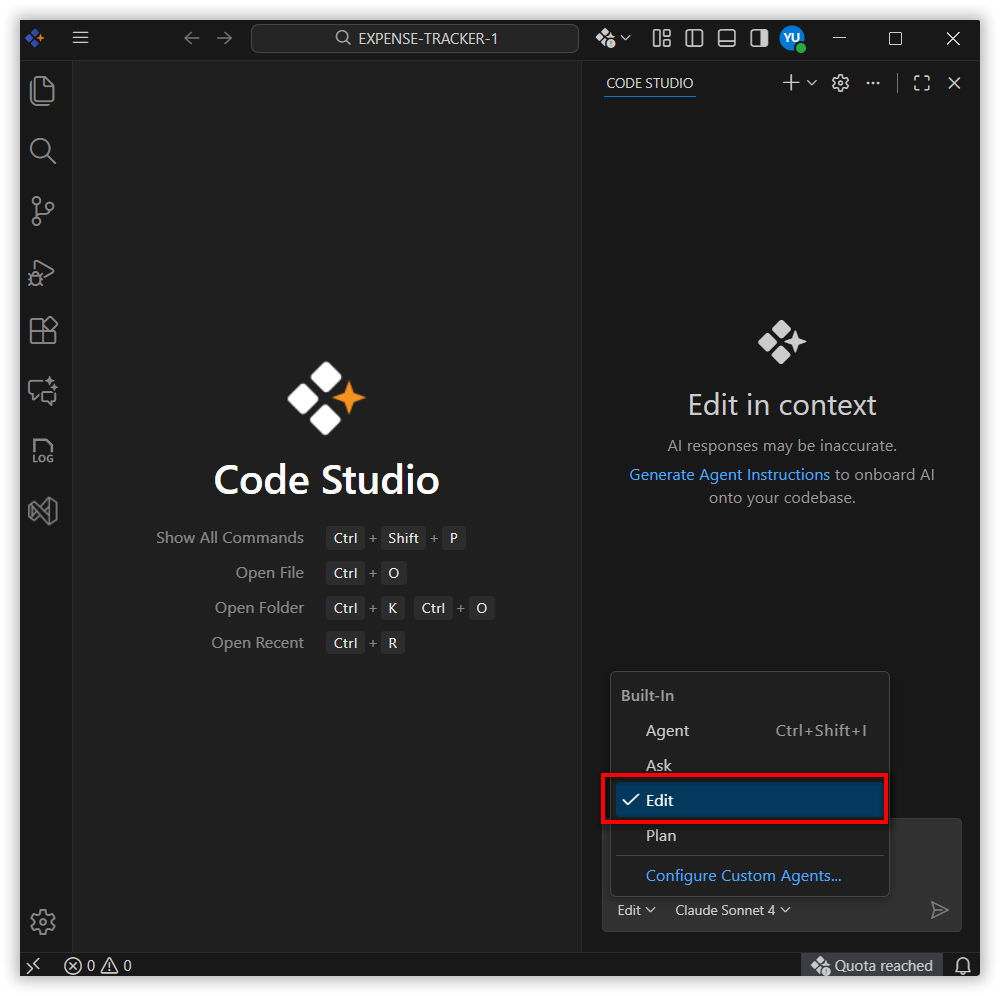
Step 2: Switch to Edit mode in the chat panel.
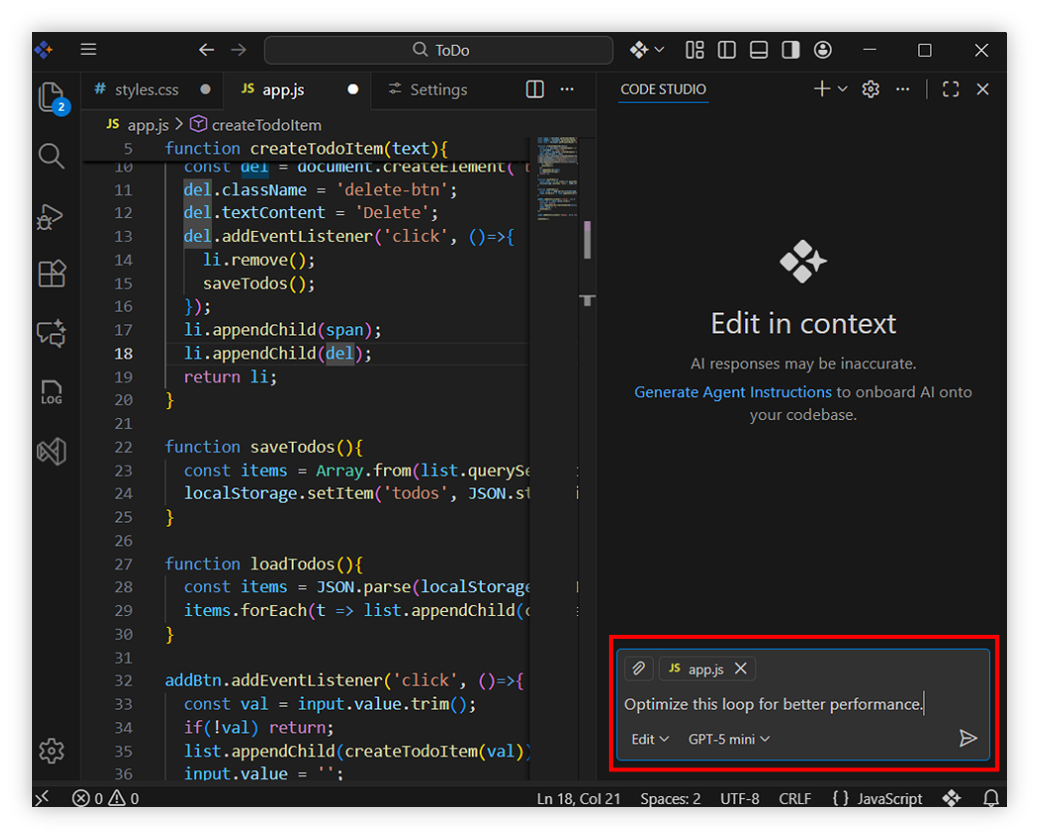
Step 3 : In the chat input box, type the instruction you want the AI to perform. For example, “Optimize this for better performance.” After typing your prompt, click the “Send” button. The agent will treat this instruction as an edit request and start editing.
Step 4 : Once you send the prompt, the AI interprets the instruction and applies the necessary changes to the currently active file in your editor.
Note: Before entering a prompt in Edit Mode, make sure the correct file is selected and active in the editor.
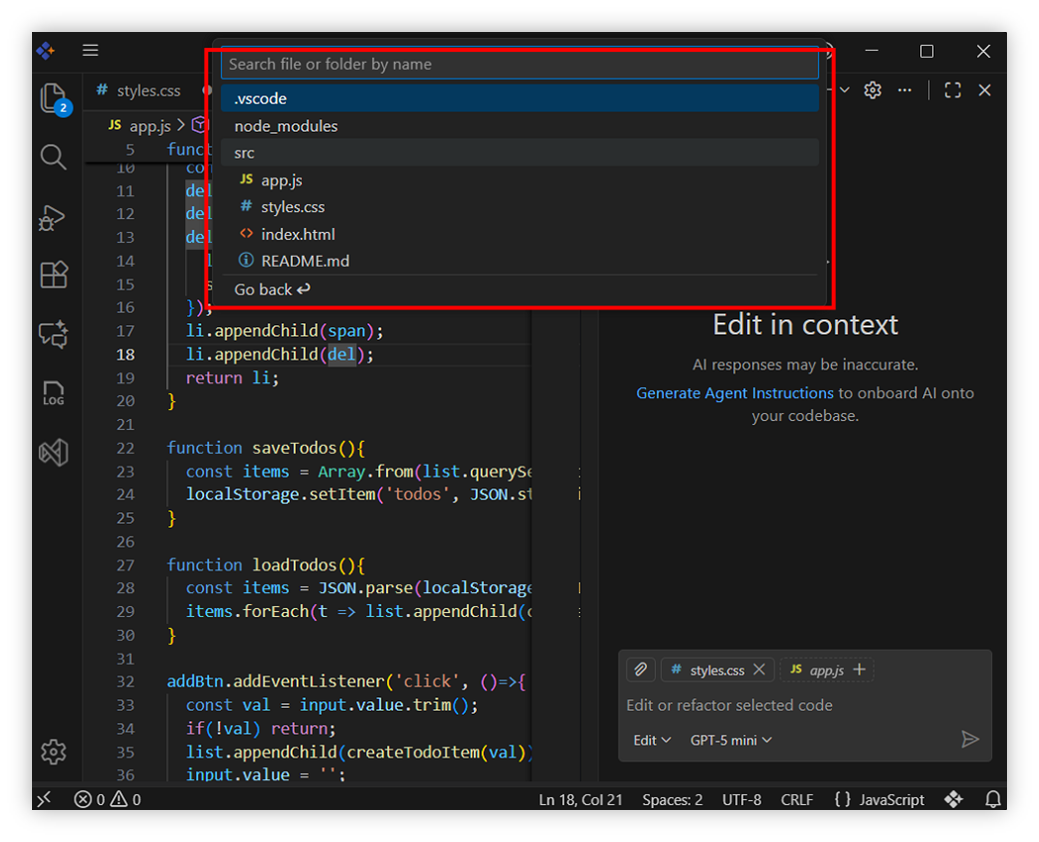
Step 5 : If your instruction involves additional files – for example, editing helper functions, updating shared components, or modifying logic across modules—you can include those files by clicking “+”. This option allows you to provide more context so the AI understands how different files relate to your request.
Step 6 : After clicking “+”, choose the files you want the AI to refer to or modify.
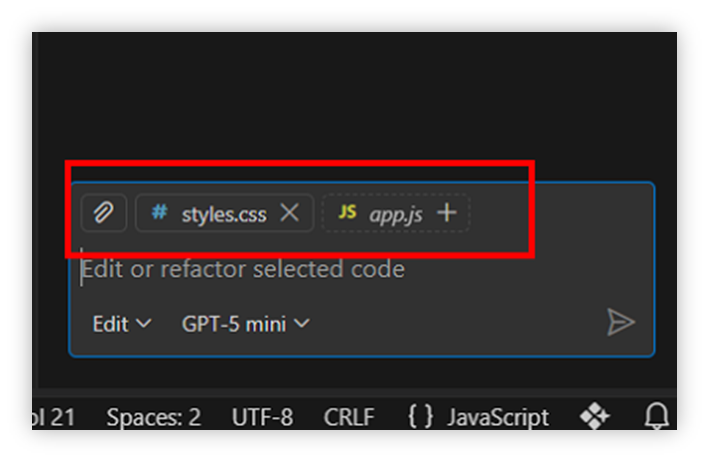
Step 7 : Once the files are added, take a moment to confirm that the correct files appear in the chat panel.
Edit previews and Change indicators
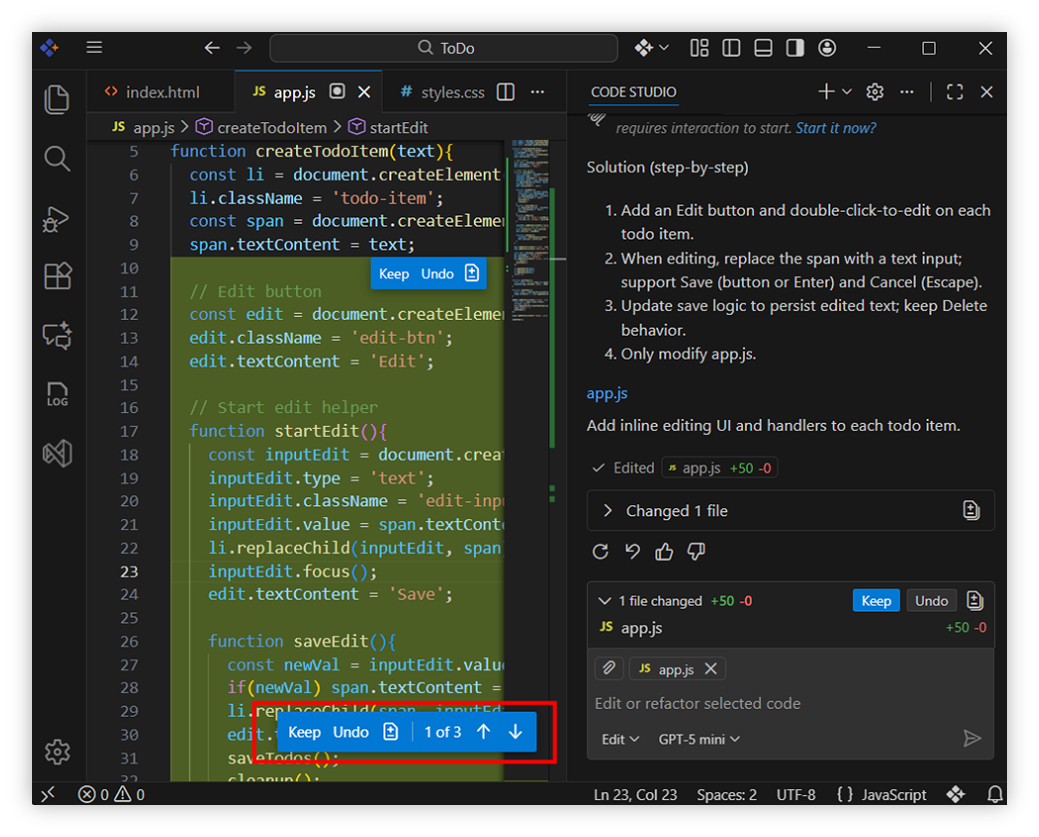
• Suggested changes are displayed with highlights for added or removed lines. This allows precise control over all modifications.
Each block includes:
- Keep: Click to apply suggested changes in file
- Undo: Click to remove suggested changes.
• Each file includes navigation arrows that allow you to jump directly between edited lines. Instead of scrolling, you can use the Up and Down arrows to navigate between changes within the file.
Related Features
- Add Context: Provide additional files for more accurate edits
- Quick Fix: Instantly resolve detected issues
- Inline Chat: Get in-line code suggestions
Best Practices
• Write short, clear prompts – Clear and concise prompts help the AI understand your exact intention, resulting in more accurate edits. Avoid long or vague instructions for better outcomes.
• Add only relevant files for context – Providing only necessary files through Add Context keeps the AI focused and prevents unrelated or incorrect edits.
• Review all changes thoroughly – Even with AI assistance, it’s important to verify each suggested change to ensure the modifications match your expectations and maintain code quality.