Drill Down Support in WPF TreeMap
The TreeMap enables drill down to expose the hierarchy by clicking on a treemap node and allows drill up by clicking on the drill down header. At a time, only one level of the hierarchy can be seen in the treemap.
Enabling Drill Down
Treemap items can be drilled down by enabling the property EnableDrillDown to true. The hierarchy of treemap levels can be shown by clicking on the treemap items. The previous level can be drilled up by clicking on the drill down header. The DrillDown header can be customized with the help of the DrillDownHeaderTemplate property.
Drill Down Properties
| Property | Type | Description |
|---|---|---|
| [EnableDrillDown](https://help.syncfusion.com/cr/wpf/Syncfusion.UI.Xaml.TreeMap.SfTreeMap.html#Syncfusion_UI_Xaml_TreeMap_SfTreeMap_EnableDrillDown) | Bool | Gets or sets a value to indicate whether the drill down support should be enabled. |
| [DrillDownHeaderHeight](https://help.syncfusion.com/cr/wpf/Syncfusion.UI.Xaml.TreeMap.SfTreeMap.html#Syncfusion_UI_Xaml_TreeMap_SfTreeMap_DrillDownHeaderHeight) | Double | Gets or sets a value for specifying the height for the drill down header. |
| [DrillDownHeaderTemplate](https://help.syncfusion.com/cr/wpf/Syncfusion.UI.Xaml.TreeMap.SfTreeMap.html#Syncfusion_UI_Xaml_TreeMap_SfTreeMap_DrillDownHeaderTemplate) | DataTemplate | Gets or sets a template to customize the drill down header. |
| [DrillDownSelectionStroke](https://help.syncfusion.com/cr/wpf/Syncfusion.UI.Xaml.TreeMap.SfTreeMap.html#Syncfusion_UI_Xaml_TreeMap_SfTreeMap_DrillDownSelectionStroke) | Brush | Gets or sets a color for highlighting the tree map item while drilling down. |
<syncfusion:SfTreeMap x:Name="TreeMap"
                      ItemsSource="{Binding}"
                      EnableDrillDown="True"
                      DrillDownSelectionStroke="#1A9DAF"
                      WeightValuePath="Population"
                      ColorValuePath="Area"
                      LeafLabelPath="Name"
                      BorderThickness="1">
    <syncfusion:SfTreeMap.DrillDownHeaderTemplate>
        <DataTemplate>
            <Border Background="#1A9DAF">
                <StackPanel Margin="10,0"
                            VerticalAlignment="Center"
                            Orientation="Horizontal">
                    <Path x:Name="path"
                          Data="M197,153.5 L197,138 186.75,145.5 z"
                          Width="8"
                          Height="16"
                          Fill="White"
                          Stretch="Fill" />

                    <TextBlock Text="{Binding}"
                               Margin="10,0"
                               FontFamily="Segoe UI"
                               FontSize="15"
                               FontWeight="Normal"
                               Foreground="White" />
                </StackPanel>
            </Border>
        </DataTemplate>
    </syncfusion:SfTreeMap.DrillDownHeaderTemplate>

    <syncfusion:SfTreeMap.LeafColorMapping>
        <syncfusion:UniColorMapping Color="#CCDFE3" />
    </syncfusion:SfTreeMap.LeafColorMapping>

    <syncfusion:SfTreeMap.Levels>
        <syncfusion:TreeMapFlatLevel GroupPath="Continent"
                                     ShowLabels="True" />

        <syncfusion:TreeMapFlatLevel GroupPath="Country"
                                     ShowLabels="True" />
    </syncfusion:SfTreeMap.Levels>
</syncfusion:SfTreeMap>
The following screenshot illustrates a TreeMap with drill down support.
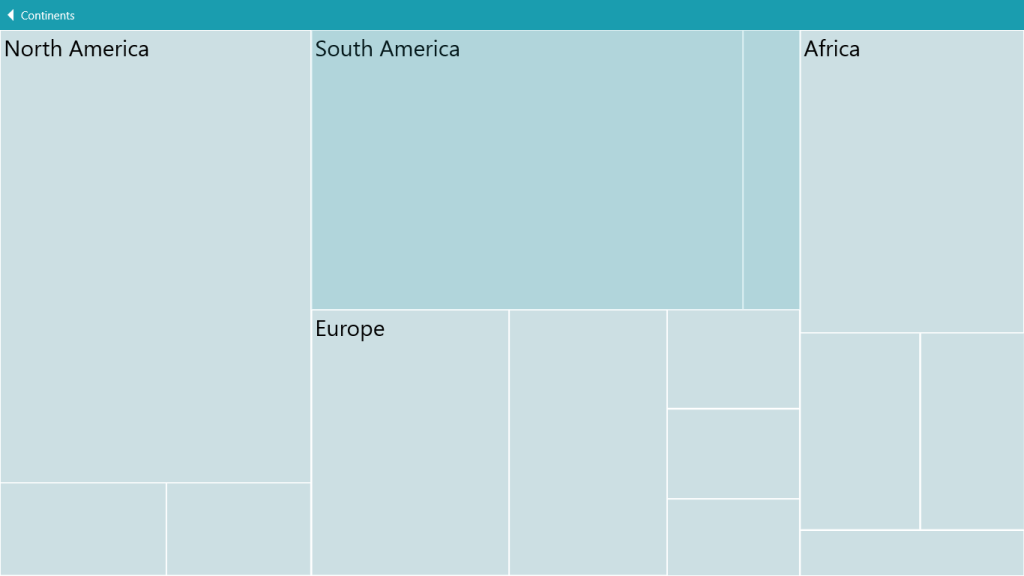
TreeMap with drill down support
See also
How to customize leaf level WPF TreeMap
How to apply colors based on the ColorValuePath to a leaf template in WPF TreeMap