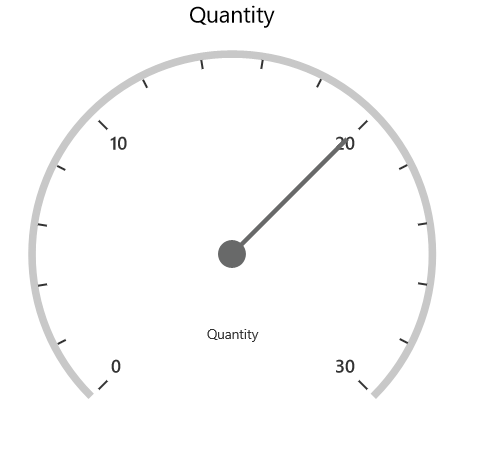
Appearance in UWP Pivot Gauge
Layout customization
The SfPivotGauge supports displaying multiple gauges in a structured layout using the RowsCount and ColumnsCount properties. These properties specify the number of rows and columns required to display the control.
<syncfusion:SfPivotGauge x:Name="PivotGauge1" RowsCount="2" ColumnsCount="2"
                         ItemSource="{Binding ProductSalesData}" PivotRows="{Binding PivotRows}"
PivotColumns="{Binding PivotColumns}" PivotCalculations="{Binding PivotCalculations}"/>PivotGauge1.RowsCount = 2;
PivotGauge1.ColumnsCount = 2;PivotGauge1.RowsCount = 2
PivotGauge1.ColumnsCount = 2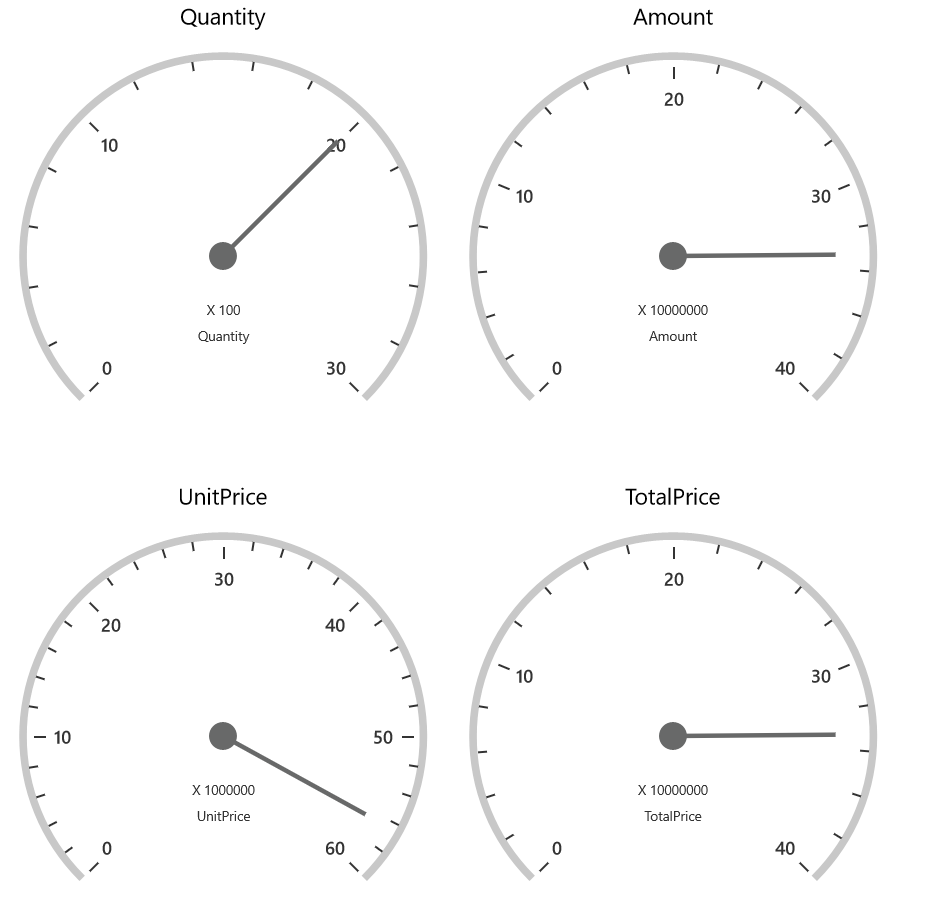
Gauge radius
The SfPivotGauge supports adjusting its radius by assigning a proper value to its Radius property. The following code snippet illustrates how to modify the radius of the SfPivotGauge.
<syncfusion:SfPivotGauge x:Name="PivotGauge1" Radius="75"
                         ItemSource="{Binding ProductSalesData}" PivotRows="{Binding PivotRows}"
PivotColumns="{Binding PivotColumns}" PivotCalculations="{Binding PivotCalculations}"/>PivotGauge1.Radius = 75;PivotGauge1.Radius = 75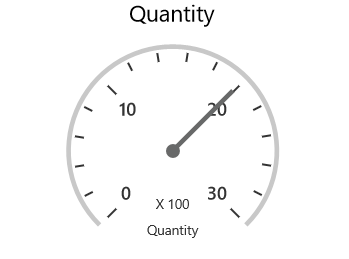
Gauge header
The gauge header is a combination of details about the calculation and KPI. The header components of the SfPivotGauge can be hidden by using the ShowGaugeHeaders property, as specified in the following code snippet.
<syncfusion:SfPivotGauge x:Name="PivotGauge1" ShowGaugeHeaders="False"
                         ItemSource="{Binding ProductSalesData}" PivotRows="{Binding PivotRows}"
PivotColumns="{Binding PivotColumns}" PivotCalculations="{Binding PivotCalculations}"/>PivotGauge1.ShowGaugeHeaders = false;PivotGauge1.ShowGaugeHeaders = False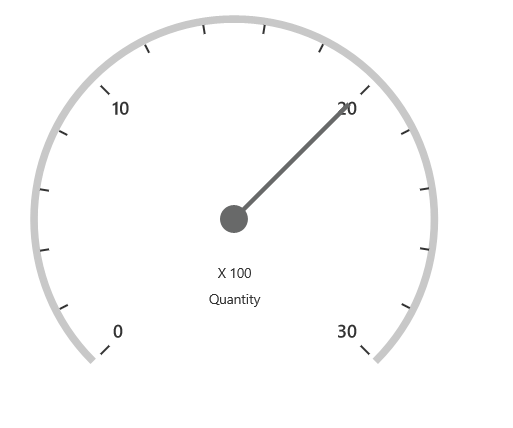
Gauge label
The visibility of gauge labels displayed inside the gauge can be toggled with the help of the ShowGaugeLabels property. The following code snippet shows how to hide the labels of the SfPivotGauge.
<syncfusion:SfPivotGauge x:Name="PivotGauge1" ShowGaugeLabels="False"
                         ItemSource="{Binding ProductSalesData}" PivotRows="{Binding PivotRows}"
PivotColumns="{Binding PivotColumns}" PivotCalculations="{Binding PivotCalculations}"/>PivotGauge1.ShowGaugeLabels = false;PivotGauge1.ShowGaugeLabels = False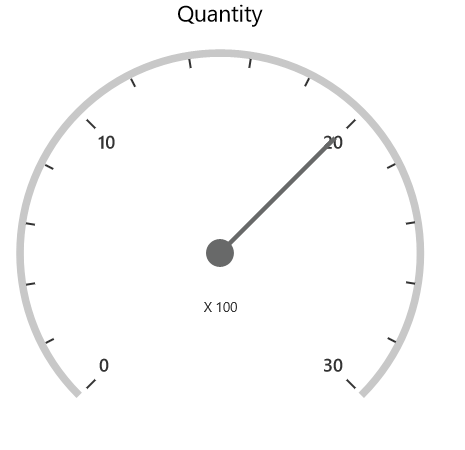
Gauge factor
The gauge factor component can be hidden by using the ShowGaugeFactors property, as specified in the following code snippet.
<syncfusion:SfPivotGauge x:Name="PivotGauge1" ShowGaugeFactors="False"
                         ItemSource="{Binding ProductSalesData}" PivotRows="{Binding PivotRows}"
PivotColumns="{Binding PivotColumns}" PivotCalculations="{Binding PivotCalculations}"/>PivotGauge1.ShowGaugeFactors = false;PivotGauge1.ShowGaugeFactors = False