Getting Started with ##Platform_Name## TreeMap Component
This document explains how to create a TreeMap and configure its features in TypeScript using the Essential JS 2 webpack quickstart seed repository.
The quickstart project uses its included
webpack.config.jsfile to compile and bundle the TypeScript application. For more information, refer to the webpack getting-started guide.
Prerequisites
Before you begin, ensure that the following software is installed:
- Node.js with npm
- Visual Studio Code or another text editor
- Git for cloning the quickstart repository
- A modern web browser such as Chrome, Edge, Firefox, or Safari
Basic familiarity with TypeScript, npm, and webpack is recommended.
Register your Syncfusion license key before initializing the component. For more information, refer to the license key registration documentation.
Dependencies
The TreeMap component is available in the @syncfusion/ej2-treemap package. The following packages are its minimum dependencies:
|-- @syncfusion/ej2-treemap
    |-- @syncfusion/ej2-base
    |-- @syncfusion/ej2-data
    |-- @syncfusion/ej2-pdf-export
    |-- @syncfusion/ej2-svg-base
Compatible package versions are resolved from the project-root package.json file. Keep all Syncfusion package versions consistent to avoid dependency conflicts.
Quick Setup
Step 1: Create a Project Folder
Create a folder named my-treemap in your preferred location. This folder will contain the TreeMap TypeScript project.
Step 2: Open a Terminal
Open a terminal and navigate to the my-treemap folder.
- On Windows, use Command Prompt or PowerShell.
- On macOS or Linux, use Terminal.
Step 3: Clone the Quickstart Repository
Run the following command to clone the Syncfusion JavaScript quickstart project:
git clone https://github.com/SyncfusionExamples/ej2-quickstart-webpack ej2-quickstartStep 4: Navigate to the Project Folder
Navigate to the cloned project directory:
cd ej2-quickstartStep 5: Install the Required Packages
Run the following command from the project root to install the dependencies listed in package.json:
npm installStep 6: Update the HTML Template
Open the ej2-quickstart folder in Visual Studio Code or another text editor.
Locate src/index.html. Preserve the existing content generated by the seed project and add a <div> element with the ID container inside the <body> element.
<!DOCTYPE html>
<html lang="en">

<head>
    <title>Essential JS 2 TreeMap</title>
    <meta charset="utf-8">
    <meta name="viewport" content="width=device-width, initial-scale=1.0">
    <meta name="description" content="Syncfusion TreeMap TypeScript example">
    <meta name="author" content="Syncfusion">
    <!-- Preserve the existing head content from the seed template. -->
</head>

<body>
    <h1>Syncfusion TreeMap</h1>
    <!-- Container for the TreeMap. -->
    <div id="container"></div>
</body>

</html>
The webpack configuration supplied by the quickstart project compiles the TypeScript entry file and loads the generated bundle in this page.
Step 7: Create the TreeMap Component
Locate src/app/app.ts and add the following code:
The following example shows a complete TreeMap with a bound data source:
import { TreeMap } from '@syncfusion/ej2-treemap';
let treemap: TreeMap = new TreeMap({
        dataSource: [
            { Title: 'State wise International Airport count in South America', State: "Brazil", Count: 25 },
            { Title: 'State wise International Airport count in South America', State: "Colombia", Count: 12 },
            { Title: 'State wise International Airport count in South America', State: "Argentina", Count: 9 },
            { Title: 'State wise International Airport count in South America', State: "Ecuador", Count: 7 },
            { Title: 'State wise International Airport count in South America', State: "Chile", Count: 6 },
            { Title: 'State wise International Airport count in South America', State: "Peru", Count: 3 },
            { Title: 'State wise International Airport count in South America', State: "Venezuela", Count: 3 },
            { Title: 'State wise International Airport count in South America', State: "Bolivia", Count: 2 },
            { Title: 'State wise International Airport count in South America', State: "Paraguay", Count: 2 },
            { Title: 'State wise International Airport count in South America', State: "Uruguay", Count: 2 },
            { Title: 'State wise International Airport count in South America', State: "Falkland Islands", Count: 1 },
            { Title: 'State wise International Airport count in South America', State: "French Guiana", Count: 1 },
            { Title: 'State wise International Airport count in South America', State: "Guyana", Count: 1 },
            { Title: 'State wise International Airport count in South America', State: "Suriname", Count: 1 },
        ],
        weightValuePath: 'Count',
        leafItemSettings: {
            labelPath: 'State',
        }
});
treemap.appendTo('#container');
The configuration uses the following properties:
-
dataSourcebinds the records displayed by the TreeMap. -
weightValuePathmaps the numeric field that determines each item’s area. -
leafItemSettingsconfigures leaf-item labels and appearance. -
labelPathmaps the field displayed as each leaf-item label.
The appendTo('#container') call renders the TreeMap in the HTML element whose ID matches the supplied selector.
Step 8: Run the Application
Run the following command from the project root:
npm run startWait for webpack to finish compiling the application. If the browser does not open automatically, open the local URL displayed in the terminal.
The project commonly runs at:
http://localhost:4000/The exact port can vary based on the webpack development-server configuration. To stop the development server, press Ctrl+C in the terminal.
Output
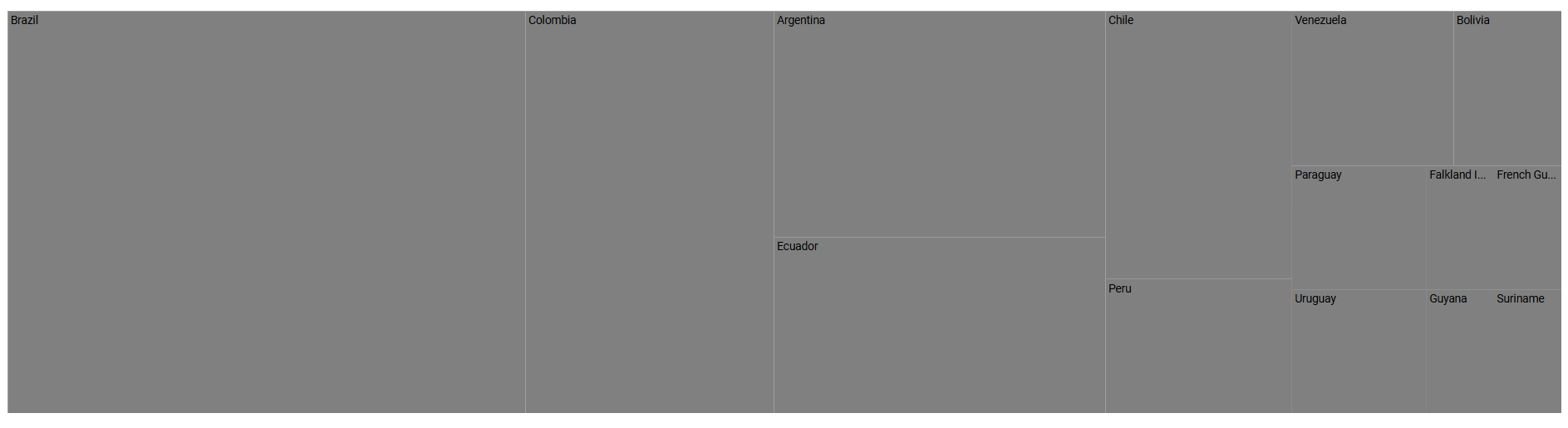
After completing the quick setup, the browser displays a TreeMap.
Module Injection
Basic TreeMap rendering and labels do not require feature-module injection. Inject optional modules only when their corresponding features are used.
-
TreeMapHighlightenables item highlighting. -
TreeMapSelectionenables item selection. -
TreeMapLegendenables legends. -
TreeMapTooltipenables tooltips.
Import TreeMap with the required modules and call TreeMap.Inject() before creating the component:
import {
    TreeMap,
    TreeMapHighlight,
    TreeMapLegend,
    TreeMapSelection,
    TreeMapTooltip
} from '@syncfusion/ej2-treemap';

TreeMap.Inject(
    TreeMapHighlight,
    TreeMapSelection,
    TreeMapLegend,
    TreeMapTooltip
);
Inject only the modules required by the application.
Troubleshooting
-
The repository cannot be cloned. Verify that Git is installed, confirm the internet connection, and run
git --version. -
npm installfails. Verify that Node.js and npm are installed by runningnode --versionandnpm --version. -
Cannot find module '@syncfusion/ej2-treemap'. Runnpm install @syncfusion/ej2-treemap --savefrom the project root. -
The TypeScript application does not compile. Ensure that all Syncfusion packages use compatible versions and run
npm run buildto view the complete error. - The page is blank. Check the browser console for errors and confirm that webpack completed the build successfully.
-
The TreeMap is empty. Confirm that
dataSourcecontains records and thatweightValuePathmaps to a numeric field in every record.