Getting Started with Blazor Sunburst Chart in Server App
This section briefly explains how to include the Blazor Sunburst Chart component in a Blazor Server App using Visual Studio, Visual Studio Code, and the .NET CLI.
Ready to streamline your Blazor development?
Discover the full potential of Blazor components with AI Coding Assistants. Effortlessly integrate, configure, and enhance your projects with intelligent, context-aware code suggestions, streamlined setups, and real-time insights—all seamlessly integrated into your preferred AI-powered IDEs like VS Code, Cursor, Code Studio and more. Explore AI Coding Assistants
Create a new Blazor Server App
Create a Blazor Server App by using the Blazor Web App template in Visual Studio via Microsoft Templates or the Syncfusion® Blazor Extension.
Run the following command to create a new Blazor Server App.
dotnet new blazor -o BlazorApp --interactivity Server
cd BlazorApp
Alternatively, create a Blazor Server App using Visual Studio Code via Microsoft Templates or the Syncfusion® Blazor Extension, or the C# Dev Kit extension.
Run the following command to create a new Blazor Server App.
dotnet new blazor -o BlazorApp --interactivity Server
cd BlazorApp
Configure the appropriate Interactive render mode and Interactivity location while creating a Blazor Server App. For detailed information, refer to the interactive render mode documentation.
Install the required Blazor package
Install the Syncfusion.Blazor.Charts NuGet package. This package delivers every Syncfusion Blazor chart component, including the Blazor Sunburst Chart. All Syncfusion Blazor packages are available on nuget.org. See the NuGet packages topic for details.
- Go to Tools → NuGet Package Manager → Manage NuGet Packages for Solution.
- Search the required NuGet package (
Syncfusion.Blazor.Charts) and install it.
Alternatively, you can install the same package using the Package Manager Console with the following command.
Install-Package Syncfusion.Blazor.Charts -Version 35.1.37Open the terminal and run the following command.
dotnet add package Syncfusion.Blazor.Charts -v 35.1.37Open the command prompt and run the following command.
dotnet add package Syncfusion.Blazor.Charts -v 35.1.37Add import namespaces
After the package is installed, open the ~/Components/_Imports.razor file and import the Syncfusion.Blazor and Syncfusion.Blazor.Charts namespaces.
@using Syncfusion.Blazor
@using Syncfusion.Blazor.Charts
Register the Blazor service
Open the Program.cs file in Blazor Server App and register the Blazor service. Add using Syncfusion.Blazor; at the top of the file.
builder.Services.AddSyncfusionBlazor();Add script resources
The script can be accessed from NuGet through Static Web Assets. Include the required script references at the end of the <body> section in the ~/Components/App.razor file to enable Sunburst Chart functionality.
<script src="_content/Syncfusion.Blazor.Charts/scripts/sf-sunburst-chart.js" type="text/javascript"></script>Add Blazor Sunburst Chart component
Open a Razor file located in the ~/Components/Pages/*.razor (for example, Home.razor) and add the Blazor Sunburst Chart component inside the razor file.
If the interactivity location is set to
Per page/component, define a render mode at the top of the razor file. For example, use@rendermode InteractiveServer. If the Interactivity is set toGlobal, the render mode is automatically configured in theApp.razorfile by default.
@rendermode InteractiveServer

<SfSunburstChart TItem="NodeDetails"
                 DataSource="@DataSource"
                 IdMemberPath="@nameof(NodeDetails.Id)"
                 ParentIdMemberPath="@nameof(NodeDetails.ParentId)"
                 ValueMemberPath="@nameof(NodeDetails.Value)"
                 LabelMemberPath="@nameof(NodeDetails.Name)"
                 Width="100%"
                 Height="450px">
</SfSunburstChart>

@code {
    public class NodeDetails
    {
        public string Id { get; set; } = string.Empty;
        public string? ParentId { get; set; }
        public string Name { get; set; } = string.Empty;
        public double Value { get; set; }
    }

    public List<NodeDetails> DataSource = new()
    {
        new NodeDetails { Id = "USA", ParentId = null, Name = "USA" },
        new NodeDetails { Id = "USA-Electronics", ParentId = "USA", Name = "Electronics", Value = 35 },
        new NodeDetails { Id = "India", ParentId = null, Name = "India" },
        new NodeDetails { Id = "India-Electronics", ParentId = "India", Name = "Electronics", Value = 30 },
        new NodeDetails { Id = "Germany", ParentId = null, Name = "Germany" },
        new NodeDetails { Id = "Germany-Electronics", ParentId = "Germany", Name = "Electronics", Value = 20 }
    };
}
Run the application
Press Ctrl+F5 (Windows) or ⌘+F5 (macOS) to launch the application. The Blazor Sunburst Chart component will render in your default web browser.
Open the terminal and run the following command.
dotnet runOpen the command prompt and run the following command.
dotnet run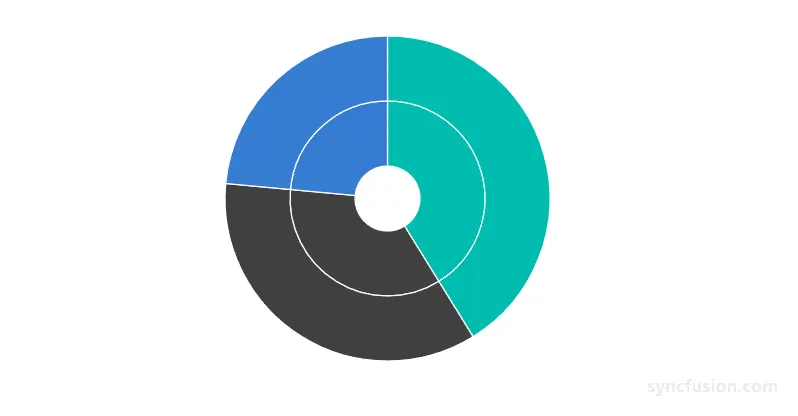
Populate the Sunburst Chart with data
The Blazor Sunburst Chart renders hierarchical data as concentric rings. As shown in the previous example, the hierarchy is described through a single flat IEnumerable<TItem> collection, and the chart derives the levels from how each row’s ParentId maps to another row’s Id. Each root row (ParentId is null) becomes the innermost ring, and each level of children becomes the next outer ring.
Key mappings to configure:
-
DataSourceis theIEnumerable<NodeDetails>collection that supplies the nodes. -
IdMemberPathspecifies the field that contains the unique identifier for each node (NodeDetails.Id). The default value isstring.Empty. The property is marked[EditorRequired]. Every node must have a unique, non-null, and non-empty identifier. Missing or duplicate identifiers invalidate the hierarchy, and the chart does not generate identifiers automatically. -
ParentIdMemberPathspecifies the field that contains the parent identifier for each node (NodeDetails.ParentId). The default value isstring.Empty. The property is marked[EditorRequired]. A null, empty, or whitespace parent identifier creates a top-level node. Unresolved parent identifiers, self-references, and cyclic references invalidate the hierarchy. -
LabelMemberPathspecifies the field that contains the display label for each node (NodeDetails.Name). The default value isstring.Empty. The property is marked[EditorRequired]. A null, empty, or whitespace label uses the localized unknown text as the display label. -
ValueMemberPathspecifies the numeric field that determines the segment sweep (NodeDetails.Value). The default value isstring.Empty. The property is marked[EditorRequired].
Leaf nodes contain the numeric Value that drives rendering. Ancestor nodes with a value less than or equal to 0 use the aggregated value of their descendants.