Getting Started with Blazor Charts in MAUI App
This section explains the step-by-step process of integrating the Blazor Charts component in your Blazor MAUI App using both Visual Studio and Visual Studio Code, and the .NET CLI.
Ready to streamline your Blazor development?
Discover the full potential of Blazor components with AI Coding Assistants. Effortlessly integrate, configure, and enhance your projects with intelligent, context-aware code suggestions, streamlined setups, and real-time insights—all seamlessly integrated into your preferred AI-powered IDEs like VS Code, Cursor, Code Studio and more. Explore AI Coding Assistants
Create a new MAUI Blazor Hybrid App
Create a Blazor MAUI App using Visual Studio via Microsoft Templates. For detailed instructions, refer to the Blazor MAUI App Getting Started documentation.
Run the following command to create a new MAUI Blazor Hybrid App.
dotnet new maui-blazor -o MauiBlazorApp
cd MauiBlazorApp
Run the following command to create a new MAUI Blazor Hybrid App.
dotnet new maui-blazor -o MauiBlazorApp
cd MauiBlazorApp
Install the required Blazor package
Install the Syncfusion.Blazor.Charts NuGet package. All Syncfusion Blazor packages are available on nuget.org. See the NuGet packages topic for details.
- Go to Tools → NuGet Package Manager → Manage NuGet Packages for Solution.
- Search the required NuGet package (
Syncfusion.Blazor.Charts) and install it.
Alternatively, you can install the same package using the Package Manager Console with the following command.
Install-Package Syncfusion.Blazor.Charts -Version 35.1.37Open the terminal and run the following command.
dotnet add package Syncfusion.Blazor.Charts -v 35.1.37Open the command prompt and run the following command.
dotnet add package Syncfusion.Blazor.Charts -v 35.1.37Add import namespaces
After the package is installed, open the ~/Components/_Imports.razor file and import the Syncfusion.Blazor and Syncfusion.Blazor.Charts namespaces.
@using Syncfusion.Blazor
@using Syncfusion.Blazor.Charts
Register the Blazor service
Open the MauiProgram.cs file in Blazor MAUI App and register the Blazor service.
....
using Syncfusion.Blazor;
....

public static class MauiProgram
{
    public static MauiApp CreateMauiApp()
    {
        ....
        builder.Services.AddSyncfusionBlazor();
        ....
    }
}
Add script resource
The script can be accessed from NuGet through Static Web Assets. Include the script references in the ~wwwroot/index.html file.
<script src="_content/Syncfusion.Blazor.Core/scripts/syncfusion-blazor.min.js" type="text/javascript"></script>Add the Blazor Charts component
Open a Razor file located in the ~/Components/Pages/*.razor (for example, Home.razor) and add the Blazor Charts component inside the razor file.
@* SfChart is the root container component for the chart *@
<SfChart>

</SfChart>
Run the application on Windows
Press Ctrl+F5 (Windows) or ⌘+F5 (macOS) to launch the application. The Blazor Charts component will render in your default web browser.
Open the terminal and run the following command.
dotnet runOpen the command prompt and run the following command.
dotnet run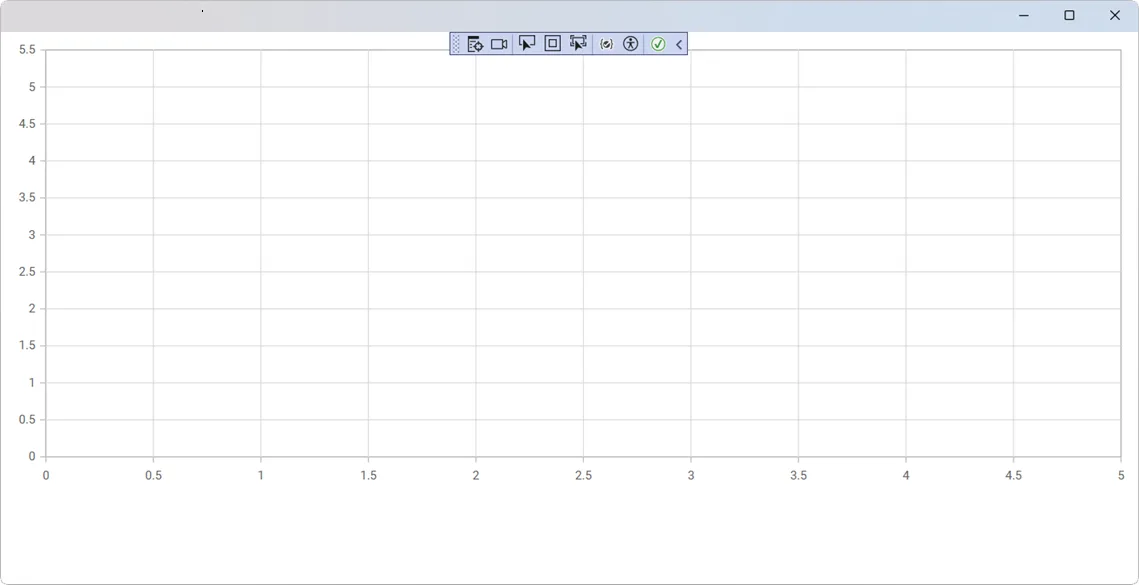
Run the application on Android
To run the Blazor Charts in a Blazor Android MAUI application using the Android emulator, follow these steps:
Refer here to install and launch the Android emulator.
If you encounter any errors while using the Android Emulator, refer to the following link for troubleshooting guidance Troubleshooting Android Emulator.