Data Matrix Generator in Blazor Barcode Component
Data Matrix
DataMatrix is a two-dimensional (2D) barcode that encodes data using a grid of black and white modules. It supports high-density data storage and includes built-in error correction, enabling accurate data recovery even when the symbol is partially damaged.
The Barcode Generator supports generating Data Matrix symbols with different encoding modes and symbol sizes based on the input data.
Data Matrix Encoding Modes
| Encoding | Description |
|---|---|
| ASCII | Encodes standard ASCII characters. |
| ASCIINumeric | Encodes numeric data efficiently by storing two digits per codeword. |
| Base256 | Encodes binary data and extended character sets. |
| Auto | Automatically selects the most efficient encoding mode based on the input data. |
Supported Symbol Sizes
Data Matrix barcodes support both square and rectangular symbol formats. The Barcode Generator automatically determines the appropriate symbol size based on the amount of data being encoded.
Square symbols: 10×10 to 120×120 modules
Rectangular symbols: 8×18 to 16×48 modules
This allows efficient encoding of both small and large amounts of data while maintaining reliable scanning performance.
@using Syncfusion.Blazor.BarcodeGenerator

<SfDataMatrixGenerator Width="200" Height="150" Value="SYNCFUSION"></SfDataMatrixGenerator>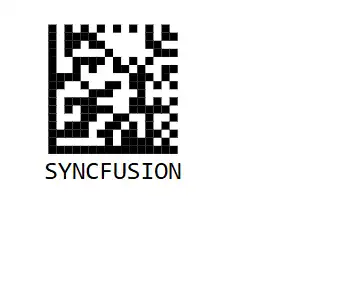
Note:: Data Matrix supports encoding numeric, alphanumeric, and binary data.
Encoding Modes
The Barcode Generator supports the following Data Matrix encoding modes:
| Encoding | Description |
|---|---|
Auto |
Automatically selects the most efficient encoding mode based on the input data. |
ASCII |
Encodes standard ASCII characters and mixed content. |
ASCIINumeric |
Optimized for numeric data and provides compact encoding. |
Base256 |
Encodes binary data and extended character sets. |
The following example demonstrates how to generate a Data Matrix barcode using different encoding modes:
@using Syncfusion.Blazor.BarcodeGenerator

<!-- Automatic encoding selection -->
<SfDataMatrixGenerator Width="200" Height="150" Value="Hello123" Encoding="DataMatrixEncoding.Auto">
</SfDataMatrixGenerator>

<!-- ASCII encoding -->
<SfDataMatrixGenerator Width="200" Height="150" Value="PRODUCT" Encoding="DataMatrixEncoding.ASCII">
</SfDataMatrixGenerator>

<!-- Numeric encoding -->
<SfDataMatrixGenerator Width="200" Height="150" Value="1234567890" Encoding="DataMatrixEncoding.ASCIINumeric">
</SfDataMatrixGenerator>Encoding Mode Guide
| Encoding | Best For | Example |
|---|---|---|
| Auto | General purpose | “PRODUCT-2024” |
| ASCII | Text and mixed data | “Order #12345” |
| ASCIINumeric | Numbers only (compact) | “1234567890” |
| Base256 | Binary or special bytes | Image data, binary files |
GS1 Data Matrix
GS1 Data Matrix is a standardized Data Matrix barcode format that uses GS1 Application Identifiers (AIs) to encode structured business information such as product identifiers, batch numbers, expiration dates, and serial numbers.
The EnableGS1 property enables GS1-compliant Data Matrix barcode generation.
Allowed Input Characters: GS1 Data Matrix supports numeric, alphanumeric, and supported special characters. Data is encoded using GS1 Application Identifiers (AIs), enabling structured business information such as product identifiers, batch numbers, expiration dates, and serial numbers to be stored within a compact barcode.
The following example demonstrates how to generate a GS1 Data Matrix barcode:
@using Syncfusion.Blazor.BarcodeGenerator

<SfDataMatrixGenerator Width="300px" Height="250px" Value="(01)09506000134369(17)280131(10)LOT001" EnableGS1="true" >
    <DataMatrixGeneratorDisplayText Text="Healthcare Traceability" />
</SfDataMatrixGenerator>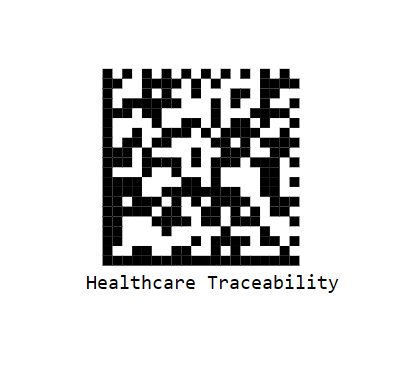
Note: The Barcode Generator validates the input data before generating the barcode. If the input data is invalid or cannot be encoded using the selected settings, the
OnValidationFailedevent is triggered.
Common Validation Errors
| Error | Cause | Solution |
|---|---|---|
| Data too long | Exceeds symbol capacity | Reduce data or change encoding |
| Empty value | No data provided | Supply at least one character |
| Invalid encoding | Unsupported encoding mode | Use Auto, ASCII, ASCIINumeric, or Base256 |
| Invalid character for mode | Character not allowed in selected mode | Change encoding or data |
@using Syncfusion.Blazor.BarcodeGenerator

<SfDataMatrixGenerator Width="200px" Height="150px" Value="SYNCFUSION" EnableGS1="true" OnValidationFailed="@OnValidationFailed"></SfDataMatrixGenerator>

@code
{
    public void OnValidationFailed(ValidationFailedEventArgs args)
    {
        Console.WriteLine($"Data Matrix validation error: {args.Message}");
        // Example errors:
        // - "The data is too long for the specified Data Matrix symbol size."
        // - "Data Matrix accepts valid ASCII characters."
    }
}Data Matrix Customizations
The Data Matrix component provides comprehensive customization options to modify the appearance and behavior of generated barcodes. This section covers all available properties that can be used to customize Data Matrix codes.
Data Matrix Color Customization
The barcode appearance can be customized by changing the colors. The component provides two main color properties:
Foreground Color
The ForeColor property specifies the line and text color of the Data Matrix barcode. By default, it is set to black.
@using Syncfusion.Blazor.BarcodeGenerator

<SfDataMatrixGenerator Width="200" Height="150" ForeColor="red" Value="SYNCFUSION"></SfDataMatrixGenerator>
Background Color
The BackgroundColor property specifies the background color of the Data Matrix barcode. By default, it is set to white. This is useful when you need to match the barcode with the surrounding environment or create custom designs.
@using Syncfusion.Blazor.BarcodeGenerator

<SfDataMatrixGenerator Width="200" Height="150" BackgroundColor="lightyellow" ForeColor="darkblue" Value="SYNCFUSION"></SfDataMatrixGenerator>Data Matrix Dimension Customization
The dimensions of the barcode can be adjusted using the Height and Width properties. Both properties accept string values with % and px units. By default, both are set to 100%.
@using Syncfusion.Blazor.BarcodeGenerator

<SfDataMatrixGenerator Width="300px" Height="250px" Value="SYNCFUSION"></SfDataMatrixGenerator>Margin Customization
The Margin property specifies the space to be left around the Data Matrix barcode. It accepts a DataMatrixMargin object with the following properties:
| Property | Description | Default Value |
|---|---|---|
Left |
Space from the left side | 10 |
Right |
Space from the right side | 10 |
Top |
Space from the top side | 10 |
Bottom |
Space from the bottom side | 10 |
@using Syncfusion.Blazor.BarcodeGenerator

<SfDataMatrixGenerator Width="250" Height="200" Value="SYNCFUSION">
    <DataMatrixMargin Left="20" Top="20" Right="20" Bottom="20"></DataMatrixMargin>
</SfDataMatrixGenerator>Display Text Customization
The barcode display text can be fully customized using the DisplayText property. The DataMatrixGeneratorDisplayText component provides comprehensive text customization options.
Text Content
The Text property specifies the textual description to display with the Data Matrix code. By default, it is an empty string.
@using Syncfusion.Blazor.BarcodeGenerator

<SfDataMatrixGenerator Width="200" Height="150" Value="SYNCFUSION">
    <DataMatrixGeneratorDisplayText Text="Text"></DataMatrixGeneratorDisplayText>
</SfDataMatrixGenerator>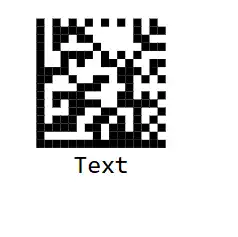
Font Configuration
The Font property specifies the font style of the display text. By default, it is set to monospace.
@using Syncfusion.Blazor.BarcodeGenerator

<SfDataMatrixGenerator Width="200" Height="150" Value="SYNCFUSION">
    <DataMatrixGeneratorDisplayText Text="Product Code" Font="Arial"></DataMatrixGeneratorDisplayText>
</SfDataMatrixGenerator>Text Size
The Size property specifies the size of the display text. By default, it is set to 20 pixels.
@using Syncfusion.Blazor.BarcodeGenerator

<SfDataMatrixGenerator Width="200" Height="150" Value="SYNCFUSION">
    <DataMatrixGeneratorDisplayText Text="Product Code" Size="25"></DataMatrixGeneratorDisplayText>
</SfDataMatrixGenerator>Text Alignment
The Alignment property specifies the horizontal alignment of the text. It accepts the following values: Left, Center, or Right. By default, it is set to Center.
@using Syncfusion.Blazor.BarcodeGenerator

<SfDataMatrixGenerator Width="300" Height="150" Value="SYNCFUSION">
    <DataMatrixGeneratorDisplayText Text="Product Code" Alignment="Alignment.Left"></DataMatrixGeneratorDisplayText>
</SfDataMatrixGenerator>Text Position
The Position property specifies the vertical position of the text relative to the Data Matrix code. It accepts Top or Bottom. By default, it is set to Bottom.
@using Syncfusion.Blazor.BarcodeGenerator

<SfDataMatrixGenerator Width="200" Height="150" Value="SYNCFUSION">
    <DataMatrixGeneratorDisplayText Text="Product Code" Position="TextPosition.Top"></DataMatrixGeneratorDisplayText>
</SfDataMatrixGenerator>Text Visibility
The Visibility property controls the visibility of the display text. By default, it is set to true. Set it to false to hide the text.
@using Syncfusion.Blazor.BarcodeGenerator

<SfDataMatrixGenerator Width="200" Height="150" Value="SYNCFUSION">
    <DataMatrixGeneratorDisplayText Visibility="false"></DataMatrixGeneratorDisplayText>
</SfDataMatrixGenerator>Text Margin
The Margin property specifies the space between the text and the Data Matrix barcode. It accepts a DataMatrixTextMargin object with the following properties:
| Property | Description | Default Value |
|---|---|---|
Left |
Space from the left side | 0 |
Right |
Space from the right side | 0 |
Top |
Space from the top side | 0 |
Bottom |
Space from the bottom side | 0 |
@using Syncfusion.Blazor.BarcodeGenerator

<SfDataMatrixGenerator Width="250" Height="200" Value="SYNCFUSION">
    <DataMatrixGeneratorDisplayText Text="Product Code">
        <DataMatrixTextMargin Left="0" Top="10" Right="0" Bottom="10"></DataMatrixTextMargin>
    </DataMatrixGeneratorDisplayText>
</SfDataMatrixGenerator>Dynamic Property Updates
The Data Matrix Generator supports dynamic updates to barcode properties at runtime. When a property value is modified, the Data Matrix barcode is automatically refreshed to display the latest changes. This enables interactive customization of the barcode appearance and content.
Update Data Matrix Properties Dynamically
The following example demonstrates how to dynamically update Data Matrix properties such as the value, colors, size, encoding mode, and display text.
@using Syncfusion.Blazor.BarcodeGenerator
@using Syncfusion.Blazor.Inputs
@using Syncfusion.Blazor.DropDowns

<div style="margin: 20px;">
    <div style="margin-bottom: 10px;">
        <label>Data Matrix Value: </label>
        <SfTextBox @bind-Value="@DataMatrixValue" Placeholder="Enter data"></SfTextBox>
    </div>

    <div style="margin-bottom: 10px;">
        <label>Foreground Color: </label>
        <input type="color" @bind="@ForeColor" />
    </div>

    <div style="margin-bottom: 10px;">
        <label>Background Color: </label>
        <input type="color" @bind="@BackgroundColor" />
    </div>

    <div style="margin-bottom: 10px;">
        <label>Encoding Mode: </label>
        <SfDropDownList TValue="DataMatrixEncoding" TItem="DataMatrixEncoding" DataSource="@EncodingModes" @bind-Value="@EncodingMode">
            <DropDownListFieldSettings Text="ToString" Value="ToString"></DropDownListFieldSettings>
        </SfDropDownList>
    </div>

    <div style="margin-bottom: 10px;">
        <label>Size (px): </label>
        <SfSlider @bind-Value="@DataMatrixSize" Min="100" Max="300" Step="10"></SfSlider>
        <span>@DataMatrixSize px</span>
    </div>

    <div style="margin-bottom: 10px;">
        <label>Display Text: </label>
        <SfTextBox @bind-Value="@DisplayTextValue" Placeholder="Enter display text"></SfTextBox>
    </div>
</div>

<!-- Data Matrix that updates in real-time as properties change -->
<div style="margin-top: 30px; padding: 20px; border: 1px solid #ccc;">
    <SfDataMatrixGenerator Width="@($"{DataMatrixSize}px")"
                           Height="@($"{DataMatrixSize}px")"
                           Value="@DataMatrixValue"
                           ForeColor="@ForeColor"
                           BackgroundColor="@BackgroundColor"
                           Encoding="@EncodingMode">
        <DataMatrixGeneratorDisplayText Text="@DisplayTextValue" Visibility="@(!string.IsNullOrEmpty(DisplayTextValue))"></DataMatrixGeneratorDisplayText>
    </SfDataMatrixGenerator>
</div>

@code
{
    private string DataMatrixValue = "31117013206375";
    private string ForeColor = "black";
    private string BackgroundColor = "white";
    private int DataMatrixSize = 200;
    private string DisplayTextValue = "Inventory Code";
    private DataMatrixEncoding EncodingMode = DataMatrixEncoding.Auto;
    private List<DataMatrixEncoding> EncodingModes = new() { DataMatrixEncoding.Auto, DataMatrixEncoding.ASCII, DataMatrixEncoding.ASCIINumeric, DataMatrixEncoding.Base256 };
}