Barcode Generator in Blazor Barcode Component
Code39
The Code 39 character set includes digits 0-9, uppercase letters A–Z, and the symbols space, minus (-), plus (+), period (.), dollar ($), slash (/), and percent (%). A special start/stop character is placed at the beginning and end of each barcode. The barcode can be of any length; even more than 25 characters begin to push the bounds. Code 39 is the only type of barcode that does not require a checksum for common use.
@using Syncfusion.Blazor.BarcodeGenerator

<SfBarcodeGenerator Width="200px" Height="150px" Type="@BarcodeType.Code39" Value="SYNCFUSION"></SfBarcodeGenerator>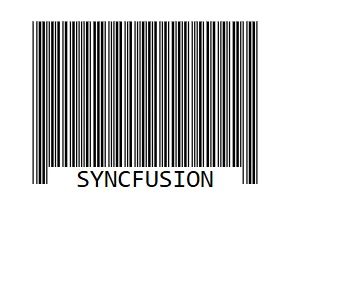
Code39 Extended
Code 39 Extended is an enhanced version of Code 39 that supports ASCII character set. In Code 39 Extended, it can encode lowercase letters (a–z) and special keyboard characters by using combinations of standard Code 39 symbols.
@using Syncfusion.Blazor.BarcodeGenerator

<SfBarcodeGenerator Width="200px" Height="150px" Type="@BarcodeType.Code39Extension" Value="SYNCFUSION"></SfBarcodeGenerator>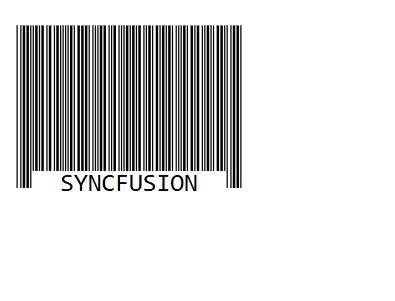
Code 11
Code 11 is used primarily for labeling telecommunications equipment. The character set includes digits 0 to 9, a dash (-), and start/stop codes.
@using Syncfusion.Blazor.BarcodeGenerator

<SfBarcodeGenerator Width="200px" Height="150px" Type="@BarcodeType.Code11" Value="112"></SfBarcodeGenerator>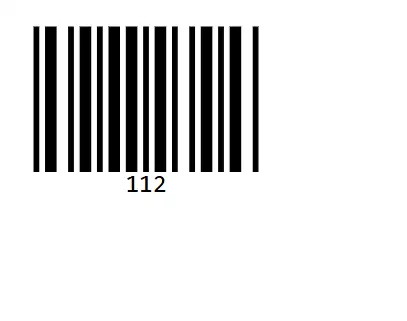
Codabar
Codabar is a variable-length symbol that encodes the following 20 characters:
0123456789-$:/.+ABCD
The characters A, B, C, and D serve as start and stop characters. Codabar is used in libraries, blood banks, the package delivery industry and a variety of other information processing applications.
@using Syncfusion.Blazor.BarcodeGenerator

<SfBarcodeGenerator Width="200px" Height="150px" Type="@BarcodeType.Codabar" Value="123456789"></SfBarcodeGenerator>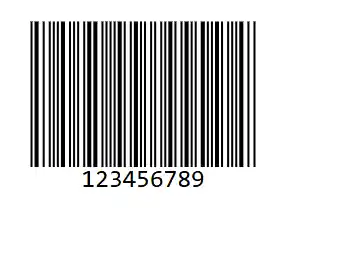
Code 32
Code 32 is used mainly for coding pharmaceuticals, cosmetics, and dietetics. It is often to encode the Italian Pharmacode that has the following structure:
- ‘A’ character (ASCII 65), that is not really encoded.
- 8 digits for the Pharmacode (It generally begins with / and prefixed with 0).
- 1 digit for checksum module 10, that is automatically calculated by the barcode.
The value to be encoded must be 8 digits Pharmacode (prefix it with ‘0’ if necessary), and the 9th digit (the checksum) is automatically calculated by barcode.
@using Syncfusion.Blazor.BarcodeGenerator

<SfBarcodeGenerator Width="200px" Height="150px" Type="@BarcodeType.Code32" Value="01234567"></SfBarcodeGenerator>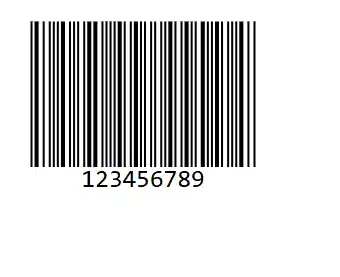
Code 93
Code 93 is designed to complement and improve Code 39. It represents the entire ASCII character set through combinations of two characters. Code 93 is a continuous, variable-length symbology and produces denser code. The Standard Mode (default implementation) can encode uppercase letters (A-Z), digits (0-9), and special characters like *, -, $, %, (Space), ., /, and +.
@using Syncfusion.Blazor.BarcodeGenerator

<SfBarcodeGenerator Width="200px" Height="150px" Type="@BarcodeType.Code93" Value="01234567"></SfBarcodeGenerator>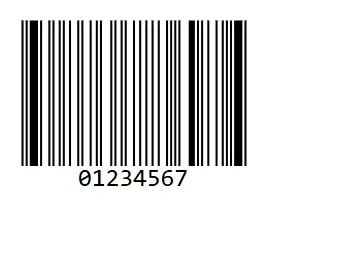
Code 93 Extended
Code 93 Extended Barcode symbology is a continuous, variable length, self-checking. It is based on Code 93 Barcode. The Extended Version can encode all 128 ASCII characters.
Code 128
Code 128 is a variable-length, high-density, alphanumeric, linear bar code symbology capable of encoding full 128-character ASCII character set and extended character sets. This symbology includes a checksum digit for verification and the barcode can be verified character-by-character by verifying the parity of each data byte.
Code 128 Code Sets
- Code Set A (or Chars Set A) includes all of the standard upper case U.S. alphanumeric keyboard characters and punctuation characters along with the control characters, (namely, characters with ASCII values from 0 to 95 inclusive), and seven special characters.
- Code Set B (or Chars Set B) includes all of the standard upper case alphanumeric keyboard characters and punctuation characters along with the lower case alphabetic characters (namely, characters with ASCII values from 32 to 127 inclusive), and seven special characters.
- Code Set C (or Chars Set C) includes the set of 100 digit pairs from 00 to 99 inclusive along with three special characters. This allows numeric data to be encoded as two data digits per symbol character, at effectively twice the density of standard data.
Code 128 Special characters
The last seven characters of Code Sets A and B (character values 96-102) and the last three characters of Code Set C (character values 100-102) are special non-data characters with no ASCII character equivalents that have a particular significance to the Barcode reading device.
@using Syncfusion.Blazor.BarcodeGenerator

<SfBarcodeGenerator Width="200px" Height="150px" Type="@BarcodeType.Code128" Value="SYNCFUSION"></SfBarcodeGenerator>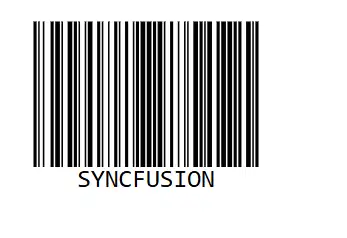
EAN-8
EAN-8 is a linear barcode symbology used to encode 8-digit Global Trade Item Numbers (GTIN) for product identification. It is primarily designed for small retail packages where space is limited. The EAN-8 barcode supports only numeric characters, using the digits 0-9.
@using Syncfusion.Blazor.BarcodeGenerator

<SfBarcodeGenerator Width="200px" Height="150px" Type="@BarcodeType.Ean8" Value="11223344"></SfBarcodeGenerator>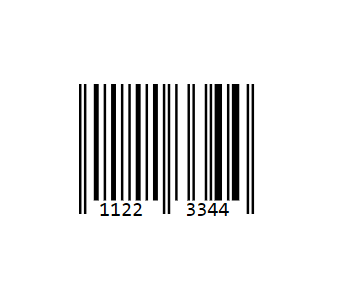
EAN-13
EAN-13 is a widely used barcode symbology for retail product identification. It encodes 13-digit Global Trade Item Numbers (GTIN) in a standardized format. The 13 digits typically consist of a GS1 prefix, company prefix, product reference number, and a Modulo-10 check digit used for data validation. The EAN-13 barcode supports only numeric characters, encoding digits(0-9).
@using Syncfusion.Blazor.BarcodeGenerator

<SfBarcodeGenerator Width="200px" Height="150px" Type="@BarcodeType.Ean13" Value="012345678901"></SfBarcodeGenerator>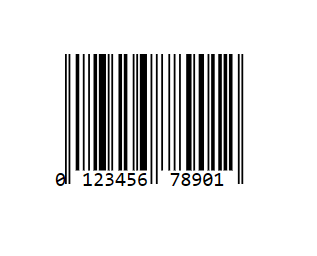
UPC-A
UPC-A (Universal Product Code - Version A) is a barcode symbology used for retail product identification at the point of sale. It encodes 12 digits in a standardized structure: a 1-digit number system designator, a 5-digit manufacturer identifier, a 5-digit product code, and a 1-digit check digit. The UPC-A character set consists exclusively of numeric digits (0–9).
The EnableCheckSum property specifies whether an error detection mechanism is applied by adding additional characters to the barcode to protect the integrity of barcode data. By default, this property is set to true.
@using Syncfusion.Blazor.BarcodeGenerator

<SfBarcodeGenerator Width="200px" Height="150px" Type="@BarcodeType.UpcA" Value="01234567890" EnableCheckSum="true"></SfBarcodeGenerator>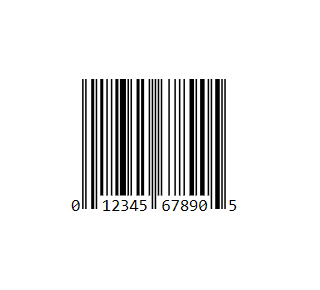
UPC-E
UPC-E (Universal Product Code - Version E) is a compressed representation of the UPC-A barcode designed for applications where label space is constrained. It encodes 6 digits that are automatically expanded to their full UPC-A equivalent during scanning. The UPC-E character set consists exclusively of numeric digits (0–9). UPC-E is used in applications requiring compact barcode labels where full UPC-A dimensions are impractical.
@using Syncfusion.Blazor.BarcodeGenerator

<SfBarcodeGenerator Width="200px" Height="150px" Type="@BarcodeType.UpcE" Value="123456"></SfBarcodeGenerator>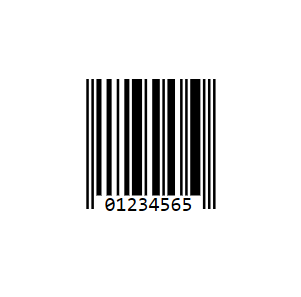
Barcode Customizations
The Barcode Generator component provides various customization options to modify the appearance and behavior of barcodes. This section covers all the available properties that can be used to customize barcodes.
Barcode Color Customization
The barcode appearance can be customized by changing the colors. The component provides two main color properties:
Foreground Color
The ForeColor property specifies the line and text color of the barcode. By default, it is set to black.
@using Syncfusion.Blazor.BarcodeGenerator

<SfBarcodeGenerator Width="200px" Height="150px" Type="@BarcodeType.Code128" ForeColor="red" Value="SYNCFUSION"></SfBarcodeGenerator>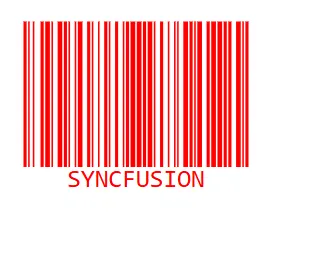
Background Color
The BackgroundColor property specifies the background color of the barcode. By default, it is set to white. This is useful when you need to match the barcode with the surrounding environment or create custom designs.
@using Syncfusion.Blazor.BarcodeGenerator

<SfBarcodeGenerator Width="200px" Height="150px" Type="@BarcodeType.Code128" BackgroundColor="lightyellow" ForeColor="darkblue" Value="SYNCFUSION"></SfBarcodeGenerator>Barcode Dimension Customization
The dimensions of the barcode can be adjusted using the Height and Width properties. Both properties accept string values with units (px, %, em, etc.). By default, both are set to 100%.
@using Syncfusion.Blazor.BarcodeGenerator

<SfBarcodeGenerator Width="300px" Height="300px" Type="@BarcodeType.Code128" Value="SYNCFUSION"></SfBarcodeGenerator>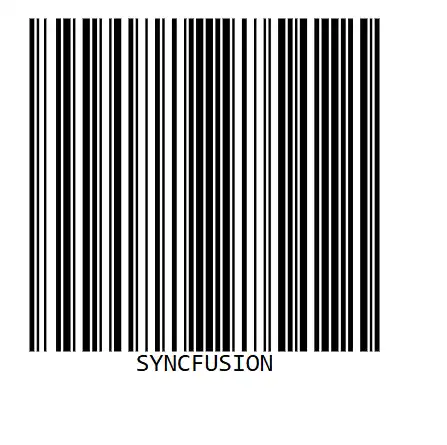
Margin Customization
The Margin property specifies the space to be left around the barcode. It accepts a BarcodeMargin object with the following properties:
| Property | Description | Default Value |
|---|---|---|
Left |
Space from the left side | 10 |
Right |
Space from the right side | 10 |
Top |
Space from the top side | 10 |
Bottom |
Space from the bottom side | 10 |
All properties accept double values representing pixels.
@using Syncfusion.Blazor.BarcodeGenerator

<SfBarcodeGenerator Width="300px" Height="200px" Type="@BarcodeType.Code128" Value="SYNCFUSION">
     <BarcodeMargin Left="20" Top="20" Right="20" Bottom="20"></BarcodeMargin>
</SfBarcodeGenerator>Display Text Customization
The barcode display text can be fully customized using the DisplayText property. The BarcodeGeneratorDisplayText component provides the following properties:
Text Content
The Text property specifies the textual description to display with the barcode. By default, it is an empty string.
@using Syncfusion.Blazor.BarcodeGenerator

<SfBarcodeGenerator Width="300px" Height="300px" Type="@BarcodeType.Code128" Value="SYNCFUSION">
     <BarcodeGeneratorDisplayText Text="Text"></BarcodeGeneratorDisplayText>
</SfBarcodeGenerator>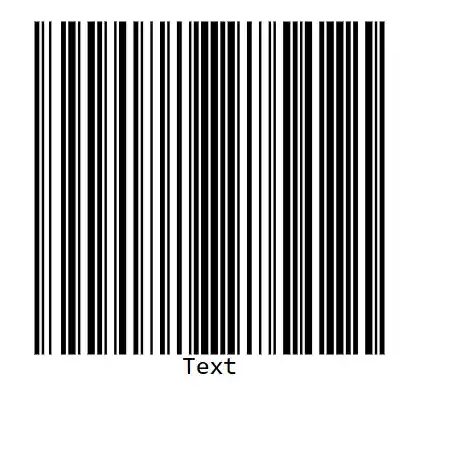
Font Configuration
The Font property specifies the font style of the display text. By default, it is set to monospace.
@using Syncfusion.Blazor.BarcodeGenerator

<SfBarcodeGenerator Width="300px" Height="200px" Type="@BarcodeType.Code128" Value="SYNCFUSION">
     <BarcodeGeneratorDisplayText Text="Product Code" Font="Arial"></BarcodeGeneratorDisplayText>
</SfBarcodeGenerator>Text Size
The Size property specifies the size of the display text. By default, it is set to 20 pixels.
@using Syncfusion.Blazor.BarcodeGenerator

<SfBarcodeGenerator Width="300px" Height="200px" Type="@BarcodeType.Code128" Value="SYNCFUSION">
     <BarcodeGeneratorDisplayText Text="Product Code" Size="25"></BarcodeGeneratorDisplayText>
</SfBarcodeGenerator>Text Alignment
The Alignment property specifies the horizontal alignment of the text. It accepts the following values: Left, Center, or Right. By default, it is set to Center.
@using Syncfusion.Blazor.BarcodeGenerator

<SfBarcodeGenerator Width="300px" Height="200px" Type="@BarcodeType.Code128" Value="SYNCFUSION">
     <BarcodeGeneratorDisplayText Text="Product Code" Alignment="Alignment.Left"></BarcodeGeneratorDisplayText>
</SfBarcodeGenerator>Text Position
The Position property specifies the vertical position of the text relative to the barcode. It accepts Top or Bottom. By default, it is set to Bottom.
@using Syncfusion.Blazor.BarcodeGenerator

<SfBarcodeGenerator Width="300px" Height="200px" Type="@BarcodeType.Code128" Value="SYNCFUSION">
     <BarcodeGeneratorDisplayText Text="Product Code" Position="TextPosition.Top"></BarcodeGeneratorDisplayText>
</SfBarcodeGenerator>Text Visibility
The Visibility property controls the visibility of the display text. By default, it is set to true. Set it to false to hide the text.
@using Syncfusion.Blazor.BarcodeGenerator

<SfBarcodeGenerator Width="200px" Height="150px" Type="@BarcodeType.Code128" Value="SYNCFUSION">
     <BarcodeGeneratorDisplayText Visibility="false"></BarcodeGeneratorDisplayText>
</SfBarcodeGenerator>Text Margin
The Margin property specifies the space between the text and the barcode. It accepts a BarcodeTextMargin object with the following properties:
| Property | Description | Default Value |
|---|---|---|
Left |
Space from the left side | 0 |
Right |
Space from the right side | 0 |
Top |
Space from the top side | 0 |
Bottom |
Space from the bottom side | 0 |
@using Syncfusion.Blazor.BarcodeGenerator

<SfBarcodeGenerator Width="300px" Height="200px" Type="@BarcodeType.Code128" Value="SYNCFUSION">
     <BarcodeGeneratorDisplayText Text="Product Code">
          <BarcodeTextMargin Left="0" Top="10" Right="0" Bottom="10"></BarcodeTextMargin>
     </BarcodeGeneratorDisplayText>
</SfBarcodeGenerator>Dynamic Property Updates
The Barcode Generator supports dynamic updates to barcode properties at runtime. When a property value is modified, the barcode is automatically refreshed to display the latest changes. This enables interactive customization of the barcode appearance and content.
Update Barcode Properties Dynamically
The Barcode Generator supports updating barcode properties at runtime. Changes to properties such as the barcode value, dimensions, colors, and display text are automatically reflected in the generated barcode. This enables interactive barcode customization without requiring the component to be recreated or the page to be reloaded.
The following example demonstrates how to dynamically update barcode properties.
@using Syncfusion.Blazor.BarcodeGenerator
@using Syncfusion.Blazor.Inputs

<div style="margin: 20px;">
    <div style="margin-bottom: 10px;">
        <label>Barcode Value: </label>
        <SfTextBox @bind-Value="@BarcodeValue" Placeholder="Enter barcode value"></SfTextBox>
    </div>

    <div style="margin-bottom: 10px;">
        <label>Foreground Color: </label>
        <input type="color" @bind="@ForeColor" />
    </div>

    <div style="margin-bottom: 10px;">
        <label>Background Color: </label>
        <input type="color" @bind="@BackgroundColor" />
    </div>

    <div style="margin-bottom: 10px;">
        <label>Width (px): </label>
        <SfNumericTextBox @bind-Value="@BarWidth" Min="100" Max="500" Step="10"></SfNumericTextBox>
    </div>

    <div style="margin-bottom: 10px;">
        <label>Height (px): </label>
        <SfNumericTextBox @bind-Value="@BarHeight" Min="100" Max="300" Step="10"></SfNumericTextBox>
    </div>

    <div style="margin-bottom: 10px;">
        <label>Display Text: </label>
        <SfTextBox @bind-Value="@DisplayTextValue" Placeholder="Enter display text"></SfTextBox>
    </div>
</div>

<!-- Barcode that updates in real-time as properties change -->
<div style="margin-top: 30px; padding: 20px; border: 1px solid #ccc;">
    <SfBarcodeGenerator Width="@($"{BarWidth}px")"
                        Height="@($"{BarHeight}px")"
                        Type="@BarcodeType.Code128"
                        Value="@BarcodeValue"
                        ForeColor="@ForeColor"
                        BackgroundColor="@BackgroundColor">
        <BarcodeGeneratorDisplayText Text="@DisplayTextValue" Visibility="@(!string.IsNullOrEmpty(DisplayTextValue))"></BarcodeGeneratorDisplayText>
    </SfBarcodeGenerator>
</div>

@code
{
    private string BarcodeValue = "SYNCFUSION";
    private string ForeColor = "black";
    private string BackgroundColor = "white";
    private double BarWidth = 300;
    private double BarHeight = 150;
    private string DisplayTextValue = "Product Code";
}Change Barcode Type Dynamically
The Barcode Generator allows users to switch between supported barcode types at runtime. When a different barcode type is selected, the component automatically regenerates the barcode using the selected symbology.
The following example demonstrates how to dynamically switch between supported barcode types.
@using Syncfusion.Blazor.BarcodeGenerator
@using Syncfusion.Blazor.DropDowns

<div style="margin: 20px;">
    <label>Select Barcode Type: </label>
    <SfDropDownList TValue="string" TItem="BarcodeTypeItem" DataSource="@BarcodeTypeItems" @bind-Value="@SelectedBarcodeType">
        <DropDownListFieldSettings Text="Text" Value="Value"></DropDownListFieldSettings>
    </SfDropDownList>
</div>

<SfBarcodeGenerator Width="300px"
                    Height="150px"
                    Type="@SelectedBarcodeTypeEnum"
                    Value="@BarcodeValue">
    <BarcodeGeneratorDisplayText Text="Dynamic Type Change"></BarcodeGeneratorDisplayText>
</SfBarcodeGenerator>

@code
{
    private string SelectedBarcodeType = "Code128";
    private BarcodeType SelectedBarcodeTypeEnum
    {
        get => Enum.Parse<BarcodeType>(SelectedBarcodeType);
    }
    private string BarcodeValue = "31117013206375";
    private List<BarcodeTypeItem> BarcodeTypeItems = new()
    {
        new BarcodeTypeItem { Text = "Code128", Value = "Code128" },
        new BarcodeTypeItem { Text = "Code39", Value = "Code39" },
        new BarcodeTypeItem { Text = "Code39 Extended", Value = "Code39Extension" },
        new BarcodeTypeItem { Text = "Code11", Value = "Code11" },
        new BarcodeTypeItem { Text = "Codabar", Value = "Codabar" },
        new BarcodeTypeItem { Text = "Code32", Value = "Code32" },
        new BarcodeTypeItem { Text = "Code93", Value = "Code93" }
    };

    public class BarcodeTypeItem
    {
        public string Text { get; set; }
        public string Value { get; set; }
    }
}Data Validation and Error Detection
Enable Check Sum
The EnableCheckSum property specifies an error detection mechanism in which additional characters are added to a barcode to protect the integrity of barcode data. The default value is true for barcode types that support it, such as BarcodeType.Code39.
When enabled, the barcode will include a check digit that helps verify the barcode data during scanning. Set this property to false if you want to hide the extra characters displayed at the end of the barcode.
<SfBarcodeGenerator EnableCheckSum="false"
                    Width="200px"
                    Height="150px"
                    Type="@BarcodeType.Code39"
                    Value="SYNCFUSION">
</SfBarcodeGenerator>Event
OnValidationFailed event in the SfBarcodeGenerator is used to trigger when the input is invalid string.
@using Syncfusion.Blazor.BarcodeGenerator
<SfBarcodeGenerator Width="200px" Height="150px" Type="@BarcodeType.Code128" Value="SYNCFUSION" OnValidationFailed="@OnValidationFailed"></SfBarcodeGenerator>

@code
{
    public void OnValidationFailed(ValidationFailedEventArgs args)
    {
    }
}