Axis in ASP.NET Core Linear Gauge
Axis is used to indicate the numeric values in the linear scale. The Linear Gauge component can have any number of axes. The sub-elements of an axis are line, ticks, labels, ranges, and pointers.
Setting the start value and end value of the axis
The start value and end value for the Linear Gauge can be set using the Minimum and Maximum properties in the e-lineargauge-axis respectively. By default, the start value of the axis is 0 and the end value of the axis is 100.
@using Syncfusion.EJ2.LinearGauge

<ejs-lineargauge id="linear">
    <e-lineargauge-axes>
        <e-lineargauge-axis Minimum="20" Maximum="200"></e-lineargauge-axis>
    </e-lineargauge-axes>
</ejs-lineargauge>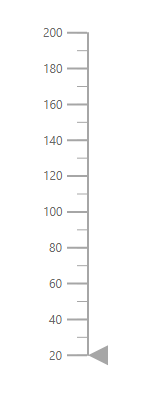
Line Customization
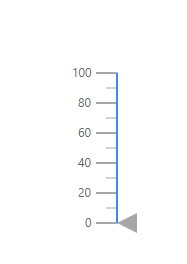
The following properties in the e-axis-line can be used to customize the axis line in the Linear Gauge.
-
Height- To set the length of the axis line. -
Width- To set the thickness of the axis line. -
Color- To set the color of the axis line. -
Offset- To render the axis line with the specified distance from the Linear Gauge.
@using Syncfusion.EJ2.LinearGauge

<ejs-lineargauge id="linear">
    <e-lineargauge-axes>
        <e-lineargauge-axis>
            <e-axis-line Height="150" Width="2" Color="#4286f4" Offset="2"></e-axis-line>
        </e-lineargauge-axis>
    </e-lineargauge-axes>
</ejs-lineargauge>
using System;
using System.Collections.Generic;
using System.Diagnostics;
using System.Linq;
using System.Threading.Tasks;
using Microsoft.AspNetCore.Mvc;
using EJ2_Core_Application.Models;
using Newtonsoft.Json;
using Syncfusion.EJ2.Charts;
using Syncfusion.EJ2.LinearGauge;
namespace EJ2_Core_Application.Controllers
{
public class HomeController : Controller
{
public IActionResult Index()
{
return View();
}
}
}
Ticks Customization
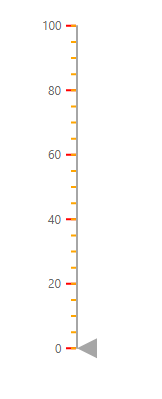
Ticks are used to specify the interval in the axis. Ticks are of two types, major ticks and minor ticks. The following properties in the e-axis-majorticks and e-axis-minorTicks can be used to customize the major ticks and minor ticks respectively.
-
Height- To set the length of the major and minor ticks in pixel values. -
Color- To set the color of the major and minor ticks of the Linear Gauge. -
Width- To set the thickness of the major and minor ticks in pixel values. -
Interval- To set the interval for the major ticks and minor ticks in the Linear Gauge.
@using Syncfusion.EJ2.LinearGauge

<ejs-lineargauge id="linear">
    <e-lineargauge-axes>
        <e-lineargauge-axis>
            <e-axis-majorticks Interval="20" Height="10" Width="2" Color="red"></e-axis-majorticks>
            <e-axis-minorticks Interval="5" Height="5" Width="2" Color="orange"></e-axis-minorticks>
        </e-lineargauge-axis>
    </e-lineargauge-axes>
</ejs-lineargauge>
using System;
using System.Collections.Generic;
using System.Diagnostics;
using System.Linq;
using System.Threading.Tasks;
using Microsoft.AspNetCore.Mvc;
using EJ2_Core_Application.Models;
using Newtonsoft.Json;
using Syncfusion.EJ2.Charts;
using Syncfusion.EJ2.LinearGauge;
namespace EJ2_Core_Application.Controllers
{
public class HomeController : Controller
{
public IActionResult Index()
{
return View();
}
}
}
Positioning the ticks
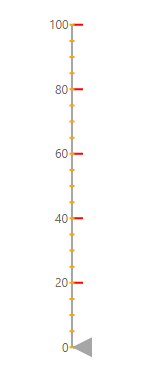
The minor and major ticks can be positioned by using the Offset and Position properties. The Offset is used to render the ticks with the specified distance from the axis. By default, the offset value is 0. The possible values of the Position property are “Inside”, “Outside”, “Cross”, and “Auto”. By default, the ticks will be placed inside the axis.
@using Syncfusion.EJ2.LinearGauge

<ejs-lineargauge id="linear">
    <e-lineargauge-axes>
        <e-lineargauge-axis>
            <e-axis-majorticks Interval="20" Height="10" Width="2" Color="red" Position="Outside"></e-axis-majorticks>
            <e-axis-minorticks Interval="5" Height="5" Width="2" Color="green" Position="Cross"></e-axis-minorticks>
        </e-lineargauge-axis>
    </e-lineargauge-axes>
</ejs-lineargauge>
using Microsoft.AspNetCore.Mvc;
namespace EJ2_Core_Application.Controllers
{
public class HomeController : Controller
{
public IActionResult Index()
{
return View();
}
}
}
Labels Customization
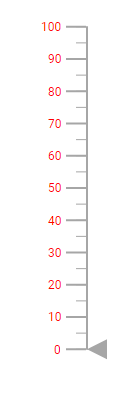
The style of the labels can be customized using the following properties in LinearGaugeFont property in the LinearGaugeLabel.
-
Color- To set the color of the axis label. -
FontFamily- To set the font family of the axis label. -
FontStyle- To set the font style of the axis label. -
FontWeight- To set the font weight of the axis label. -
Opacity- To set the opacity of the axis label. -
Size- To set the size of the axis label.
@{
    var label = new LinearGaugeLabel
    {
        Font = new LinearGaugeFont
        {
            Color = "red",
            Opacity = 1
        }
    };
}

@using Syncfusion.EJ2.LinearGauge

<ejs-lineargauge id="linear">
    <e-lineargauge-axes>
        <e-lineargauge-axis labelStyle="label">
        </e-lineargauge-axis>
    </e-lineargauge-axes>
</ejs-lineargauge>
using System;
using System.Collections.Generic;
using System.Diagnostics;
using System.Linq;
using System.Threading.Tasks;
using Microsoft.AspNetCore.Mvc;
using EJ2_Core_Application.Models;
using Newtonsoft.Json;
using Syncfusion.EJ2.Charts;
using Syncfusion.EJ2.LinearGauge;
namespace EJ2_Core_Application.Controllers
{
public class HomeController : Controller
{
public IActionResult Index()
{
return View();
}
}
}
Positioning the axis label
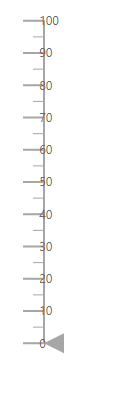
Labels can be positioned by using Offset and Position properties in the LinearGaugeLabel. The Offset defines the distance between the labels and ticks. By default, the offset value is 0. The possible values of the Position property are “Inside”, “Outside”, “Cross”, and “Auto”. By default, the labels will be placed inside the axis.
@using Syncfusion.EJ2.LinearGauge

<ejs-lineargauge id="linear">
    <e-lineargauge-axes>
        <e-lineargauge-axis>
            <e-axis-labelstyle Position="Cross"></e-axis-labelstyle>
        </e-lineargauge-axis>
    </e-lineargauge-axes>
</ejs-lineargauge>
using Microsoft.AspNetCore.Mvc;
namespace EJ2_Core_Application.Controllers
{
public class HomeController : Controller
{
public IActionResult Index()
{
return View();
}
}
}
Customizing the display of the last label
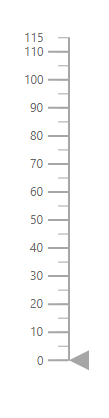
If the last label is not in the visible range, it will be hidden by default. The last label can be made visible by setting the ShowLastLabel property as true in the e-lineargauge-axis.
@using Syncfusion.EJ2.LinearGauge

<ejs-lineargauge id="linear">
    <e-lineargauge-axes>
        <e-lineargauge-axis Minimum="0" Maximum="115" ShowLastLabel="true">
        </e-lineargauge-axis>
    </e-lineargauge-axes>
</ejs-lineargauge>
using System;
using System.Collections.Generic;
using System.Diagnostics;
using System.Linq;
using System.Threading.Tasks;
using Microsoft.AspNetCore.Mvc;
using EJ2_Core_Application.Models;
using Newtonsoft.Json;
using Syncfusion.EJ2.Charts;
using Syncfusion.EJ2.LinearGauge;
namespace EJ2_Core_Application.Controllers
{
public class HomeController : Controller
{
public IActionResult Index()
{
return View();
}
}
}
Label Format
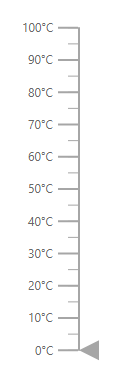
Axis labels in the Linear Gauge control can be formatted using the Format property in LinearGaugeLabel. It is used to render the axis labels in a certain format or to add a user-defined unit in the label. It works with the help of placeholder like {value}°C, where value represents the axis value. For example, 20°C.
@using Syncfusion.EJ2.LinearGauge

<ejs-lineargauge id="linear">
    <e-lineargauge-axes>
        <e-lineargauge-axis>
            <e-axis-labelstyle Format="{value}°C"></e-axis-labelstyle>
        </e-lineargauge-axis>
    </e-lineargauge-axes>
</ejs-lineargauge>
using System;
using System.Collections.Generic;
using System.Diagnostics;
using System.Linq;
using System.Threading.Tasks;
using Microsoft.AspNetCore.Mvc;
using EJ2_Core_Application.Models;
using Newtonsoft.Json;
using Syncfusion.EJ2.Charts;
using Syncfusion.EJ2.LinearGauge;
namespace EJ2_Core_Application.Controllers
{
public class HomeController : Controller
{
public IActionResult Index()
{
return View();
}
}
}
Displaying numeric format in labels
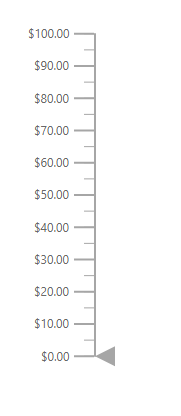
The numeric formats such as currency, percentage, and so on can be displayed in the labels of the Linear Gauge using the Format property in the Linear Gauge. The following table describes the result of applying some commonly used label formats on numeric values.
| Label Value | Label Format property value | Result | Description |
| 1000 | n1 | 1000.0 | The number is rounded to 1 decimal place. |
| 1000 | n2 | 1000.00 | The number is rounded to 2 decimal place. |
| 1000 | n3 | 1000.000 | The number is rounded to 3 decimal place. |
| 0.01 | p1 | 1.0% | The number is converted to percentage with 1 decimal place. |
| 0.01 | p2 | 1.00% | The number is converted to percentage with 2 decimal place. |
| 0.01 | p3 | 1.000% | The number is converted to percentage with 3 decimal place |
| 1000 | c1 | $1,000.0 | The currency symbol is appended to number and number is rounded to 1 decimal place. |
| 1000 | c2 | $1,000.00 | The currency symbol is appended to number and number is rounded to 2 decimal place. |
@using Syncfusion.EJ2.LinearGauge

<ejs-lineargauge id="linear" Format="c">
    <e-lineargauge-axes>
        <e-lineargauge-axis>
        </e-lineargauge-axis>
    </e-lineargauge-axes>
</ejs-lineargauge>
using System;
using System.Collections.Generic;
using System.Diagnostics;
using System.Linq;
using System.Threading.Tasks;
using Microsoft.AspNetCore.Mvc;
using EJ2_Core_Application.Models;
using Newtonsoft.Json;
using Syncfusion.EJ2.Charts;
using Syncfusion.EJ2.LinearGauge;
namespace EJ2_Core_Application.Controllers
{
public class HomeController : Controller
{
public IActionResult Index()
{
return View();
}
}
}
Orientation
By default, the Linear Gauge is rendered vertically. To change its orientation, the Orientation property must be set to Horizontal.
@using Syncfusion.EJ2;
<ejs-lineargauge id="linear" Orientation="Horizontal">
     <e-lineargauge-axes>
        <e-lineargauge-axis Minimum="20" Maximum="140">
        </e-lineargauge-axis>
    </e-lineargauge-axes>
</ejs-lineargauge>
using System;
using System.Collections.Generic;
using System.Diagnostics;
using System.Linq;
using System.Threading.Tasks;
using Microsoft.AspNetCore.Mvc;
using EJ2_Core_Application.Models;
using Newtonsoft.Json;
using Syncfusion.EJ2.Charts;
using Syncfusion.EJ2.LinearGauge;
namespace EJ2_Core_Application.Controllers
{
public class HomeController : Controller
{
public IActionResult Index()
{
return View();
}
}
}
Inverted Axis
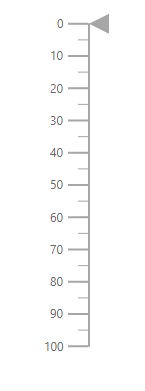
The axis of the Linear Gauge component can be inversed by setting the IsInversed property to true in the e-lineargauge-axis.
@using Syncfusion.EJ2;

<ejs-lineargauge id="linear">
    <e-lineargauge-axes>
        <e-lineargauge-axis IsInversed="true"></e-lineargauge-axis>
    </e-lineargauge-axes>
</ejs-lineargauge>
using System;
using System.Collections.Generic;
using System.Diagnostics;
using System.Linq;
using System.Threading.Tasks;
using Microsoft.AspNetCore.Mvc;
using EJ2_Core_Application.Models;
using Newtonsoft.Json;
using Syncfusion.EJ2.Charts;
using Syncfusion.EJ2.LinearGauge;
namespace EJ2_Core_Application.Controllers
{
public class HomeController : Controller
{
public IActionResult Index()
{
return View();
}
}
}
Opposed Axis
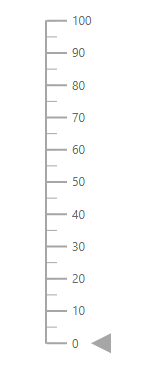
To place an axis opposite from its original position, OpposedPosition property in the e-lineargauge-axis must be set as true.
@using Syncfusion.EJ2;

<ejs-lineargauge id="linear">
    <e-lineargauge-axes>
        <e-lineargauge-axis OpposedPosition="true"></e-lineargauge-axis>
    </e-lineargauge-axes>
</ejs-lineargauge>
using System;
using System.Collections.Generic;
using System.Diagnostics;
using System.Linq;
using System.Threading.Tasks;
using Microsoft.AspNetCore.Mvc;
using EJ2_Core_Application.Models;
using Newtonsoft.Json;
using Syncfusion.EJ2.Charts;
using Syncfusion.EJ2.LinearGauge;
namespace EJ2_Core_Application.Controllers
{
public class HomeController : Controller
{
public IActionResult Index()
{
return View();
}
}
}
Multiple Axes
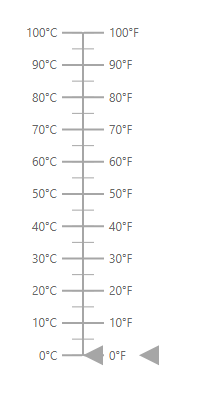
Multiple axes can be added to the Linear Gauge by adding multiple e-lineargauge-axis in the e-lineargauge-axes and customization can be done with the e-lineargauge-axis. Each axis can be customized separately as shown in the following example.
@using Syncfusion.EJ2.LinearGauge

<ejs-lineargauge id="linear">
    <e-lineargauge-axes>
        <e-lineargauge-axis>
            <e-axis-labelstyle Format="{value}°C"></e-axis-labelstyle>
        </e-lineargauge-axis>
        <e-lineargauge-axis OpposedPosition="true">
            <e-axis-labelstyle Format="{value}°F"></e-axis-labelstyle>
        </e-lineargauge-axis>
    </e-lineargauge-axes>
</ejs-lineargauge>
using System;
using System.Collections.Generic;
using System.Diagnostics;
using System.Linq;
using System.Threading.Tasks;
using Microsoft.AspNetCore.Mvc;
using EJ2_Core_Application.Models;
using Newtonsoft.Json;
using Syncfusion.EJ2.Charts;
using Syncfusion.EJ2.LinearGauge;
namespace EJ2_Core_Application.Controllers
{
public class HomeController : Controller
{
public IActionResult Index()
{
return View();
}
}
}