Getting Started
14 Dec 20178 minutes to read
This section explains briefly about how to create a PercentageTextbox control in your application with Angular.
Create PercentageTextbox in Angular Application using Web pack
To quick start with Syncfusion JavaScript Angular components run the below commands to clone the repository for Web pack starter and installing required dependency packages.
> git clone https://github.com/syncfusion/angular2-seeds

 > cd angular2-seeds

 > npm install
The below steps describes to add percentagetextbox component with above cloned seed application.
Syncfusion JavaScript components source configuration and sample creation
- Copy required Syncfusion Angular source component(s) from the below build location and add it in
src/app/ejfolder.
(Installed Location)\Syncfusion\Essential Studio\14.3.0.49\JavaScript\assets-src\angular2\NOTE
core.tsfile is mandatory for all Syncfusion JavaScript Angular components. The repository having the source file from Essential Studio for JavaScript v14.3.0.49.
-
Create
percentagetextboxfolder insidesrc/appfolder. -
Create
percentagetextbox.component.htmlview file insidesrc/app/percentagetextboxfolder and render ejPercentageTextbox Angular component using the below code example.
<input id="percent" type="text" ej-percentagetextbox value="20" width="250px" />- Create
percentagetextbox.component.tsmodel file inside the foldersrc/app/percentagetextboxand create percentagetextbox sample component using the below code example.
import { Component, ViewEncapsulation } from '@angular/core';

@Component({
  selector: 'ej-app',
  templateUrl: './percentagetextbox.component.html'
})
export class PercentageTextboxComponent { }
Configure the routes for the Router
Before adding router configuration for above created ejPercentageTextbox component, we recommend you to go through the Angular Routing configuration to get the deeper knowledge about Angular routing.
- Now, we are going to configure the route navigation link for created PercentageTextbox sample in
src/app/app.component.htmlfile.
<div>
	<ul class="nav navbar-nav">
		. . . .
	<li><a data-toggle="collapse" data-target="#skeleton-navigation-navbar-collapse.in"
    href="#percentagetextbox" [routerLink]="['/percentagetextbox']">PercentageTextbox </a></li>
	</ul>
</div>
<main>
	<router-outlet></router-outlet>
</main>- Import the ejPercentageTextbox sample component and define the route in
src/app/app.routes.tsfile.
import { Routes } from '@angular/router';
. . . .
import { PercentageTextboxComponent } from './percentagetextbox/percentagetextbox.component';

export const rootRouterConfig: Routes = [
    { path: '', redirectTo: 'home', pathMatch: 'full' },
    . . . .
    { path: 'percentagetextbox', component: PercentageTextboxComponent }
];- Import and declare the Syncfusion source component and ejPercentageTextbox sample component into
app.module.tslike the below code snippet.
import { NgModule, enableProdMode, ErrorHandler } from '@angular/core';
. . . . .
import { EJAngular2Module } from 'ej-angular2';
import { AppComponent } from './app.component';
import { PercentageTextboxComponent } from './percentagetextbox/percentagetextbox.component';

import { rootRouterConfig } from './app.routes';
. . . .
@NgModule({
  imports: [BrowserModule, FormsModule, HttpModule, EJAngular2Module.forRoot(),
  RouterModule.forRoot(rootRouterConfig, { useHash: true })],
  declarations: [. . . . , PercentageTextboxComponent],
  bootstrap: [AppComponent]
})
export class AppModule { }
Running the application
- To run the application, execute below command.
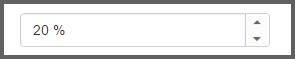
npm start- Browse to http://localhost:3000 to see the application. And navigate to PercentageTextbox tab. The component is rendered as like the below screenshot. You can make changes in the code found under src folder and the browser should auto-refresh itself while you save files.
NOTE
if you want to use other port, open
package.jsonfile, then change port in--port 3000script and also change the port inconfig/webpack.dev.js.
Create PercentageTextbox in Angular Application using SystemJS
To quick start with Syncfusion JavaScript Angular components run the below commands to clone the repository for SystemJS starter and installing required dependency packages.
> git clone https://github.com/syncfusion/angular2-seeds/ -b systemjs

 > cd angular2-seeds

 > npm install
The below steps describes to add percentagetextbox component with above cloned seed application.
Syncfusion JavaScript components source configuration and sample creation
- Copy required Syncfusion Angular source component(s) from the below build location and add it in
src/ejfolder.
(Installed Location)\Syncfusion\Essential Studio\14.3.0.49\JavaScript\assets-src\angular2\NOTE
core.tsfile is mandatory for all Syncfusion JavaScript Angular components. The repository having the source file from Essential Studio for JavaScript v14.3.0.49.
-
Create
percentagetextboxfolder insidesrcfolder. -
Create
percentagetextbox.component.htmlview file insidesrc/percentagetextboxfolder and render ejPercentageTextbox Angular component using the below code example.
<input id="percent" type="text" ej-percentagetextbox value="20" width="250px" />- Create
percentagetextbox.component.tsmodel file inside the foldersrc/percentagetextboxand create percentagetextbox sample component using the below code example.
import { Component, ViewEncapsulation } from '@angular/core';

@Component({
  selector: 'ej-app',
  templateUrl: 'src/percentagetextbox/percentagetextbox.component.html'
})
export class PercentageTextboxComponent { }
Configure the routes for the Router
Before adding router configuration for above created ejPercentageTextbox component, we recommend you to go through the Angular Routing configuration to get the deeper knowledge about Angular routing.
- Now, we are going to configure the route navigation link for created PercentageTextbox sample in
src/app.component.htmlfile.
<div>
	<ul class="nav navbar-nav">
		. . . .
	<li><a data-toggle="collapse" data-target="#skeleton-navigation-navbar-collapse.in"
    href="#percentagetextbox" [routerLink]="['/percentagetextbox']">PercentageTextbox </a></li>
	</ul>
</div>
<main>
	<router-outlet></router-outlet>
</main>- Import the ejPercentageTextbox sample component and define the route in
src/app.routes.tsfile.
import { Routes } from '@angular/router';
. . . .
import { PercentageTextboxComponent } from './percentagetextbox/percentagetextbox.component';

export const rootRouterConfig: Routes = [
    { path: '', redirectTo: 'home', pathMatch: 'full' },
    . . . .
    { path: 'percentagetextbox', component: PercentageTextboxComponent }
];- Import and declare the Syncfusion source component and ejPercentageTextbox sample component into
app.module.tslike the below code snippet.
import { NgModule, enableProdMode, ErrorHandler } from '@angular/core';
. . . . .
import { EJAngular2Module } from 'ej-angular2';
import { AppComponent } from './app.component';
import { PercentageTextboxComponent } from './percentagetextbox/percentagetextbox.component';

import { rootRouterConfig } from './app.routes';
. . . .
@NgModule({
  imports: [BrowserModule, FormsModule, HttpModule, EJAngular2Module.forRoot(),
  RouterModule.forRoot(rootRouterConfig, { useHash: true })],
  declarations: [. . . . , PercentageTextboxComponent],
  bootstrap: [AppComponent]
})
export class AppModule { }
Running the application
- To run the application, execute below command.
npm start- Browse to http://localhost:3000 to see the application. And navigate to PercentageTextbox tab. The component is rendered as like the below screenshot. You can make changes in the code found under src folder and the browser should auto-refresh itself while you save files.