How to install Syncfusion® Windows Forms offline installer
15 Aug 20266 minutes to read
Overview
For the Essential Studio Windows Forms product, Syncfusion offers an Offline Installer. This installer bundles all required files into a single downloadable setup, allowing you to install the product on machines without an active internet connection or in restricted network environments. You can simply download the offline installer and run it on your system to install the Essential Studio products of your choice. You can get the most recent version of the Essential Studio Offline Installer here.
Prerequisites
- You must have a valid licensed or trial unlock key. See How to generate the unlock key.
- Close all running Visual Studio instances before starting the installation.
- The Windows Forms platform requires .NET Framework 4.5 or later on the target machine.
Installing with UI
The steps below show how to install the Essential Studio Windows Forms installer.
-
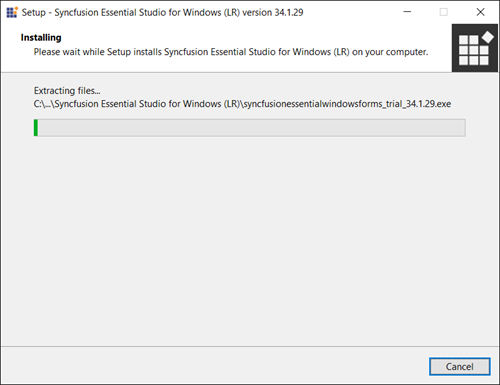
Open the Syncfusion Windows Forms offline installer file from the downloaded location by double-clicking it. The Installer Wizard automatically opens and extracts the package.
NOTE
The Installer Wizard extracts the
syncfusionessentialwindowsforms_{version}.exedialog, which displays the package’s unzip operation. -
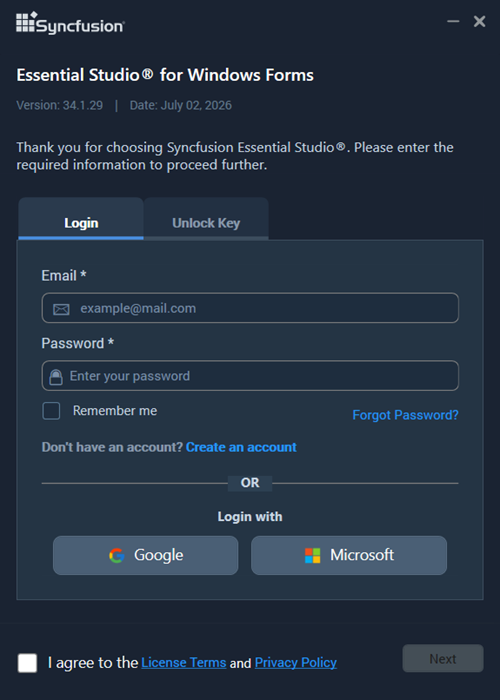
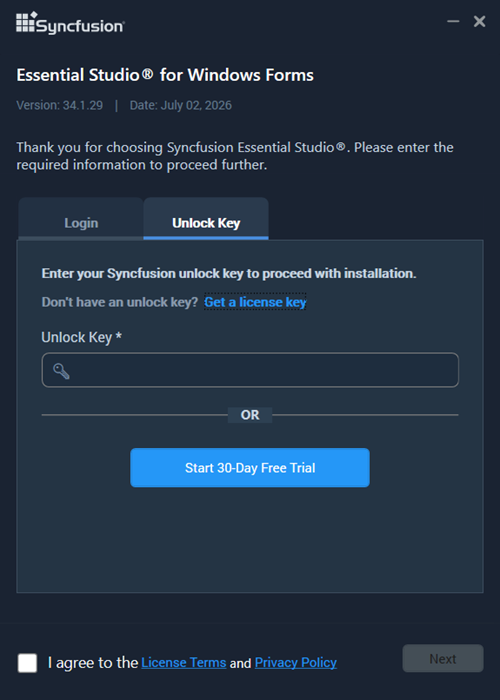
To unlock the Syncfusion offline installer, you have two options:
- Login To Install
- Use Unlock Key
Login To Install
You must enter your Syncfusion email address and password. If you don’t already have a Syncfusion account, you can sign up for one by clicking “Create an account”. If you have forgotten your password, click “Forgot Password” to create a new one. Once you’ve entered your Syncfusion email and password, click Next.
Use Unlock Key
Unlock keys are used to unlock the Syncfusion offline installer, and they are product- and version-specific. You should use either a Syncfusion licensed or trial unlock key to unlock the Syncfusion Windows Forms installer.
The trial unlock key is only valid for 30 days, and the installer will not accept an expired trial key.
To learn how to generate an unlock key for both trial and licensed products, see this Knowledge Base article.
-
After reading the License Terms and Privacy Policy, check the “I agree to the License Terms and Privacy Policy” check box. Click the Next button.
-
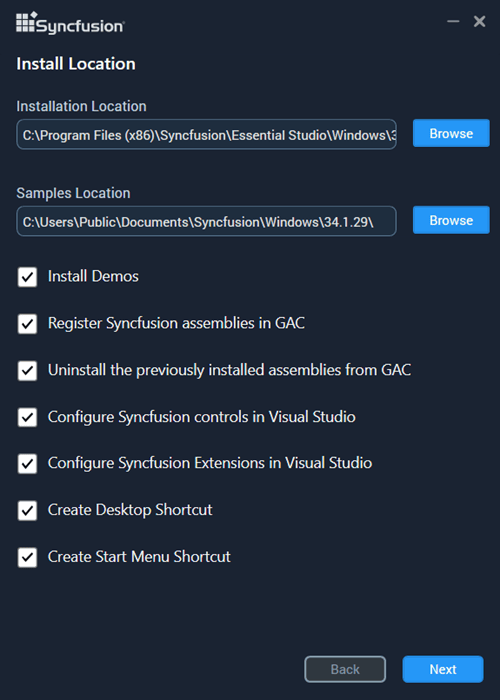
Change the install and sample locations here. You can also change the additional settings. Click Next or Install to install with the default settings.
Additional Settings
- Select the Install Demos check box to install Syncfusion samples, or leave the check box unchecked if you do not want to install Syncfusion samples.
- Select the Register Syncfusion Assemblies in GAC check box to install the latest Syncfusion assemblies in GAC, or clear this check box when you do not want to install the latest assemblies in GAC.
- Select the Configure Syncfusion controls in Visual Studio check box to configure the Syncfusion controls in the Visual Studio toolbox, or clear this check box when you do not want to configure the Syncfusion controls in the Visual Studio toolbox during installation. Note that you must also select the Register Syncfusion assemblies in GAC check box when you select this check box.
- Select the Configure Syncfusion Extensions controls in Visual Studio check box to configure the Syncfusion Extensions in Visual Studio, or clear this check box when you do not want to configure the Syncfusion Extensions in Visual Studio.
- Check the Create Desktop Shortcut check box to add a desktop shortcut for the Syncfusion Control Panel.
- Check the Create Start Menu Shortcut check box to add a shortcut to the start menu for the Syncfusion Control Panel.
-
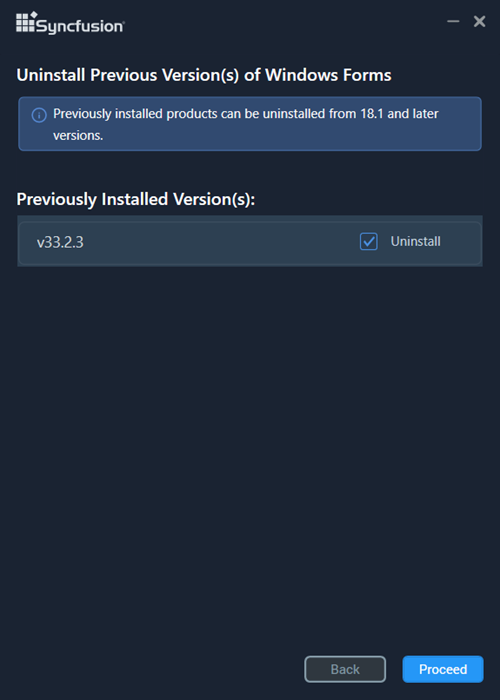
If any previous versions of the current product are installed, the Uninstall Previous Version(s) wizard will open. Select the Uninstall check box to uninstall the previous versions, then click the Proceed button.
NOTE
From the 2021 Volume 1 release, Syncfusion has added the option to uninstall previous versions from 18.1 while installing the new version.
NOTE
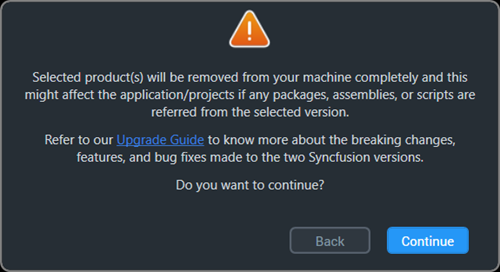
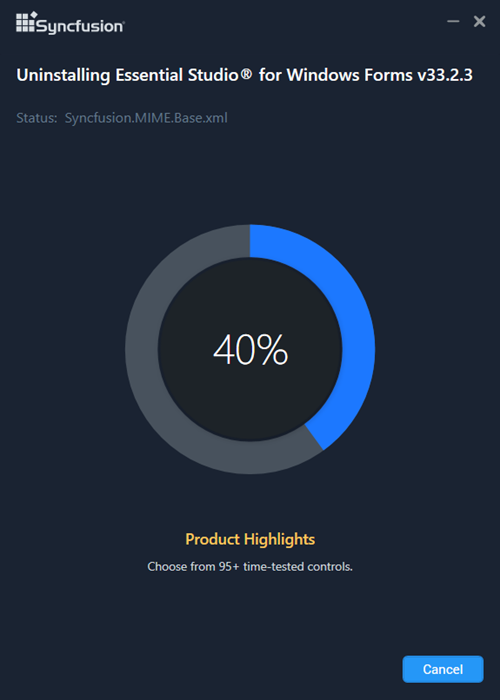
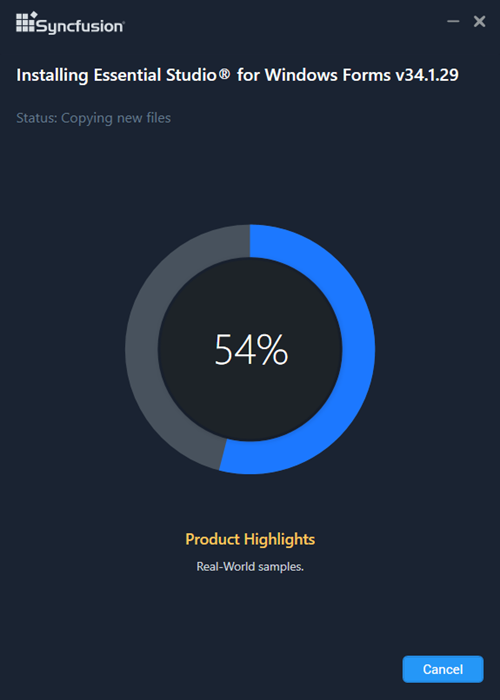
If any version is selected to uninstall, a confirmation screen will appear. If Continue is selected, the Progress screen will display the uninstall and install progress, respectively. If none of the versions are chosen to be uninstalled, only the installation progress will be displayed.
Confirmation Alert
Uninstall Progress:
Install Progress
NOTE
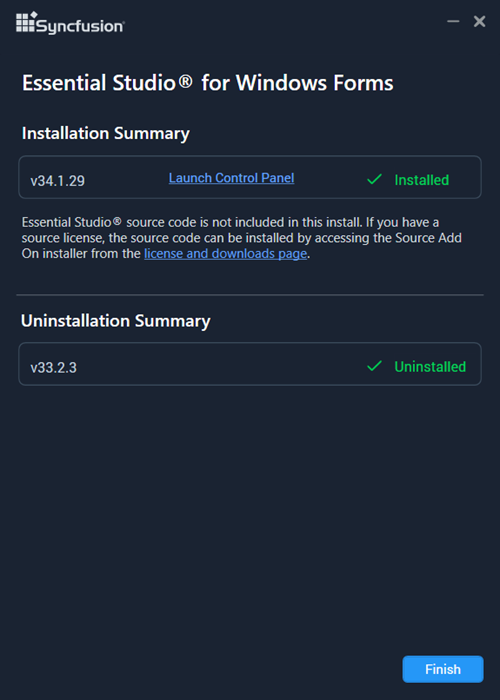
The Completed screen is displayed once the Windows Forms product is installed. If any version is selected to uninstall, the Completed screen will display both install and uninstall status.
-
After installation, click the Launch Control Panel link to open the Syncfusion Control Panel.
-
Click the Finish button. Your system has now been installed with the Syncfusion Essential Studio Windows Forms product.
Installing in silent mode
The Syncfusion Essential Studio Windows Forms Installer supports installation and uninstallation via the command line.
Command line installation
To install through the Command Line in Silent mode, follow the steps below.
- Run the Syncfusion Windows Forms installer by double-clicking it. The Installer Wizard automatically opens and extracts the package.
- The file
syncfusionessentialwindowsforms_{version}.exewill be extracted into the Temp directory. - Run
%temp%. The Temp folder will open. Thesyncfusionessentialwindowsforms_{version}.exefile will be located in one of the folders. - Copy the extracted
syncfusionessentialwindowsforms_{version}.exefile to a local drive. - Exit the Wizard.
-
Run Command Prompt in administrator mode and enter the following arguments.
Arguments:
"installer file path\SyncfusionEssentialStudio(product)_{version}.exe" /Install silent /UNLOCKKEY:"(product unlock key)" [/log "{Log file path}"] [/InstallPath:{Location to install}] [/InstallSamples:{true/false}] [/InstallAssemblies:{true/false}] [/UninstallExistAssemblies:{true/false}] [/InstallToolbox:{true/false}]NOTE
Arguments inside square brackets are optional.
Example:
"D:\Temp\syncfusionessentialwindowsforms_x.x.x.x.exe" /Install silent /UNLOCKKEY:"product unlock key" /log "C:\Temp\EssentialStudio_Platform.log" /InstallPath:C:\Syncfusion\x.x.x.x /InstallSamples:true /InstallAssemblies:true /UninstallExistAssemblies:true /InstallToolbox:true -
Essential Studio for Windows Forms is installed.
NOTE
x.x.x.xshould be replaced with the Essential Studio version, and the Product Unlock Key should be replaced with the Unlock Key for that version.
Command line uninstallation
Syncfusion Essential Windows Forms can be uninstalled silently using the Command Line.
- Run the Syncfusion Windows Forms installer by double-clicking it. The Installer Wizard automatically opens and extracts the package.
- The file
syncfusionessentialwindowsforms_{version}.exewill be extracted into the Temp directory. - Run
%temp%. The Temp folder will open. Thesyncfusionessentialwindowsforms_{version}.exefile will be located in one of the folders. - Copy the extracted
syncfusionessentialwindowsforms_{version}.exefile to a local drive. - Exit the Wizard.
-
Run Command Prompt in administrator mode and enter the following arguments.
Arguments:
"Copied installer file path\syncfusionessentialwindowsforms_{version}.exe" /uninstall silentExample:
"D:\Temp\syncfusionessentialwindowsforms_x.x.x.x.exe" /uninstall silent - Essential Studio for Windows Forms is uninstalled.