Installation Errors in Windows Forms
14 Aug 20264 minutes to read
This article describes the most common installation errors, as well as the causes and solutions to those errors.
- Prerequisites
- Unlocking the license installer using the trial key
- License has expired
- Unable to find a valid license or trial
- Unable to install because of another installation
- Unable to install due to controlled folder access
Prerequisites
- A valid licensed unlock key (obtained from your Syncfusion account) is required to install the licensed edition; trial keys cannot unlock the licensed installer.
- Ensure no other MSI-based installations are running before starting the Syncfusion installer.
Unlocking the license installer using the trial key
Problem
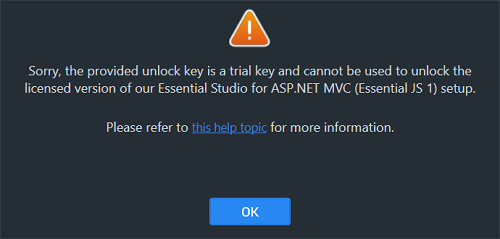
Error Message: Sorry, the provided unlock key is a trial unlock key and cannot be used to unlock the licensed version of our Essential Studio for Windows Forms installer.
Reason
You are attempting to use a Trial unlock key to unlock the licensed installer.
Suggested solution
Only a licensed unlock key can unlock a licensed installer. So, to unlock the licensed installer, use the licensed unlock key. To generate the licensed unlock key, refer to this article.
License has expired
Problem
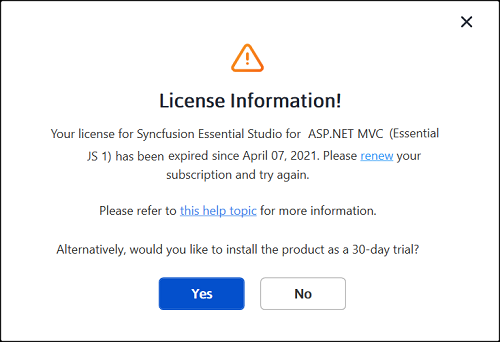
Error Message: Your license for Syncfusion Essential Studio for Windows Forms has been expired since {date}. Please renew your subscription and try again.
NOTE
In the actual dialog, {date} is replaced with the exact expiration date of your license.
Online Installer
Reason
This error message will appear if your license has expired.
Suggested solution
You can choose from the options listed below.
- Renew your subscription here.
- Get a new license here.
- Reach out to our sales team by emailing [email protected].
- Extend the 30-day trial period after your trial license has expired (if eligible).
After renewing, refer to the license key generation instructions to apply the renewed key.
Unable to find a valid license or trial
Problem
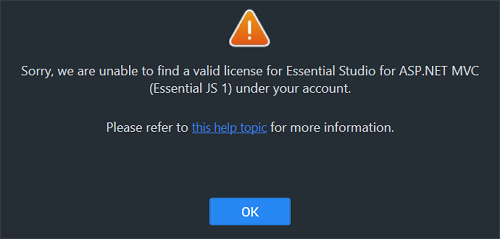
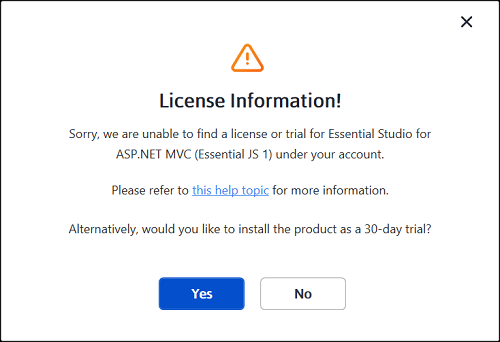
Error Message: Sorry, we are unable to find a valid license or trial for Essential Studio for Windows Forms under your account.
Offline installer
Online installer
Reason
The following are possible causes of this error:
- When your trial period has expired
- When you don’t have a license or an active trial
- You are not the license holder
- Your account administrator has not yet assigned you a license.
Suggested solution
You can choose from the options listed below.
- Get a new license here.
- Contact your account administrator to request an assigned license.
- Send an email to [email protected] to request a license.
- Reach out to our sales team by emailing [email protected].
To view your current license and trial status, sign in to your Syncfusion account.
Unable to install because of another installation
Problem
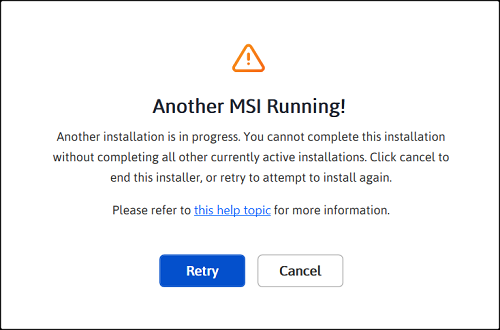
Error Message: Another installation is in progress. You cannot start this installation without completing all other currently active installations. Click cancel to end this installer or retry to attempt after currently active installation completed to install again.
Reason
You are trying to install when another MSI-based installation (for example, a Windows Update, Visual Studio installer, or another Syncfusion installer) is already running on your machine.
Suggested solution
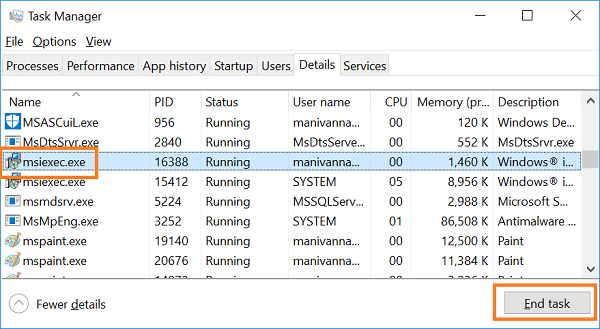
End the conflicting msiexec.exe process in Task Manager, then run the Syncfusion installer again. If the problem persists, restart the computer and try the Syncfusion installer.
-
Open the Windows Task Manager.
-
Switch to the Details tab.
-
Select
msiexec.exeand click End task.
For installation steps, see the web installer or offline installer guide.
Unable to install due to controlled folder access
Problem
Offline
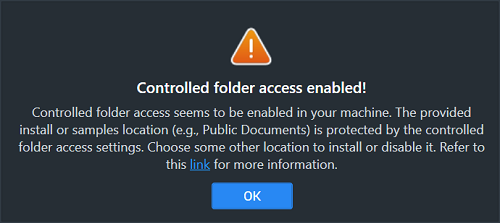
Error Message: Controlled folder access seems to be enabled in your machine. The provided install or samples location (e.g., Public Documents) is protected by the controlled folder access settings.
Online
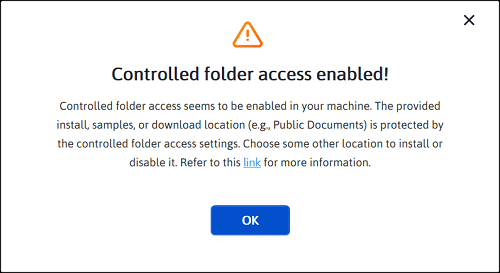
Error Message: Controlled folder access seems to be enabled in your machine. The provided install, samples, or download location (e.g., Public Documents) is protected by the controlled folder access settings.
Reason
Controlled folder access is enabled on your computer.
Suggested solution
Solution 1: Disable controlled folder access, then install to the default Documents folder.
- Verify that Controlled folder access is enabled in Windows Security. Go to Virus & threat protection and ensure that Controlled folder access is turned on.
- Follow the steps in Allow an app to access controlled folders and disable controlled folder access.
- Run the Syncfusion installer. Our demos are installed to the public Documents folder by default.
- After installation is complete, re-enable controlled folder access from the same Windows Security panel.
Solution 2: Install to a different directory without disabling controlled folder access.
- If you do not want to disable controlled folder access, choose a custom install location outside the protected Documents folder (for example,
C:\Syncfusion) when running the installer.