Typing Indicator in Windows Forms AI AssistView
18 Nov 20183 minutes to read
Use the TypingIndicator property to show a typing indicator while the AI is processing or generating a response, giving users real-time feedback and enhancing conversational flow.
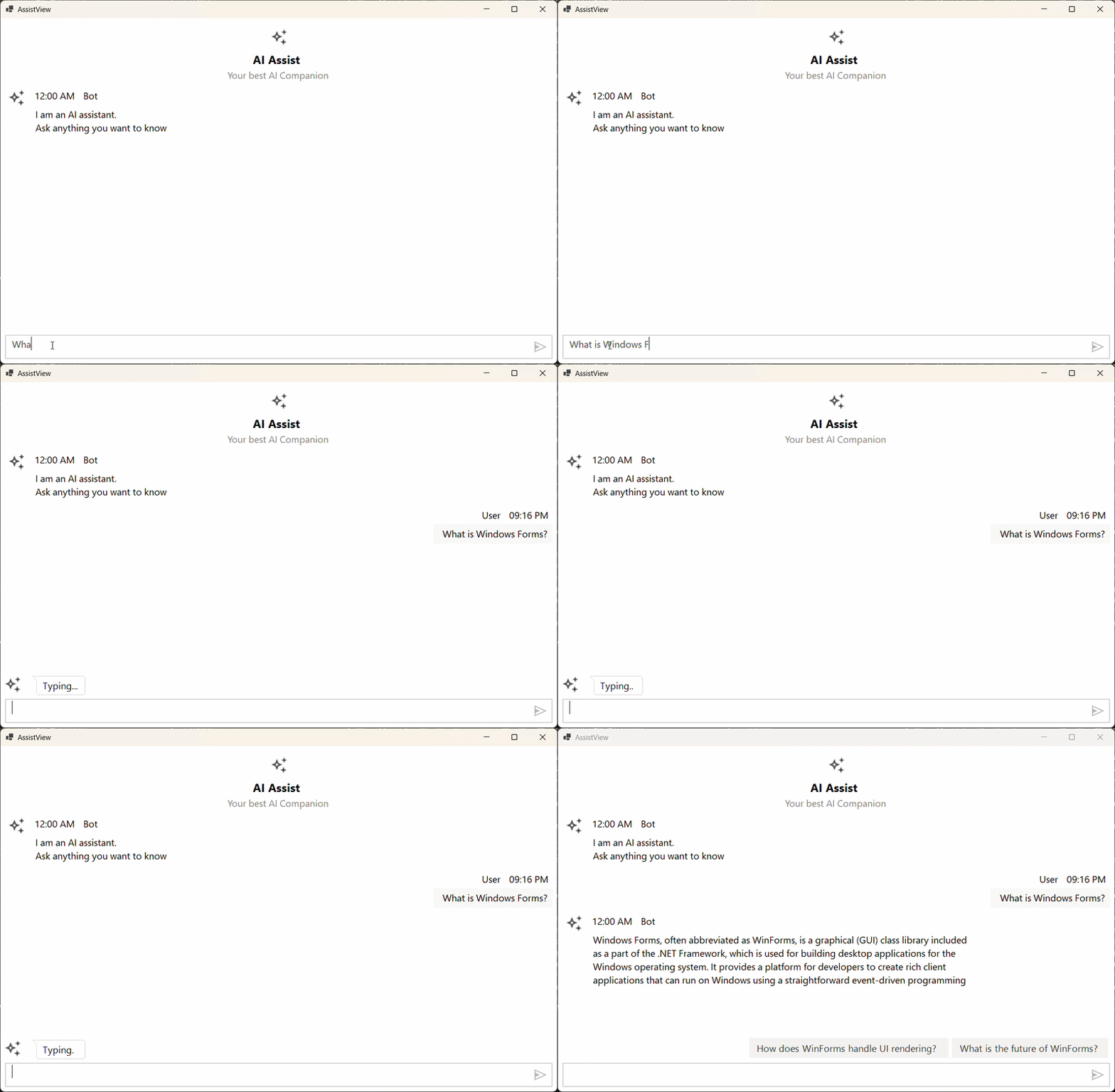
The TypingIndicator shows an animation representing the AI or user typing a message. The indicator is shown when the ShowTypingIndicator property is set to true.
Prerequisites
- Required package: Syncfusion.SfAIAssistView.WinForms NuGet package.
- A
ViewModelwithChats,ShowTypingIndicator, andCurrentUserproperties exists. See Getting Started for setup details. - A bot avatar image is added to the project at
Asset\AI_Assist.png. - The following
usingdirectives are included in your file:
using System.ComponentModel;
using System.Drawing;
using System.Windows.Forms;
using Syncfusion.WinForms.AIAssistView;
Configuring the Typing Indicator
The following example configures the typing indicator’s avatar and display text, and binds the ShowTypingIndicator property to the ViewModel:
public partial class Form1 : Form
{
    ViewModel viewModel;

    public Form1()
    {
        InitializeComponent();
        viewModel = new ViewModel();

        SfAIAssistView sfAIAssistView1 = new SfAIAssistView();
        sfAIAssistView1.Location = new System.Drawing.Point(41, 40);
        sfAIAssistView1.Size = new System.Drawing.Size(818, 457);
        sfAIAssistView1.Dock = DockStyle.Fill;
        this.Controls.Add(sfAIAssistView1);

        sfAIAssistView1.DataBindings.Add("Messages", viewModel, "Chats", true, DataSourceUpdateMode.OnPropertyChanged);
        sfAIAssistView1.DataBindings.Add("ShowTypingIndicator", viewModel, "ShowTypingIndicator", true, DataSourceUpdateMode.OnPropertyChanged);
        sfAIAssistView1.DataBindings.Add("Suggestions", viewModel, "Suggestion", true, DataSourceUpdateMode.OnPropertyChanged);
        viewModel.CurrentUser = sfAIAssistView1.User;

        sfAIAssistView1.TypingIndicator.Author = new Author() { Name = "Bot", AvatarImage = Image.FromFile(@"Asset\AI_Assist.png") };
        sfAIAssistView1.TypingIndicator.DisplayText = "Typing";
    }
}
Troubleshooting
| Issue | Possible Cause | Resolution |
|---|---|---|
| The indicator never appears |
ShowTypingIndicator is not bound, or the bound property is not set to true. |
Ensure ShowTypingIndicator = true is set in the ViewModel and the property is bound. |
FileNotFoundException for AI_Assist.png
|
The bot avatar image is missing from the project. | Add AI_Assist.png to the project’s Asset folder, or update the path. |
| The indicator shows the wrong avatar/name |
TypingIndicator.Author is not set. |
Assign an Author to TypingIndicator.Author before the control is shown. |