Interaction in Flutter Linear Gauge (SfLinearGauge)
18 Nov 201815 minutes to read
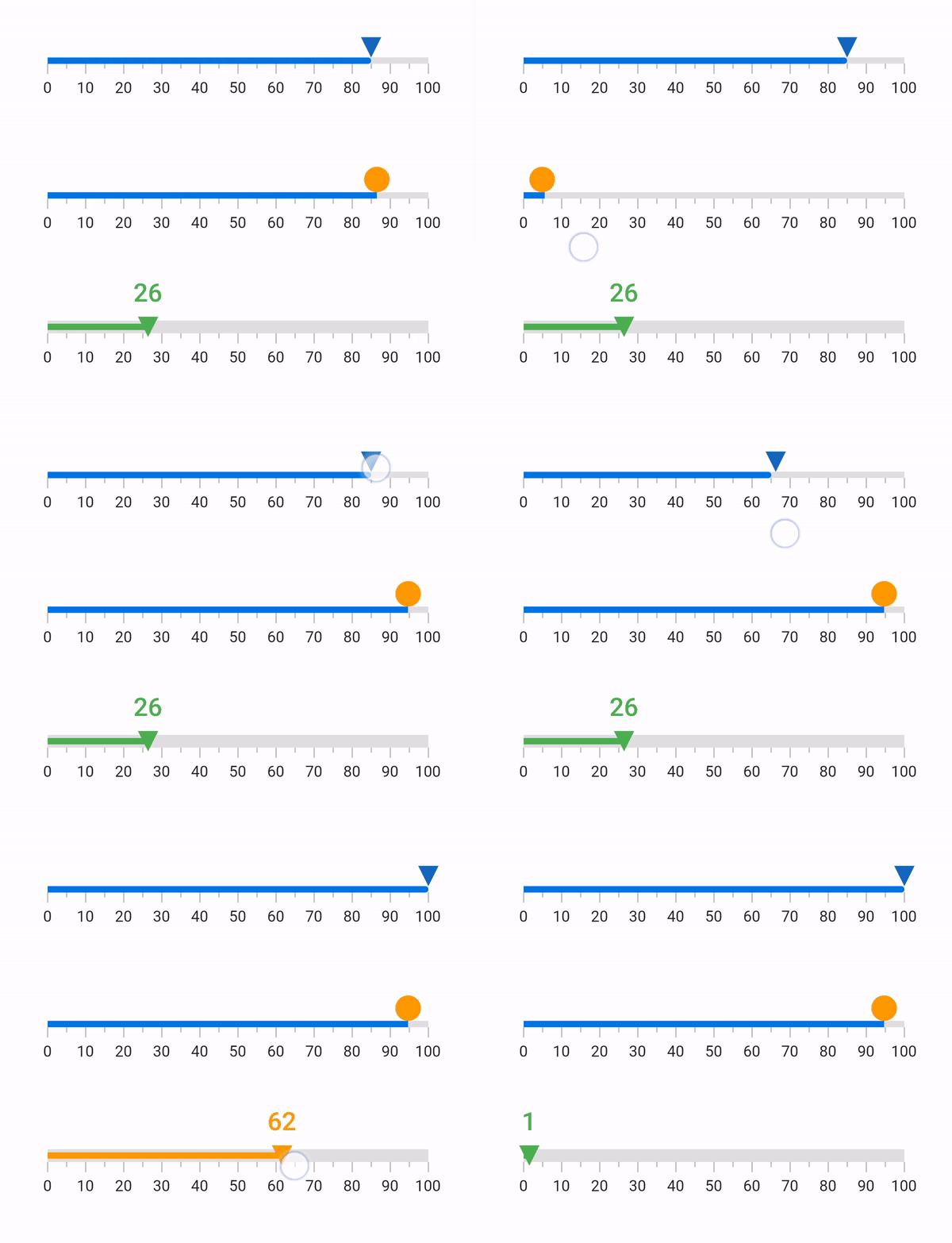
The shape and widget marker pointers in a Linear Gauge can be moved from one value to another using swipe or drag gestures.
Interaction with marker pointers
The onChanged callback enables you to change the value of marker pointers at runtime through user interaction.
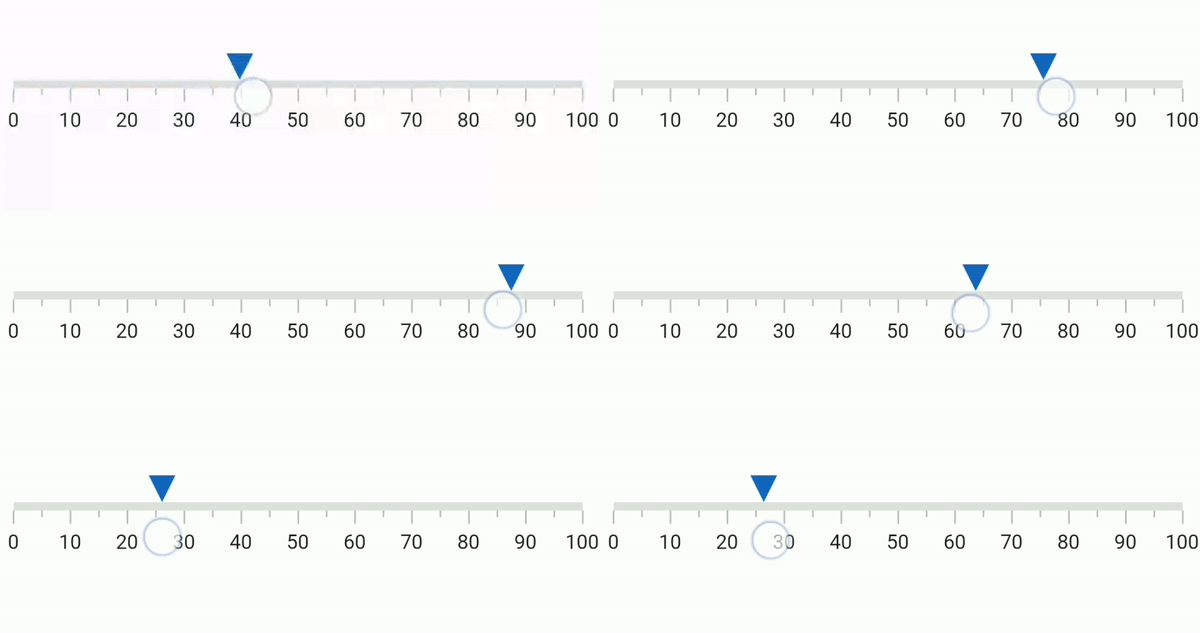
The following code sample demonstrates how to update a simple marker pointer value based on swipe or drag gestures:
import 'package:flutter/material.dart';
import 'package:syncfusion_flutter_gauges/gauges.dart';

class LinearGaugeDemo extends StatefulWidget {
  @override
  State<LinearGaugeDemo> createState() => _LinearGaugeDemoState();
}

class _LinearGaugeDemoState extends State<LinearGaugeDemo> {
  double shapePointerValue = 25;

  @override
  Widget build(BuildContext context) {
    return MaterialApp(
      home: Scaffold(
        body: Center(
          child: SfLinearGauge(
            markerPointers: [
              LinearShapePointer(
                value: shapePointerValue,
                //Changes the value of shape pointer based on interaction
                onChanged: (value) {
                  setState(() {
                    shapePointerValue = value;
                  });
                },
                color: Colors.blue[800],
              ),
            ],
          ),
        ),
      ),
    );
  }
}
The following code sample demonstrates how to update multiple marker pointer values based on swipe or drag gestures:
import 'package:flutter/material.dart';
import 'package:syncfusion_flutter_gauges/gauges.dart';

class LinearGaugeDemo extends StatefulWidget {
  @override
  State<LinearGaugeDemo> createState() => _LinearGaugeDemoState();
}

class _LinearGaugeDemoState extends State<LinearGaugeDemo> {
  double shapePointerValue = 85;
  double barPointerValue = 85;
  double widgetPointerValue = 26;

  @override
  Widget build(BuildContext context) {
    return MaterialApp(
      home: Scaffold(
        body: Center(
          child: Column(
            mainAxisAlignment: MainAxisAlignment.center,
            children: [
              SfLinearGauge(
                barPointers: [LinearBarPointer(value: shapePointerValue)],
                markerPointers: [
                  LinearShapePointer(
                    value: shapePointerValue,
                    onChanged: (value) {
                      setState(() {
                        shapePointerValue = value;
                      });
                    },
                    color: Colors.blue[800]
                  ),
                ],
              ),
              SizedBox(height: 30),
              SfLinearGauge(
                barPointers: [LinearBarPointer(value: barPointerValue)],
                markerPointers: [
                  LinearWidgetPointer(
                    position: LinearElementPosition.outside,
                    value: barPointerValue,
                    onChanged: (value) {
                      setState(() {
                        barPointerValue = value;
                      });
                    },
                    child: Container(
                      height: 20,
                      width: 20,
                      decoration: BoxDecoration(
                        color: Colors.orange[500],
                        shape: BoxShape.circle
                      )
                    ),
                  ),
                ],
              ),
              SizedBox(height: 25),
              SfLinearGauge(
                axisTrackStyle: LinearAxisTrackStyle(
                  thickness: 10
                ),
                markerPointers: [
                  LinearShapePointer(
                    value: widgetPointerValue,
                    shapeType: LinearShapePointerType.invertedTriangle,
                    position: LinearElementPosition.cross,
                    onChanged: (value) {
                      setState(() {
                        widgetPointerValue = value;
                      });
                    },
                    color: widgetPointerValue < 40
                      ? Colors.green
                      : widgetPointerValue < 80
                        ? Colors.orange
                        : Colors.red
                  ),
                  LinearWidgetPointer(
                    value: widgetPointerValue,
                    onChanged: (value) {
                      setState(() {
                        widgetPointerValue = value;
                      });
                    },
                    child: Container(
                      width: 55,
                      height: 45,
                      child: Center(
                        child: Text(
                          widgetPointerValue.toStringAsFixed(0),
                          style: TextStyle(
                            fontWeight: FontWeight.w500,
                            fontSize: 20,
                            color: widgetPointerValue < 40
                              ? Colors.green
                              : widgetPointerValue < 80
                                ? Colors.orange
                                : Colors.red
                          ),
                        ),
                      ),
                    ),
                    position: LinearElementPosition.outside,
                  ),
                ],
                ranges: [
                  LinearGaugeRange(
                    endValue: widgetPointerValue,
                    color: widgetPointerValue < 40
                      ? Colors.green
                      : widgetPointerValue < 80
                        ? Colors.orange
                        : Colors.red,
                    position: LinearElementPosition.cross
                  )
                ],
              ),
            ],
          )
        ),
      )
    );
  }
}