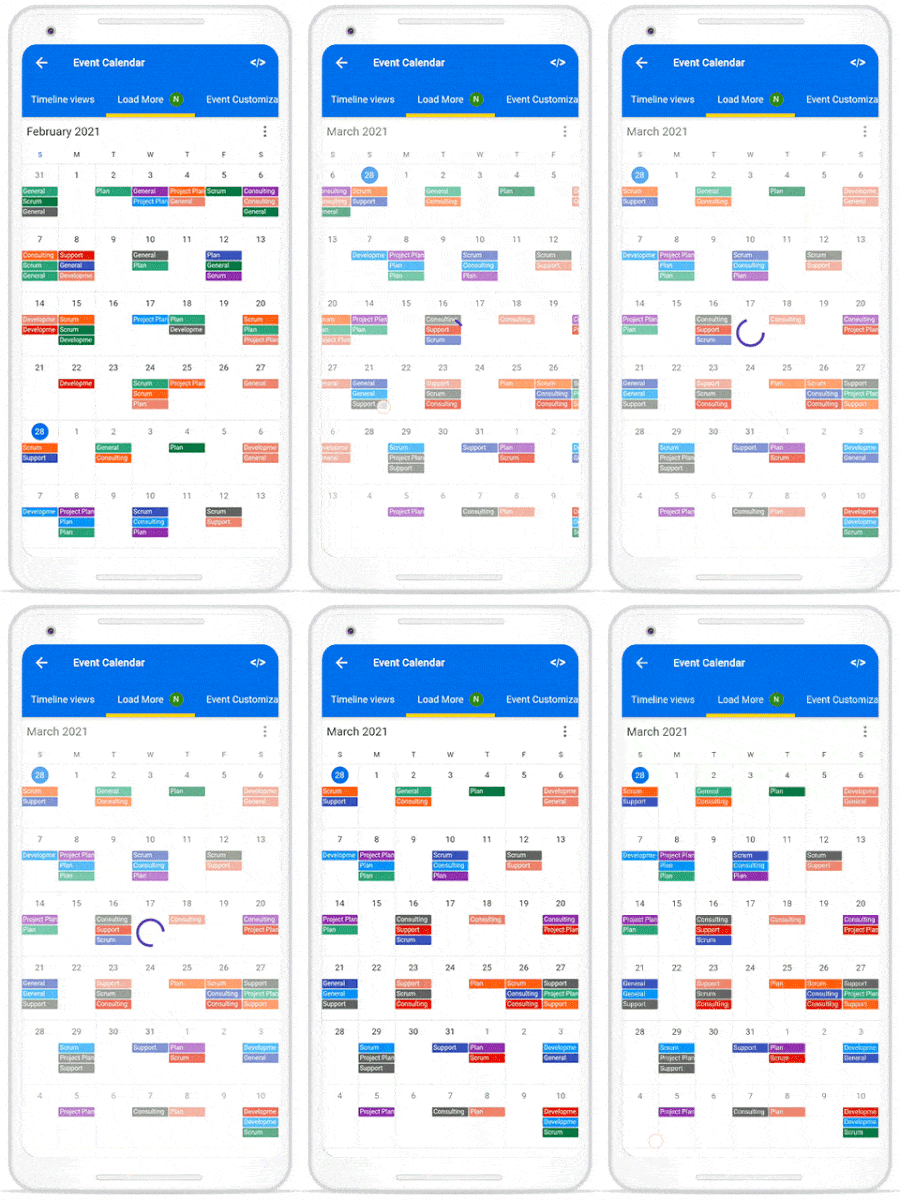
Load more in Flutter Event Calendar (SfCalendar)
18 Nov 20187 minutes to read
The Flutter Event Calendar provides the support to display an interactive view when the calendar view is changed, or the schedule view reaches its start or end offset. You can use the loadMoreWidgetBuilder builder to display the view while loading appointments in the Flutter Event Calendar.
Building load more widget
Build your own custom widget by using the loadMoreWidgetBuilder property. The widget will be displayed as a loading indicator when the view of the Flutter Event Calendar changes. In Schedule view, the loading indicator will be displayed when it reaches the start or end position to load more appointments.
import 'package:flutter/material.dart';
import 'package:syncfusion_flutter_calendar/calendar.dart';

void main() {
  runApp(const CalendarApp());
}

class CalendarApp extends StatefulWidget {
  const CalendarApp({super.key});

  @override
  State<CalendarApp> createState() => _CalendarAppState();
}

class _CalendarAppState extends State<CalendarApp> {
  final CalendarController _calendarController = CalendarController();
  late CalendarDataSource _calendarDataSource;
  final List<CalendarView> _allowedViews = <CalendarView>[
    CalendarView.day,
    CalendarView.week,
    CalendarView.workWeek,
    CalendarView.month,
    CalendarView.schedule
  ];

  @override
  void initState() {
    super.initState();
    _calendarDataSource = _getCalendarDataSource();
  }

  @override
  Widget build(BuildContext context) {
    return MaterialApp(
      home: Scaffold(
        body: SfCalendar(
          controller: _calendarController,
          dataSource: _calendarDataSource,
          allowedViews: _allowedViews,
          loadMoreWidgetBuilder:
              (BuildContext context, LoadMoreCallback loadMoreAppointments) {
            return FutureBuilder<void>(
              future: loadMoreAppointments(),
              builder: (context, snapShot) {
                return Container(
                    height: _calendarController.view == CalendarView.schedule
                        ? 50
                        : double.infinity,
                    width: double.infinity,
                    alignment: Alignment.center,
                    child: const CircularProgressIndicator(
                        valueColor: AlwaysStoppedAnimation(Colors.blue)));
              },
            );
          },
          monthViewSettings: const MonthViewSettings(
              appointmentDisplayMode: MonthAppointmentDisplayMode.appointment,
              appointmentDisplayCount: 4),
          timeSlotViewSettings: const TimeSlotViewSettings(
              minimumAppointmentDuration: Duration(minutes: 60))),
        ),
      ),
    );
  }
}
NOTE
- This callback will be called after the onViewChanged callback.
- The widget returned from this builder will be removed from the SfCalendar when the CalendarDataSource.notifyListeners is called.
You can get the complete load more sample from this link.
Load appointments
Update the appointments on-demand, when the loading indicator is displaying in the Flutter Event Calendar by using the handleLoadMore method in the CalendarDataSource, which allows adding the appointments to the data source, update the data source, and notify the listener to update the appointment on view.
import 'package:flutter/material.dart';
import 'package:syncfusion_flutter_calendar/calendar.dart';

class _MeetingDataSource extends CalendarDataSource {
  _MeetingDataSource(List<Appointment> source) {
    appointments = source;
  }

  @override
  Future<void> handleLoadMore(DateTime startDate, DateTime endDate) async {
    await Future.delayed(const Duration(seconds: 1));
    final List<Appointment> meetings = <Appointment>[];
    DateTime date = DateTime(startDate.year, startDate.month, startDate.day);
    final DateTime appEndDate =
        DateTime(endDate.year, endDate.month, endDate.day, 23, 59, 59);
    while (date.isBefore(appEndDate)) {
      final List<Appointment>? data = _dataCollection[date];
      if (data == null) {
        date = date.add(const Duration(days: 1));
        continue;
      }

      for (final Appointment meeting in data) {
        if (appointments!.contains(meeting)) {
          continue;
        }

        meetings.add(meeting);
      }
      date = date.add(const Duration(days: 1));
    }

    appointments!.addAll(meetings);
    notifyListeners(CalendarDataSourceAction.add, meetings);
  }
}