# Load On Demand in WPF Scheduler (SfScheduler)
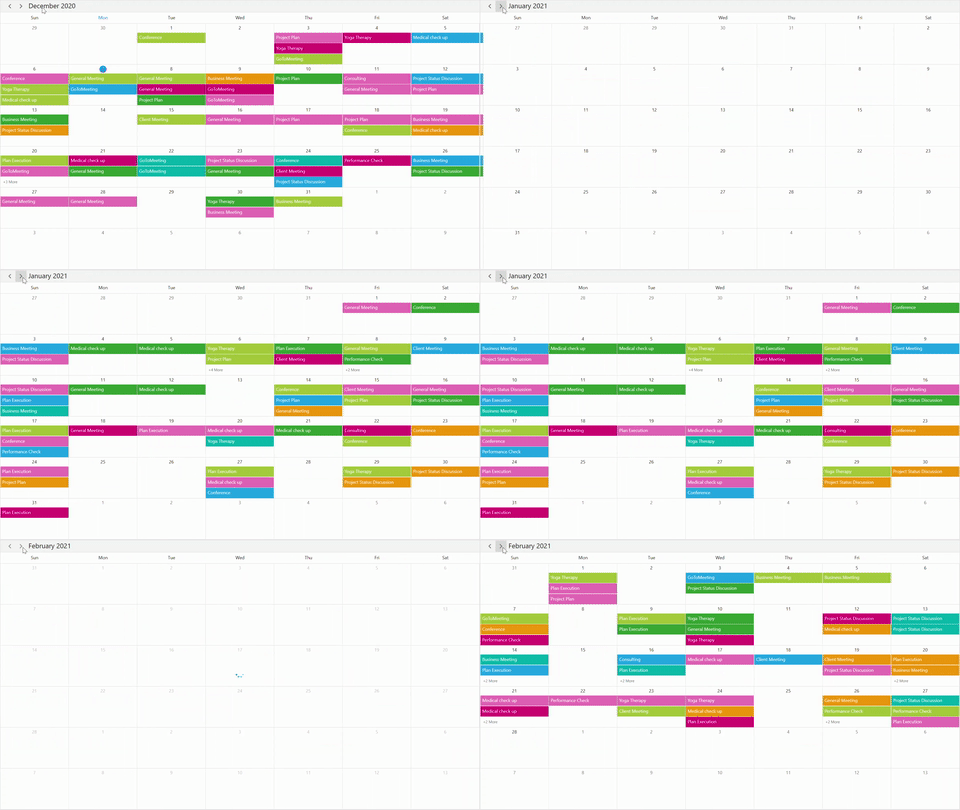
The [WPF Scheduler](https://www.syncfusion.com/wpf-controls/scheduler) supports to load appointment on demand with loading indicator and it improves the loading performance when there are appointments range for multiple years.
## QueryAppointments event
The [QueryAppointments](https://help.syncfusion.com/cr/wpf/Syncfusion.UI.Xaml.Scheduler.SfScheduler.html#Syncfusion_UI_Xaml_Scheduler_SfScheduler_QueryAppointments) event is used to load appointments in on-demand for the visible date range. Start and stop the loading indicator animation before and after the appointments loaded using the [ShowBusyIndicator](https://help.syncfusion.com/cr/wpf/Syncfusion.UI.Xaml.Scheduler.SfScheduler.html#Syncfusion_UI_Xaml_Scheduler_SfScheduler_ShowBusyIndicator).
The [QueryAppointmentsEventArgs](https://help.syncfusion.com/cr/wpf/Syncfusion.UI.Xaml.Scheduler.QueryAppointmentsEventArgs.html) has the following members which provides information for the `QueryAppointments` event.
[VisibleDateRange](https://help.syncfusion.com/cr/wpf/Syncfusion.UI.Xaml.Scheduler.DateRange.html) - Gets the current visible date range of scheduler that is used to load the appointments.
{% tabs %}
{% highlight xaml %}
{% endhighlight %}
{% highlight c#%}
Scheduler.QueryAppointments += Scheduler_QueryAppointments;
private void Scheduler_QueryAppointments(object sender, QueryAppointmentsEventArgs e)
{
Scheduler.ShowBusyIndicator = true;
Scheduler.ItemsSource = this.GenerateSchedulerAppointments(e.VisibleDateRange);
Scheduler.ShowBusyIndicator = false;
}
private IEnumerable GenerateSchedulerAppointments(DateRange dateRange)
{
Random ran = new Random();
int daysCount = (dateRange.ActualEndDate - dateRange.ActualStartDate).Days;
var appointments = new ObservableCollection();
for (int i = 0; i < 50; i++)
{
var startTime = dateRange.ActualStartDate.AddDays(ran.Next(0, daysCount + 1)).AddHours(ran.Next(0, 24));
appointments.Add(new SchedulerModel
{
From = startTime,
To = startTime.AddHours(1),
EventName = subjectCollection[ran.Next(0, subjectCollection.Count)],
Color = brush[ran.Next(0, brush.Count)],
});
}
return appointments;
}
{% endhighlight %}
{% endtabs %}
The [QueryAppointments](https://help.syncfusion.com/cr/wpf/Syncfusion.UI.Xaml.Scheduler.SfScheduler.html#Syncfusion_UI_Xaml_Scheduler_SfScheduler_QueryAppointments) will be raised once any one of the following action is taken.
* Once the [ViewChanged](https://help.syncfusion.com/cr/wpf/Syncfusion.UI.Xaml.Scheduler.SfScheduler.html#Syncfusion_UI_Xaml_Scheduler_SfScheduler_ViewChanged) event is raised, the `QueryAppointments` will be raised.
* If the appointment has been added, removed, or changed (Resize, drag, and drop) in the current time visible date range, then the `QueryAppointments` event will not be triggered. Since the appointments for that visible date range have been loaded already.
* The `QueryAppointments` event is triggered when the Schedule [ResourceCollection](https://help.syncfusion.com/cr/wpf/Syncfusion.UI.Xaml.Scheduler.SfScheduler.html#Syncfusion_UI_Xaml_Scheduler_SfScheduler_ResourceCollection) is updated to load appointments based on the changed resource collection.
* The `QueryAppointments` event will be triggered when the [ResourceGroupType](https://help.syncfusion.com/cr/wpf/Syncfusion.UI.Xaml.Scheduler.SfScheduler.html#Syncfusion_UI_Xaml_Scheduler_SfScheduler_ResourceGroupType) is changed.
## Load On Demand command
The Scheduler notifies by [LoadOnDemandCommand](https://help.syncfusion.com/cr/wpf/Syncfusion.UI.Xaml.Scheduler.SfScheduler.html#Syncfusion_UI_Xaml_Scheduler_SfScheduler_LoadOnDemandCommand) when the user changes the visible date range. Get a visible date range from the [QueryAppointmentsEventArgs](https://help.syncfusion.com/cr/wpf/Syncfusion.UI.Xaml.Scheduler.QueryAppointmentsEventArgs.html). The default value for this `ICommand` is null. The `QueryAppointmentsEventArgs` passed as a command parameter.
Define a ViewModel class that implements command and handle it by the CanExecute and Execute methods to check and execute on-demand loading. In the execute method, perform the following operations,
* Start and stop the loading indicator animation before and after the appointments loaded using the [ShowBusyIndicator](https://help.syncfusion.com/cr/wpf/Syncfusion.UI.Xaml.Scheduler.SfScheduler.html#Syncfusion_UI_Xaml_Scheduler_SfScheduler_ShowBusyIndicator).
* Once the appointment collection is got, load into the scheduler itemsource.
{% tabs %}
{% highlight xaml %}
{% endhighlight %}
{% highlight c#%}
public class LoadOnDemandViewModel : NotificationObject
{
public ICommand LoadOnDemandCommand { get; set; }
private IEnumerable events;
public IEnumerable Events
{
get { return events; }
set
{
events = value;
this.RaisePropertyChanged("Events");
}
}
private bool showBusyIndicator;
public bool ShowBusyIndicator
{
get { return showBusyIndicator; }
set
{
showBusyIndicator = value;
this.RaisePropertyChanged("ShowBusyIndicator");
}
}
public SchedulerViewModel()
{
this.LoadOnDemandCommand = new DelegateCommand(ExecuteOnDemandLoading, CanExecuteOnDemandLoading);
}
public event PropertyChangedEventHandler PropertyChanged;
public async void ExecuteOnDemandLoading(object parameter)
{
this.ShowBusyIndicator = true;
await Task.Delay(1000);
await Application.Current.MainWindow.Dispatcher.BeginInvoke(DispatcherPriority.ApplicationIdle, new Action(() =>
{
this.Events = this.GenerateSchedulerAppointments((parameter as QueryAppointmentsEventArgs).VisibleDateRange);
}));
this.ShowBusyIndicator = false;
}
private bool CanExecuteOnDemandLoading(object sender)
{
return true;
}
private IEnumerable GenerateSchedulerAppointments(DateRange dateRange)
{
Random ran = new Random();
int daysCount = (dateRange.ActualEndDate - dateRange.ActualStartDate).Days;
var appointments = new ObservableCollection();
for (int i = 0; i < 50; i++)
{
var startTime = dateRange.ActualStartDate.AddDays(ran.Next(0, daysCount + 1)).AddHours(ran.Next(0, 24));appointments.Add(new SchedulerModel
{
From = startTime,
To = startTime.AddHours(1),
EventName = subjectCollection[ran.Next(0, subjectCollection.Count)],
Color = brush[ran.Next(0, brush.Count)],
});
}
return appointments;
}
}
{% endhighlight %}
{% endtabs %}
The [LoadOnDemandCommand](https://help.syncfusion.com/cr/wpf/Syncfusion.UI.Xaml.Scheduler.SfScheduler.html#Syncfusion_UI_Xaml_Scheduler_SfScheduler_LoadOnDemandCommand) will be invoked once any one of the following actions is taken.
* Once the [ViewChanged](https://help.syncfusion.com/cr/wpf/Syncfusion.UI.Xaml.Scheduler.SfScheduler.html#Syncfusion_UI_Xaml_Scheduler_SfScheduler_ViewChanged) event is raised, the `LoadOnDemandCommand` will also be raised.
* If the appointment has been added, removed, or changed (Resize, drag, and drop) in the current time visible date range, then the `LoadOnDemandCommand` will not be triggered. Since the appointments for that visible date range have been loaded already.
* The `LoadOnDemandCommand` is triggered when the Schedule [ResourceCollection](https://help.syncfusion.com/cr/wpf/Syncfusion.UI.Xaml.Scheduler.SfScheduler.html#Syncfusion_UI_Xaml_Scheduler_SfScheduler_ResourceCollection) is updated to load the appointments based on the changed resource collection.
* The `LoadOnDemandCommand` will be triggered when the [ResourceGroupType](https://help.syncfusion.com/cr/wpf/Syncfusion.UI.Xaml.Scheduler.SfScheduler.html#Syncfusion_UI_Xaml_Scheduler_SfScheduler_ResourceGroupType) is changed.
## Load On Demand for recurring appointment
The scheduler will add the occurrences of recurrence series based on the visible date range, use the [RecurrenceHelper.GetRecurrenceDateTimeCollection](https://help.syncfusion.com/cr/wpf/Syncfusion.UI.Xaml.Scheduler.RecurrenceHelper.html#Syncfusion_UI_Xaml_Scheduler_RecurrenceHelper_GetRecurrenceDateTimeCollection_System_String_System_DateTime_System_Nullable_System_DateTime__System_Nullable_System_DateTime__) to compare and load the recurrence appointment on demand in the ItemsSource.
* The recurrence appointment should be added to the Scheduler [ItemsSource](https://help.syncfusion.com/cr/wpf/Syncfusion.UI.Xaml.Scheduler.SfScheduler.html#Syncfusion_UI_Xaml_Scheduler_SfScheduler_ItemsSource) until the date of recurrence ends.
* If [RecurrenceRule](https://help.syncfusion.com/cr/wpf/Syncfusion.UI.Xaml.Scheduler.ScheduleAppointment.html#Syncfusion_UI_Xaml_Scheduler_ScheduleAppointment_RecurrenceRule) added with count or end date, use the [RecurrenceHelper.GetRecurrenceDateTimeCollection](https://help.syncfusion.com/cr/wpf/Syncfusion.UI.Xaml.Scheduler.RecurrenceHelper.html#Syncfusion_UI_Xaml_Scheduler_RecurrenceHelper_GetRecurrenceDateTimeCollection_System_String_System_DateTime_System_Nullable_System_DateTime__System_Nullable_System_DateTime__) method to get the recurrence date collection and compare recursive dates in the current visible date range. Then add the recurrence appointment in the scheduler [ItemsSource](https://help.syncfusion.com/cr/wpf/Syncfusion.UI.Xaml.Scheduler.SfScheduler.html#Syncfusion_UI_Xaml_Scheduler_SfScheduler_ItemsSource) If the recursive dates are in the current visible date range.
* If the `RecurrenceRule` is added without an end date, then the recurrence appointment should be added in the scheduler `ItemsSource` when all the visible dates changed from the recurrence start date.
N> [View sample in GitHub](https://github.com/SyncfusionExamples/load-on-demand-appointments-wpf-scheduler)