# ContextMenu and Commands in WPF Scheduler (SfScheduler)
The [WPF Scheduler](https://www.syncfusion.com/wpf-controls/scheduler) has support to define a context menu for appointments, time slots, and month cells are right-clicked. It will also have the built-in `RoutedUICommands` support for handling the context menu to add, edit, and delete appointments. There are two types of `ContextMenu`.
* [CellContextMenu](https://help.syncfusion.com/cr/wpf/Syncfusion.UI.Xaml.Scheduler.SfScheduler.html#Syncfusion_UI_Xaml_Scheduler_SfScheduler_CellContextMenu)
* [AppointmentContextMenu](https://help.syncfusion.com/cr/wpf/Syncfusion.UI.Xaml.Scheduler.SfScheduler.html#Syncfusion_UI_Xaml_Scheduler_SfScheduler_AppointmentContextMenu)
N>[View sample in GitHub](https://github.com/SyncfusionExamples/context-menu-support-in-wpf-scheduler)
## Cell context menu
Set the context menu for time slot and month cells by using the [SfScheduler.CellContextMenu](https://help.syncfusion.com/cr/wpf/Syncfusion.UI.Xaml.Scheduler.SfScheduler.html#Syncfusion_UI_Xaml_Scheduler_SfScheduler_CellContextMenu) property. The `CellContextMenu` will appear only when the time slot or month cells are right-clicked.
N>
* The menu items which bind the [SchedulerCommands.Edit](https://help.syncfusion.com/cr/wpf/Syncfusion.UI.Xaml.Scheduler.SchedulerCommands.html#Syncfusion_UI_Xaml_Scheduler_SchedulerCommands_Edit) and [SchedulerCommands.Delete](https://help.syncfusion.com/cr/wpf/Syncfusion.UI.Xaml.Scheduler.SchedulerCommands.html#Syncfusion_UI_Xaml_Scheduler_SchedulerCommands_Delete) built-in commands will be disabled in the `CellContextMenu`.
* While binding the menu item using the CommandBinding, get the command parameter as
[SchedulerContextMenuInfo](https://help.syncfusion.com/cr/wpf/Syncfusion.UI.Xaml.Scheduler.SchedulerContextMenuInfo.html)
that contains the Appointment or DateTime of the corresponding cell.
* By default, the cell context menu will be opened when holding on any timeslot or month cell. The appointment context menu will be opened by holding, only if the appointment's drag and drop is disabled using the [AppointmentEditFlag](https://help.syncfusion.com/cr/wpf/Syncfusion.UI.Xaml.Scheduler.SfScheduler.html#Syncfusion_UI_Xaml_Scheduler_SfScheduler_AppointmentEditFlag) property.
{% tabs %}
{% highlight xaml %}
{% endhighlight %}
{% endtabs %}
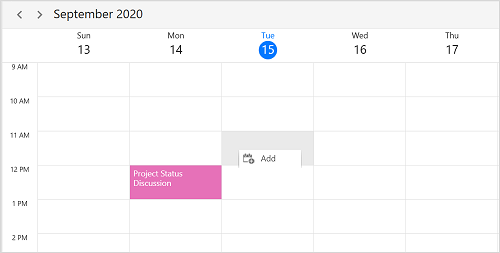
## Appointment context menu
Set the context menu for schedule appointments by using the [SfScheduler.AppointmentContextMenu](https://help.syncfusion.com/cr/wpf/Syncfusion.UI.Xaml.Scheduler.SfScheduler.html#Syncfusion_UI_Xaml_Scheduler_SfScheduler_AppointmentContextMenu) property. The `AppointmentContextMenu` will be displayed only on appointments that are right-clicked.
>**NOTE**
* The menu item which binds the [SchedulerCommands.Add](https://help.syncfusion.com/cr/wpf/Syncfusion.UI.Xaml.Scheduler.SchedulerCommands.html#Syncfusion_UI_Xaml_Scheduler_SchedulerCommands_Add) command, will be disabled in the [SfScheduler.AppointmentContextMenu](https://help.syncfusion.com/cr/wpf/Syncfusion.UI.Xaml.Scheduler.SfScheduler.html#Syncfusion_UI_Xaml_Scheduler_SfScheduler_AppointmentContextMenu).
* While binding the menu item using the CommandBinding, get the command parameter as
[SchedulerContextMenuInfo](https://help.syncfusion.com/cr/wpf/Syncfusion.UI.Xaml.Scheduler.SchedulerContextMenuInfo.html)
that contains the Appointment or DateTime of the corresponding cell.
* In the month view, the `AppointmentContextMenu` opens when the [MonthViewSettings.AppointmentDisplayMode](https://help.syncfusion.com/cr/wpf/Syncfusion.UI.Xaml.Scheduler.MonthViewSettings.html#Syncfusion_UI_Xaml_Scheduler_MonthViewSettings_AppointmentDisplayMode) is set to `AppointmentDisplayMode.Appointment.`.
* To enable the touch context menu for appointments in the scheduler, by disabling the appointment drag and drop by setting the [AppointmentEditFlag](https://help.syncfusion.com/cr/wpf/Syncfusion.UI.Xaml.Scheduler.SfScheduler.html#Syncfusion_UI_Xaml_Scheduler_SfScheduler_AppointmentEditFlag) property except for DragDrop. In this case, the appointment drag & drop cannot be performed. The [AppointmentContextMenu](https://help.syncfusion.com/cr/wpf/Syncfusion.UI.Xaml.Scheduler.SfScheduler.html#Syncfusion_UI_Xaml_Scheduler_SfScheduler_AppointmentContextMenu) will be displayed only on appointments and the appointment selection, should be performed.
{% tabs %}
{% highlight xaml %}
{% endhighlight %}
{% endtabs %}
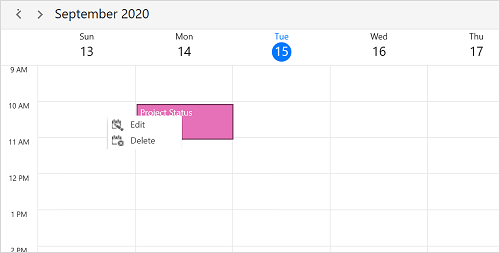
## SchedulerContextMenuOpening event
The [SchedulerContextMenuInfo](https://help.syncfusion.com/cr/wpf/Syncfusion.UI.Xaml.Scheduler.SchedulerContextMenuInfo.html) event occurs while opening the [AppointmentContextMenu](https://help.syncfusion.com/cr/wpf/Syncfusion.UI.Xaml.Scheduler.SfScheduler.html#Syncfusion_UI_Xaml_Scheduler_SfScheduler_AppointmentContextMenu) or [CellContextMenu](https://help.syncfusion.com/cr/wpf/Syncfusion.UI.Xaml.Scheduler.SfScheduler.html#Syncfusion_UI_Xaml_Scheduler_SfScheduler_CellContextMenu) in the SfScheduler.
`SchedulerContextMenuOpeningEventArgs` has the following members which provides the information about the `SchedulerContextMenuOpening` event.
* `MenuInfo` – Returns the `SchedulerContextMenuInfo` which contains the information about date time, appointment of the element opens the context menu. The `AppointmentContextMenu` and `CellContextMenu` received this information as a DataContext.
* `MenuType` – Gets the element type for which the context menu opens.
* `ContextMenu` – It represents a shortcut context menu that is being opened.
N> You can also explore our [WPF Scheduler example](https://github.com/syncfusion/wpf-demos) to knows how to schedule and manage appointments through an intuitive user interface, similar to the Outlook calendar.