# Getting Started with WPF Currency TextBox
This section explains how to create a WPF `CurrencyTextBox` control and its features.
## Assembly deployment
Refer to the [control dependencies](https://help.syncfusion.com/wpf/control-dependencies#currencytextbox) section to get the list of assemblies or NuGet package that needs to be added as a reference to use the control in any application.
You can find more details about installing the NuGet package in a WPF application in the following link:
[How to install nuget packages](https://help.syncfusion.com/wpf/visual-studio-integration/nuget-packages)
## Adding WPF CurrencyTextBox via designer
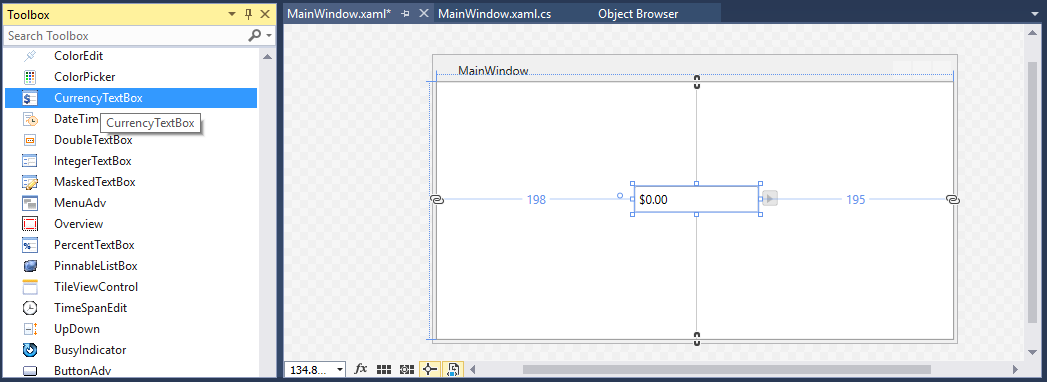
You can add the [CurrencyTextBox](https://www.syncfusion.com/wpf-controls/currency-textbox) control to an application by dragging it from the toolbox to a view of the designer. The following dependent assembly will be added automatically:
* Syncfusion.Shared.WPF
## Adding WPF CurrencyTextBox via XAML
To add the CurrencyTextBox control manually in XAML, follow these steps:
1. Create a new WPF project in Visual Studio.
2. Add the **Syncfusion.Shared.WPF** assembly references to the project.
3. Import Syncfusion® WPF schema **http://schemas.syncfusion.com/wpf** and declare the `CurrencyTextBox` control in XAML page.
{% capture codesnippet1 %}
{% tabs %}
{% highlight XAML %}
{% endhighlight %}
{% endtabs %}
{% endcapture %}
{{ codesnippet1 | OrderList_Indent_Level_1 }}
## Adding WPF CurrencyTextBox via C\#
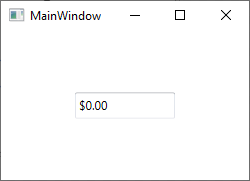
To add the CurrencyTextBox control manually in C#, follow these steps:
1. Create a new WPF application via Visual Studio.
2. Add the **Syncfusion.Shared.WPF** assembly references to the project.
3. Include the required namespace.
{% capture codesnippet2 %}
{% tabs %}
{% highlight C# %}
using Syncfusion.Windows.Shared;
{% endhighlight %}
{% endtabs %}
{% endcapture %}
{{ codesnippet2 | OrderList_Indent_Level_1 }}
4. Create an instance of CurrencyTextBox and add it to the window.
{% capture codesnippet3 %}
{% tabs %}
{% highlight C# %}
//Creating an instance of CurrencyTextBox control
CurrencyTextBox currencyTextBox = new CurrencyTextBox();
// Setting height and width to CurrencyTextBox
currencyTextBox.Height = 25;
currencyTextBox.Width = 100;
//Adding CurrencyTextBox as window content
this.Content = currencyTextBox;
{% endhighlight %}
{% endtabs %}
{% endcapture %}
{{ codesnippet3 | OrderList_Indent_Level_1 }}
## Setting Value
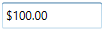
The value of the `CurrencyTextBox` can be set by using the [Value](https://help.syncfusion.com/cr/wpf/Syncfusion.Windows.Shared.CurrencyTextBox.html#Syncfusion_Windows_Shared_CurrencyTextBox_Value) property.
{% tabs %}
{% highlight XAML %}
{% endhighlight %}
{% highlight C# %}
CurrencyTextBox currencyTextBox = new CurrencyTextBox();
currencyTextBox.Width = 100;
currencyTextBox.Height = 23;
currencyTextBox.Value = 100;
{% endhighlight %}
{% endtabs %}
N> Do not use the [Text](https://docs.microsoft.com/en-us/dotnet/api/system.windows.controls.textbox.text?redirectedfrom=MSDN&view=netframework-4.7.2#System_Windows_Controls_TextBox_Text) property to set the value for the CurrencyTextBox. Use only the `Value` property.
### Binding Value
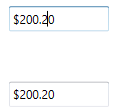
Data binding is the method of forming a connection between the application UI and business logic. Data binding can be unidirectional (source -> target or target <- source) or bidirectional (source <-> target). You can bind data to the `CurrencyTextBox` using the `Value` Property.
The following code snippets illustrate the value binding from one `CurrencyTextBox` to another.
{% tabs %}
{% highlight XAML %}
{% endhighlight %}
{% endtabs %}
ViewModel.cs
{% tabs %}
{% highlight C# %}
class ViewModel : NotificationObject
{
private double myValue;
public double MyValue
{
get
{
return myValue;
}
set
{
myValue = value;
RaisePropertyChanged("MyValue");
}
}
}
{% endhighlight %}
{% endtabs %}
## Value Changed Notification
The `CurrencyTextBox` control can notifies the value changes through the [ValueChanged](https://help.syncfusion.com/cr/wpf/Syncfusion.Windows.Shared.CurrencyTextBox.html) event. You can get old value and new Value from `OldValue` and `NewValue` properties in `ValueChanged` event.
{%tabs%}
{% highlight xaml %}
{% endhighlight %}
{% highlight C# %}
CurrencyTextBox currencyTextBox = new CurrencyTextBox();
currencyTextBox.ValueChanged += new PropertyChangedCallback(CurrencyTextBox_ValueChanged);
{% endhighlight %}
{%endtabs%}
You can handle the event as follows:
{% tabs %}
{% highlight C# %}
private void CurrencyTextBox_ValueChanged(DependencyObject d, DependencyPropertyChangedEventArgs e)
{
// Get old and new value
var newValue = e.NewValue;
var oldValue = e.OldValue;
}
{% endhighlight %}
{% endtabs %}
## Min Max Value Restriction
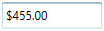
The `Value` of `CurrencyTextBox` can be restricted within maximum and minimum limit. You can define the minimum and maximum values by setting the [MinValue](https://help.syncfusion.com/cr/wpf/Syncfusion.Windows.Shared.CurrencyTextBox.html#Syncfusion_Windows_Shared_CurrencyTextBox_MinValue) and [MaxValue](https://help.syncfusion.com/cr/wpf/Syncfusion.Windows.Shared.CurrencyTextBox.html#Syncfusion_Windows_Shared_CurrencyTextBox_MaxValue) properties. It allows the user to enter the value between `MinValue` and `MaxValue`.
{% tabs %}
{% highlight XAML %}
{% endhighlight %}
{% highlight C# %}
CurrencyTextBox currencyTextBox = new CurrencyTextBox();
currencyTextBox.Width = 100;
currencyTextBox.Height = 25;
//Setting minimum value
currencyTextBox.MinValue = -999.99;
//Setting maximum value
currencyTextBox.MaxValue = 999.99;
currencyTextBox.Value = 455;
{% endhighlight %}
{% endtabs %}
## Step Interval to increase or decrease the value
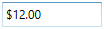
The `CurrencyTextBox` control allows to increase or decrease the value by pressing up and down arrow keys in keyboard or mouse wheel over the control. The [ScrollInterval](https://help.syncfusion.com/cr/wpf/Syncfusion.Windows.Shared.CurrencyTextBox.html#Syncfusion_Windows_Shared_CurrencyTextBox_ScrollInterval) property is used to specify the increment or decrement intervals. The default value of `ScrollInterval` is 1.
{% tabs %}
{% highlight xaml %}
{% endhighlight %}
{% highlight C# %}
CurrencyTextBox currencyTextBox = new CurrencyTextBox();
currencyTextBox.Width = 100;
currencyTextBox.Height = 25;
currencyTextBox.MinValue = 0;
currencyTextBox.MaxValue = 100;
currencyTextBox.Value = 8;
currencyTextBox.IsScrollingOnCircle = true;
currencyTextBox.ScrollInterval = 4;
{% endhighlight %}
{% endtabs %}
## Formatting the value
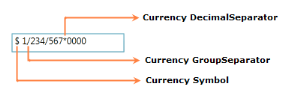
You can customize the number format by using either the [NumberFormat](https://help.syncfusion.com/cr/wpf/Syncfusion.Windows.Shared.EditorBase.html#Syncfusion_Windows_Shared_EditorBase_NumberFormat) property or the [CurrencyGroupSeparator](https://help.syncfusion.com/cr/wpf/Syncfusion.Windows.Shared.CurrencyTextBox.html#Syncfusion_Windows_Shared_CurrencyTextBox_CurrencyGroupSeparator), [CurrencyGroupSizes](https://help.syncfusion.com/cr/wpf/Syncfusion.Windows.Shared.CurrencyTextBox.html#Syncfusion_Windows_Shared_CurrencyTextBox_CurrencyGroupSizes), [CurrencyDecimalDigits](https://help.syncfusion.com/cr/wpf/Syncfusion.Windows.Shared.CurrencyTextBox.html#Syncfusion_Windows_Shared_CurrencyTextBox_CurrencyDecimalDigits) and [CurrencyDecimalSeparator](https://help.syncfusion.com/cr/wpf/Syncfusion.Windows.Shared.CurrencyTextBox.html#Syncfusion_Windows_Shared_CurrencyTextBox_CurrencyDecimalSeparator), [CurrencySymbol](https://help.syncfusion.com/cr/wpf/Syncfusion.Windows.Shared.CurrencyTextBox.html#Syncfusion_Windows_Shared_CurrencyTextBox_CurrencySymbol), [CurrencyNegativePattern](https://help.syncfusion.com/cr/wpf/Syncfusion.Windows.Shared.CurrencyTextBox.html#Syncfusion_Windows_Shared_CurrencyTextBox_CurrencyNegativePattern), and [CurrencyPositivePattern](https://help.syncfusion.com/cr/wpf/Syncfusion.Windows.Shared.CurrencyTextBox.html#Syncfusion_Windows_Shared_CurrencyTextBox_CurrencyPositivePattern) properties of CurrencyTextBox.
{% tabs %}
{% highlight XAML %}
{% endhighlight %}
{% highlight C# %}
CurrencyTextBox currencyTextBox = new CurrencyTextBox();
currencyTextBox.Width = 100;
currencyTextBox.Height = 25;
currencyTextBox.Value = 1234567;
currencyTextBox.NumberFormat = new NumberFormatInfo()
{
CurrencyGroupSeparator = "/",
CurrencyDecimalDigits = 4,
CurrencyDecimalSeparator = "*",
CurrencySymbol = "$"
};
{% endhighlight %}
{% endtabs %}
## Setting the Culture
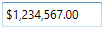
The `CurrencyTextBox` provides support for globalization by using the [Culture](https://help.syncfusion.com/cr/wpf/Syncfusion.Windows.Shared.EditorBase.html#Syncfusion_Windows_Shared_EditorBase_Culture) property. The `Culture` is used to format the decimal separator and group separator of the `CurrencyTextBox` value based on the respective culture.
{%tabs%}
{% highlight xaml %}
{% endhighlight %}
{% highlight C# %}
CurrencyTextBox currencyTextBox = new CurrencyTextBox();
currencyTextBox.Width = 100;
currencyTextBox.Height = 25;
currencyTextBox.Value = 1234567;
currencyTextBox.Culture = new System.Globalization.CultureInfo("en-US");
{% endhighlight %}
{%endtabs%}
N> When you use both `NumberFormat` and `Culture`, the `NumberFormat` will have a higher priority.
## Theme
CurrencyTextBox supports various built-in themes. Refer to the below links to apply themes for the CurrencyTextBox,
* [Apply theme using SfSkinManager](https://help.syncfusion.com/wpf/themes/skin-manager)
* [Create a custom theme using ThemeStudio](https://help.syncfusion.com/wpf/themes/theme-studio#creating-custom-theme)
