# Culture and Formatting in WPF Currency TextBox
Value of `CurrencyTextBox` can be formatted in following ways:
* Culture
* NumberFormatInfo
* Dedicated properties (CurrencyGroupSeparator, CurrencyGroupSizes, CurrencyDecimalDigits, CurrencyDecimalSeparator)
## Culture based formatting
The [CurrencyTextBox](https://www.syncfusion.com/wpf-controls/currency-textbox) provides support for globalization by using the [Culture](https://help.syncfusion.com/cr/wpf/Syncfusion.Windows.Shared.EditorBase.html#Syncfusion_Windows_Shared_EditorBase_Culture) property. The `Culture` property is used to format the decimal separator and group separator of the `CurrencyTextBox` value based on the respective culture.
{% tabs %}
{% highlight xaml %}
{% endhighlight %}
{% highlight C# %}
CurrencyTextBox currencyTextBox = new CurrencyTextBox();
currencyTextBox.Width = 100;
currencyTextBox.Height = 25;
currencyTextBox.Value = 1234567;
currencyTextBox.Culture = new CultureInfo("fr-FR");
{% endhighlight %}
{% endtabs %}
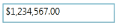
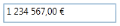
By default the US culture uses “,” as the `CurrencyGroupSeparator` "$" as `CurrencySymbol` and "." as the `CurrencyDecimalSeparator` where as the France culture uses “Space” as the `CurrencyGroupSeparator`, "€" as `CurrencySymbol` and "," as the `CurrencyDecimalSeparator`.
**Default Culture**
**France Culture**
## NumberFormatInfo based formatting
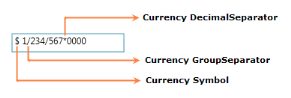
The number formatting of `CurrencyTextBox` can be customized by setting [NumberFormat](https://help.syncfusion.com/cr/wpf/Syncfusion.Windows.Shared.EditorBase.html#Syncfusion_Windows_Shared_EditorBase_NumberFormat) property.
{% tabs %}
{% highlight xaml %}
{% endhighlight %}
{% highlight C# %}
CurrencyTextBox currencyTextBox = new CurrencyTextBox();
currencyTextBox.Width = 150;
currencyTextBox.Height = 25;
currencyTextBox.Value = 1234567;
currencyTextBox.NumberFormat = new NumberFormatInfo()
{
CurrencyGroupSeparator = "/",
CurrencyDecimalDigits = 4,
CurrencyDecimalSeparator = "*",
CurrencySymbol = "$"
};
{% endhighlight %}
{% endtabs %}
The following code illustrate how to set currency group size by using the `NumberFormat` property.
{% tabs %}
{% highlight C# %}
CurrencyTextBox currencyTextBox = new CurrencyTextBox();
currencyTextBox.Width = 150;
currencyTextBox.Height = 25;
currencyTextBox.Value = 123456789;
currencyTextBox.NumberFormat = new NumberFormatInfo()
{
CurrencySymbol = "&",
CurrencyDecimalDigits = 4,
CurrencyGroupSeparator = "/",
CurrencyDecimalSeparator = "*",
// Adding the currency group size via NumberFormat property.
CurrencyGroupSizes = new int[] { 2, 3, 4 }
};
{% endhighlight %}
{% endtabs %}

## Formatting with dedicated properties
The number formatting of `CurrencyTextBox` can also be customized by setting the [CurrencyGroupSeparator](https://help.syncfusion.com/cr/wpf/Syncfusion.Windows.Shared.CurrencyTextBox.html#Syncfusion_Windows_Shared_CurrencyTextBox_CurrencyGroupSeparator), [CurrencyGroupSizes](https://help.syncfusion.com/cr/wpf/Syncfusion.Windows.Shared.CurrencyTextBox.html#Syncfusion_Windows_Shared_CurrencyTextBox_CurrencyGroupSizes), [CurrencyDecimalDigits](https://help.syncfusion.com/cr/wpf/Syncfusion.Windows.Shared.CurrencyTextBox.html#Syncfusion_Windows_Shared_CurrencyTextBox_CurrencyDecimalDigits) and [CurrencyDecimalSeparator](https://help.syncfusion.com/cr/wpf/Syncfusion.Windows.Shared.CurrencyTextBox.html#Syncfusion_Windows_Shared_CurrencyTextBox_CurrencyDecimalSeparator), [CurrencySymbol](https://help.syncfusion.com/cr/wpf/Syncfusion.Windows.Shared.CurrencyTextBox.html#Syncfusion_Windows_Shared_CurrencyTextBox_CurrencySymbol), [CurrencyNegativePattern](https://help.syncfusion.com/cr/wpf/Syncfusion.Windows.Shared.CurrencyTextBox.html#Syncfusion_Windows_Shared_CurrencyTextBox_CurrencyNegativePattern), and [CurrencyPositivePattern](https://help.syncfusion.com/cr/wpf/Syncfusion.Windows.Shared.CurrencyTextBox.html#Syncfusion_Windows_Shared_CurrencyTextBox_CurrencyPositivePattern) properties of CurrencyTextBox. You can show the group separator by enable the [GroupSeperatorEnabled](https://help.syncfusion.com/cr/wpf/Syncfusion.Windows.Shared.CurrencyTextBox.html#Syncfusion_Windows_Shared_CurrencyTextBox_GroupSeperatorEnabled) property to `true`.
The following code illustrate how to format using the `CurrencyDecimalSeparator`, `CurrencyDecimalDigits`, `CurrencyGroupSeparator`, `CurrencyGroupSizes` property of the `CurrencyTextBox`.
{% tabs %}
{% highlight C# %}
CurrencyTextBox currencyTextBox = new CurrencyTextBox();
currencyTextBox.Width = 150;
currencyTextBox.Height = 25;
currencyTextBox.Value = 123456789;
currencyTextBox.CurrencySymbol = "#";
currencyTextBox.CurrencyDecimalDigits = 4;
currencyTextBox.GroupSeperatorEnabled = true;
currencyTextBox.CurrencyGroupSeparator = "/";
currencyTextBox.CurrencyDecimalSeparator = "*";
// Adding the currency group size via CurrencyGroupSizes property.
currencyTextBox.CurrencyGroupSizes = new Int32Collection() { 4, 3, 2 };
{% endhighlight %}
{% endtabs %}

N> When you use both the `NumberFormat` and the dedicated properties (`CurrencyGroupSeparator`, `CurrencySymbol`, `CurrencyDecimalDigits`, `CurrencyDecimalSeparator` and `CurrencyGroupSizes`) to format the value of `CurrencyTextBox`, the `CurrencyGroupSeparator`and `CurrencyGroupSizes` properties have higher priority.
N> When you use both `NumberFormat` and `Culture`, the `NumberFormat` will have a higher priority.
### Positive Value Pattern
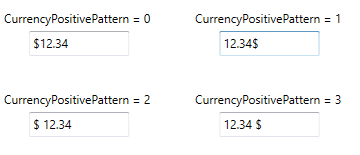
You can use the [CurrencyPositivePattern](https://help.syncfusion.com/cr/wpf/Syncfusion.Windows.Shared.CurrencyTextBox.html#Syncfusion_Windows_Shared_CurrencyTextBox_CurrencyPositivePattern) property to customize the location of the currency symbol and the positive currency values. In the table below,"$" denotes the symbol of the currency, and "n" denotes the number.
**CurrencyPositivePattern table**
|
Value |
Associated Pattern |
|
0 |
$n |
|
1 |
n$ |
|
2 |
$ n |
|
3 |
n $ |
{% tabs %}
{% highlight xaml %}
{% endhighlight %}
{% highlight C# %}
CurrencyTextBox currencyTextBox = new CurrencyTextBox();
currencyTextBox.Width = 150;
currencyTextBox.Height = 25;
currencyTextBox.Value = 1234;
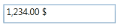
currencyTextBox.CurrencyPositivePattern = 3;
{% endhighlight %}
{% endtabs %}
### Negative Value Pattern
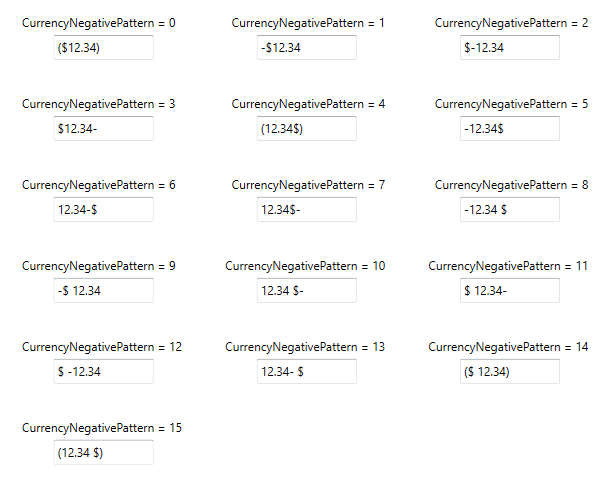
You can use the [CurrencyNegativePattern](https://help.syncfusion.com/cr/wpf/Syncfusion.Windows.Shared.CurrencyTextBox.html#Syncfusion_Windows_Shared_CurrencyTextBox_CurrencyNegativePattern) property to customize the location of the currency symbol and the negative currency values. In the table below,"$" denotes the symbol of the currency, and "n" denotes the number.
**CurrencyNegativePattern table**
|
Value |
Associated Pattern |
|
0 |
($n) |
|
1 |
-$n |
|
2 |
$-n |
|
3 |
$n- |
|
4 |
(n$) |
|
5 |
-n$ |
|
6 |
n-$ |
|
7 |
n$- |
|
8 |
-n $ |
|
9 |
-$ n |
|
10 |
n $- |
|
11 |
$ n- |
|
12 |
$ -n |
|
13 |
n- $ |
|
14 |
($ n) |
|
15 |
(n $) |
{% tabs %}
{% highlight xaml %}
{% endhighlight %}
{% highlight C# %}
CurrencyTextBox currencyTextBox = new CurrencyTextBox();
currencyTextBox.Width = 150;
currencyTextBox.Height = 25;
currencyTextBox.Value = -1234;
currencyTextBox.CurrencyNegativePattern = 0;
{% endhighlight %}
{% endtabs %}