Getting Started with WinUI Docking Control
18 Nov 20187 minutes to read
This section explains how to create a WinUI application with the Docking control and add docked and document windows.
Creating an application with WinUI Docking
-
Create a WinUI 3 desktop application using C# and .NET 8 or later. For step-by-step instructions, see the Create a WinUI 3 desktop app guide.
-
Add a reference to the
Syncfusion.DockingManager.WinUINuGet package using one of the following methods:-
Package Manager Console: Run
Install-Package Syncfusion.DockingManager.WinUI. -
.NET CLI: Run
dot net add package Syncfusion.DockingManager.WinUI. -
Visual Studio: Right-click the project, choose Manage NuGet Packages, search for
Syncfusion.DockingManager.WinUI, and click Install.
-
Package Manager Console: Run
-
Import the control namespace
Syncfusion.UI.Xaml.Dockingin XAML or C# code.
The XAML samples in this document use
<Window>as the root element because the control targets WinUI 3 desktop applications.
Initialize the DockingManager
Add the SfDockingManager control to the page or window.
<Window
    x:Class="GettingStarted.MainWindow"
    xmlns="http://schemas.microsoft.com/winfx/2006/xaml/presentation"
    xmlns:x="http://schemas.microsoft.com/winfx/2006/xaml"
    xmlns:docking="using:Syncfusion.UI.Xaml.Docking">

    <Grid>
        <docking:SfDockingManager x:Name="dockingManager"/>
    </Grid>

</Window>
using Syncfusion.UI.Xaml.Docking;
public sealed partial class MainWindow : Window
{
public MainWindow()
{
InitializeComponent();
SfDockingManager dockingManager = new SfDockingManager();
Content = dockingManager;
}
}Add dock panes
The DockPane is the basic element of the DockingManager control. It hosts content and can be displayed in different docking states.
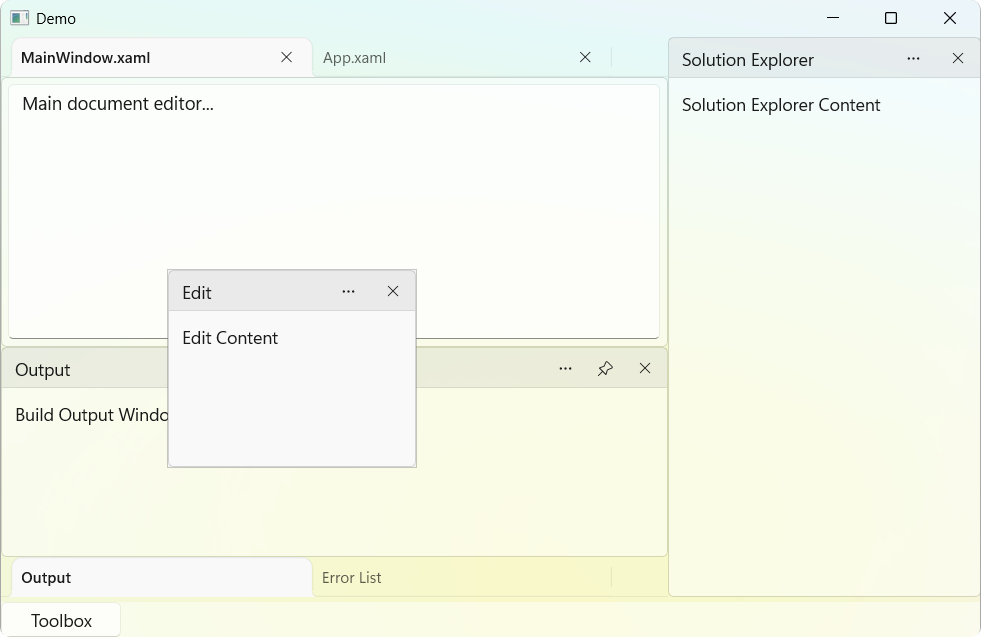
The following example demonstrates how to add docked and document panes.
<Grid>
    <docking:SfDockingManager>

        <docking:DockPane Header="Toolbox"
                          DockDirection="Left"
                          DockState="Docked">
            <TextBlock Text="Toolbox Content"/>
        </docking:DockPane>

        <docking:DockPane Header="Solution Explorer"
                          DockDirection="Right"
                          DockState="Docked">
            <TextBlock Text="Solution Explorer Content"/>
        </docking:DockPane>

        <docking:DockPane Header="MainWindow.xaml"
                          DockState="Document">
            <TextBox AcceptsReturn="True"
                     Text="Main document editor..."/>
        </docking:DockPane>

    </docking:SfDockingManager>
</Grid>
Dock states
The DockingManager control supports the following docking states:
- Docked - Displays a pane in one of the four dock regions (Left, Right, Top, or Bottom).
- Document - Displays a pane in the document area.
- Floating - Displays a pane in a separate floating window.
- AutoHidden - Hides a pane until it is activated.
- Tabbed - Groups panes within a tabbed layout.
Create tab groups
Use the TargetNameInTabbedState property to group a pane with another existing pane. The grouped panes appear together in a tabbed layout.
<docking:DockPane x:Name="OutputPane"
                  Header="Output"
                  DockDirection="Bottom"
                  DockState="Docked">
    <TextBlock Text="Output Content"/>
</docking:DockPane>

<docking:DockPane Header="Error List"
                  DockDirection="Bottom"
                  DockState="Tabbed"
                  TargetNameInTabbedState="OutputPane">
    <TextBlock Text="Error List Content"/>
</docking:DockPane>
SfDockingManager dockingManager = new SfDockingManager();
DockPane outputPane = new DockPane()
{
Name = "OutputPane",
Header = "Output",
DockDirection = DockDirection.Bottom,
DockState = DockState.Docked,
Content = new TextBlock() { Text = "Output Content" }
};
DockPane errorListPane = new DockPane()
{
Header = "Error List",
DockDirection = DockDirection.Bottom,
DockState = DockState.Tabbed,
TargetNameInTabbedState = "OutputPane",
Content = new TextBlock() { Text = "Error List Content" }
};
dockingManager.Children.Add(outputPane);
dockingManager.Children.Add(errorListPane);Add document panes
A document pane is hosted in the document area of the layout. Set the DockState property to Document.
<docking:DockPane Header="MainWindow.xaml"
                  DockState="Document">
    <TextBox AcceptsReturn="True"
             Text="Main document editor..."/>
</docking:DockPane>
SfDockingManager dockingManager = new SfDockingManager();
DockPane documentPane = new DockPane()
{
Header = "MainWindow.xaml",
DockState = DockState.Document,
Content = new TextBox()
{
AcceptsReturn = true,
Text = "Main document editor..."
}
};
dockingManager.Children.Add(documentPane);Add a floating window
A pane can be displayed in a floating window by setting its DockState to Floating. The pane detaches from the main layout and appears in its own movable window.
<docking:DockPane Header="Properties"
                  DockState="Floating">
    <TextBlock Text="Properties Window"/>
</docking:DockPane>
SfDockingManager dockingManager = new SfDockingManager();
DockPane propertiesPane = new DockPane()
{
Header = "Properties",
DockState = DockState.Floating,
Content = new TextBlock() { Text = "Properties Window" }
};
dockingManager.Children.Add(propertiesPane);