|
ComboBoxAdv Properties |
Description |
|
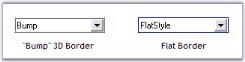
Border3DStyle |
Specifies the 3D BorderStyle for the control.The options are,
- RaisedInner
- RaisedOuter
- Raised
- Sunken(Default)
- SunkenInner
SunkenOuter- Flat
- Bump and
- Adjust
.
FlatStyle should be set to "Standard" to make this property setting effective. |
|
BorderSides |
Specifies the BorderSides of the control.The options are, - Left
- Top
- Right
- Bottom
- Middle and
- All(Default)
|
|
FlatStyle |
Specifies the Flat Style. The options are* {{ 'Flat,' | markdownify }}* {{ 'Standard (Default) and'| markdownify }}* {{ 'System.' | markdownify }} |
|
FlatBorderColor |
Specifies the color with which flat border should be drawn. FlatStyle must be set to 'Flat' to get the color effect. |
{% tabs %}
{% highlight c# %}
//Border appearance settings
this.comboBoxAdv1.Border3DStyle = System.Windows.Forms.Border3DStyle.Flat;
this.comboBoxAdv1.BorderSides = System.Windows.Forms.Border3DSide.All;
this.comboBoxAdv1.FlatStyle = Syncfusion.Windows.Forms.Tools.ComboFlatStyle.Flat;
this.comboBoxAdv1.FlatBorderColor = System.Drawing.Color.Blue;
{% endhighlight %}
{% highlight vb %}
'Border appearance settings
Me.comboBoxAdv1.Border3DStyle = System.Windows.Forms.Border3DStyle.Flat
Me.comboBoxAdv1.BorderSides = System.Windows.Forms.Border3DSide.All
Me.comboBoxAdv1.FlatStyle = Syncfusion.Windows.Forms.Tools.ComboFlatStyle.Flat
Me.comboBoxAdv1.FlatBorderColor = System.Drawing.Color.Blue
{% endhighlight %}
{% endtabs %}
## Visual Styles
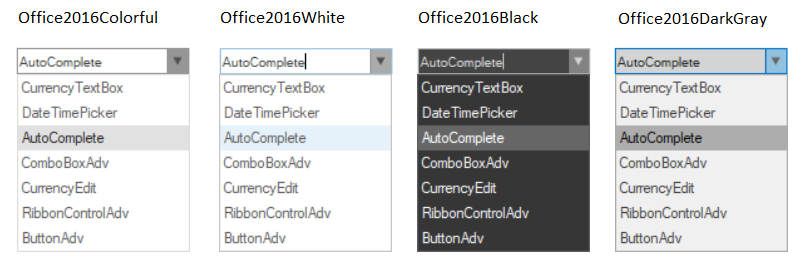
ComboBoxAdv supports visual styles such as Office2016Colorful, Office2016White, Office2016Black, Office2016DarkGray, Metro, Office2010, Default, OfficeXP, Office2003, Office2007, Office2007Outlook, , VS2005 , VS2007 with all three color schemes. The style can be set using Style property.
{% tabs %}
{% highlight c# %}
//To set Visual Style for ComboBox
this.comboBoxAdv1.Style = Syncfusion.Windows.Forms.VisualStyle.Office2016Colorful;
{% endhighlight %}
{% highlight vb %}
'To set Visual Style for ComboBox
Me.comboBoxAdv1.Style = Syncfusion.Windows.Forms.VisualStyle.Office2016Colorful
{% endhighlight %}
{% endtabs %}
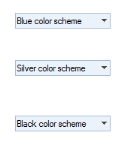
### Office Color Schemes
We can set color schemes for Office2007 style.
{% tabs %}
{% highlight c# %}
//To set Blue Color scheme
this.comboBoxAdv3.Office2007ColorTheme = Syncfusion.Windows.Forms.Office2007Theme.Silver;
//To set Silver Color scheme
this.comboBoxAdv6.Office2007ColorTheme = Syncfusion.Windows.Forms.Office2007Theme.Silver;
//To set Black Color scheme
this.comboBoxAdv9.Office2007ColorTheme = Syncfusion.Windows.Forms.Office2007Theme.Black;
{% endhighlight %}
{% highlight vb %}
'To set Blue Color scheme
Me.comboBoxAdv1.Office2007ColorTheme = Syncfusion.Windows.Forms.Office2007Theme.Blue
'To set Silver Color scheme
Me.comboBoxAdv1.Office2007ColorTheme = Syncfusion.Windows.Forms.Office2007Theme.Silver
'To set Black Color scheme
Me.comboBoxAdv1.Office2007ColorTheme = Syncfusion.Windows.Forms.Office2007Theme.Black
{% endhighlight %}
{% endtabs %}
### Custom Colors
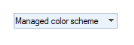
You can also apply custom colors to the ComboBoxAdv control by setting Office2007ColorTheme to "Managed" and specifying the custom color through the ApplyManagedColors method as follows.
{% tabs %}
{% highlight c# %}
this.comboBoxAdv1.Office2007ColorTheme = Syncfusion.Windows.Forms.Office2007Theme.Managed;
Office2007Colors.ApplyManagedColors(this, Color.Orchid);
{% endhighlight %}
{% highlight vb %}
Me.comboBoxAdv1.Office2007ColorTheme = Syncfusion.Windows.Forms.Office2007Theme.Managed
Office2007Colors.ApplyManagedColors(Me, Color.Orchid)
{% endhighlight %}
{% endtabs %}
## Background Settings
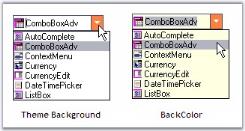
When ComboBoxAdv control is set with some style, theme background is drawn. You can override this background with the BackColor property using the IgnoreThemeBackground property. When IgnoreThemeBackground is set to true, the control ignores the theme background and draws the back color as the background.
{% tabs %}
{% highlight c# %}
//Background settings
this.comboBoxAdv1.BackColor = System.Drawing.SystemColors.Info;
this.comboBoxAdv1.IgnoreThemeBackground = true;
{% endhighlight %}
{% highlight vb %}
'Background settings
Me.comboBoxAdv1.BackColor = System.Drawing.SystemColors.Info
Me.comboBoxAdv1.IgnoreThemeBackground = True
{% endhighlight %}
{% endtabs %}
## Image Settings
Images can be easily associated with the items of the ComboBoxAdv control using the following properties.