Scale in UWP Linear Gauge
18 Nov 201817 minutes to read
The MainScale is a linear scale that integrates ticks, labels, ranges, and pointers to customize the basic look and feel of the linear gauge.
<gauge:SfLinearGauge>
    <gauge:SfLinearGauge.MainScale>
        <gauge:LinearScale Interval="10"
                           MajorTickStroke="Gray" MajorTickSize="25" MinorTickSize="12" LabelSize="15" ScaleBarSize="20"
                           MinorTickStroke="Gray" LabelStroke="#424242" MinorTicksPerInterval="3" ScaleBarLength="300">
        </gauge:LinearScale>
    </gauge:SfLinearGauge.MainScale>
</gauge:SfLinearGauge>
SfLinearGauge sfLinearGauge = new SfLinearGauge();
LinearScale linearScale = new LinearScale();
linearScale.Interval = 10;
linearScale.LabelSize = 15;
linearScale.MajorTickStroke = new SolidColorBrush(Colors.Gray);
linearScale.MinorTickStroke = new SolidColorBrush(Colors.Gray);
linearScale.LabelStroke = new SolidColorBrush(Color.FromArgb(0xff, 0x42, 0x42, 0x42));
linearScale.MajorTickSize = 25;
linearScale.MinorTickSize = 12;
linearScale.ScaleBarLength = 300;
linearScale.MinorTicksPerInterval = 3;
sfLinearGauge.MainScale = linearScale;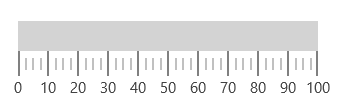
Setting minimum and maximum values for a scale
To change the minimum and maximum values of a linear scale, use the Minimum and Maximum properties as shown in the following code snippet.
<gauge:SfLinearGauge>
    <gauge:SfLinearGauge.MainScale>
        <gauge:LinearScale Minimum="0" Maximum="200"
                           MajorTickStroke="Gray"
                           MajorTickSize="25"
                           MinorTickSize="12" LabelSize="15"
                           MinorTickStroke="Gray"
                           LabelStroke="#424242"
                           MinorTicksPerInterval="3"
                           ScaleBarLength="300">
        </gauge:LinearScale>
    </gauge:SfLinearGauge.MainScale>
</gauge:SfLinearGauge>
SfLinearGauge sfLinearGauge = new SfLinearGauge();
LinearScale linearScale = new LinearScale();
linearScale.Minimum = 0;
linearScale.Maximum = 200;
linearScale.LabelSize = 15;
linearScale.MajorTickStroke = new SolidColorBrush(Colors.Gray);
linearScale.MinorTickStroke = new SolidColorBrush(Colors.Gray);
linearScale.LabelStroke = new SolidColorBrush(Color.FromArgb(0xff, 0x42, 0x42, 0x42));
linearScale.MajorTickSize = 25;
linearScale.MinorTickSize = 12;
linearScale.ScaleBarLength = 300;
linearScale.MinorTicksPerInterval = 3;
sfLinearGauge.MainScale = linearScale;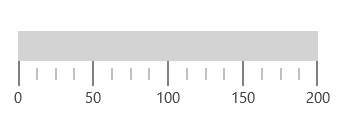
Setting interval for a scale
The Interval property allows you to set intervals for a scale. The default value of the Interval property is auto interval. Auto interval defines the count of the scale labels as 3 for 100 pixels.
<gauge:SfLinearGauge>
    <gauge:SfLinearGauge.MainScale>
        <gauge:LinearScale Minimum="0" Maximum="500" Interval="100"
                           MajorTickStroke="Gray" MajorTickSize="25"
                           MinorTickSize="12" LabelSize="15"
                           MinorTickStroke="Gray" LabelStroke="#424242"
                           MinorTicksPerInterval="3" ScaleBarLength="300">
        </gauge:LinearScale>
    </gauge:SfLinearGauge.MainScale>
</gauge:SfLinearGauge>
SfLinearGauge sfLinearGauge = new SfLinearGauge();
LinearScale linearScale = new LinearScale();
linearScale.Minimum = 0;
linearScale.Maximum = 500;
linearScale.Interval = 100;
linearScale.LabelSize = 15;
linearScale.MajorTickStroke = new SolidColorBrush(Colors.Gray);
linearScale.MinorTickStroke = new SolidColorBrush(Colors.Gray);
linearScale.LabelStroke = new SolidColorBrush(Color.FromArgb(0xff, 0x42, 0x42, 0x42));
linearScale.MajorTickSize = 25;
linearScale.MinorTickSize = 12;
linearScale.ScaleBarLength = 300;
linearScale.MinorTicksPerInterval = 3;
sfLinearGauge.MainScale = linearScale;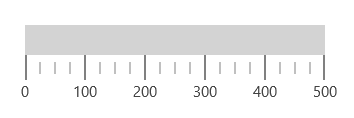
Scale customization
You can customize the color, length, size, and position of the LinearScale using the ScaleBarStroke, ScaleBarLength, ScaleBarSize, ScaleBarBorderThickness, and ScaleBarBorderBrush properties, respectively.
<gauge:SfLinearGauge>
    <gauge:SfLinearGauge.MainScale>
        <gauge:LinearScale ScaleBarBorderBrush="Red" ScaleBarStroke="Blue" MajorTickStroke="Gray"
                           MinorTickStroke="Gray" LabelStroke="#424242" ScaleBarBorderThickness="3"
                           MinorTickSize="12" LabelSize="15" MajorTickSize="25"
                           ScaleBarSize="20" MinorTicksPerInterval="3" ScaleBarLength="300"/>
    </gauge:SfLinearGauge.MainScale>
</gauge:SfLinearGauge>
SfLinearGauge sfLinearGauge = new SfLinearGauge();
LinearScale linearScale = new LinearScale();
linearScale.ScaleBarStroke = new SolidColorBrush(Colors.Blue);
linearScale.MajorTickStroke = new SolidColorBrush(Colors.Gray);
linearScale.MinorTickStroke = new SolidColorBrush(Colors.Gray);
linearScale.LabelStroke = new SolidColorBrush(Color.FromArgb(0xff, 0x42, 0x42, 0x42));
linearScale.ScaleBarSize = 20;
linearScale.ScaleBarBorderThickness = new Thickness(3);
linearScale.ScaleBarBorderBrush = new SolidColorBrush(Colors.Red);
linearScale.MajorTickSize = 25;
linearScale.MinorTickSize = 12;
linearScale.MinorTicksPerInterval = 3;
linearScale.ScaleBarLength = 300;
sfLinearGauge.MainScale = linearScale;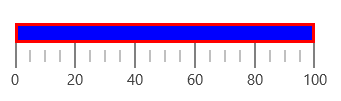
Setting scale direction
You can set the scale position to forward and backward using the ScaleDirection property.
<gauge:SfLinearGauge>
    <gauge:SfLinearGauge.MainScale>
        <gauge:LinearScale ScaleDirection="Backward" Interval="10"
                           MajorTickStroke="Gray" MajorTickSize="25"
                           MinorTickSize="12" LabelSize="15"
                           MinorTickStroke="Gray" LabelStroke="#424242"
                           MinorTicksPerInterval="3" ScaleBarLength="300">
        </gauge:LinearScale>
    </gauge:SfLinearGauge.MainScale>
</gauge:SfLinearGauge>
SfLinearGauge sfLinearGauge = new SfLinearGauge();
LinearScale linearScale = new LinearScale();
linearScale.ScaleDirection = LinearScaleDirection.Backward;
linearScale.Interval = 10;
linearScale.LabelSize = 15;
linearScale.MajorTickStroke = new SolidColorBrush(Colors.Gray);
linearScale.MinorTickStroke = new SolidColorBrush(Colors.Gray);
linearScale.LabelStroke = new SolidColorBrush(Color.FromArgb(0xff, 0x42, 0x42, 0x42));
linearScale.MajorTickSize = 25;
linearScale.MinorTickSize = 12;
linearScale.ScaleBarLength = 300;
linearScale.MinorTicksPerInterval = 3;
sfLinearGauge.MainScale = linearScale;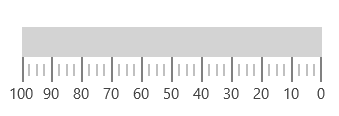
Setting position for a scale
You can set the scale position using the ScaleBarPositionFactor property. First, set the ElementsPositionMode to Custom, and then set ScaleBarPositionFactor.
<gauge:SfLinearGauge>
    <gauge:SfLinearGauge.MainScale>
        <gauge:LinearScale ElementsPositionMode="Custom"
                           ScaleBarPositionFactor="50" TickPositionFactor="0.443" Interval="10"
                           MajorTickStroke="Gray" MajorTickSize="25"
                           MinorTickSize="12" LabelSize="15"
                           MinorTickStroke="Gray" LabelStroke="#424242"
                           MinorTicksPerInterval="3" ScaleBarLength="300">
        </gauge:LinearScale>
    </gauge:SfLinearGauge.MainScale>
</gauge:SfLinearGauge>
SfLinearGauge sfLinearGauge = new SfLinearGauge();
LinearScale linearScale = new LinearScale();
linearScale.ElementsPositionMode = LinearScalePositionModes.Custom;
linearScale.ScaleBarPositionFactor = 0.5;
linearScale.TickPositionFactor = 0.443;
linearScale.Interval = 10;
linearScale.LabelSize = 15;
linearScale.MajorTickStroke = new SolidColorBrush(Colors.Gray);
linearScale.MinorTickStroke = new SolidColorBrush(Colors.Gray);
linearScale.LabelStroke = new SolidColorBrush(Color.FromArgb(0xff, 0x42, 0x42, 0x42));
linearScale.MajorTickSize = 25;
linearScale.MinorTickSize = 12;
linearScale.ScaleBarLength = 300;
linearScale.MinorTicksPerInterval = 3;
sfLinearGauge.MainScale = linearScale;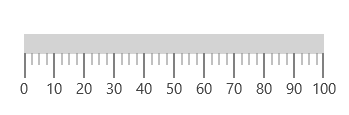
Setting corner radius type for scale
Corners of the LinearScale can be customized by setting a value to the CornerRadius property.
<gauge:SfLinearGauge>
    <gauge:SfLinearGauge.MainScale>
        <gauge:LinearScale CornerRadius="10"
                           MajorTickStroke="Gray" MajorTickSize="25"
                           MinorTickSize="12" LabelSize="15"
                           MinorTickStroke="Gray" LabelStroke="#424242"
                           MinorTicksPerInterval="3" ScaleBarLength="300">
        </gauge:LinearScale>
    </gauge:SfLinearGauge.MainScale>
</gauge:SfLinearGauge>
SfLinearGauge sfLinearGauge = new SfLinearGauge();
LinearScale linearScale = new LinearScale();
linearScale.CornerRadius = new CornerRadius(10);
linearScale.LabelSize = 15;
linearScale.MajorTickStroke = new SolidColorBrush(Colors.Gray);
linearScale.MinorTickStroke = new SolidColorBrush(Colors.Gray);
linearScale.LabelStroke = new SolidColorBrush(Color.FromArgb(0xff, 0x42, 0x42, 0x42));
linearScale.MajorTickSize = 25;
linearScale.MinorTickSize = 12;
linearScale.ScaleBarLength = 300;
linearScale.MinorTicksPerInterval = 3;
sfLinearGauge.MainScale = linearScale;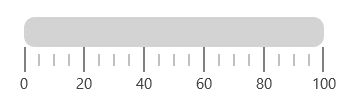
Setting gradient color for scale
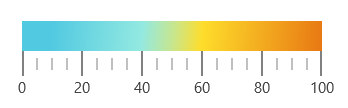
You can give a smooth color transition to a scale by specifying different colors based on scale value using the GradientStops property.
<gauge:SfLinearGauge>
    <gauge:SfLinearGauge.MainScale>
        <gauge:LinearScale MajorTickStroke="Gray" MajorTickSize="25"
                           MinorTickSize="12" LabelSize="15"
                           MinorTickStroke="Gray" LabelStroke="#424242"
                           MinorTicksPerInterval="3" ScaleBarLength="300">
            <gauge:LinearScale.GradientStops>
                <gauge:GaugeGradientStop Value="10" Color="#51c9e1"/>
                <gauge:GaugeGradientStop Value="40" Color="#93e9e1"/>
                <gauge:GaugeGradientStop Value="50" Color="#c5e692"/>
                <gauge:GaugeGradientStop Value="60" Color="#fedd2b"/>
                <gauge:GaugeGradientStop Value="100" Color="#e87813"/>
            </gauge:LinearScale.GradientStops>
        </gauge:LinearScale>
    </gauge:SfLinearGauge.MainScale>
</gauge:SfLinearGauge>
SfLinearGauge sfLinearGauge = new SfLinearGauge();
LinearScale linearScale = new LinearScale();
linearScale.LabelSize = 15;
linearScale.MajorTickStroke = new SolidColorBrush(Colors.Gray);
linearScale.MinorTickStroke = new SolidColorBrush(Colors.Gray);
linearScale.LabelStroke = new SolidColorBrush(Color.FromArgb(0xff, 0x42, 0x42, 0x42));
linearScale.MajorTickSize = 25;
linearScale.MinorTickSize = 12;
linearScale.ScaleBarLength = 300;
GaugeGradientStop gaugeGradientStop = new GaugeGradientStop();
gaugeGradientStop.Value = 10;
gaugeGradientStop.Color = Color.FromArgb(0xff, 0x51, 0xc9, 0xe1);
linearScale.GradientStops.Add(gaugeGradientStop);
GaugeGradientStop gaugeGradientStop1 = new GaugeGradientStop();
gaugeGradientStop1.Value = 40;
gaugeGradientStop1.Color = Color.FromArgb(0xff, 0x93, 0xe9, 0xe1);
linearScale.GradientStops.Add(gaugeGradientStop1);
GaugeGradientStop gaugeGradientStop2 = new GaugeGradientStop();
gaugeGradientStop2.Value = 50;
gaugeGradientStop2.Color = Color.FromArgb(0xff, 0xc5, 0xe6, 0x92);
linearScale.GradientStops.Add(gaugeGradientStop2);
GaugeGradientStop gaugeGradientStop3 = new GaugeGradientStop();
gaugeGradientStop3.Value = 60;
gaugeGradientStop3.Color = Color.FromArgb(0xff, 0xfe, 0xdd, 0x2b);
linearScale.GradientStops.Add(gaugeGradientStop3);
GaugeGradientStop gaugeGradientStop4 = new GaugeGradientStop();
gaugeGradientStop4.Value = 100;
gaugeGradientStop4.Color = Color.FromArgb(0xff, 0xe8, 0x78, 0x13);
linearScale.GradientStops.Add(gaugeGradientStop4);
linearScale.MinorTicksPerInterval = 3;
sfLinearGauge.MainScale = linearScale;